¶ Workflows: Multi-Select for Forms and Surveys
Workflows: Multi-Select for Forms and Surveys
In this article, you will learn how to use the new multi-select functionality for forms and surveys in workflows. This update allows you to streamline your automation processes by consolidating multiple triggers into a single workflow.
¶ Step-by-Step Guide
¶ Navigating to Workflows
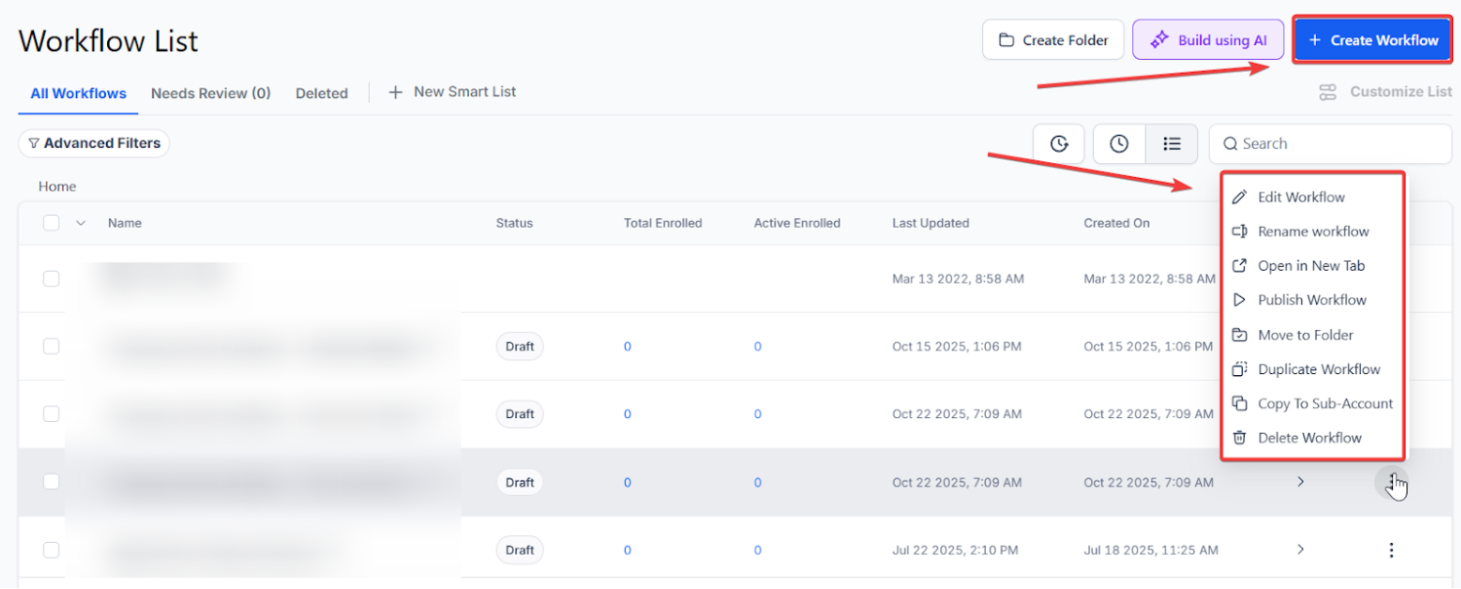
- Navigate to the automation section from the left sidebar.
- Click on “Workflows” at the top.
- Select “Create a new workflow” or choose an existing one to edit.
¶ Adding Multiple Forms
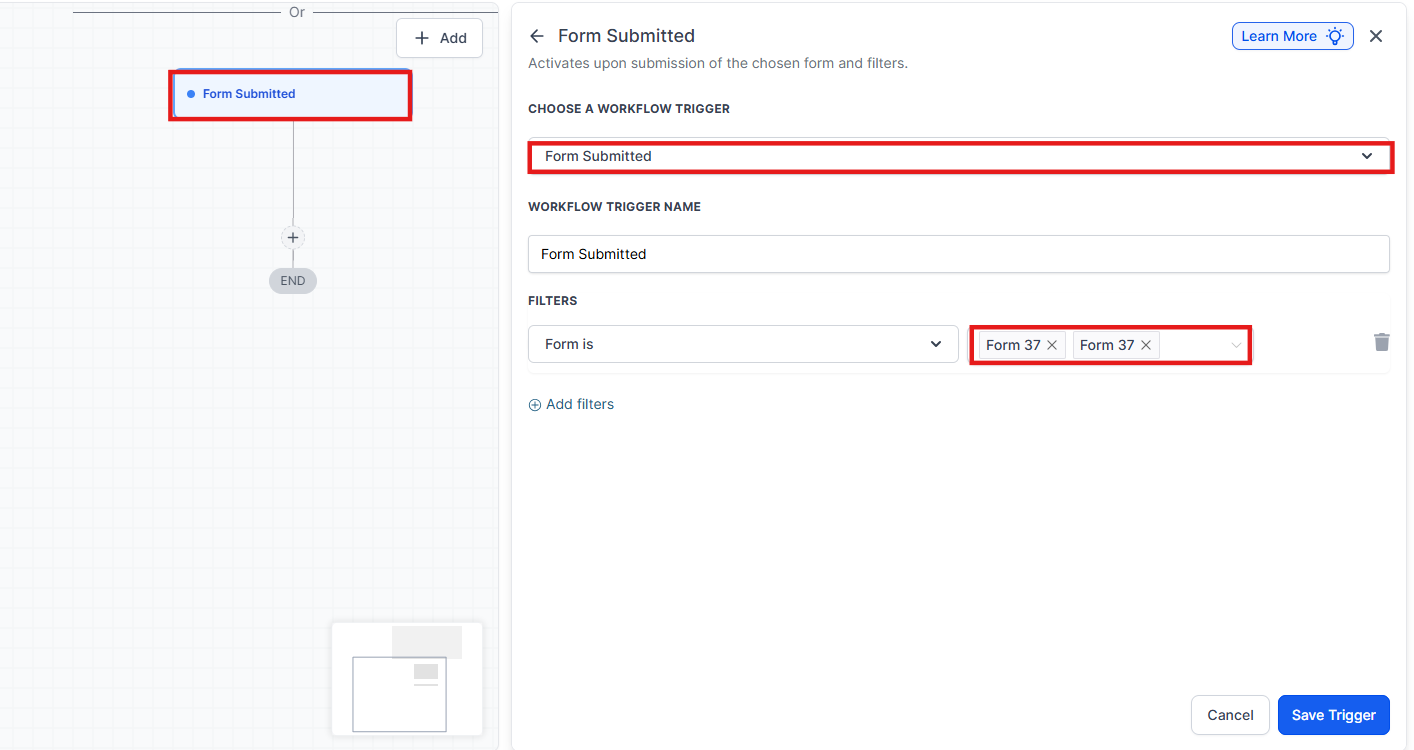
- Click “Add New Trigger.”
- Type “Form Submitted” in the search bar.
- Add filters and select multiple forms by checking the boxes next to the desired forms.
- Click “Save Trigger.”
¶ Adding Multiple Surveys
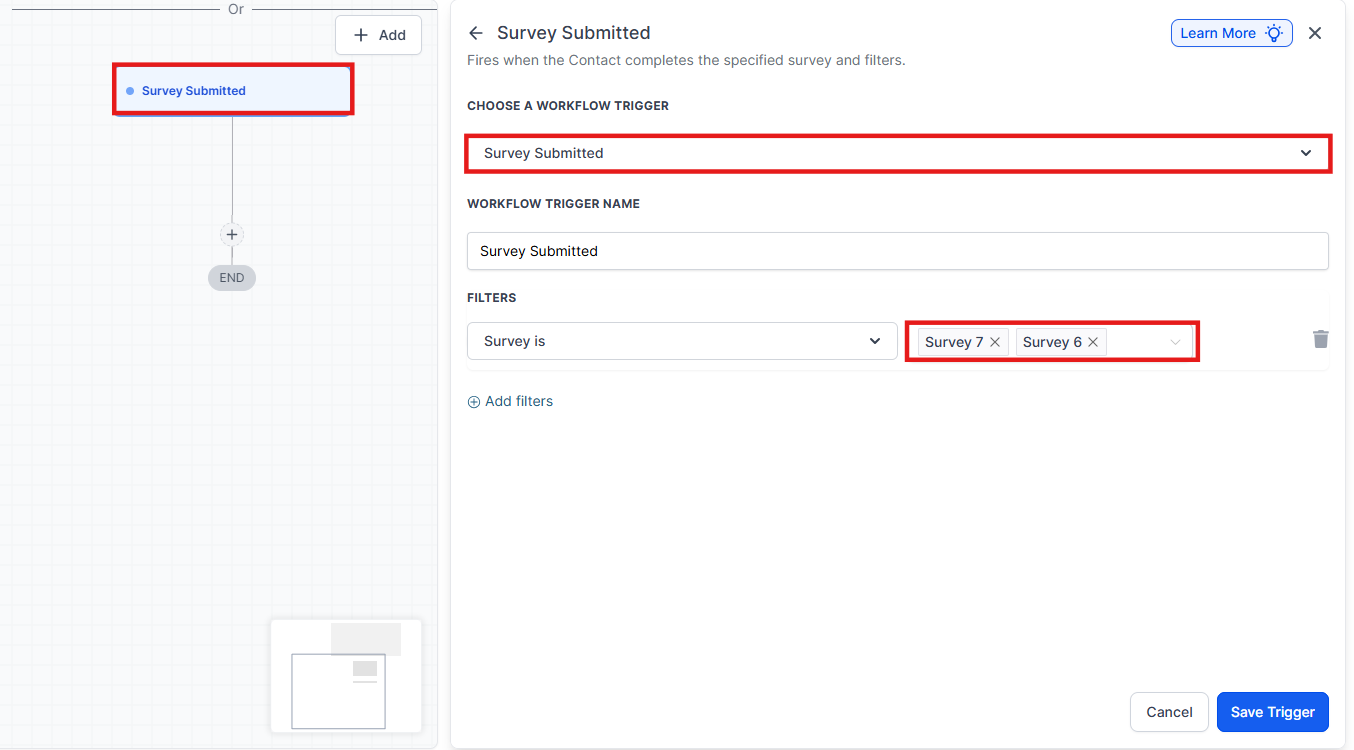
- Click “Add New Trigger.”
- Type “Survey Submitted” in the search bar.
- Add filters and select the desired surveys. You can choose specific conditions such as “disqualified” or “survey is.”
- Click “Save Trigger.”
¶ Summary of Key Points
- Multi-Select Forms and Surveys : Simplifies your workflow setup by allowing multiple selections within a single trigger.
- Efficient Automation : Streamline your workflow with fewer triggers and more precise actions.
¶ FAQs
Question: How does the new multi-select functionality improve my automation process?
Answer: The multi-select functionality allows you to consolidate multiple triggers into a single workflow. This simplifies your setup by requiring fewer triggers and enabling more efficient, streamlined automation.
Question: Can I select specific conditions when adding multiple surveys to a trigger?
Answer: Yes. When adding the “Survey Submitted” trigger, you can apply filters to choose specific conditions, such as “survey is” or “disqualified,” to ensure your automation is precise.
Question: Where do I find the option to create or edit these workflows?
Answer: You can access this by navigating to the Automation section in the left sidebar and clicking on Workflows at the top. From there, you can either create a new workflow or select an existing one to edit.
Question: Can I mix and match Forms and Surveys in the same trigger?
Answer: No. A single trigger must be either a “Form Submitted” type or a “Survey Submitted” type. However, you can add two separate triggers to the same workflow one containing all your forms and one containing all your surveys so that both types of submissions lead to the same automation path.