¶ Workflow Trigger: User Login (Membership Login)
Workflows can be created for a multitude of triggering actions, with any series of follow-up actions/events you wish to customize for your business. The versatility allows you to customize the triggers and actions to fit your needs completely. For example, create a workflow to be notified when a contact logs in to the Membership area of LeadMagicX. This can help you track membership activity.
Follow these steps to create this type of Workflow:
¶ Step 1: Create the Workflow Trigger
- Navigate to Automation on the left > Workflows on the top and create a new workflow or edit an existing one

- In the Workflow builder, add a trigger for “User Login”.
- NOTE: “User” here means a membership user or a contact who has signed up for your membership. This is not a “User” of LeadMagicX as in another team member in your workplace.
- Save your changes.
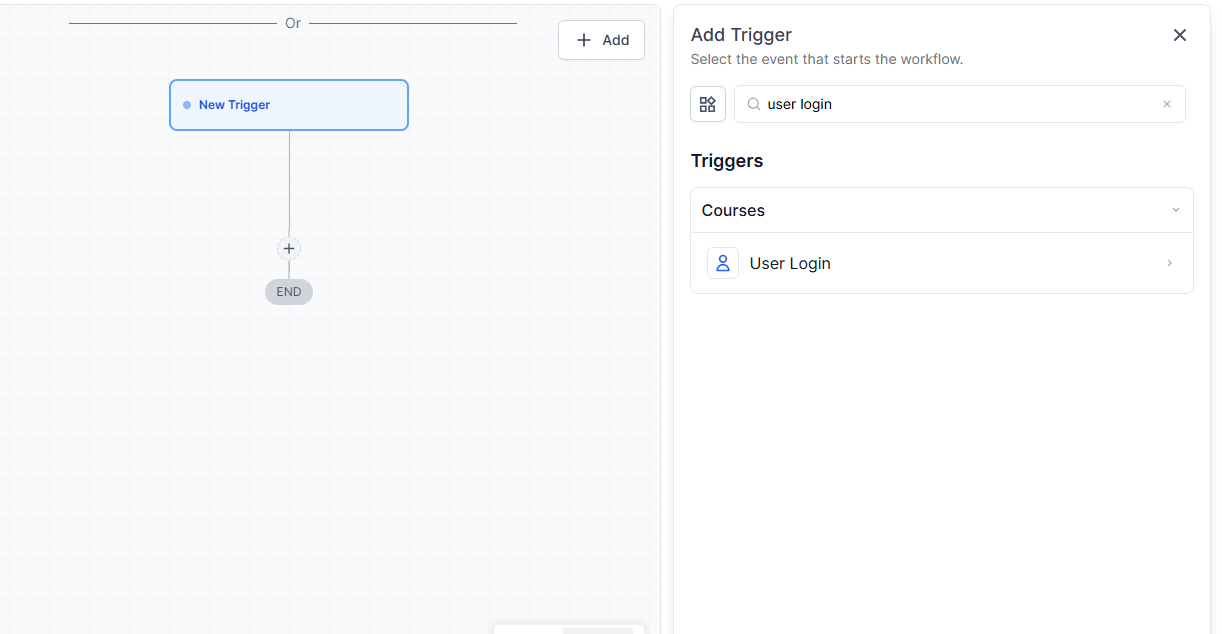
¶ Step 2: Customize the Actions Based on the Trigger
You can customize the actions, from if/else conditions, to sending an email or SMS, assigning a tag, and sending internal notifications. Customize the action(s) as you wish that makes sense for your business!
- Add an Internal Notification action for the user assigned to the contact, such as this example:
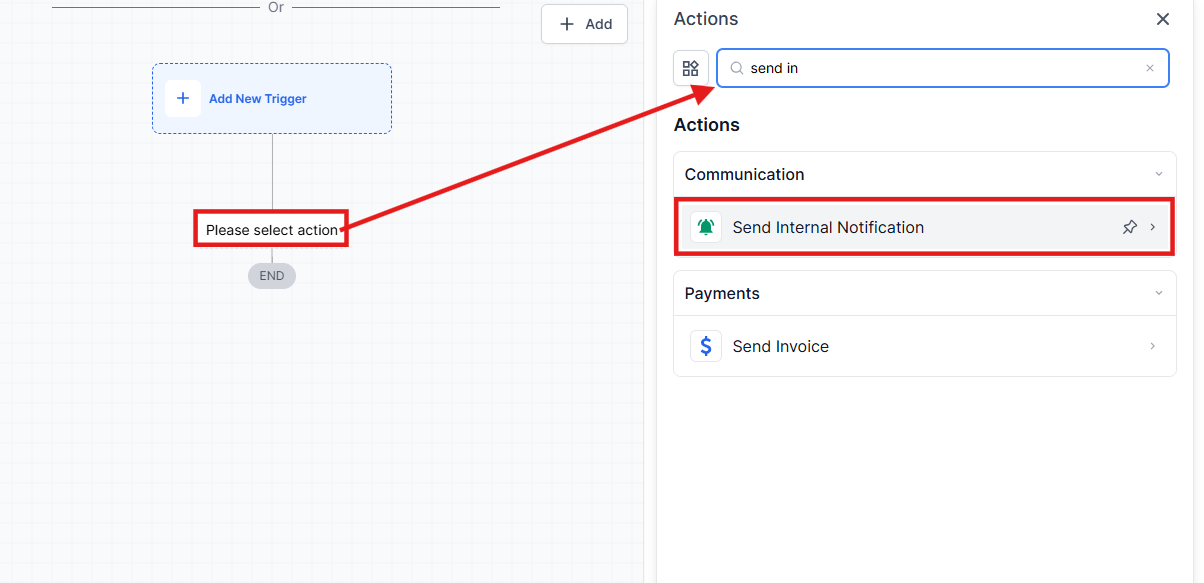
- Make sure to save your changes, and publish the Workflow before using it.

¶ Use Cases for a User Login Workflow
1. Welcoming New Members with Automated Messages
- Scenario : When a user logs in for the first time to access a membership area, you want to send a personalized welcome email to make them feel valued.
- Trigger : “User Login” set to activate only on the first login.
- Action : Send a welcome email outlining features and benefits of the membership area, along with tips on how to navigate the platform.
- Benefit : Enhances user engagement and ensures members feel supported from the start.
2. Tracking Engagement for Exclusive Membership Content
- Scenario : You want to monitor when premium members log in to ensure they’re engaging with the content they’ve subscribed to.
- Trigger : “User Login” triggers each time a premium member logs in.
- Actions : Assign a tag like “Active Member,” and send internal notifications to your team for tracking purposes. Optionally, you can send reminders to less active members encouraging them to log in.
- Benefit : Helps track user activity, identify engagement patterns, and take proactive steps to retain members.
¶ FAQs

Question: What is the purpose of creating a workflow for a user login?**
**Answer: Creating a workflow for a user login allows you to track membership activity more effectively. This can help you monitor when users access the Membership area, keep tabs on engagement, and trigger specific actions based on this activity.
Question: What exactly does the “User” trigger refer to in this context?**
**Answer: In this context, “User” refers to a membership user or a contact who has signed up for your membership program. It does not refer to internal team members of LeadMagicX.
Question: How do I access the Workflow builder?**
**Answer: To access the Workflow builder, navigate to your workflow management or automation section within your platform. Look for an option to create or manage workflows.
Question: What types of actions can I customize for my workflow?**
**Answer: You can customize actions in various ways, including:
- Sending an email or SMS notification
- Assigning or removing tags
- Creating if/else conditions to control the flow
- Sending internal notifications to team members
- Updating contact details or status
Question: How do I add an internal notification action?**
**Answer: To add an internal notification action:
- In the Workflow builder, select the option to add an action.
- Choose “Internal Notification” from the list of available actions.
- Configure the details of the notification, such as the message content and the recipient (e.g., the user assigned to the contact).
- Save the action and make sure to publish the workflow.
**
Question: Can I test the workflow before publishing it?
**Answer: Yes, most platforms offer a testing or preview feature that allows you to simulate the workflow to ensure it functions as expected before publishing it live.
Question: What should I do if the workflow doesn’t seem to trigger correctly?**
**Answer: Double-check the trigger conditions and ensure they are set up correctly. Verify that the actions are configured properly and that there are no errors in the workflow logic. If issues persist, consult the platform’s support resources or contact customer support for assistance.
Question: What happens if I forget to publish the workflow after setting it up?**
**Answer: If the workflow is not published, it won’t run. Always confirm that the workflow is saved and published before expecting it to trigger.
Question: Can I use tags added from this workflow in other automations?**
**Answer: Yes. Tags applied during a User Login workflow can be used as triggers or conditions in other workflows, allowing you to build more advanced automation chains.
Question: What is the benefit of combining this trigger with an “Internal Notification”?
Answer: It allows for proactive account management. Instead of manually checking activity logs, your team receives an immediate SMS or Email alert, allowing them to reach out to the member while they are currently active and engaged on the platform.