¶ Workflow Tigger: Email Events
Workflow Trigger: Email Events
In this article you will find out how to create a workflow trigger: Email Events and the scenarios on why it would be used
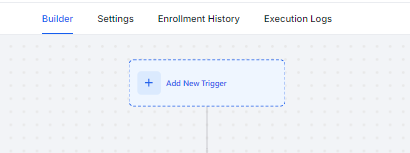
- Click the “Add New Workflow Trigger ” button
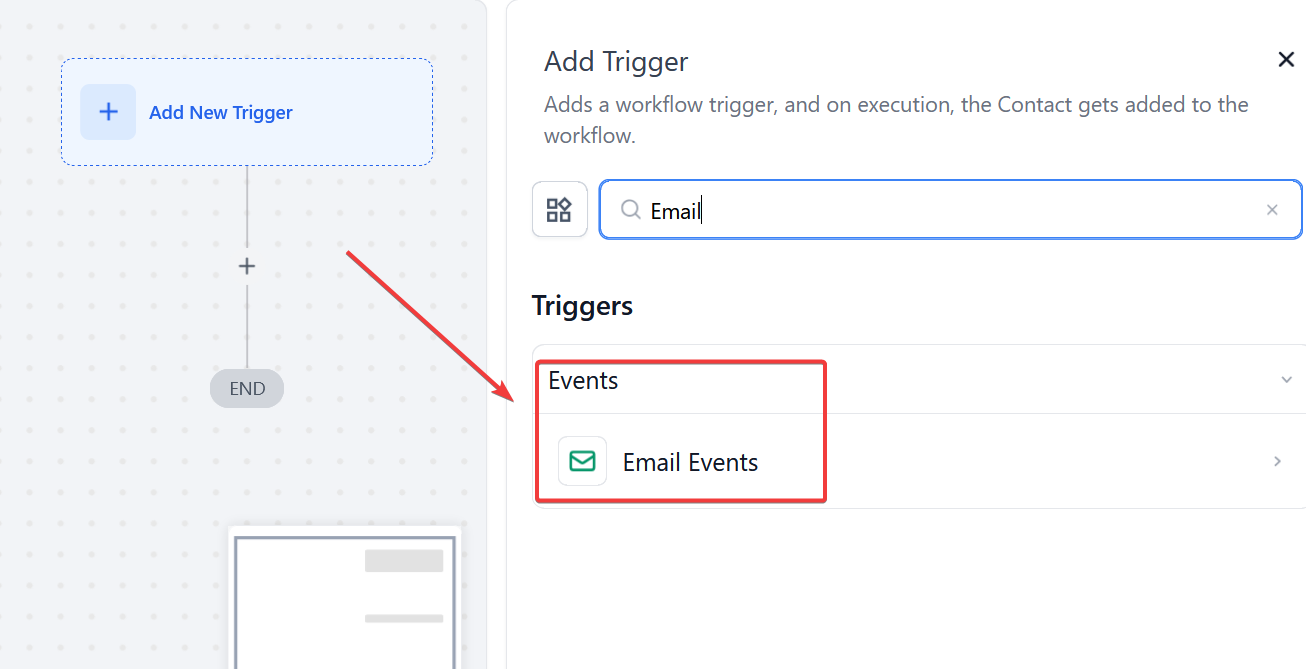
- This will pull up a selection tab on the right of your screen
- Scroll down until you see the “Events” column
- Click on the “Email Events ” button
- This will be triggered based on what happens within a particular email
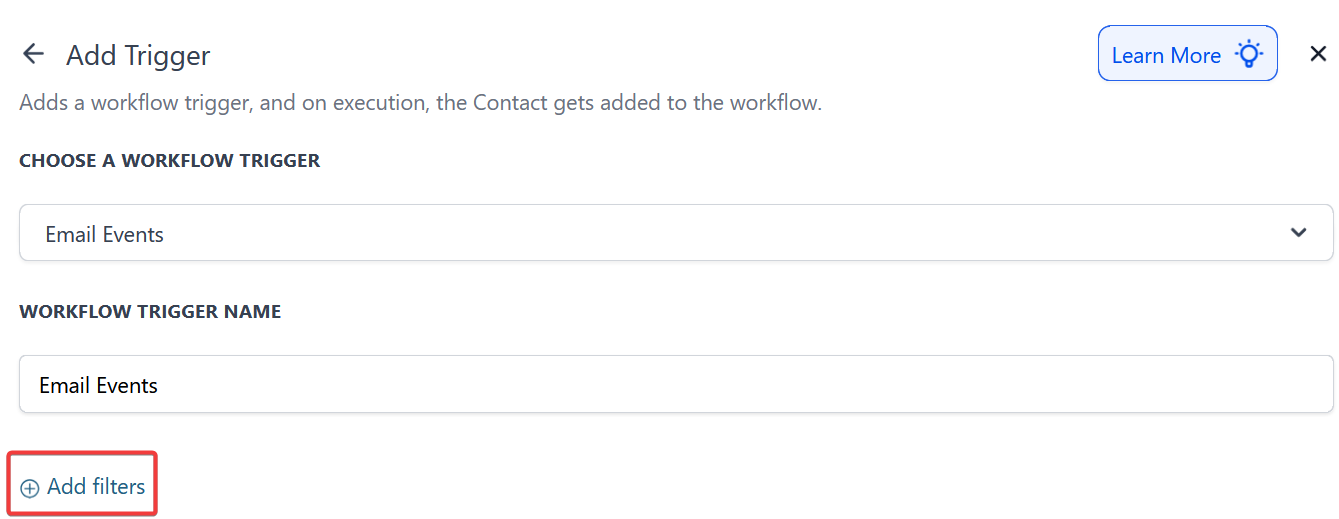
- Select the blue “Add filters” button
- Next under the Standard Fields drop-down select the “Event ” option
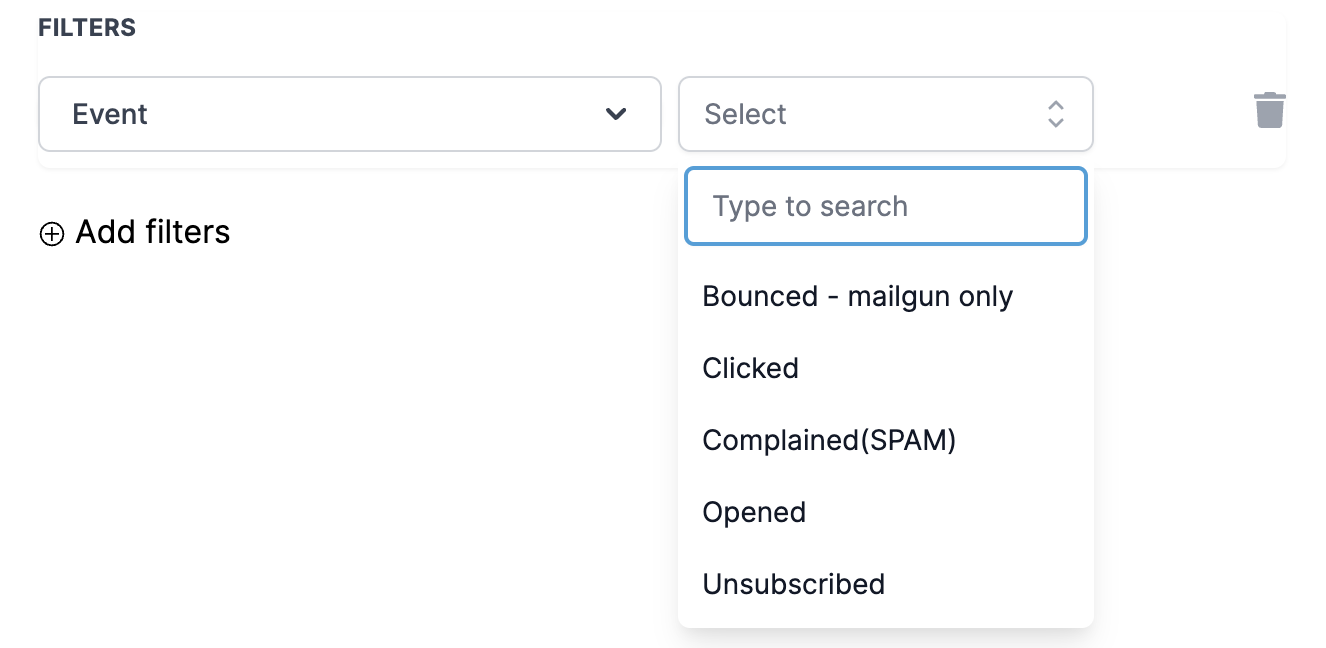
- Select the filter type that applies
- Bounced : an automatic trigger by an email bouncing
- ** Clicked** : someone clicked on an email
- ** Complained** : someone marked it as spam (good for filtering over the list that way you do not get marked for spamming too many times because the account can get flagged)
- Opened:can trigger based on someone opening an email
- ** Unsubscribed** : someone unsubscribing to an email
-
Example: let’s trigger the automation as if someone “Opened ” an email
-
Click the blue “Add filters ” button
- You will have to specify which email; in this case only works if this email is in another** Workflow**

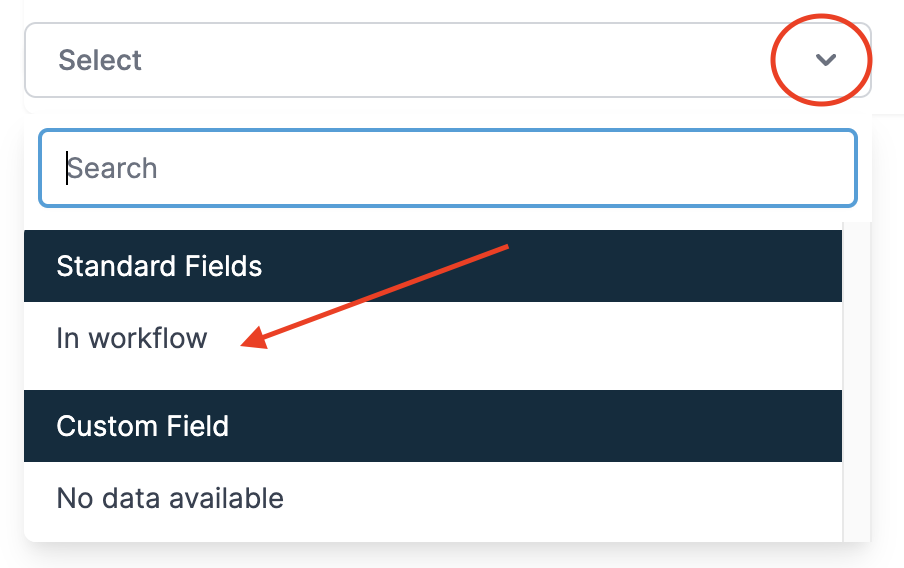
- Once completed this will pop up a drop-down option. Click the dropdown “˅ ” button
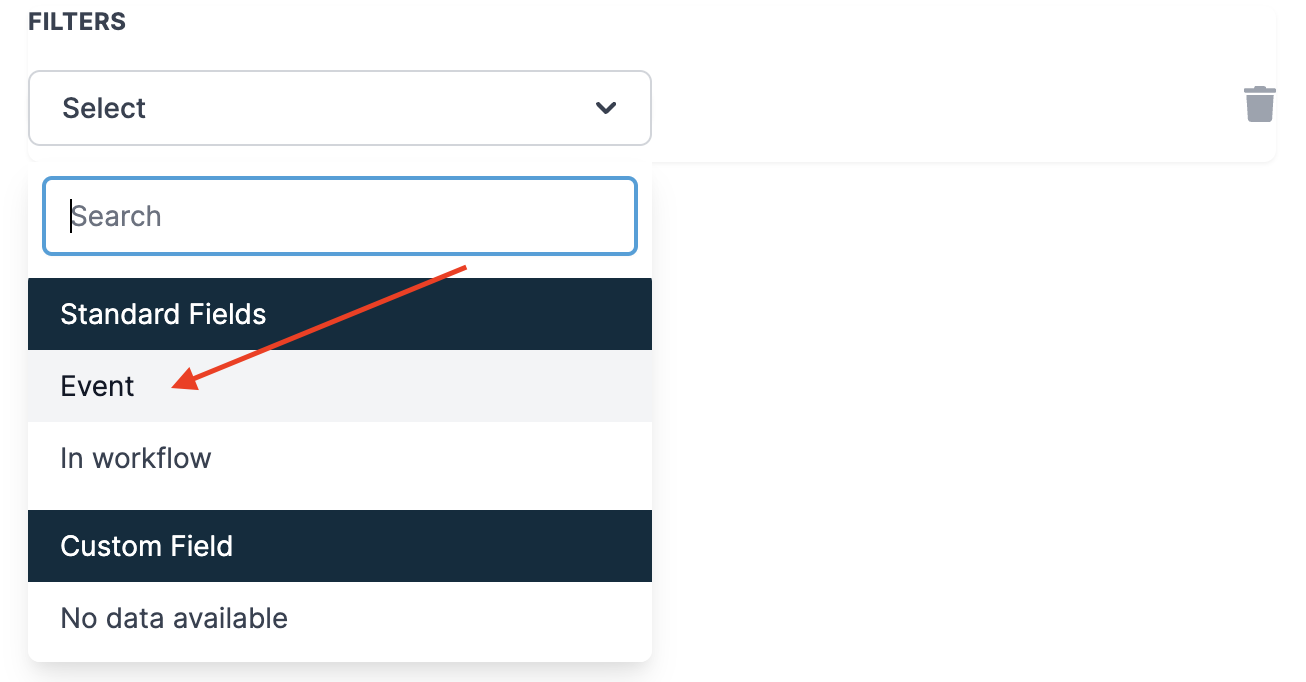
- In the Standard Fields option select “In workflow ”
-
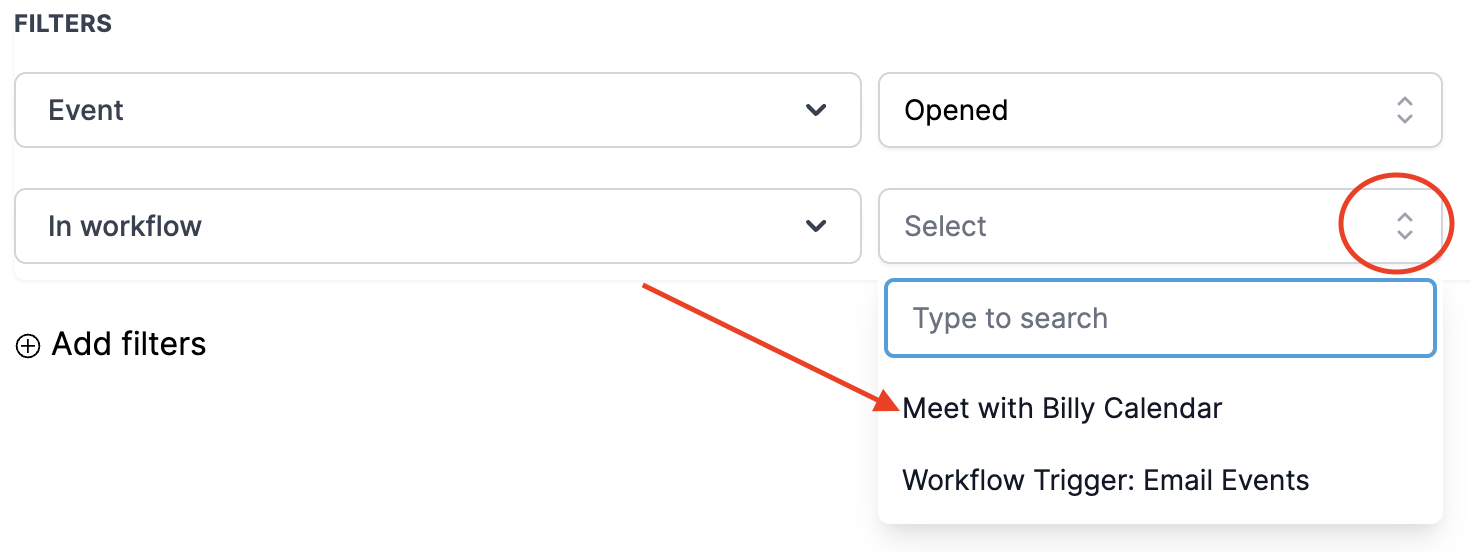
Now click the expand button;
- This will give you the ability to choose any of the workflows previously created
-
In This Example: We will select the “** Meet with Billy Calendar** _” _
- Letting you know someone opened the email that is in the “** Meet with Billy Calendar** _” _
- You have now set up this trigger that will let you know the email has been opened
- Please make sure you click the green “Save Trigger ” button before closing out of the trigger
¶ FAQs
Question: What types of email events can trigger this workflow?**
**Answer: The trigger can be set for various email events, including Bounced, Clicked, Complained, Opened, and Unsubscribed.
Question: Can I set up multiple filters for this trigger?**
**Answer: Yes, you can combine multiple filters to fine-tune when the workflow should be triggered. For example, you could filter by both email event and specific workflows.
Question: How do I specify which email event to use?**
**Answer: After adding the initial filter, select the type of event you want to use from the Standard Fields drop-down menu. You can choose from options like Opened, Clicked, etc.
Question: Can I use this trigger for emails not part of a workflow?**
**Answer: This trigger is effective only for emails that are included in other workflows. Ensure your email is part of a workflow to utilize this trigger.
Question: How can I test if the trigger is set up correctly?
Answer: To test your workflow, use the “Test Workflow” button in the workflow settings to ensure it triggers as expected.
Question: Can I trigger multiple workflows from the same email event?**
**Answer: Yes, you can set up multiple workflows based on the same email event. By using additional filters such as workflow-specific filters, you can ensure that different workflows are triggered for different groups or conditions within your system.
Question: Why would I use the “Complained” email event?
Answer: The Complained trigger helps prevent spam issues. It allows you to automatically take action when recipients mark your emails as spam, protecting your sender reputation.
Question: What is the final step I must take to ensure the trigger is active?
Answer: Before closing out of the trigger settings, you must click the green “Save Trigger” button to ensure your configuration is saved.
Question: How do I specify which existing workflow the email event should be tracked from?
Answer: To specify the workflow, click the “Add filters” button and select “In workflow” from the Standard Fields dropdown. You can then use the expand button to choose the specific workflow you want to monitor.
Question: Can I trigger a workflow based on a specific link click, or does it trigger for any link in the email?**
**Answer: The “Clicked” event triggers for any link within the specified workflow email. If you need to track a specific URL (like a pricing page vs. a privacy policy), it is better to use a Trigger Link instead.