¶ Workflow Trigger: Shopify Abandoned Checkout
In this article, you will learn how to integrate your Shopify store as well as set up the abandoned trigger, and an example of how it can be used
¶ Key Benefits of This Article
- Simplified Integration Process : This guide walks you through integrating your Shopify account with ease, offering step-by-step instructions to ensure a smooth connection.
- Customizable Triggers : You can tailor the abandoned checkout trigger to fit your business needs by adjusting the duration before an automated reminder is sent to customers.
- Flexible Filters : The article highlights how to set additional filters, like cart value, to enhance your abandoned checkout triggers, giving you control over which actions prompt the automation.
- Automation Efficiency : By setting up abandoned checkout reminders, you can recover potentially lost sales, increasing customer conversion rates and boosting your bottom line.
- Enhanced Customer Engagement : With the ability to customize the reminder email content, you can personalize the messages to encourage customers to complete their purchases, fostering a stronger connection with your audience.
- Performance Tracking : The article also provides insight into tracking the performance of your abandoned checkout trigger through automation analytics, allowing you to measure its effectiveness and make improvements over time.
- Time-Saving Setup : Once the integration and trigger setup are complete, you can automate the process and reduce manual follow-ups, saving you time and effort while optimizing your sales process.
How to Use
-
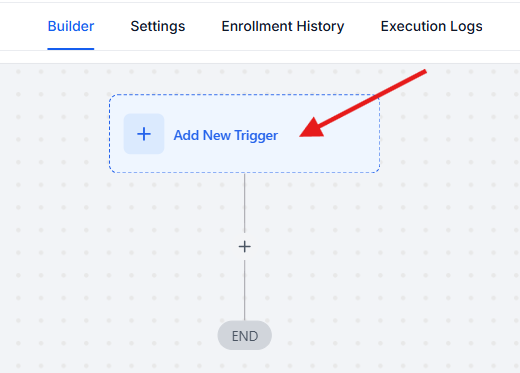
Select the “Add New Workflow Trigger ” button
-
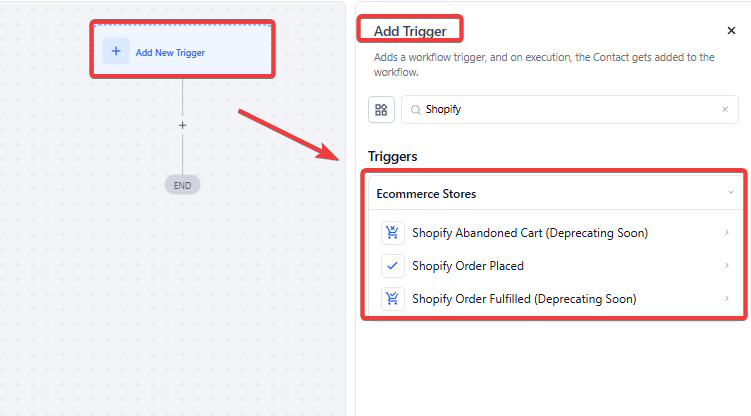
This will pull up a list of selections of triggers on the right-hand side of the screen
- Scroll down until you see the “Shopify ” section
- Select the “Abandoned Checkout ” button
-
Please Note : this will only work if you have a Shopify account and it is integrated (To learn more about integrating your Shopify account please continue)
-
Navigate to Settings > Integrations
-
Click the “Connect ” button
-
Please note that you can open the “Learn More ” option (in red) this will give you step-by-step instructions on integrating your Shopify account
Note: You can review our ‘Shopify Integration’ article for step-by-step details to integrate your Shopify account.
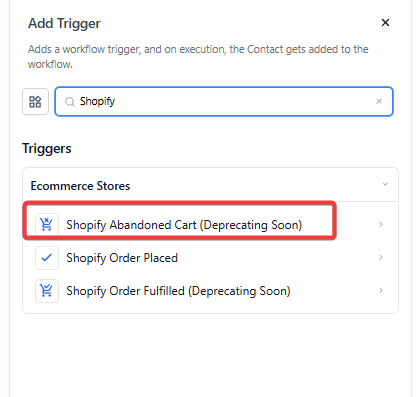
- Now that you have integrated your Shopify account, select the “Abandoned Checkout ” button
-
This will pop up the trigger on the right side
-
Under the “Filters” tab you will have the option to customize the duration (minutes)
-
This will decide the amount of time before the automation gets triggered.
-
For Example: if the customer has not checked out their items for (30 Minutes) you have the option to send a reminder email to them

- You can also add additional filters by clicking on the ‘Add Filters’ selecting the ‘Cart Value’ trigger and setting the filter

- Once you have selected the desired amount of time, on the bottom right click the blue“Save Action ” button
¶ **FAQs **
Question: Can I set different abandoned checkout triggers for different product categories in my Shopify store?**
**Answer: No, the abandoned checkout trigger is based on cart activity and filters like cart value, but it does not allow customization by specific product categories.
Question: What happens if the customer completes the purchase before the trigger duration ends?**
**If the customer completes the purchase before the specified duration (e.g., 30 minutes), the automation will not be triggered, and no reminder email will be sent.
Question: Is there a way to track the performance of the abandoned checkout trigger?**
**Answer: Yes, you can monitor the performance of your abandoned checkout trigger by reviewing automation analytics, such as email open rates and conversion rates, within your dashboard.
Question: Can I customize the reminder email content sent after the abandoned checkout trigger?**
**Answer: Yes, you can fully customize the email content, including text, images, and offers, to align with your brand and encourage the customer to complete their purchase.
Question: Can I set multiple triggers with different time durations for abandoned checkouts?**
**Answer: No, each abandoned checkout trigger is limited to one specific duration per automation. If you need multiple reminders, you can create additional workflows with different time settings.
Question: Do I need a Shopify account to use the abandoned checkout trigger?**
**Answer: Yes, this trigger only works if you have a Shopify account integrated with your LeadMagicX account.
Question: How does the “Cart Value” filter work in conjunction with the Abandoned Checkout trigger?**
**Answer: You can add the “Cart Value” filter to your trigger to make your automation more specific. This allows you to set conditions so that the workflow only fires if the abandoned cart reaches a certain monetary threshold, ensuring you prioritize high-value recovery opportunities.