¶ Workflow Triggers: Scheduler Trigger
In today’s fast-paced digital environment, automating repetitive tasks is essential for improving efficiency and reducing manual errors. One of the most powerful ways to do this is by scheduling workflows to run automatically at specific times or intervals. This article introduces the Scheduler Trigger , a tool that allows you to run automations on a pre-set schedule without relying on manual interventions or complex workarounds. Whether you’re sending reminders, updating records, or triggering notifications, the Scheduler Trigger simplifies and streamlines these processes.
¶ Key Features and Benefits
The Scheduler Trigger offers several powerful features that make it easier to automate tasks based on time rather than relying on contact-based or event-driven triggers. Key benefits include:
- Flexible Time Intervals : Choose from multiple time intervals such as hourly, daily, weekly, or monthly. This feature makes it possible to run tasks as frequently as every few hours or at a very specific time, such as every second Friday of the month.
- Advanced Scheduling : For more complex scheduling needs, the Scheduler offers an advanced cron-style setup that allows you to configure custom times and intervals.
- No Manual Workarounds : With the Scheduler, there’s no need for manual intervention to trigger a workflow. This is especially helpful when automating routine processes like sending reports or reminders.
- Contactless Execution : The Scheduler operates independently of contacts, meaning the automation can be triggered purely by time, not by any specific contact or event. This ensures that your workflow runs automatically, even if there is no direct interaction with a contact.
- Preview and Validation : A built-in preview feature allows you to quickly check the schedule and validate that your configuration is correct. This helps you avoid mistakes, ensuring that workflows run as intended.
¶ How to Use the Scheduler Trigger
Using the Scheduler Trigger is simple and intuitive. Follow these steps to set up your automation:
1- Create or Edit a Workflow : Navigate to your workflow section by going to “Automations” → “Workflows”.

2- Add a New Trigger : Click on “Add Trigger” and select “Scheduler” from the list of available triggers.
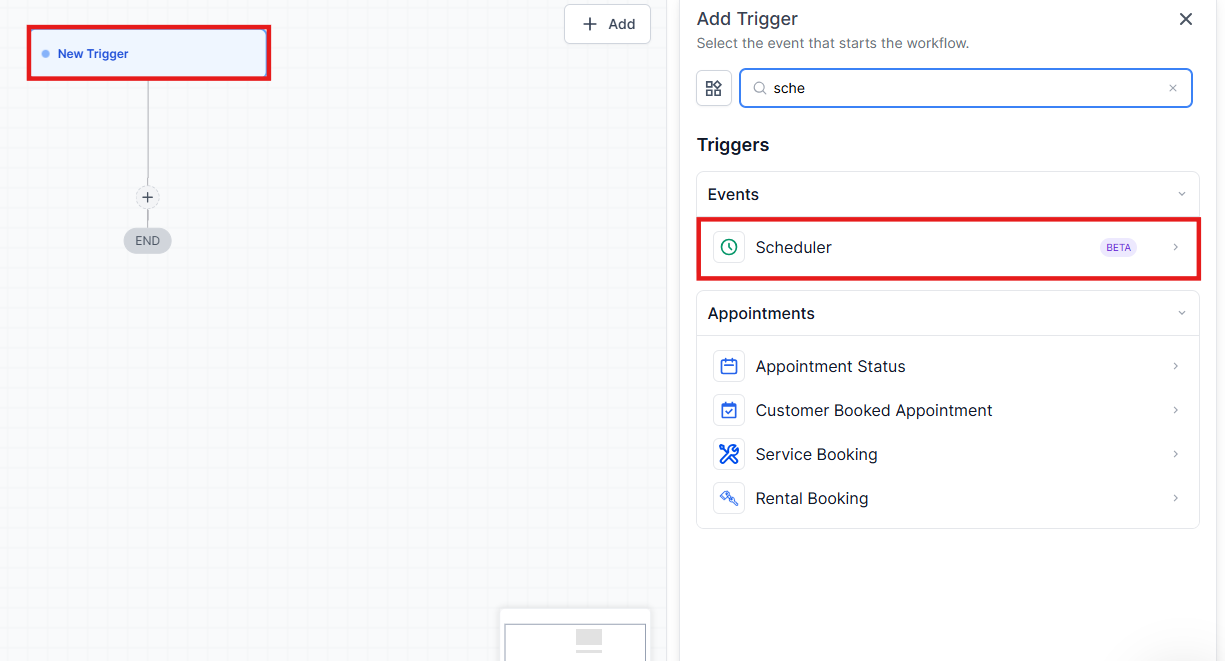
3- Choose the Type of Schedule : Select the time interval that fits your needs—whether it’s every few hours, on specific days, or a custom schedule like the 2nd Friday of every month.
4- Customize the Schedule : You can set advanced options such as skipping weekends or setting an end date for the trigger to stop firing.
5- Save and Publish : After confirming your setup, save and publish the workflow to make it active.

¶ Pro Tips
- Leverage Cron-Style Scheduling : If you have complex needs, like setting a trigger to run every third Tuesday of the month at 11 AM, the cron-style option can accommodate these detailed setups.
- Use the Preview Function : Before going live with your workflow, always use the “Check Trigger Schedule” option. This will give you a preview of when the next five executions will occur, based on your chosen settings, so you can double-check everything before publishing.
- Skip Weekends for Routine Tasks : If you have tasks that only need to run during weekdays, enable the “Skip Weekends” option to ensure your automations don’t trigger on Saturdays and Sundays.
¶ FAQ’s
Question: Can I schedule workflows to run at specific times of the day?**
**Answer: Yes, you can set workflows to run at specific times, such as every day at 8:00 AM or at a certain time on a specific day, like the 2nd Monday of the month.
Question: What happens if I use a contact-only action in a contactless workflow?**
**Answer: If your workflow is triggered by the Scheduler (a contactless trigger), any contact-only actions will be skipped. You’ll see a message in the execution log that the action was skipped because no contact was present.
Question: How can I ensure my workflow runs on time?**
**Answer: After setting up your workflow, use the “Check Trigger Schedule” function to verify the next few run times and ensure that your automation is scheduled as intended.
Question: Can I run workflows on a one-off basis?**
**Answer: Yes, you can schedule a workflow to run once on a specific date and time, which is useful for tasks like sending a special reminder or updating a record.
Question: Can I stop the scheduler from running after a certain date?**
**Answer: Yes, you can set an end date for your workflow. After that date, the trigger will stop firing automatically, providing you with a flexible way to manage recurring tasks.
Question: Can I customize my schedule to skip certain days, like weekends?**
**Answer: Yes, you can enable the “Skip Weekends” option to ensure your workflow doesn’t trigger on Saturdays and Sundays. This is particularly useful for routine tasks that need to be performed only during weekdays.
Question: Can I use the Scheduler Trigger to update system data or records?**
**Answer: Yes, it is ideal for time-based data updates, maintenance tasks, and recurring system actions that do not depend on contact activity.
Question: What is a “Cron-style” setup and when should I use it?
Answer: Cron-style is an advanced scheduling option used for highly specific or complex timing needs that standard intervals (hourly/daily) can’t handle such as triggering a task every third Tuesday of the month at exactly 11:00 AM.