¶ Workflow Recipes
Workflow Recipes
In this article, you will learn about the Workflow Recipes.
Within the Workflow builder, you have several options for getting started in creating a new Workflow. You can start from scratch with a blank slate, import steps from an existing campaign, or you may use a “Recipe” from the list of pre-made templates we’ve created for you.
When you click the “Create Workflow” button, you will see two options in a dropdown menu:
- You can choose to start from a Recipe.
- You can choose to start the workflow from scratch.
¶ How to Use
- Click the “Create Workflow” button in the Automation section.
- Select either “Recipe” or “Start from Scratch” from the dropdown menu
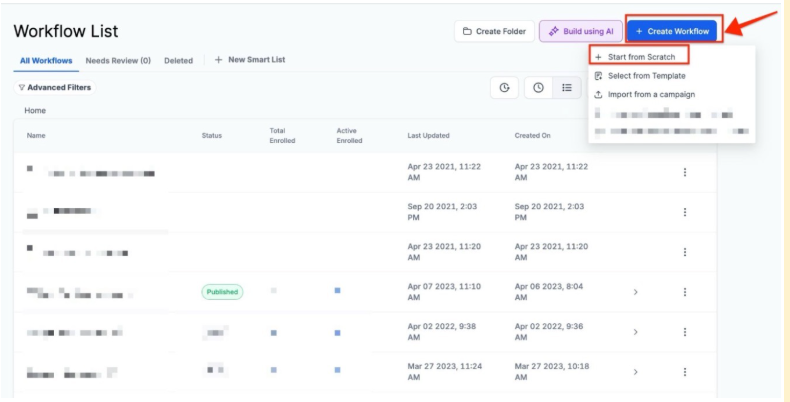
The Templates (also known as Recipes) allow you to use and customize templates that already exist, which can save you time and help you work more efficiently. If you use a Template/Recipe, you can still customize it - adding or removing features as you wish for your specific use case.
Check out the Templates we have available:
Appointment Booking: Detect intent on customer reply to send them a booking link or create a manual SMS to help them make a decision.
Appointment Confirmation + Reminder: Appointment confirmation and follow-up reminder.
Appointment Confirmation + Reminder + Survey + Review Request: For each new appointment, send a confirmation, send reminders, survey the result, and if the result is positive, send a review request
Auto Missed Call Text-Back: If you miss a call from a lead, reply to them automatically and notify the assigned user to get back ASAP.
Birthday Template: A workflow to do Birthday promotions
Email Drip Sequence: Add contacts to this workflow to drip them a series of Emails over time. This recipe uses the “Emailed Opened” condition to resend each email with a new subject if it wasn’t opened within 24 hours!
FAQ Auto Reply: Automate replies to frequently asked questions across SMS, FB, Instagram, and Google chat!
FB Messenger: When an inbound FB message is waiting, reply & remove the pending tag, or we will prompt the lead to share the phone number in 30 minutes.
Fast 5 Lite: Great for nurturing new leads into hot leads by automating email, SMS, Call Connects, and Voicemail Drops - all within five minutes!
Fast Five: The odds of closing a lead decrease dramatically after 5 minutes. This workflow delivers the ultimate first-5-minute lead nurture.(This is covered in more detail down below)
GMB Business Message: Notify users & auto-respond to Google Business Messaging channel
List Reactivation: Generate leads for your business with a list, without ad spend, using AI filters for positive responses
Long-Term Nurture/Reactivation Email Sequence
Send Review Request: This workflow sends a review request to your customers when an opportunity is marked as won, or an appointment is marked as shown, or a tag is added
Webinar Registration Confirmation & Reminders: Use this recipe to send Webinar Registration Confirmations and reminders leading up to the webinar.
IVR: This IVR workflow streamlines communication, allowing callers to navigate through service options, leave messages, and connect with your team effortlessly, optimizing your customer service experience.
No-Show Nurture: Recover no-shows with this simple but powerful automation!
No-Show Nurture: Recover no-shows with this simple but powerful automation!
To use a Recipe, simply select the one you wish to use (which will highlight it in color) and then click “+Create new workflow.”
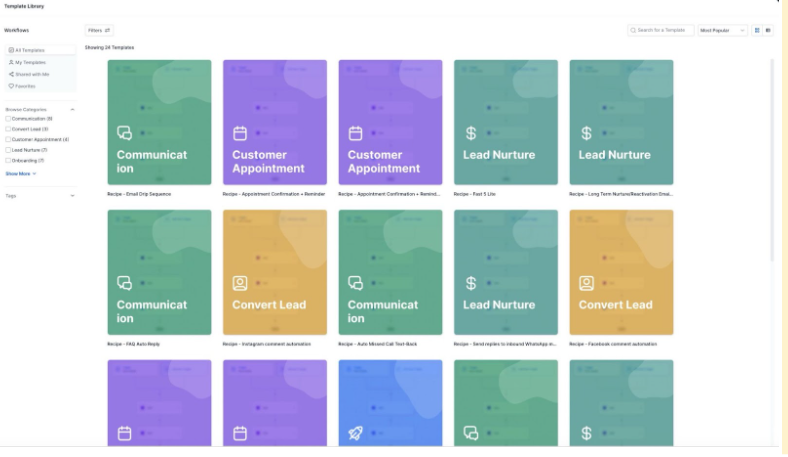
- The template will load in the Workflow builder.
- Make any customizations or edits you wish to add.
- Click “Save” to save your changes.
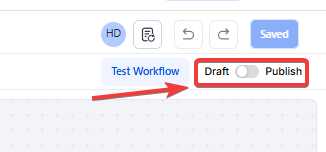
- Once everything is ready, toggle the Workflow from Draft mode to Published mode.
¶ The Five Fast Workflow
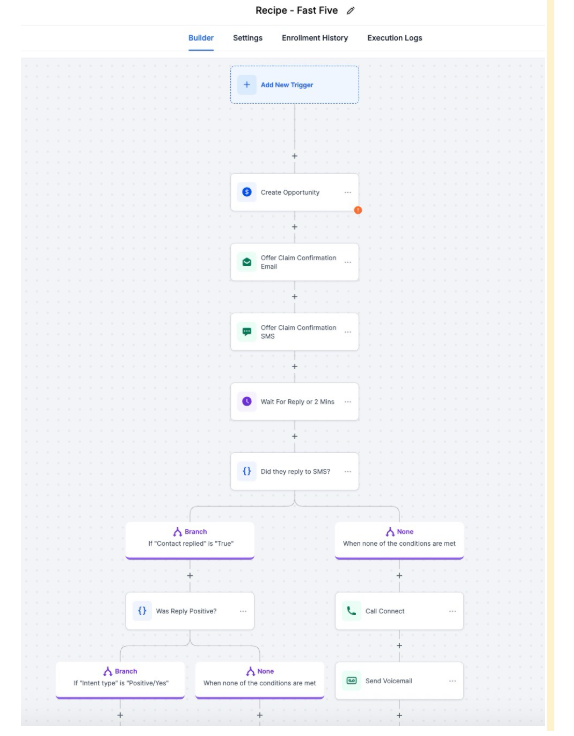
The Fast Five workflow automation is a pre-built template designed to streamline customer engagement immediately after they opt in. The Fast Five workflow consists of five key touchpoints designed to engage leads quickly:
- Confirmation Email**
**
* Sends an automated email confirming the lead’s action (e.g., signing up or claiming an offer).
* Customize the email subject, body, and sender details if needed.
2. Confirmation SMS**
**
* Sends a text message to confirm the lead’s engagement.
* Ensure a valid phone number is collected during the opt-in process.
3. Wait for Reply & Follow-Up Action**
**
* If the lead replies, the system may send a booking link or notify a team member.
* If no reply is received, the workflow progresses to the next step.
4. Call Connect (Optional)**
**
* The system automatically calls the lead and connects them with a sales or support team member.
* If the lead does not answer, the call redirects or moves to the final step.
5. Voicemail Drop (If No Answer)**
**
* A pre-recorded voicemail message is sent to the lead if they don’t pick up.
* You can upload a custom voicemail file or use a default system message.
¶ FAQ’s
Question: What are Workflow Recipes?**
**Answer: Workflow Recipes are pre-made templates that help streamline the creation of workflows by providing ready-to-use setups for common tasks and processes. These templates can be customized to fit your specific needs.
Question: How can I start creating a new Workflow?**
**Answer: You have two options for starting a new Workflow:
- Click the “Create Workflow” button in the Automation section.
- Choose either “Recipe” or “Start from Scratch” from the dropdown menu.
Question: What should I do if I want to use a Recipe?**
**Answer:
- Click the “Create Workflow” button in the Automation section.
- Select “Recipe” from the dropdown menu.
- Browse and select the desired Recipe from the list.
- Click “+Create new workflow” to apply the Recipe.
Question: Can I customize a Recipe?**
**Answer: Yes, you can customize any Recipe to fit your specific use case. This includes adding or removing features as needed.
Question: What are some examples of available Recipes?**
**Answer: Some available Recipes include:
- Appointment Booking: Detect intent and send booking links or SMS for decisions.
- Appointment Confirmation + Reminder: Confirm appointments and send reminders.
- Auto Missed Call Text-Back: Automatically reply to missed calls and notify the assigned user.
- Birthday Template: Set up workflows for birthday promotions.
- Email Drip Sequence: Drip a series of emails over time with automated follow-ups.
- FAQ Auto Reply: Automate replies to FAQs across multiple platforms.
- FB Messenger: Manage and respond to inbound Facebook messages.
- Fast 5 Lite: Nurture leads with a combination of email, SMS, calls, and voicemails.
- GMB Business Message: Auto-respond to Google Business Messages.
- List Reactivation: Generate leads with AI filters for positive responses.
- Webinar Registration Confirmation & Reminders: Confirm and remind about webinars.
- IVR: Streamline caller navigation and messaging.
- No-Show Nurture: Recover from missed appointments.
Question: How do I apply a Recipe to a new Workflow?**
**Answer:
- Select the Recipe you wish to use (it will be highlighted in color).
- Click “+Create new workflow” to load the template into the Workflow builder.
Question: Do Recipes support automation across multiple communication channels?**
**Answer: Yes, many Recipes support multi-channel automation including SMS, Email, Facebook Messenger, and Google Business Messages.
Question: How does IVR improve customer service?
Answer: IVR optimizes the customer experience by reducing wait times , guiding callers to the right department, and ensuring messages are captured accurately.