¶ Workflow Trigger: Product Started
The Product Started trigger will activate a Workflow when a contact begins or interacts with a specific product in a membership. In this article, we will go over how to use this trigger to track specific membership products and send additional resources once a product has been started.
¶ Navigation
¶ Step 1: Creating and Editing the Trigger
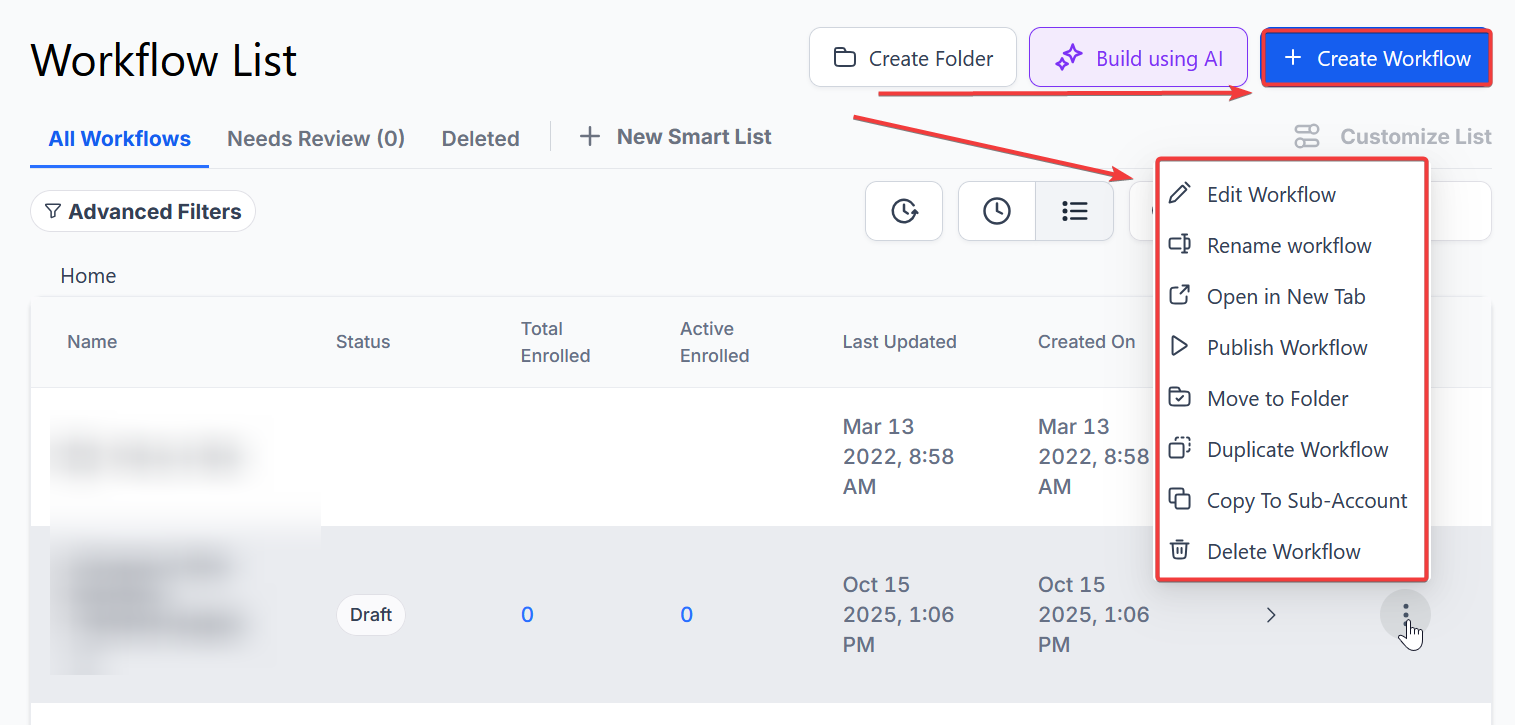
- Navigate to Automation on the left > Workflows on the top and create a new workflow or edit an existing one
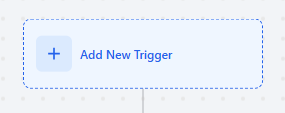
- Click “Add New Trigger”
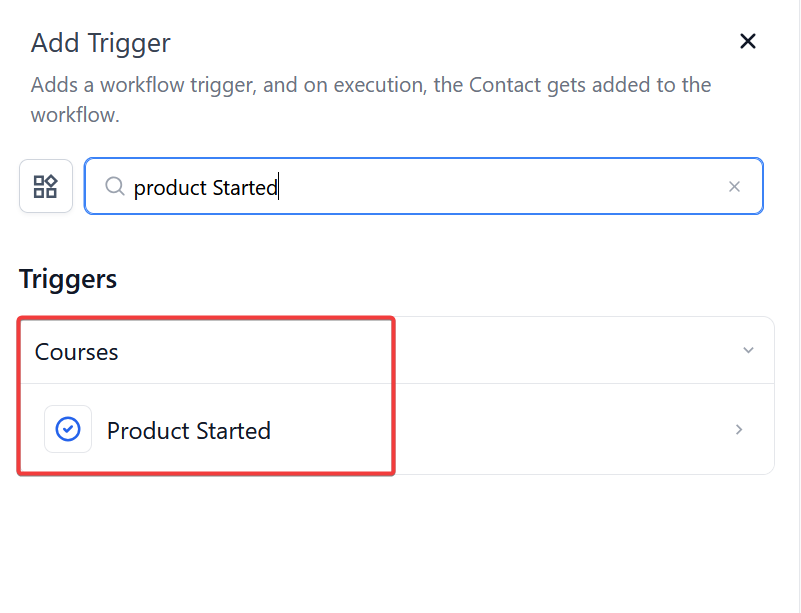
- Select “Product Started” under the Courses section of the Triggers menu.
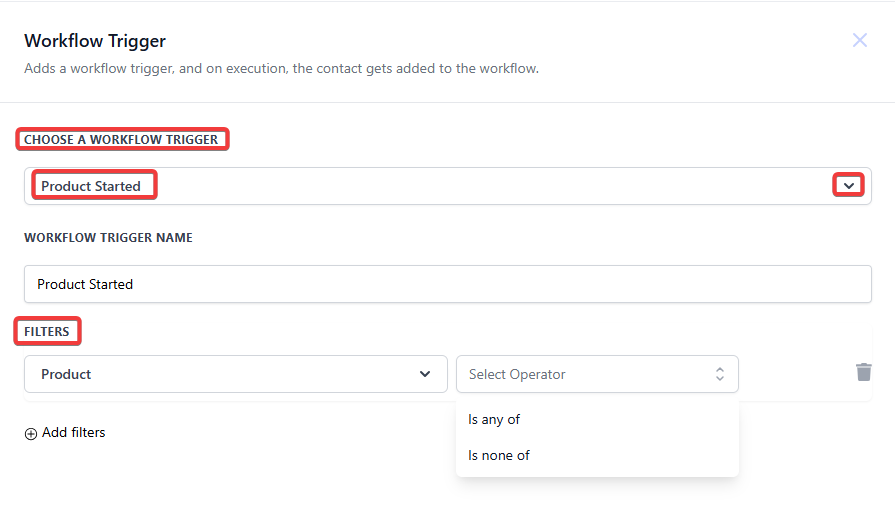
- Add the trigger with filters for the product and save.
- Note:If you do not add filters, this will fire any time a product has been started. It is recommended to use filters to further customize the workflow.
Once you’ve set up your trigger, you can then follow up with automation to the contact to provide more detailed information or an introductory email or text.
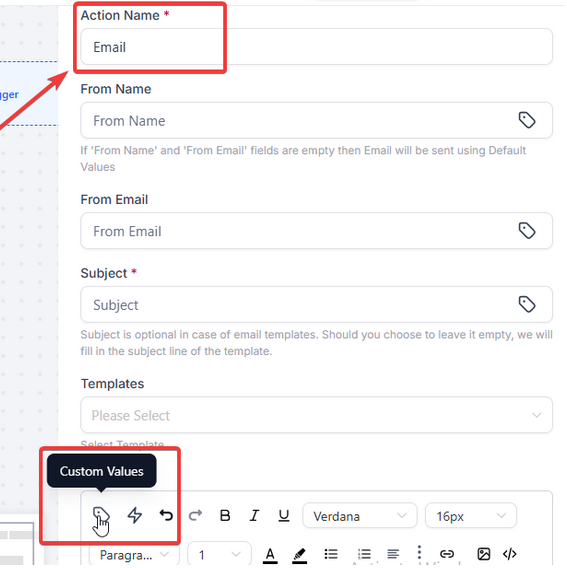
You can also use specific membership/course-related custom values to insert text automatically. We have an example below of usage.
Use Cases
¶ 1. Welcome Email or Onboarding Sequence
- When a contact starts a membership product, trigger an automated email with a welcome message, an overview of the course, and next steps.
- Example: “Hey [First Name], welcome to [Course Name]! Here’s what you need to know to get started.”
¶ 2. Engagement Tracking for Course Completion
- Set up progress tracking by combining the “Product Started” trigger with the “Product Completed” trigger.
- Example: If a contact starts a course but hasn’t completed it within 7 days, send a reminder email or SMS encouraging them to continue.
¶ 3. Upselling or Cross-Selling Additional Products
- If a contact starts a basic membership or free course, send a discount offer for an upgraded membership or paid course.
- Example: “Enjoying [Course Name]? Upgrade now for exclusive content and coaching!”
¶ 4. Assigning Tasks to Staff for Personalized Follow-Ups
- Use the trigger to notify a team member when a high-value client starts a membership.
- Example: If a VIP client starts a premium course, automatically assign a task to a team member to check in personally.
¶ 5. Sending Drip Content Based on Progress
- Instead of giving all course content at once, release lessons over time based on when the user starts.
- Example: “Since you started [Course Name], here’s your first lesson. Watch for Lesson 2 in your inbox tomorrow!”
¶ 6. Encouraging Social Proof & Community Engagement
- Send an automated message inviting users to a private community, forum, or discussion group after they start a product.
- Example: “Join our exclusive [Course Name] Facebook group and connect with other learners!”
¶ FAQs
Question: Can I use custom values with the Product Started trigger?**
**Answer: Yes, you can use specific membership-related custom values to automatically insert text in your follow-up communications. Custom values can personalize the message, making it more relevant to the contact and the specific product they have started.
Question: What happens if I do not add filters to the Product Started trigger?**
**Answer: If you do not add filters, the Product Started trigger will activate any time any product within the membership is started. This broad activation can lead to workflows triggering more frequently than intended, so it’s recommended to use filters to limit the trigger to specific products.
Question: How can I track specific memberships/course products with this trigger?**
**Answer: You can track specific memberships/course products by setting up the Product Started trigger with filters that specify the product you want to monitor. This allows you to track engagement with that particular product and set up targeted automation based on the contact’s interaction.
Question: What should I include in the follow-up after a product has started?**
**Answer: In the follow-up, you can include additional resources, a welcome message, tips on how to get started, or any other relevant information that enhances the contact’s experience with the product. Use custom values to personalize the message and make it specific to the product that has been started.
Question: Can I send texts as part of the follow-up for the Product Started trigger?**
**Answer: Yes, you can include text messages as part of your follow-up automation. This can be an effective way to quickly provide important information or reminders to contacts who have started a membership product.
Question: Where do I find the Product Started trigger option in the Workflow settings?**
**Answer: The Product Started trigger can be found under the Courses section in the Triggers menu when you add a new trigger within a Workflow. Select this option to begin setting up your automation for tracking and engaging with specific membership/course products.
Question: How can I ensure contacts don’t miss follow-ups?
Answer: Use filters to target the correct products, test workflows thoroughly, and combine email and SMS follow-ups to maximize engagement and visibility.
Question: Is it possible to use this trigger to assign tasks to my team?
Answer: Yes. You can use the Product Started trigger to automatically notify team members or assign them specific tasks when a contact (such as a high-value or VIP client) begins a membership product. This allows for personalized follow-ups and better client management.
Question: Can I use this trigger to find out which members are falling behind?
Answer: Yes. You can create “Engagement Tracking” by combining this trigger with a “Wait” step and an “If/Else” condition. For example, if a contact starts a product but the system doesn’t detect a “Product Completed” event within 7 days, you can automate a nudge email to encourage them to continue.