¶ Workflow Trigger: Product Access Granted
The Product Access Granted Workflow Trigger allows you to build a workflow that will trigger whenever a contact is given access to your membership/course products. The contact who receives access to your applicable membership/course products will be added to the workflow. This article will give an overview of how to build a workflow using the Product Access Granted Workflow Trigger.
Note that this article will assume that you have already built Membership Products. For an overview of how to create Membership Products, see our article “How to Create and Edit Categories in Memberships”
¶ Key Benefits of the Product Access Granted Trigger
- Efficient Onboarding: Automate welcome emails, instructional content, and next steps to streamline the onboarding process for new customers.
- Enhanced Customer Experience: Provide timely, personalized communication that improves customer satisfaction and engagement.
- Optimized Operations: Save time and reduce errors by automating tasks like updating LeadMagicX records and managing email lists.
- Improved Tracking and Reporting: Maintain accurate records of customer access in LeadMagicX, enhancing tracking and analytics.
- Tailored Responses: Use filters to target specific products and create customized workflows for different customer segments.
¶ Navigation
¶ Step 1: Start a new workflow or edit an existing one
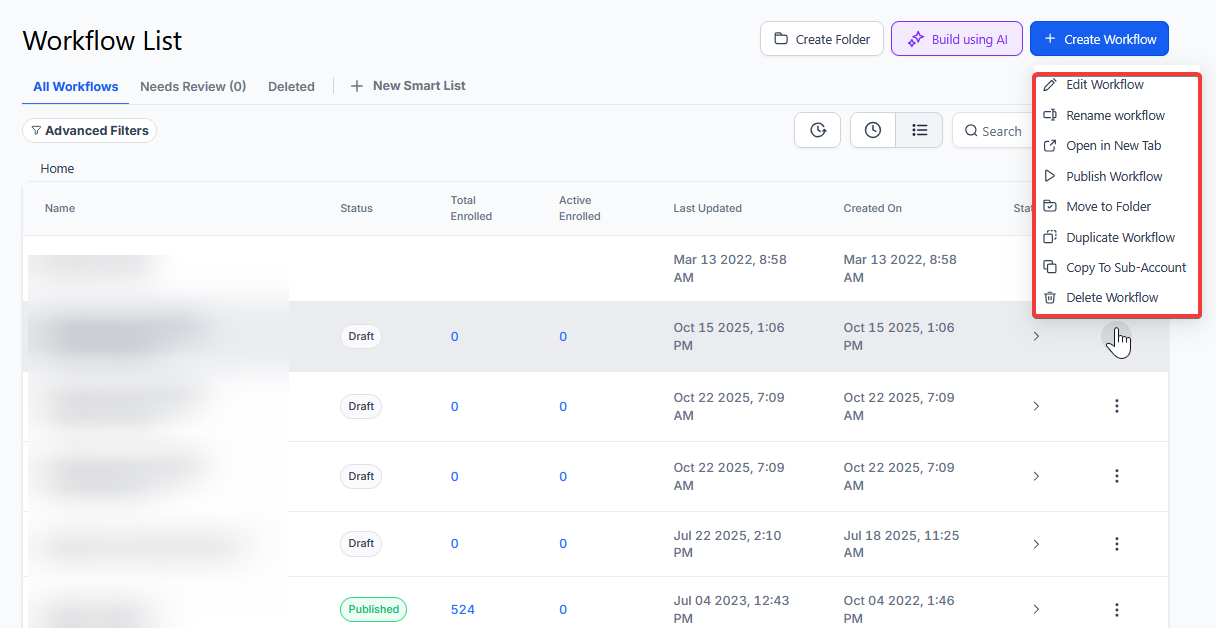
- Navigate to Automation on the left > Workflows on the top and create a new workflow or edit an existing one
¶ Step 2: Creating and Editing the Trigger
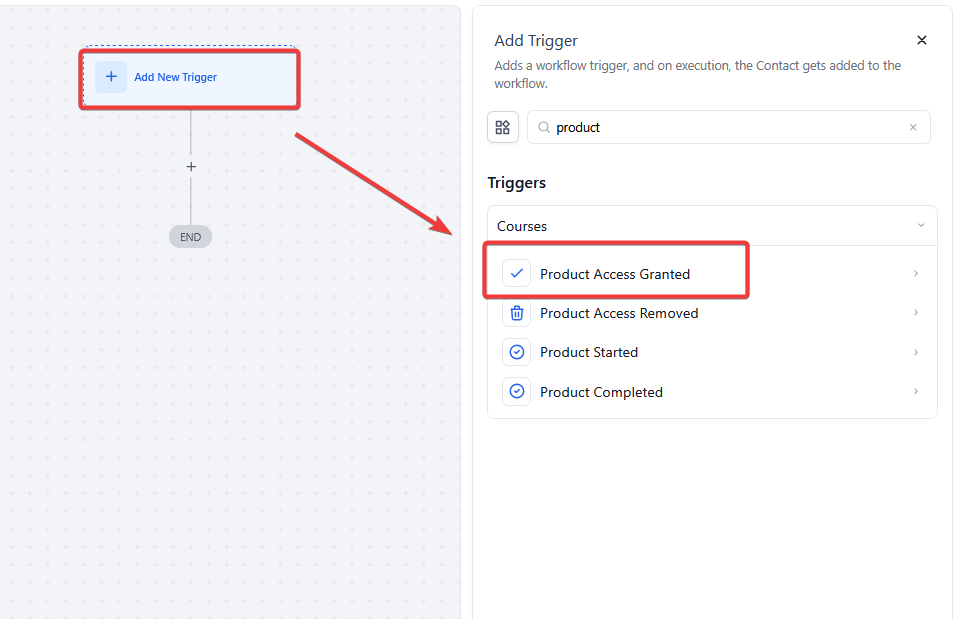
- Click “Add New Trigger”

- Select Product Access Granted in the Courses section of the Workflow Triggers Menu or use the search feature. Once selected, the Trigger setup menu will appear
-
(Optional) You can change the workflow builder display name of this trigger using the textbox below the Workflow Trigger Name. Note that this will only affect the display name within the workflow builder and has no other impact on the content or functionality of this Workflow Trigger.
-
Press + Add filters to expand the Filters section of the Trigger setup menu
- If you do not add any filters to this section, then any time a contact is given access to any Membership Product, they will be added to this workflow
- The Select Product filter parameter will only allow this workflow to be triggered when a contact is given access to a selected product
- You can filter by Custom Fields which you would set up elsewhere in your account. Filtering by these fields will only allow contacts who meet your Custom Value parameters to be added to this workflow
-
Press Save Trigger in the bottom right corner of the Trigger setup menu

¶ Step 3: Set up applicable Workflow Action(s). We have multiple articles available to explain the setup of each of the Workflow Actions. Feel free to review our articles on these for more information on setting these up.
Pro Tip: You can use any Workflow Actions to be triggered by the Product Access Granted trigger or you can leave this workflow without any actions.
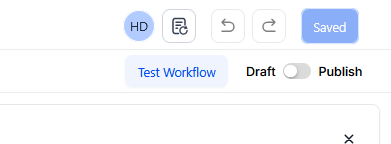
¶ Step 4: Press Save in the top right corner of your browser to save the workflow
- If your Workflow is ready to be enabled, make sure the toggle switch under Save is set to Publish
- Be sure to test your Workflow to make sure it is set up correctly using the Test Workflow button next to the Publish toggle switch.
- For an in-depth overview of Workflow Testing see our article, “Using the Testing Features in Workflows”
Now your workflow is set up and ready to go with the Product Access Granted Workflow Trigger.
¶ Use Cases for the Product Access Granted Trigger
¶ Welcome Email for Online Courses
Scenario: A customer is granted access to an online course and requires guidance to get started.
Trigger Setup:
- Trigger: Product Access Granted
- Filter: Select Product: “Learn Python Basics”
Outcome: The workflow sends a personalized welcome email with onboarding instructions, access details, and links to the first module.
¶ Product Access for Exclusive Content
Scenario: A customer gains access to a library of exclusive content, and the marketing team needs to track engagement.
Trigger Setup:
- Trigger: Product Access Granted
- Filter: Select Product: “VIP Content Library”
Outcome: The workflow tags the customer in LeadMagicX, adds them to the content update email list, and sends a welcome email with instructions for accessing the library.
¶ Event Ticket Access Confirmation
Scenario: A customer receives access to a virtual event ticket and needs event details.
Trigger Setup:
- Trigger: Product Access Granted
- Filter: Select Product: “Virtual Event Pass”
Outcome: The workflow sends an email containing event details, including login instructions and a schedule of sessions.
¶ Upsell Opportunities for Product Users
Scenario: A customer gains access to a basic product, and the system wants to recommend premium upgrades.
Trigger Setup:
- Trigger: Product Access Granted
- Filter: Select Product: “Basic Plan”
Outcome: The workflow sends an email showcasing premium upgrade options and exclusive features, encouraging the customer to explore additional offerings.
¶ FAQ’s
Question: What types of Workflow Actions can be used with the Product Access Removed trigger?**
**Answer: Any Workflow Actions can be used with the Product Access Removed trigger, such as sending an email, updating contact information, or adding a tag. You can choose actions that align with your specific needs for handling access removal.
Question: How do I enable the workflow after setting it up?**
**Answer: To enable the workflow, ensure the toggle switch under Save is set to Publish. This activates the workflow, allowing it to run when the trigger conditions are met.
Question: Why is it important to test the workflow after setting it up?**
**Answer: Testing the workflow ensures that it functions correctly and triggers as expected when access is removed. The Test Workflow button helps you identify any issues, allowing you to correct them before the workflow goes live.
Question: What should I do if my workflow doesn’t work as expected during testing?**
**Answer: If the workflow doesn’t perform as expected during testing, review the setup of your trigger, filters, and actions. Ensure all settings are correctly configured and adjust as necessary before retesting.
Question: Can I edit the Product Access Removed trigger after it has been set up?**
**Answer: Yes, you can edit the Product Access Removed trigger at any time by going back into the workflow and modifying the trigger settings, filters, or display name.
Question: What should I name my workflow when adding the Product Access Removed trigger?**
**Answer: Naming your workflow descriptively, such as “Courses Access Removal Follow-Up” or “Product Access Revoked,” helps keep your workflows organized and easy to identify.
Question: Where can I find more information on setting up Workflow Actions?**
**Answer: For more information on setting up Workflow Actions, refer to related articles that provide detailed instructions on various actions and their configurations. These resources will help you optimize your workflow setup.
Question: What are common use cases for this trigger?**
**Answer:
- Notifying customers of expired subscriptions
- Alerting internal teams about membership revocations
- Updating LeadMagicX records for accurate tracking
Question: I granted access, but the workflow didn’t start. What should I check?**
**Answer: First, ensure the workflow is published and not just saved. Second, check if you have a “Select Product” filter active; if you grant “Product A” but the filter is looking for “Product B,” it won’t fire. Lastly, check the Execution Logs to see if the contact was already in the workflow.