¶ Workflow Trigger: Pipeline Stage Changed
The Pipeline Stage Changed Workflow Trigger allows you to build a workflow that is triggered in the event of a contact experiencing a change in which Pipeline Stage they are assigned to. Upon triggering the workflow, the contact to whom the pipeline stage change applied would be added to the workflow. This article will give you an overview of how to create a workflow using the Pipeline Stage Changed Workflow Trigger.
Note that this article will assume that you have already created Pipelines in your account. For a detailed overview of how to create Pipelines, see our article, “How to Create and Edit Pipelines”
¶ Step 1: Start a new workflow or edit an existing one
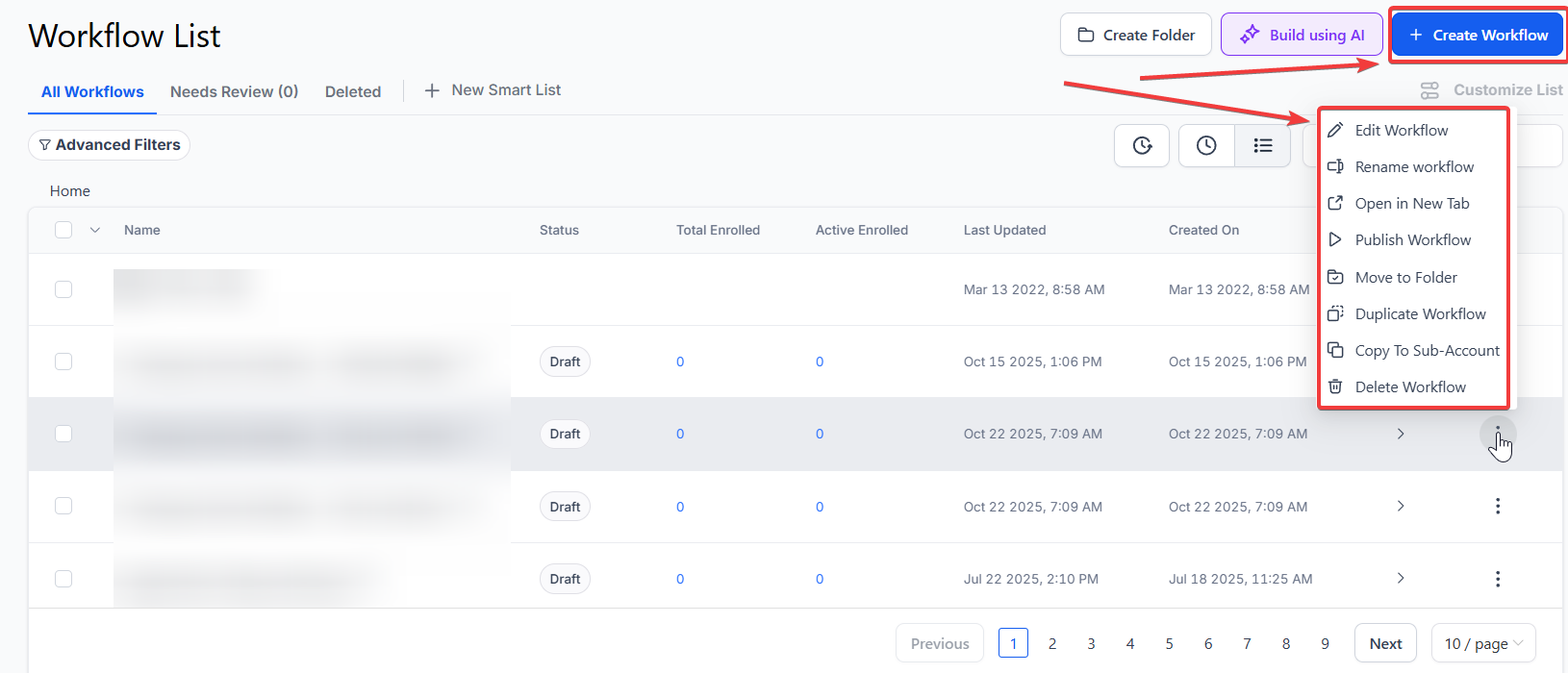
- Navigate to Automation > Workflows and start a new workflow or edit an existing one.
¶ Step 2: Creating and Editing the Trigger
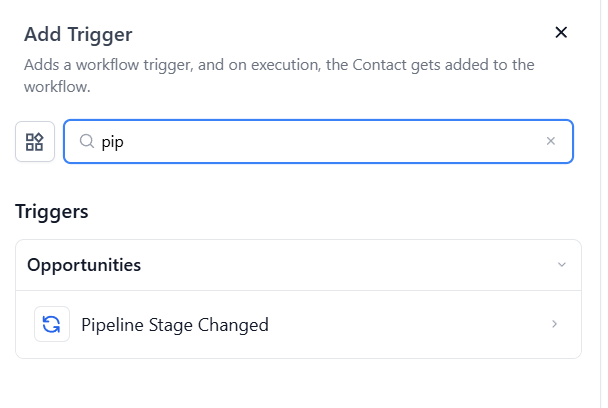
- Click “Add New Workflow Trigger”

- Select Pipeline Stage Changed in the Opportunities section of the Workflow Triggers Menu or use the search feature. Once selected, the Trigger setup menu will appear
-
(Optional) You can change this trigger’s workflow builder display name of this trigger using the textbox below Workflow Trigger Name. Note that this will only affect the display name within the workflow builder and has no other impact on the content or functionality of this Workflow Trigger.
-
Press + Add filters to expand the Filters section of the Trigger setup menu. There are some filter parameters that you can use to customize this trigger
- Has Tag will only allow contacts with the selected tag to be added to this workflow
- The lost reason filter , integrated with the Pipeline Stage Changed workflow trigger, enables users to identify specific reasons for lost opportunities when contacts experience changes in their assigned pipeline stages. This allows for targeted follow-up actions, problem-solving precision, and focused resource allocation, enhancing sales strategies and improving overall performance.
- In pipeline will let you specify which of your pipelines will be able to trigger this workflow. If you add this filter to your trigger, then you will be able to make a new filter using the parameter Pipeline stage
-
Pipeline stage will make it so that only one stage of your selected pipeline can trigger this workflow. When a contact is added to the selected pipeline stage, they’ll be added to the workflow
-
Press Save Trigger in the bottom right corner of the Trigger setup menu


¶ Step 3: Set up applicable Workflow Action(s). We have multiple articles available to explain the setup of each of the Workflow Actions. Feel free to review our articles on these for more information on setting these up.
Pro Tip: You can use any Workflow Actions to be triggered by the Pipeline Stage Changed trigger or you can leave this workflow without any actions.
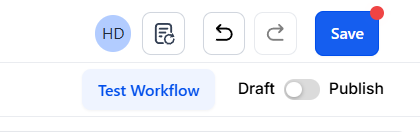
¶ Step 4: Press Save in the top right corner of your browser to save the workflow
- If your Workflow is ready to be enabled, make sure the toggle switch under Save is set to Publish
- Be sure to test your Workflow to make sure it is set up correctly using the Test Workflow button next to the Publish toggle switch.
- For an in-depth overview of Workflow Testing see our article, “Using the Testing Features in Workflows”
Defining Workflow Actions
After setting the trigger, define the actions to be executed when an opportunity moves through different stages.
- Send a Notification : Alert the assigned sales representative about the stage change.
- Update Opportunity Details : Automatically update fields like status, priority, or tags.
- Create a Follow-Up Task : Assign a task to the sales team to contact the prospect.
- Trigger Another Workflow : Initiate additional workflows based on the opportunity’s progress.
- Send an Email to the Contact : Automate customer communication as the opportunity progresses through the pipeline.
Now your workflow is set up and ready to go with the Pipeline Stage Changed Workflow Trigger.
¶ ****
¶ FAQs
Question: Can I use multiple pipeline stages in a single workflow trigger?****
Answer: Yes, you can set up the trigger to respond to multiple stages by configuring the filter options accordingly.
Question: How do I know if the workflow trigger is working correctly?****
Answer: Use the Test Workflow feature to simulate the trigger and verify that the workflow activates as expected.
Question: Can I add additional actions after the workflow is published?****
Answer: Yes, you can return to the workflow editor to add or modify actions even after the workflow has been published.
Question: What happens if the contact does not meet the trigger criteria?****
Answer: If the contact does not meet the specified criteria, the workflow will not be triggered, and the contact will not be added to the workflow.
Question: Can this trigger be used with all workflow actions?****
Answer: Yes, any workflow action (notifications, emails, task creation, etc.) can be used in combination with the Pipeline Stage Changed trigger.
Question: Does changing the “Workflow Trigger Name” affect how the trigger functions?**
Answer:** No. Changing the display name in the textbox only affects how the trigger is labeled within the workflow builder for your own organization; it has no impact on the actual content or functionality of the trigger
Question: Can I trigger a workflow based on why an opportunity was lost?
Answer: Yes. The “Lost Reason” filter allows you to identify specific reasons for lost opportunities. This is useful for automated follow-up actions, such as sending a “re-engagement” email or conducting a post-mortem analysis on why sales strategies failed.