¶ Workflow Trigger: Payment Received
Workflow Trigger: Payment Received
When used in a workflow, the Payment Received trigger automates processes and actions based on incoming payments. It can be configured to respond to specific payment events, such as successful or failed transactions or particular products and payment sources. Here are some detailed functionalities and use cases:
¶ Overview
Workflow automation : The trigger initiates the Workflow whenever a payment is received, allowing for automated actions like sending confirmation emails, generating invoices, or updating customer records within LeadMagicX
Customization with filters : Users can apply various filters to the trigger, such as transaction type, payment source, or product. This enables the creation of targeted workflows for specific scenarios, like subscription renewals, or failed payments.
Real-time response : The trigger operates in real-time, enabling businesses to respond quickly to customer transactions. This can help improve customer satisfaction by providing immediate feedback or resolving issues promptly.
Conditional actions : By using if/else conditions in the Workflow, different actions can be executed depending on the payment characteristics, such as the amount, source, or transaction status.
Reporting and analytics : The trigger can capture payment data for analysis and reporting purposes. By monitoring incoming payments and their attributes, businesses can gain insights into sales performance, customer behavior, and potential areas for improvement.
Inside a workflow, add a workflow trigger called Payment Received.
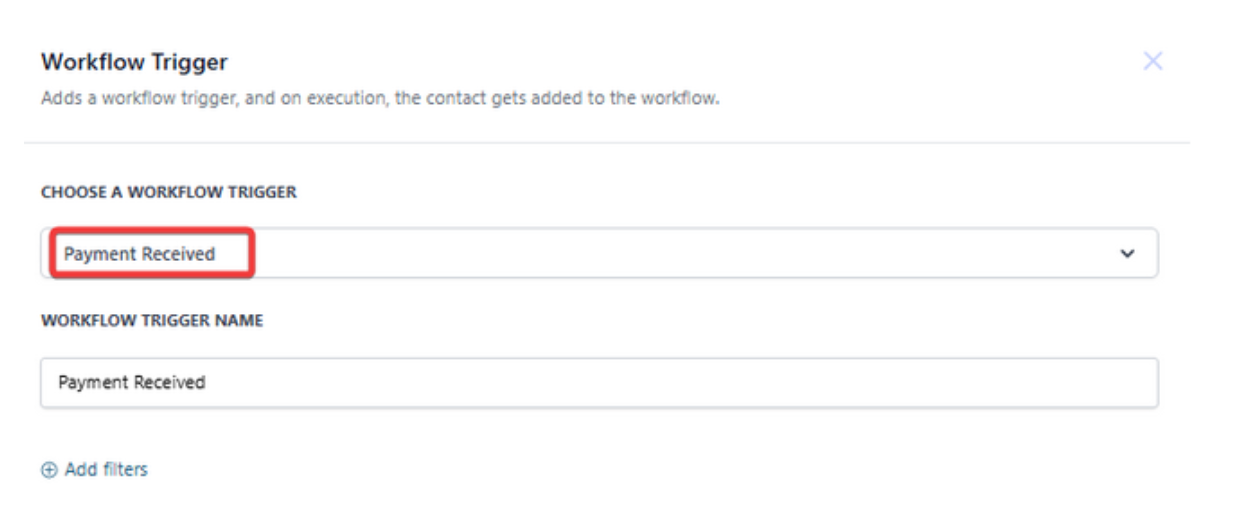
Please Note:
Choosing a filter allows you to select its respective Sub-filters the next time you add a filter to the same workflow trigger.
**Workflow Trigger Filters **
for Payment Received Workflow Trigger
You can then make your Workflow trigger more specific using filters. Here is a table of all the available filters and sub-filters.
Trigger
| Filter| Options at Filter Level
| Sub-Filter Level 1
| Options at Sub-Filter Level 1
| Operators
—|—|—|—|—|—
Payment Received
| Payment Source
| Invoice
| Sub-Source,
Transaction type
| Text2Pay link
| is, is not
One-time invoice
Recurring template
Funnel/ Website
| Sub-Source
| E-commerce store
One-step order form
Two-step order form
Upsell
Transaction type
| Customer present/first transaction
Customer not present/subscription transaction
Calendar
| Calendar
| Calendar names
Global Product
| Global product Names
| Price
| Price names as per selected Global Product
Payment status
| Success
| —
Failed

If/Else Conditions for Payment Received Workflow Trigger
Once you have added your desired set of Filters and Sub-Filters to your workflow trigger, you can add an If/Else Condition for Payment if you need to branch out the Workflow based on certain conditions.


This Table explains the possible If/Else Conditions and their branches.
If/Else Option
| Action
| Operator
| Options
—|—|—|—
Payment
| Product
| is, is not
| Global product Names
Funnel/Website
| Funnel/Website names
Calendar
| Calendar names
Source
| Invoice, Funnel, Website, Calendar
Payment status
| Manual Payments
Form Payments
Calendar Payments
Funnel/Website Payments, success/
failed
Amount
| Equal to, is not equal to, Greater than, Greater than or equal to, Less than, Less than or equal to, is not empty, is empty.
| Amount paid

Custom Values for Payment Received Workflow Trigger
When you use the Payment Received Workflow trigger, you have access to a set of Custom Values that you can populate within SMS, Emails, Internal Notifications, etc. This Table explains the custom values in detail.
Custom Values Category
| **Custom ValuesName (Custom Value Group Name) **
| Custom Values within Group
| Value
—|—|—|—
Payment
| Source
|
| {{payment.source}}
Currency Symbol
| {{payment.currency_symbol}}
Currency Code
| {{payment.currency_code}}
Customer ( Custom Values Group)
| ID
| {{payment.customer.id}}
First Name
| {{payment.customer.first_name}}
Last Name
| {{payment.customer.last_name}}
Name
| {{payment.customer.name}}
Email
| {{payment.customer.email}}
Phone
| {{payment.customer.phone}}
Full Address
| {{payment.customer.address}}
City
| {{payment.customer.city}}
State
| {{payment.customer.state}}
Country
| {{payment.customer.country}}
Postal Code
| {{payment.customer.postal_code}}
Invoice(Custom Values Group)** **
| Name
| {{payment.invoice.name}}
Number
| {{payment.invoice.number}}
Issue Date
| {{payment.invoice.issue_date}}
Due Date
| {{payment.invoice.due_date}}
URL
| {{payment.invoice.url}}
Recorded By
| {{payment.invoice.recorded_by}}
Sub-Total
|
| {{payment.sub_total_amount}}
Discount Amount
| {{payment.discount_amount}}
Coupon Code
| {{payment.coupon_code}}
Tax Amount
| {{payment.tax_amount}}
Created On
| {{payment.created_on}}
Total Amount
| {{payment.total_amount}}
Transaction ID
| {{payment.transaction_id}}
Status
| {{payment.payment_status}}
Gateway
| {{payment.gateway}}
Card Last 4 Digits
| {{payment.card.last4}}
Card Brand
| {{payment.card.brand}}
Method
| {{payment.method}}
¶ FAQs
**Question: Will this trigger include subsequent subscription payments as well? **
Answer: Yes, the trigger will fire whenever a payment is received from the end customer directly on an order form submission and when the subscription is charged in the background. Including Payment links, which aren’t directly grabbing sales on Order forms in Funnels.
How can I achieve the trigger for successful subsequent subscription transactions?
Since the subscriptions can be created in a funnel or website, we can create a trigger for Payment Received and apply the following filters to achieve the use case. The source type is Funnel/Website. The transaction type is “Customer not present/subscription transaction.”

The payment status filter can filter successful or failed payments per the use case.
Question: What does the Customer present/first transaction mean, and the Customer not present/subscription transaction?
Answer: We are categorizing the transaction type into two categories
- Customer present /first transaction - This includes the transactions where the end customer is on-session and making the Payment. This consists of all one-time purchases and the first order placement for a subscription product.
- Customer not present / subscription transaction - This includes the transaction types that run in the background after a subscription has already been created. For example, if a customer purchases a recurring product with a 14-day trial period. The transaction is done while purchasing the recurring product ($0 transaction in this case) would fall into the Customer present/first transaction. After 14 days, when the trial period is over, and you charge $100 for the recurring product, the $100 transaction would fall into the Customer not present/subscription transaction category.
Question: Will failed payments also be captured in this trigger?
Answer: Yes, by default, without any filters, the trigger runs upon successful and failed payment attempts. For specific use cases around success/failed payments only, we can apply the “Transaction status” filter and set it to either success/failed as per the use case.

**Question:**I have configured the trigger and selected a specific product in the filters. Does this mean that the trigger will fire off when that product is sold anywhere?
Answer: If you have configured the trigger and set the filter for a specific product, it will fire off only when that product is sold in funnels/website/invoices. Using the transaction status filter, we can define whether the trigger should work when the purchase is successful or when the purchase is a failure.
**Question:**What is the sub-source filter?
Answer: When you select a source like funnels/websites/invoices, they can have sub-sources, like a payment from the funnel that can come either via a one-step order form, a two-step order form, or an upsell. You can use these source filters to define the Payment’s origin.
Question: How can I test if the trigger works correctly?
Answer: Use the Test Workflow option before publishing to confirm tags, branches, and payment values run without errors.
Question: Can I apply conditional logic to the trigger?****
Answer: Yes, you can use If/Else conditions in your workflow to branch actions based on payment attributes such as product, amount, source, or payment status.
Question: How do I differentiate between a payment made through a Text2Pay link versus a standard Invoice? **
Answer:** In the trigger settings, apply the Payment Source filter and set it to “Invoice.” You can then add a Sub-Source filter and select “Text2Pay link” to specifically target those mobile-friendly payment requests.
Question: What specific card-related information can I pull into my internal notifications using Custom Values?**
**Answer: You can use Custom Values to display the Card Brand (e.g., Visa, Mastercard) and the Card Last 4 Digits. These are found under the Card group within the Payment category and are useful for verifying payment methods in internal alerts or customer receipts.