¶ OpenRouter : Action & Trigger in Workflows (Premium)
Overview:
The OpenRouter integration allows you to plug powerful AI models directly into your workflows. Instead of manual content creation, you can use models like Claude, OpenAI, or Gemini to handle tasks in real-time. This feature enables your automations to “think” and respond based on the specific data in your account.
Practical Use Case: Imagine a lead submits a long contact form with several questions. You can use an OpenRouter action to summarize that form into three bullet points. The workflow then saves that summary as a note on the contact record and drafts a personalized email response that addresses the lead’s specific questions automatically.
Instructions (Step-by-Step):
- To begin, navigate to the automation section by clicking Automations > Workflows.
- To start a new process, click Create Workflow or select an existing workflow.
- To add the step, click the + icon to add a new action.
- To find the integration, type “OpenRouter” in the search bar and select the OpenRouter action.
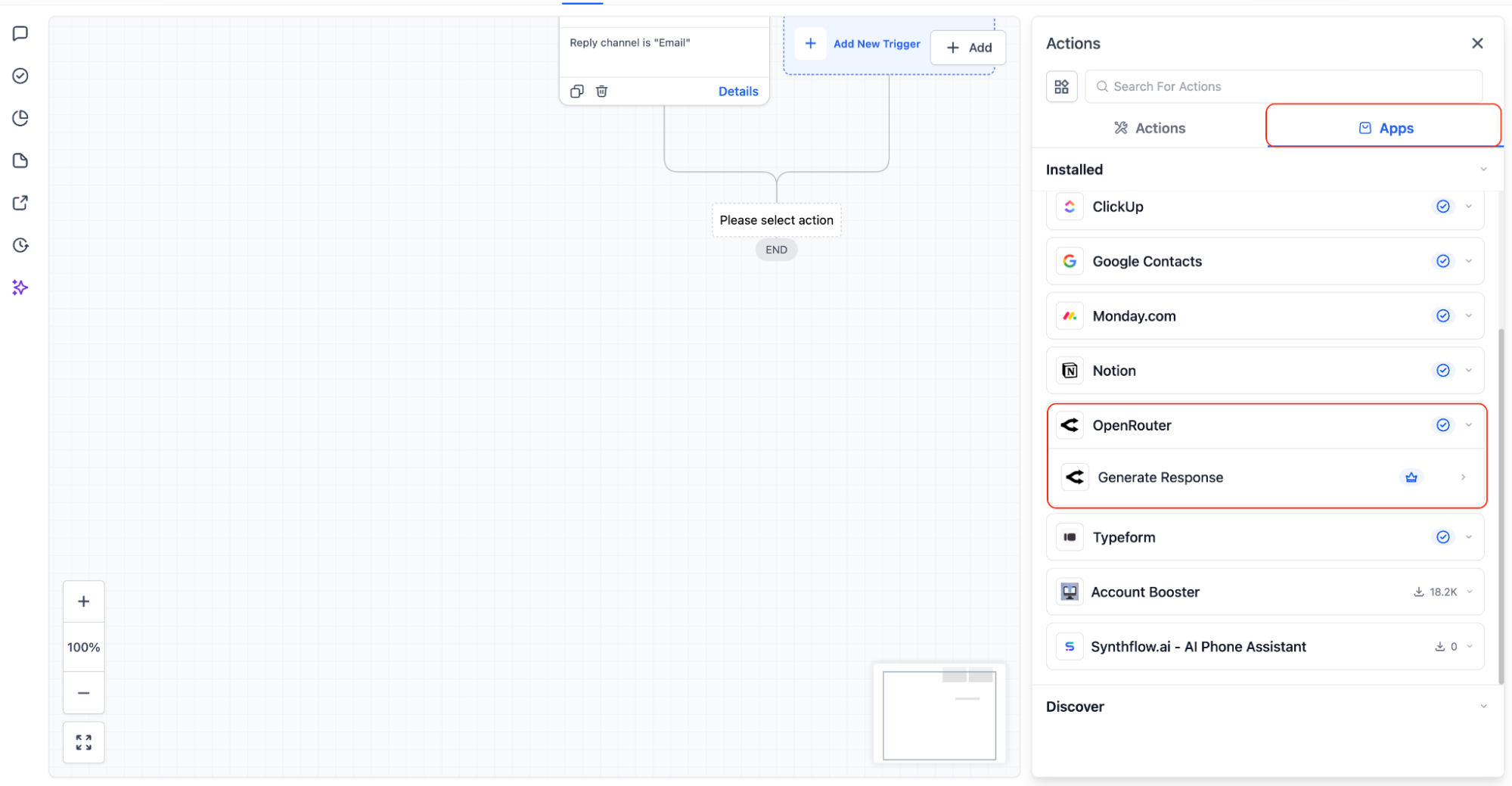
Note: The screenshot below is of the Integrations tab and you can navigate to this through Settings > Integrations to Connect OpenRouter._
_
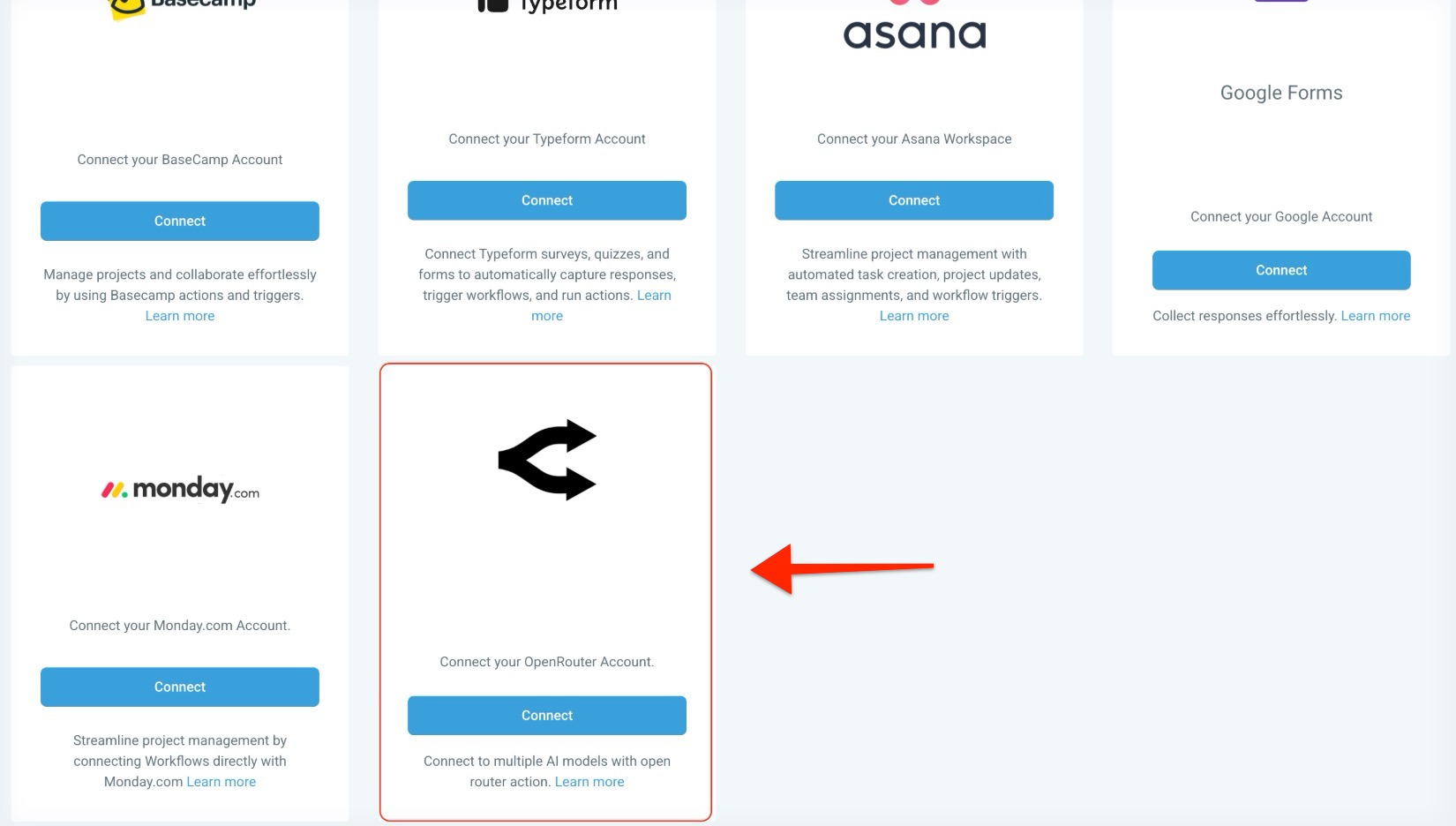
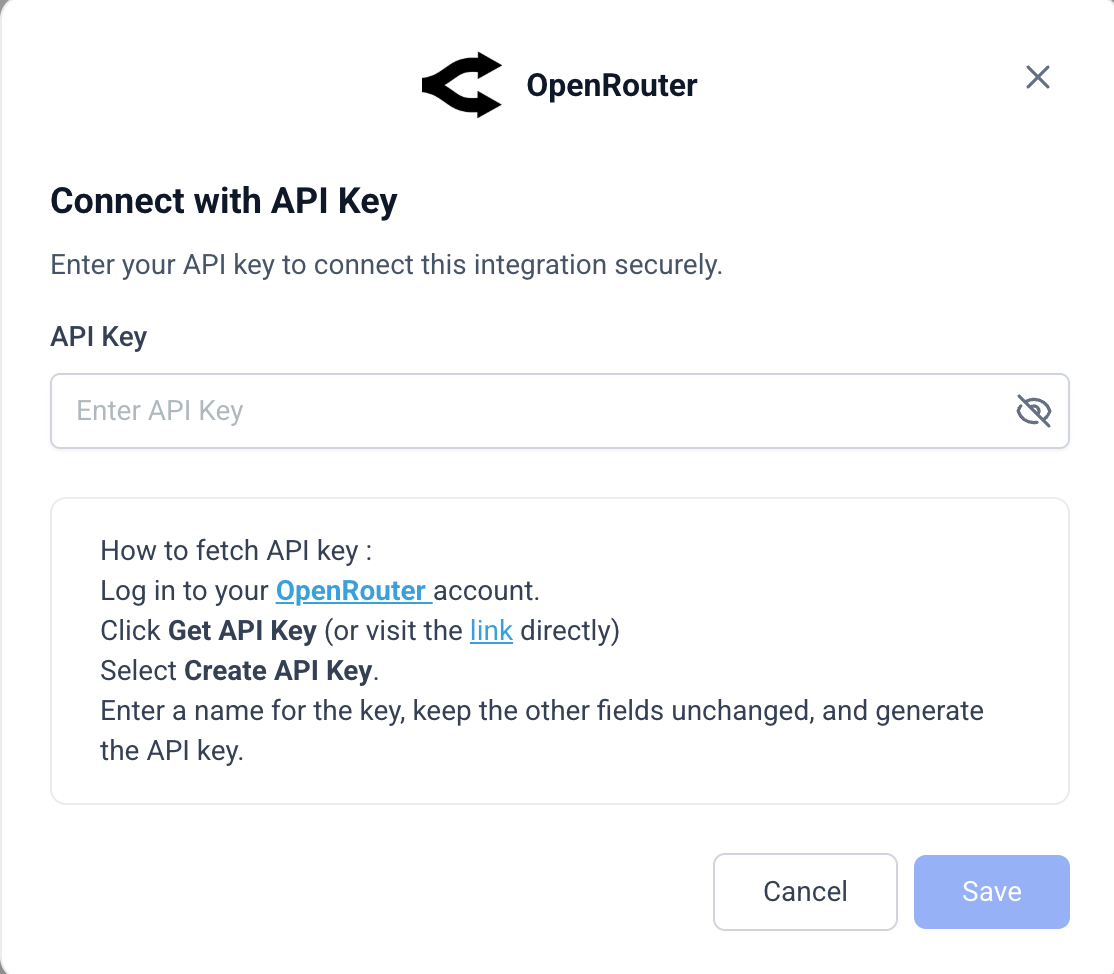
5. To link your account for the first time, click Connect Now and enter your OpenRouter API key.
6. Now, when we get back to the workflow, you will need to choose your AI, click the Model Selection dropdown, and pick from the 300+ available models.
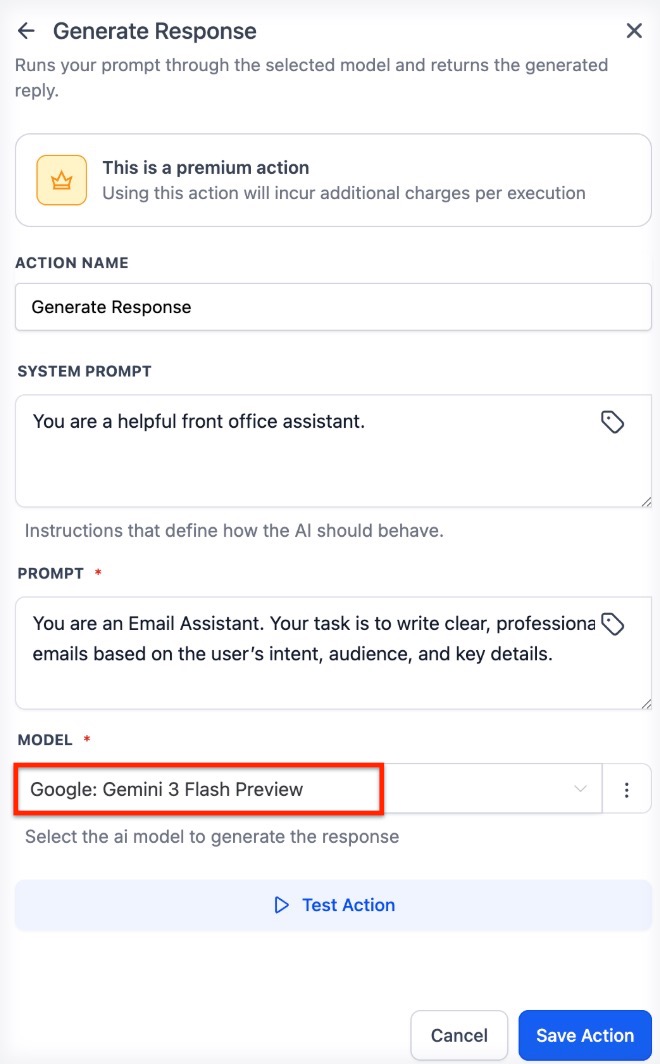
7. To set the AI’s persona, enter instructions in the System Prompt field (e.g., “You are a helpful support assistant”).
8. To give the AI a task, enter your instructions in the Prompt field.
9. To include specific lead data, click the Tag icon in the Prompt field to insert workflow variables like the contact’s name or message body.
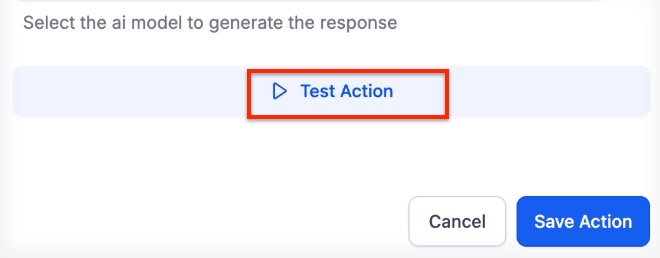
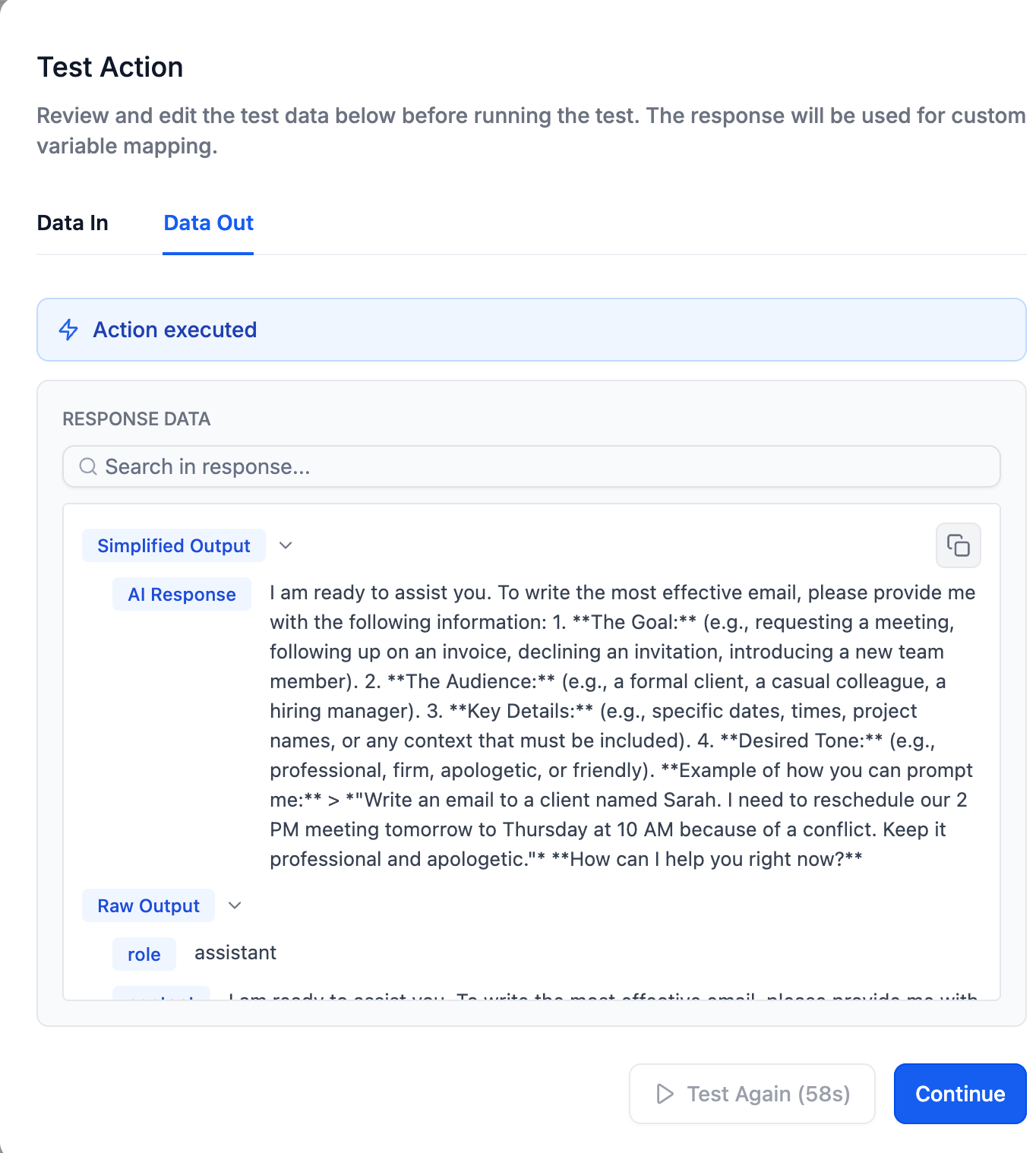
10. To ensure the AI is working correctly, click Test Action to see a sample response and save the data structure for future steps.
11. To finish, click Save in the action window and Save in the top right of the workflow builder.
¶ Best Practices
- Be Specific: Provide detailed instructions in your Prompt to get the highest quality results.
- Set the Tone: Use the System Prompt to tell the AI exactly how to behave (e.g., “be professional” or “be concise”).
- Experiment: Test multiple models to find the best balance of speed, cost, and creativity for your specific task.
- Keep it Clean: Use clear language and avoid confusing instructions to ensure the AI understands the goal.
¶ Impact and Capabilities
This integration changes how you handle data and communication. You can:
- Generate AI-Powered Replies: Create contextual email, SMS, or WhatsApp responses using inbound message data.
- Summarize Information: Turn long form submissions or conversations into short, actionable notes.
- Create Media: Use specific models like Veo to generate image or video content within your flows.
- Personalize at Scale: Use variables to make every automated message feel like it was written by a human.
FAQs
Question: Can I use workflow variables in the prompt?
Answer: Yes. You can use any supported workflow variables in both the Prompt and System Prompt fields to create personalized responses.
Question: What is the difference between a System Prompt and a Prompt?
Answer: The System Prompt sets the AI’s role or “personality,” while the Prompt contains the specific task or question you want the AI to answer.
Question: Which AI model should I choose?
Answer: It depends on your goal. Simple tasks work well with “lighter” models, while complex or creative writing tasks benefit from more advanced models.
Question: Can I store the AI-generated response in a custom field?
Answer: Yes. You can map the response to a custom field, use it in a message, or pass it to other steps later in the workflow.
Question: Do OpenRouter actions cost extra?
Answer: Yes. These are considered premium actions and are billed at standard automation rates, in addition to any charges from OpenRouter itself.
Question: Does LeadMagicX include AI credits for OpenRouter?
Answer: No. You must have your own OpenRouter account for credits. Usage is billed by OpenRouter, and the workflow step is billed as a premium action within the platform.
Question: Can I test the AI before the workflow goes live?
Answer: Yes. Use the Test Action feature to see the AI’s response and save the data format before you turn the workflow on.