¶ Workflow Trigger: Note Changed
Workflow Trigger: Note Changed
The Note Changed Workflow Trigger allows you to trigger a workflow whenever a note is changed within a contact in your account. In this case, the contact for whom the note was changed would be added to this workflow. This article will give an overview of how to set up a workflow using the Note Changed Workflow Trigger.
¶ Step 1: Start a new workflow or edit an existing one
- Navigate to Automation on the left > Workflows at the top and choose to start a new workflow or edit an existing workflow.
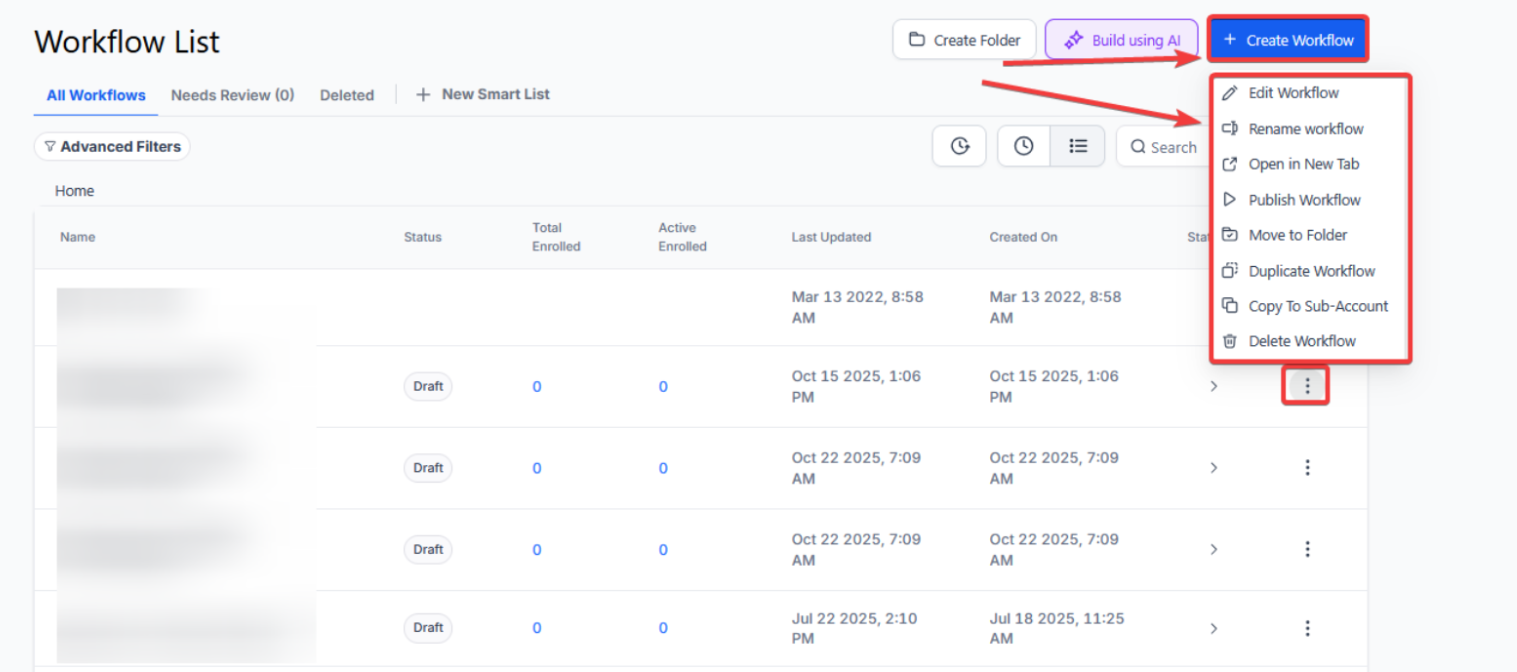
¶ Step 2: Creating and Editing the Trigger
- Click “Add New Workflow Trigger”
- Select Note Changed in the Contact section of the Workflow Triggers Menu or use the search feature. Once selected, the Trigger setup menu will open.

- (Optional) You can change the display name of this trigger within the workflow builder using the text box under Workflow Trigger Name
- Press + Add filters to open up the Filters section of the Trigger setup menu
- You can filter by the parameters Has Tag and Doesn’t Have Tag which will only allow contacts who have or do not have a selected tag assigned to them.
- Using Has Tag will only allow contacts who have the selected tag to be added to this workflow. No other contacts may be added
- Using Doesn’t Have Tag will allow all contacts to be added EXCEPT those who have the selected tag
** Pro Tip: **You are capable of applying both of these filters to the trigger, but these can cancel each other out in many cases. In light of this, it is best to use only one or the other depending on your needs

- You can also filter by Custom Fields. Using Custom Fields as your filter parameters will only allow contacts who have specified custom values assigned to them. These custom values are set up elsewhere in your account.
- Press Save Trigger in the bottom right corner of the Trigger setup menu

¶ Step 3: Set up applicable Workflow Action(s). We have multiple articles available to explain the setup of each of the Workflow Actions. Feel free to review our articles on these for more information on setting these up.
Pro Tip: You can use any Workflow Actions to be triggered by the Note Changed trigger or you can leave this workflow without any actions.
¶ Step 4: Press Save in the top right corner of your browser to save the workflow
- If your Workflow is ready to be enabled, make sure the toggle switch under Save is set to Publish
- Be sure to test your Workflow to make sure it is set up correctly using the Test Workflow button next to the Publish toggle switch.
- For an in-depth overview of Workflow Testing see our article, “Using the Testing Features in Workflows”
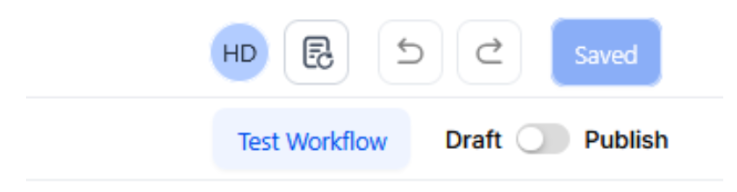
Now your workflow is set up and ready to go with the Note Changed Workflow Trigger.
Use Cases
Customer Support Task Assignment
Scenario: A support agent updates a note with details of an ongoing issue, and the workflow needs to assign a task to the appropriate specialist.
Trigger Setup:
- Trigger: Note Changed
- Filter: Has Tag: “High Priority”
Outcome: The workflow assigns the task to a senior support specialist and sends an immediate notification to them.
Membership Renewal Reminders
Scenario: A note is updated to indicate an upcoming membership renewal date, prompting the need for a reminder email.
Trigger Setup:
- Trigger: Note Changed
- Filter: Has Tag: “Member”
Outcome: The workflow sends a personalized renewal reminder email to the member.
¶ FAQ’s
Question: What is the Note Changed Workflow Trigger used for?
Answer: The Note Changed Workflow Trigger is used to initiate a workflow whenever a note associated with a contact is modified. This allows you to automate actions based on changes to notes, such as updating contact status or notifying team members.
Question: How do I start setting up a Note Changed Workflow Trigger?**
**Answer: Begin by either starting a new workflow or editing an existing one in your Workflow builder. Click “Add New Workflow Trigger,” then select “Note Changed” from the Contact section of the Workflow Triggers Menu.
Question: Can I rename the Note Changed trigger for better organization?**
**Answer: Yes, you can rename the trigger to make it easier to understand within the workflow builder. Enter a new name in the text box under “Workflow Trigger Name.”
Question: What filters can I apply to the Note Changed trigger?
Answer: You can apply filters based on tags and custom fields:
- Has Tag: Only contacts with the selected tag will be included in the workflow.
- Doesn’t Have Tag: All contacts except those with the selected tag will be included.
- Custom Fields: Filter contacts based on specified custom values.
Question: How do the tag filters work, and can I use both at the same time?**
**Answer: Has Tag: This filter ensures that only contacts with the specified tag are included in the workflow.
Doesn’t Have Tag: This filter includes all contacts except those with the specified tag.
- Pro Tip: Using both tag filters simultaneously can lead to conflicts or cancellation of each other’s effects. It is usually best to use one filter type based on your specific needs.
Question: What if I need to filter contacts based on custom values?**
**Answer: To filter by custom fields, select the relevant custom fields and specify the values you want to filter by. Only contacts with these values will be included in the workflow.
Question: How do I save the Note Changed trigger?**
**Answer: After configuring the trigger and applying any desired filters, press “Save Trigger” in the bottom right corner of the Trigger setup menu.
Question: What actions can I set up after the Note Changed trigger?**
**Answer: You can set up various Workflow Actions that should occur when the trigger is activated. Review our articles on Workflow Actions for detailed instructions on setting these up. You can also choose to leave the workflow without any actions if needed.
Question: Is it possible to track changes made to specific types of notes?**
**Answer: Currently, the trigger applies to all note changes in a contact record. You can use filters like “Has Tag” or “Doesn’t Have Tag” to refine the workflow’s scope based on the type of contact.
Question: Can the trigger handle multiple note changes in quick succession?
Answer: Yes, the trigger activates each time a note is updated. However, to prevent overlapping workflows, you can add conditions or cooldown periods in the workflow actions.
Question: What happens if multiple note changes occur quickly?
Answer: The trigger will activate for each note change. To prevent overlapping actions or excessive workflow execution, consider adding conditions, cooldown periods, or delay actions within the workflow.
Question: How do I ensure my Note Changed workflow is active and functioning correctly?
Answer: To activate the workflow, ensure the toggle switch in the top right corner is set to Publish and click Save. You should also use the Test Workflow button next to the toggle to verify that your trigger and filters are working as intended before going live.
Question: If I delete a note, will that trigger the workflow?**
**Answer: No. The “Note Changed” trigger is specifically designed for additions and modifications. Deleting a note does not currently initiate this workflow.