¶ How To Move and Copy Actions in the Workflow Builder
How To Move and Copy Actions in the Workflow Builder
Within a Workflow, you may want to make changes and reorder one or multiple actions. Rather than deleting and recreating the action(s), you can move one or multiple actions to another portion of your Workflow. This can save you time if you want to just reorder one or multiple actions, vs. redoing an entire Workflow as you make adjustments.
¶ Step 1: Access the workflow you wish to edit
- Navigate to Automation on the left > Workflows on the top and create a workflow or edit an existing one.
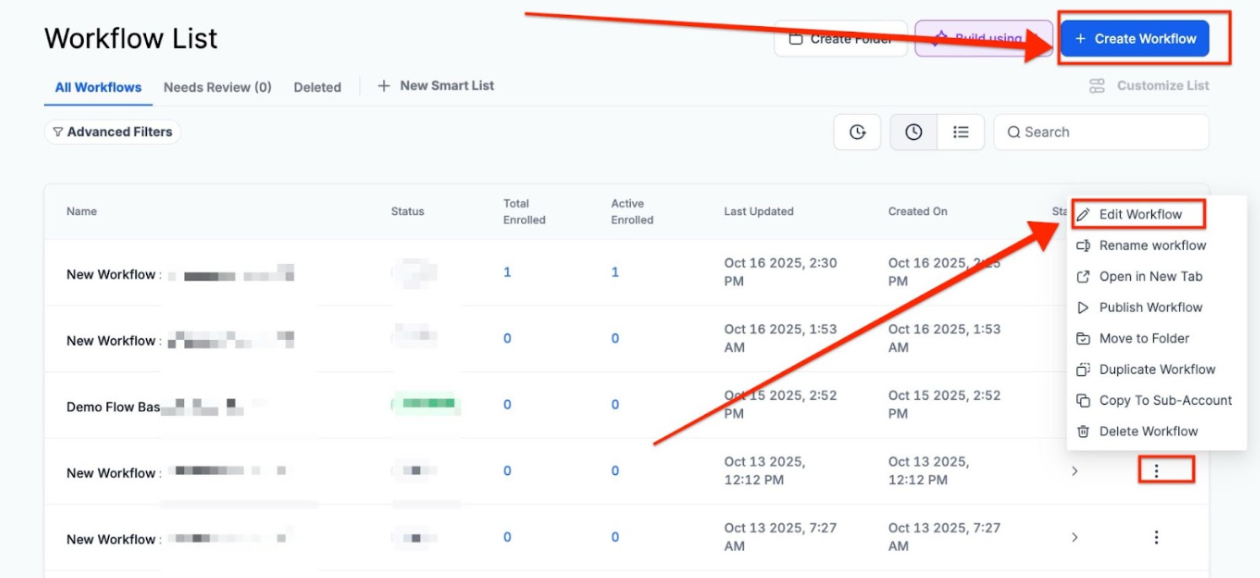
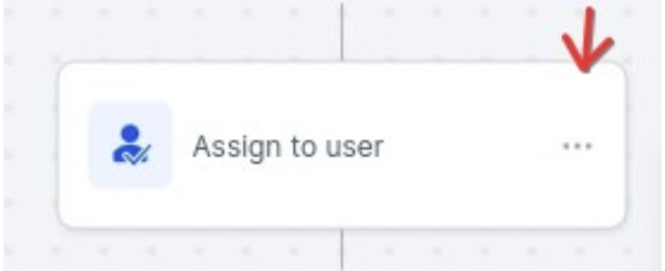
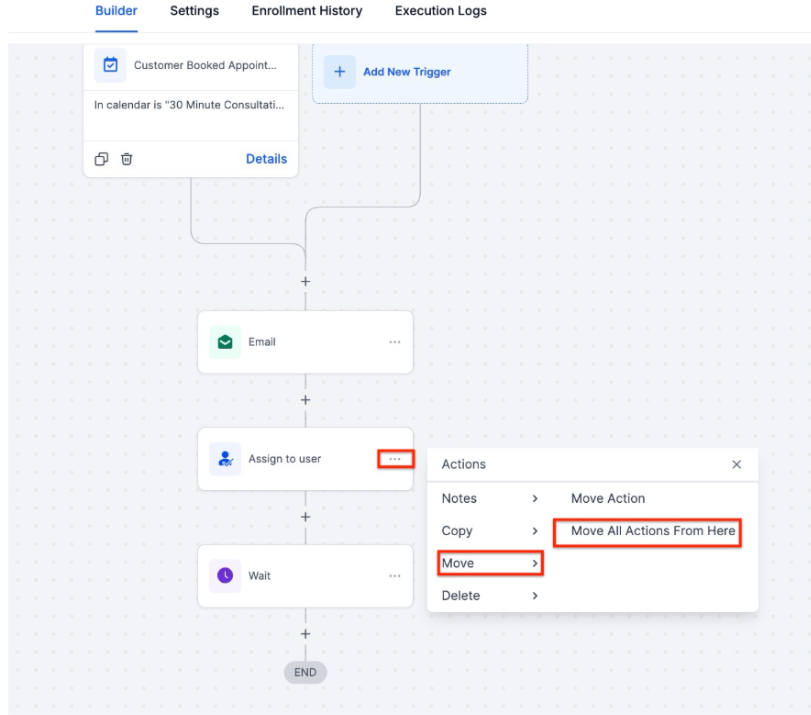
¶ Step 2: Click on the 3 dots next to the action you want to move
¶ Step 3: From the menu, choose “Move”
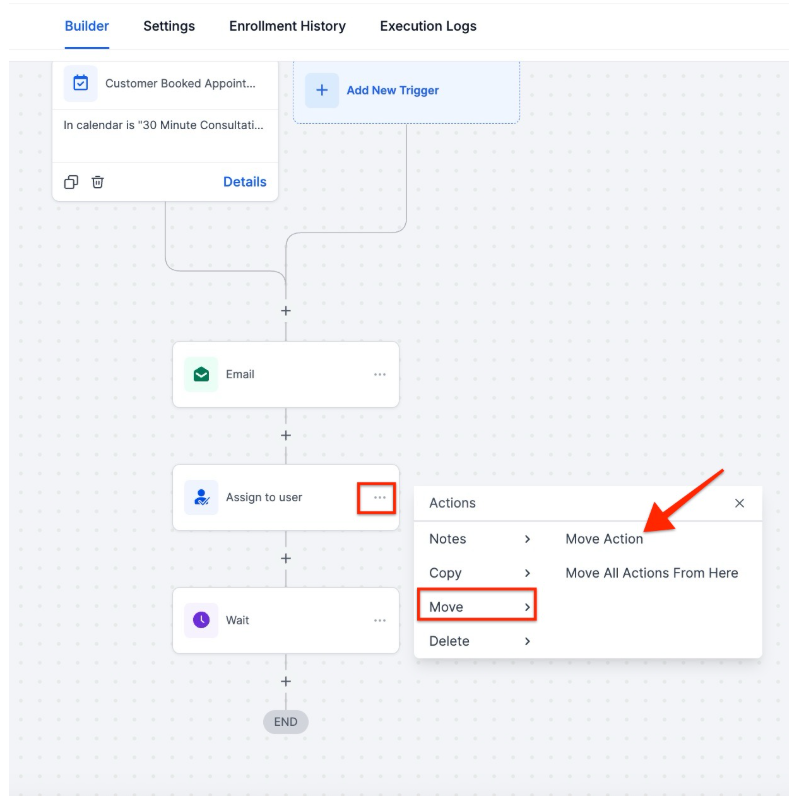
- For this example, we are going to select “Move Action” to move one individual Workflow action.
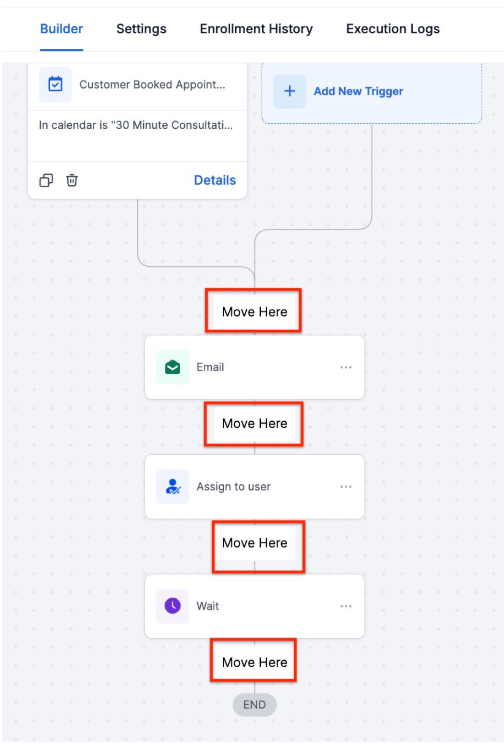
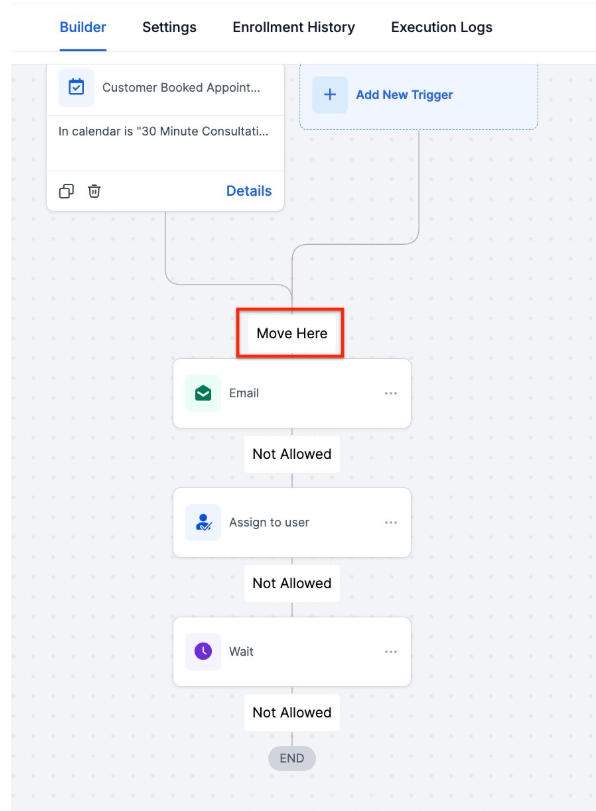
¶ Step 4: Move your action to the place you want it to be
- Click on the Move Here button to move the action
¶ Step 5: Save your changes
¶ Additional Tip:
- If you select “Move All Actions From Here” you will move that particular action and all following actions. You will see the available places as Move Here.
Note: If you want to move an If/Else action, it will move all the steps below that action, including the Yes and None branches. Just make sure to rearrange the condition, so it still makes sense.
¶ Copying Workflow Actions Across Workflows in LeadMagicX
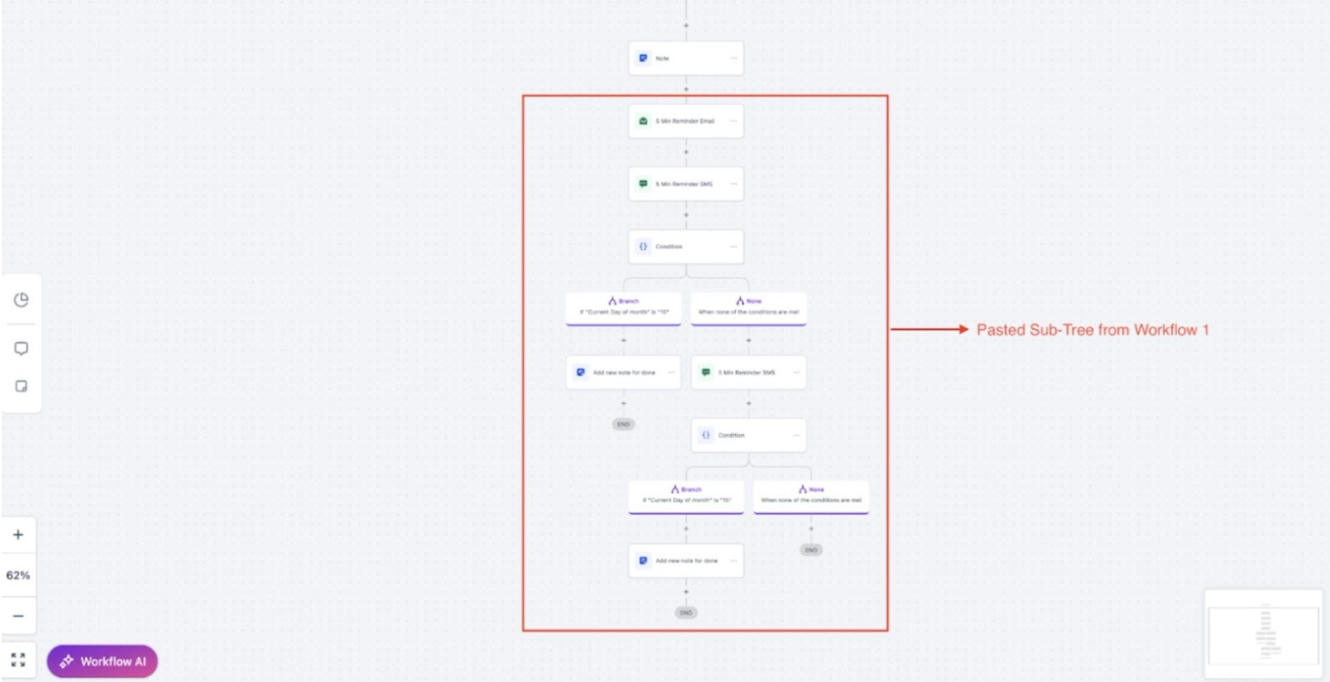
With the ability to copy and paste workflow actions across workflows, you can save time by easily transferring actions from one workflow to another. This eliminates the need to rebuild actions from scratch, allowing you to replicate workflows with ease.
How It Works :
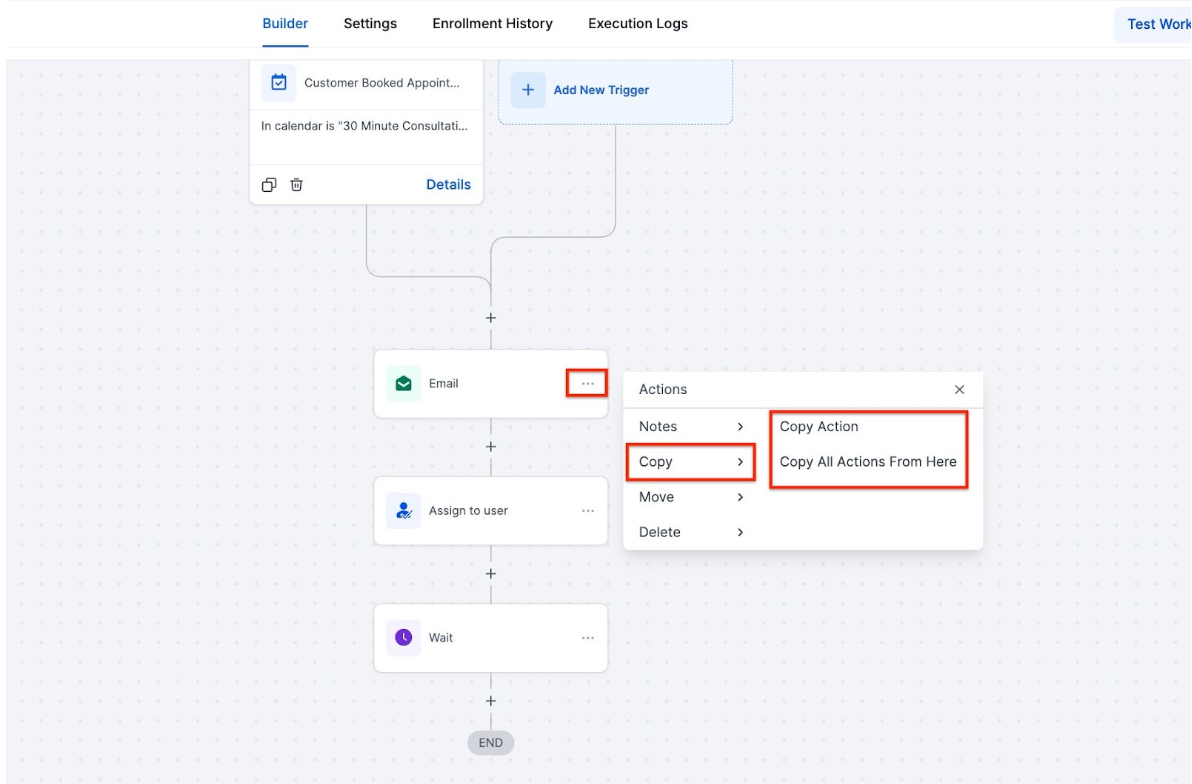
- Open the workflow and click the three-dot menu on an action.
- Select “Copy Action” or “Copy All Actions From Here”.
- Navigate to the target workflow (it can be in a different tab or the same one).
- Use the Quick Paste button next to the “+” button or choose “Paste Below” from the action menu.
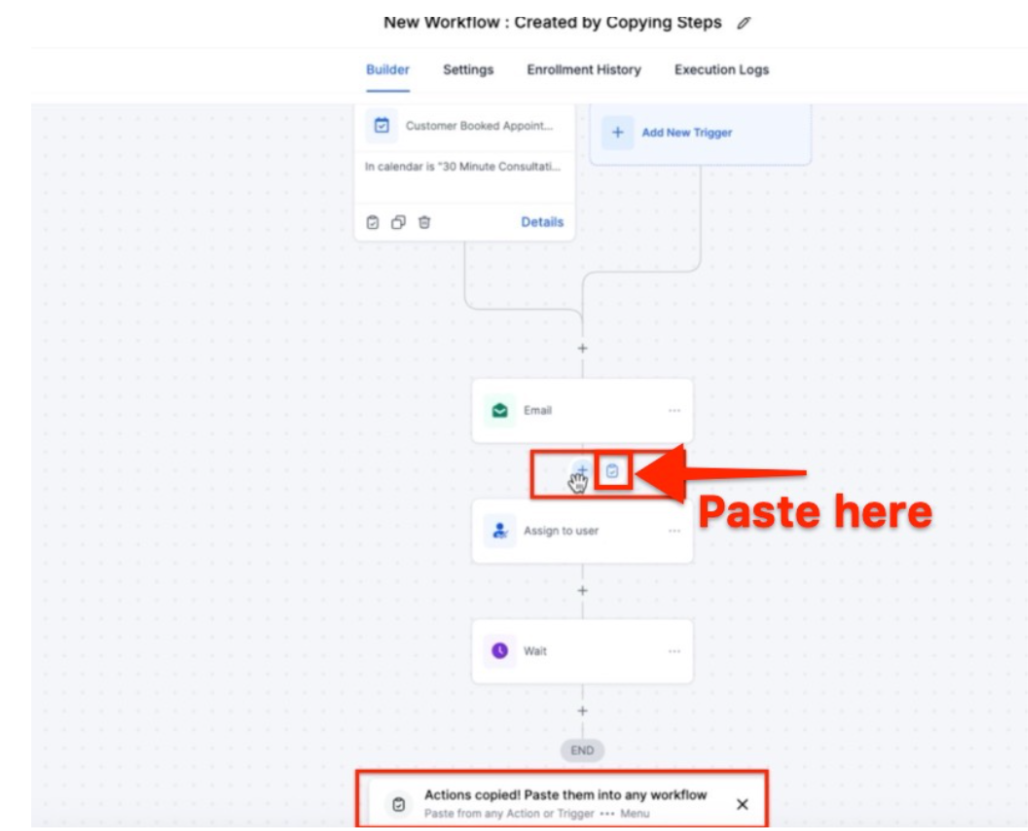
- Validate the pasted actions before saving the workflow.
Key Benefits :
- Save time by copying single actions or entire blocks between workflows.
- Copied actions stay in your clipboard for 15 minutes, allowing for multiple pastes.
- Works for all workflows within the same sub-account, ensuring quick and efficient workflow management.
¶ Pro tips on the mini map:
- Zoom Support: Users can zoom in and out within the mini-map, allowing for better control and visibility of workflow elements.
- Pannable: Navigate seamlessly by dragging within the mini-map to explore different sections of the canvas viewport.
- UI Enhancements: The mini-map’s UI has been revamped with visual distinctions from the canvas, providing a more intuitive and user-friendly experience.
¶ FAQ’s
Question: How can I move an action within a Workflow without recreating it?**
**Answer: To move an action, access your Workflow and click on the three dots next to the action you wish to move. Select “Move” from the menu, then choose “Move Action” for individual actions or “Move All Actions From Here” to move the action along with all subsequent actions. Position the action by clicking on the desired “Move Here” button, and save your changes.
Question: What happens if I move an If/Else action within my Workflow?**
**Answer: When you move an If/Else action, it will also move all steps below that action, including the Yes and None branches. Make sure to adjust the conditions accordingly to maintain the logical flow of your Workflow.
Question: Can I zoom and navigate within the Workflow mini-map?**
**Answer: Yes, the mini-map supports zoom functionality, allowing you to zoom in and out for better control and visibility of Workflow elements. You can also pan within the mini-map by dragging to explore different sections of the canvas viewport.
Question: What UI enhancements have been made to the Workflow mini-map?**
**Answer: The mini-map has been revamped with visual distinctions from the main canvas, offering an improved and more intuitive user experience. This helps in easily navigating and identifying different Workflow components within the mini-map.
Question: Does adding captions affect automated scheduling?**
**Answer: No. Adding captions does not interfere with scheduling or automation; posts still publish according to the set date and time.
Question: Can I adjust the workflow after moving multiple actions?**
**Answer: Yes. After moving actions, you can reorder, edit, or adjust conditions for any action to ensure the workflow operates correctly.
Question: If I copy an action and then close my browser, will it still be on my clipboard when I log back in?
Answer: No. The clipboard for workflow actions is session-based and lasts for 15 minutes. If you refresh your page or log out, the clipboard will be cleared. Make sure to complete your “Copy and Paste” process in one active session.
Question: Where do I click to insert a copied action into a new workflow?****
Answer: You can use the “Quick Paste” button located next to the “+” icon, or select “Paste Below” from the three-dot action menu in the target workflow.