¶ Workflow Trigger: Trigger Link Clicked
In this article, you will learn how to set up a Trigger Link, what it can be used for, and one example. Essentially it is a hyperlink, that when clicked on can be tracked with the ability to trigger automations.
¶ Step 1: Start a new workflow or edit an existing one
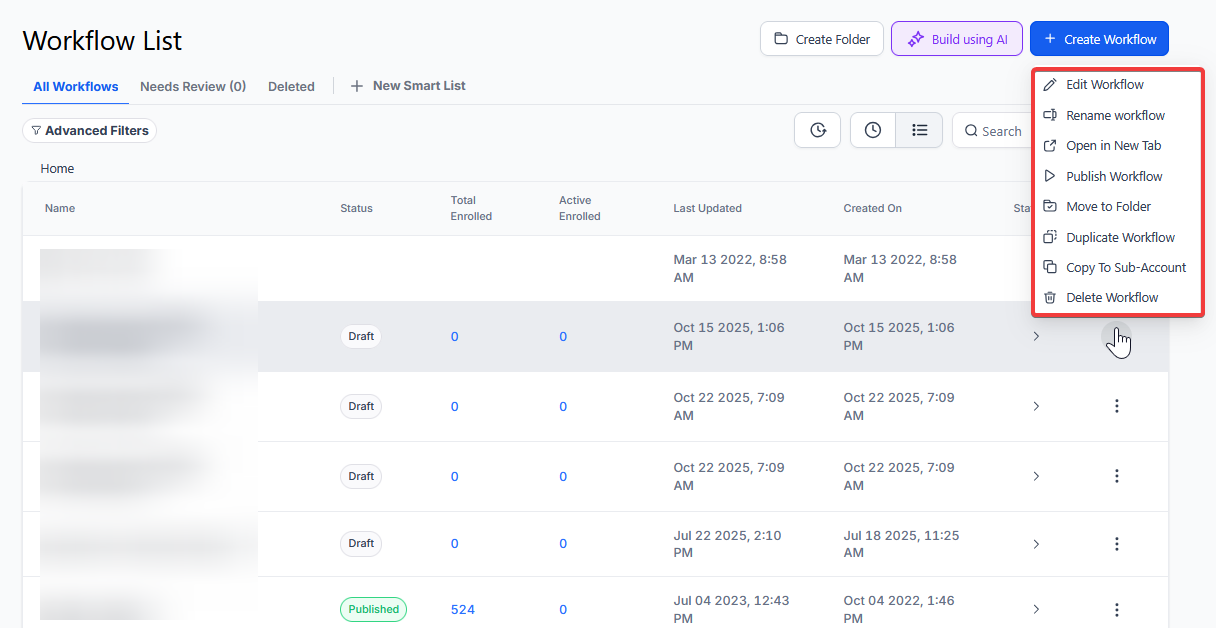
- Navigate to Automation on the left > Workflows on the top and create a new workflow or edit an existing one
¶ Step 2: Creating and Editing the Trigger
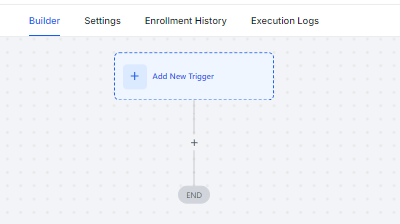
- Click “Add New Workflow Trigger ”
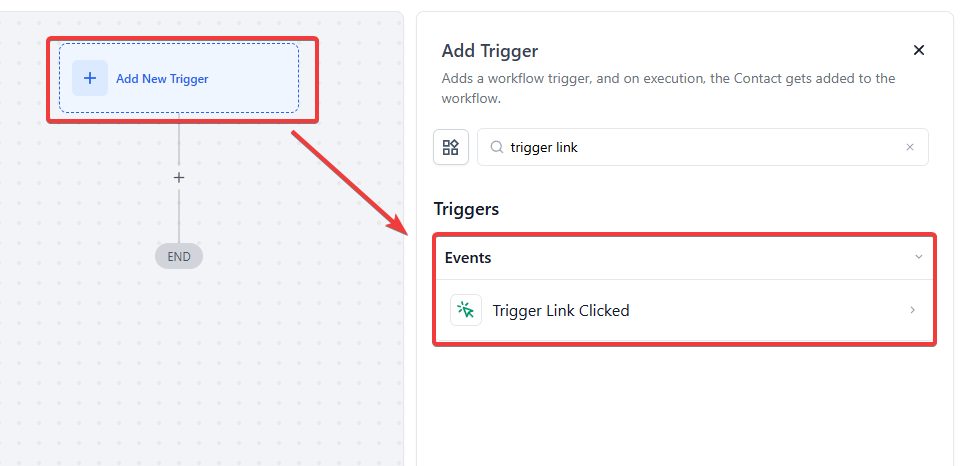
- Select “Trigger Link Clicked ” in the Contact Actions section of the Workflow Triggers Menu or use the search feature. Once selected, the Trigger setup menu will appear
- (Optional) You can change this trigger’s workflow builder display name of this trigger using the textbox below Workflow Trigger Name. Note that this will only affect the display name within the workflow builder and has no other impact on the content or functionality of this Workflow Trigger.
- Press + Add filters to expand the Filters section of the Trigger setup menu

- For Example: we are going to choose the Unsubscribe trigger link created in the Marketing > Trigger Links tab. Use this to trigger an automation to DND Contac t and Notify yourself that someone unsubscribed

-
Please Note: if you do not have any options to choose from the filters you will need to create that in the Marketing Tab(we explain this at the end of the article for clarification).
-
Press Save Trigger in the bottom right corner of the Trigger setup menu

¶ Step 3: Set up applicable Workflow Action(s). We have multiple articles available to explain the setup of each Workflow action. Feel free to review our articles on these for more information on setting these up.
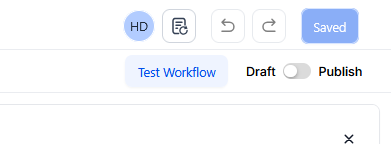
¶ Step 4: Press Save in the top right corner of your browser to save the workflow
-
If your Workflow is ready to be enabled, make sure the toggle switch under Save is set to Publish
-
Be sure to test your Workflow to ensure it is set up correctly using the Test Workflow button next to the Publish toggle switch.
-
For an in-depth overview of Workflow Testing see our article, “Using the Testing Features in Workflows”
Your workflow is ready to go with the Trigger Link Clicked Workflow Trigger.
Creating the Trigger Link Filter Option
-
Navigate to the “Marketing ” tab
-
Select “Trigger Links ” and then “Links ”
-
Click the blue “Add Link ” button; this will now allow you to add your trigger link.

-
Once you have filled out the required information, click the blue “Save ” button
-
Now that you have created a trigger link go back to the Automation tab and click on the previous Workflow Trigger you were working on to follow this article
¶ Example
You want to create a workflow that sends a follow-up email to contacts who click on a promotional link in an email.
Workflow Trigger Name: “Promo Link Engagement Follow-up”
Filters:
- Trigger Link: “Spring Sale Promo” (Only clicks on this specific link will trigger the workflow)
Workflow Steps:
- Trigger: Link Clicked (as specified above)
- Action: Send Email - Thank the contact for their interest and offer them a special discount.
- Action: Update Contact - Tag the contact as “Interested in Promo” to better target these users in future campaigns.
¶ FAQs
Question: What is a Trigger Link and how is it used in workflows?**
**Answer: A Trigger Link is a hyperlink that can be tracked when clicked. It is used to initiate automation based on user interactions. For example, clicking a Trigger Link can trigger actions such as updating contact status, sending notifications, or any other workflow automation.
Question: How do I start creating a Trigger Link workflow?**
**Answer: Begin by starting a new workflow or editing an existing one in the Workflow builder. Click “Add New Workflow Trigger” and select “Trigger Link Clicked” from the Contact Actions section of the Workflow Triggers Menu.
Question: Can I rename the Trigger Link trigger in the workflow builder?**
**Answer: Yes, you can rename the Trigger Link trigger by entering a new name in the textbox below “Workflow Trigger Name” in the Trigger setup menu. This name is for display purposes only and does not affect the functionality of the trigger.
Question: How do I add filters to the Trigger Link trigger?**
**Answer: To add filters, click on “+ Add filters” in the Trigger setup menu. This allows you to specify conditions that must be met for the trigger to activate. For example, you might choose a specific link that when clicked, will execute the workflow.
Question: What if I don’t see any options to choose from in the filters?**
**Answer: If no options are available, you need to create the trigger links in the Marketing tab first. Refer to the section at the end of the article for instructions on creating Trigger Links.
Question: How do I set up the actions that follow a Trigger Link click?**
**Answer: After setting up the Trigger Link trigger, proceed to configure the applicable Workflow Actions. You can review our articles on specific Workflow Actions for detailed setup instructions.
Question: How do I save and publish my workflow?**
**Answer: To save your workflow, press “Save” in the top right corner of your browser. To enable it, make sure the toggle switch under Save is set to “Publish.”
Question: How can I test my workflow to ensure it works correctly?**
**Answer: Use the “Test Workflow” button next to the Publish toggle switch to simulate the workflow and verify that it functions as expected. For a detailed guide on workflow testing, refer to our article, “Using the Testing Features in Workflows.”
Question: What should I do if the filter options I need are missing when setting up my trigger?
Answer: If you don’t see any options in the filters, you must first create the link in the Marketing tab. Navigate to Marketing > Trigger Links > Links, click “Add Link,” and fill out the required information. Once saved, you can return to your workflow to select that link in the filter menu.
Question: Can I use the same Trigger Link in multiple workflows?**
**Answer: Yes. You can have three different workflows all waiting for the “Spring Sale” link to be clicked. However, it is usually cleaner to have one workflow that handles all actions related to that click to avoid confusion.