¶ Automate Lead Management with the “Prospect Generated” Workflow Trigger
Welcome to this guide on using the “Prospect Generated” workflow trigger to automate lead management effectively. This feature allows businesses to streamline actions when new prospects are created through the Prospecting Tool or embedded widgets, enhancing efficiency and boosting engagement with potential clients.
¶ What is the “Prospect Generated” Workflow Trigger?
The “Prospect Generated” trigger is a powerful tool that automates workflow actions whenever a new prospect is created. This feature supports multiple sources, including both in-app and widget-generated prospects, enabling businesses to automate lead management, create contacts automatically, and engage prospects through personalized communication.
¶ Key Benefits
- Automated Lead Management: Trigger workflows instantly when new prospects are generated.
- Enhanced Engagement: Automate personalized emails or SMS to new leads.
- Improved Efficiency: Reduce manual data entry by automatically creating contact records.
¶ How to Use the “Prospect Generated” Workflow Trigger
¶ Step-by-Step Instructions
1- Access the Workflow Builder:
- Go to your automation or workflow section within LeadMagicX.
- Click on “Create New Workflow.”
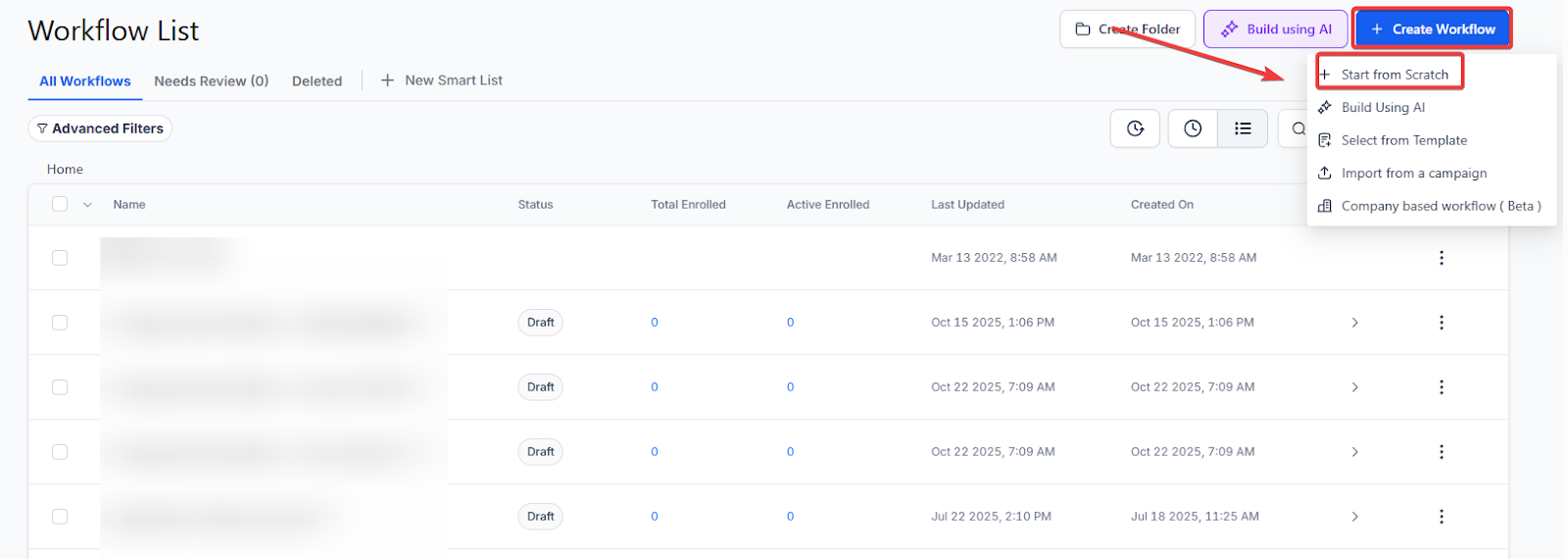
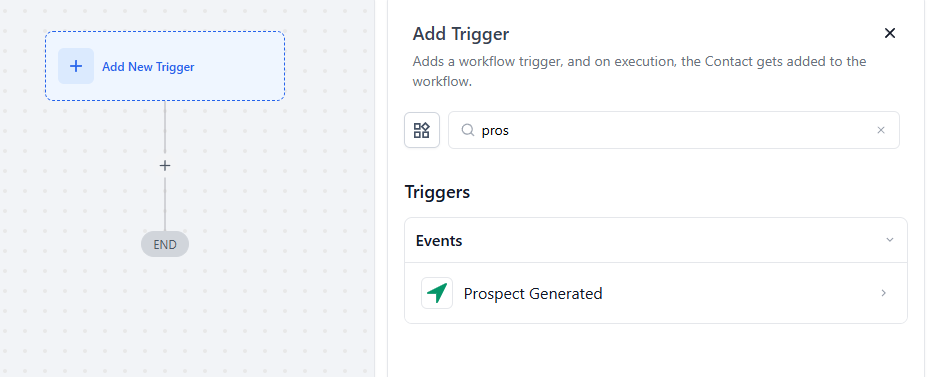
2- Select the “Prospect Generated” Trigger:
- Choose the “Prospect Generated” trigger from the list of available options.
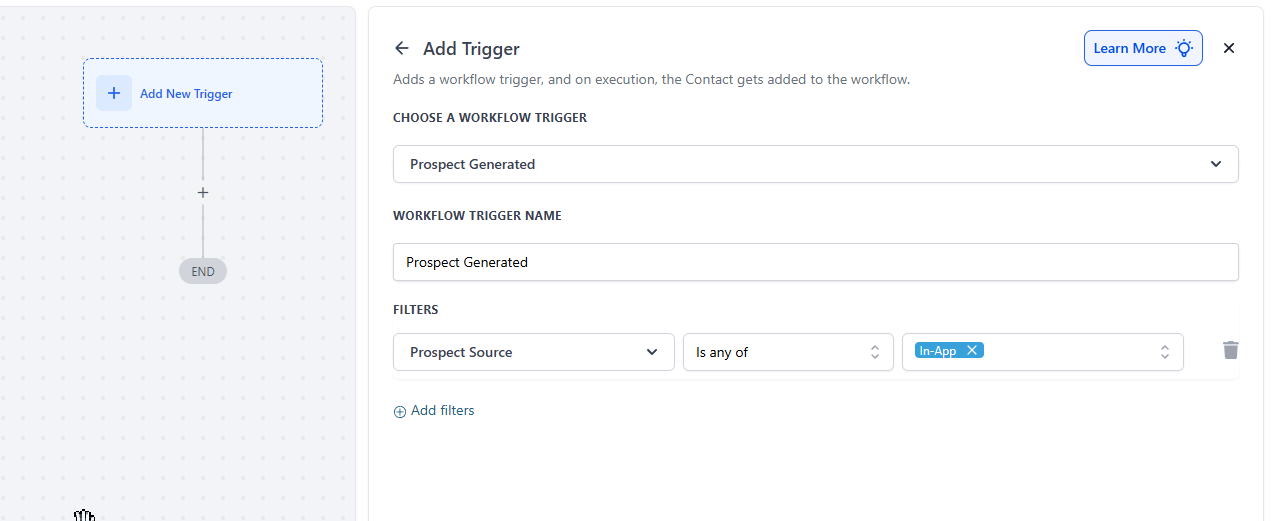
3- Configure Trigger Settings:
- Select Prospect Source: Choose between “In-App” or “Widget” sources based on where the prospects are generated.
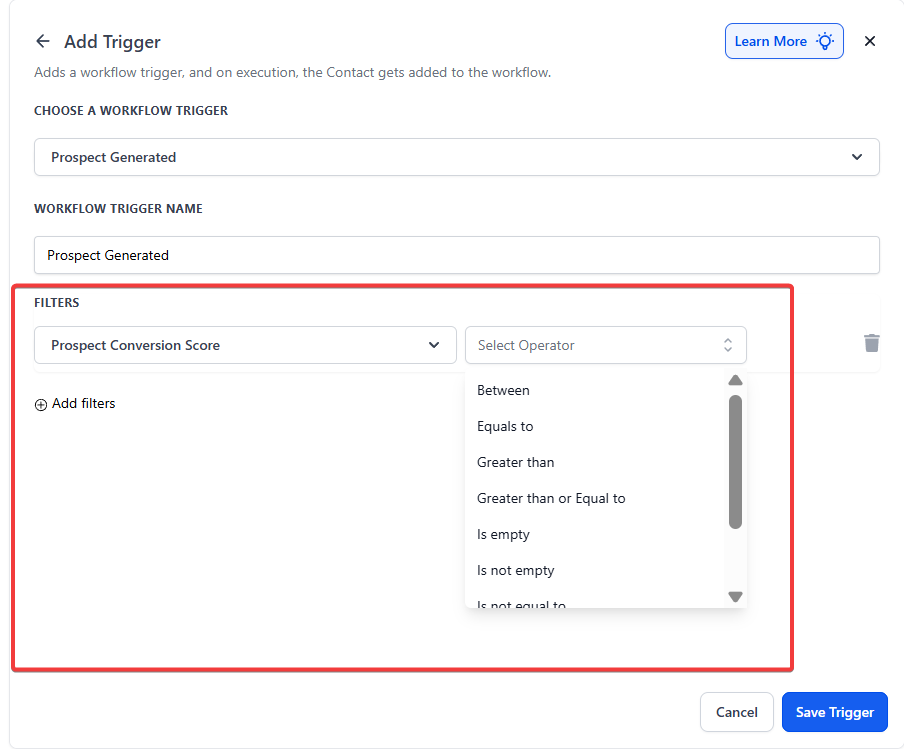
- Set Conversion Score Filters: Define a conversion score range using operators like >, <, or = to prioritize high-quality leads.
4- Add Workflow Actions:
- Send Automated Emails/SMS: Choose templates for welcoming or nurturing prospects.
- Create Contacts Automatically: Enable automatic contact creation for new prospects.
- Assign Tags: Organize leads by assigning tags for better segmentation.
- Export Prospect Data: Automate data export to Excel for easier tracking and analysis.
5- Save and Activate the Workflow:
- Review the configured settings and click “Save.”
- Activate the workflow to start automating lead management processes.
¶ Example Use Case
Scenario: A business wants to prioritize high-conversion prospects and engage them automatically.
- Trigger: “Prospect Generated”
- Filters:
- Source = Widget
- Conversion Rate > 70%
- Actions:
- Send a welcome email/SMS to new prospects.
- Automatically create contacts.
- Assign special tags for segmentation.
- Export prospect data to Excel.
¶ Expected Outcomes
- Improved Engagement: Ensure timely follow-ups with prospects.
- Prioritized Lead Follow-Up: Focus on high-conversion prospects.
- Seamless Contact Creation: Reduce manual data entry efforts.
¶ Frequently Asked Questions (FAQ)
Question: How do I set up the “Prospect Generated” workflow trigger?****
Answer: Access the workflow builder, select “Prospect Generated” as the trigger, configure the source and filters, and add desired actions.
Question: Can I filter prospects by conversion score? **
Answer:** Yes, you can filter prospects using conversion score ranges with operators like >, <, and =.
Question: What types of actions can I automate with this trigger? **
Answer:** You can automate sending emails/SMS, creating contacts, assigning tags, and exporting data to Excel.
Question: Is this feature available for all accounts? **
Answer:** The “Prospect Generated” trigger is available only at the sub-account level.
Question: Can I use this trigger with both manual and widget-generated prospects? **
Answer:** Yes, the trigger supports both in-app (manual) and widget-generated prospects.
Question: Can I export prospect data automatically? **
Answer:** Yes, you can set up a workflow action to export prospect data to Excel whenever a new prospect is generated.
Question: Do I have to manually approve prospects for the workflow to start? **
Answer:** No. Once the workflow is published and “Active,” it will run automatically the moment a prospect meets your defined criteria (Source and Conversion Score)
Question: How can I use this trigger to reduce manual data entry for my team?
Answer: You can add the “Create Contacts Automatically” action to your workflow. This ensures that every time a prospect is generated, a corresponding contact record is built in your system without manual input.
Question: If I enable “Create Contacts Automatically,” will it create duplicates for existing leads?
Answer: The system typically checks for existing contact records based on unique identifiers (like email or phone) before creating a new one to ensure your database remains clean.