¶ Workflow Trigger: Instagram - User Comments On A Posts
Workflow Trigger: Instagram - User Comments On A Post
A workflow trigger has been introduced to enhance engagement and drive sales on social media platforms like Facebook and Instagram. With this capability, users can automate responses to comments on their posts, ensuring no potential lead slips away and conversations with customers are instantly initiated and maintained. In this article, we’ll delve into the specifics of leveraging the Instagram - User Comments On A Post trigger within LeadMagicX 's automation workflow.
¶ Prerequisites:
Before utilizing this feature, ensure the following prerequisites are met:
- Integration of LeadMagicX with your Facebook account.
- Availability of the “Facebook - User comments on a post” or “Instagram - User comments on a post” triggers in the automation workflow.
¶ How To Use:
Follow these steps to integrate Instagram - User Comments On A Post trigger into your automation workflow:
1. Access Settings: Go to settings in LeadMagicX platform.
2. Navigate to Integrations: Within settings, locate and click on the integrations section.
3. Connect Instagram Account: Under the Facebook and Instagram section, connect your Instagram account by following the prompted steps.
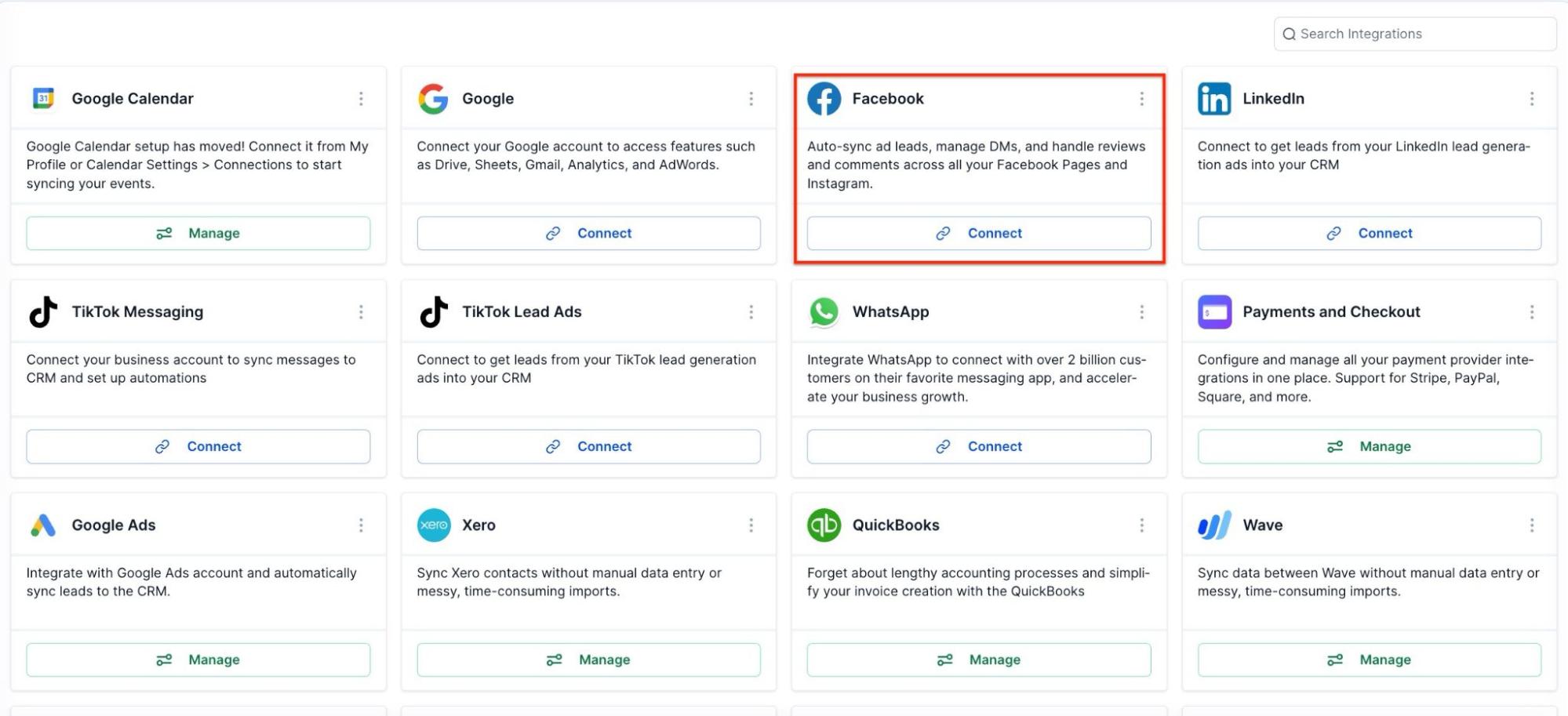
4. Add Trigger: When creating a workflow, click on “Add Trigger” and select “Instagram - User comments on a post” from the available triggers.

5. Setting Filters:
- After selecting the trigger, the sidebar will open with multiple filters.
- Start by selecting the Instagram Page associated with the post.
STEP1:

Add filters for “contains phrase” or exact match:
- Select “Contains Phrase” and enter the desired phrases, pressing enter after each phrase.
- Select “Exact Match” if you want to trigger the automation only for exact comments.

STEP2:

STEP3:

Enable “Track First Level Comments Only” to avoid tracking replies within the comment thread.
Specify the Post Type as either “Published” or “Custom.”

The published Posts tab includes all posts on your business page - it could be text, photo, video, or live video types of posts. You can also select the “View on Instagram” hyperlink to take you to the post.
First, select the post:

You can then select the “View on Instagram” hyperlink to take you to the post.

The ‘Custom’ tab allows you to find and connect the post by entering the Facebook post’s URL or ID. Select Custom in Post type, add the “Post is” filter, and paste the URL of the post in the field against the “Post is” field.

Define Comment Criteria: Specify the keyword or phrase you’re looking for in the comment using options like “Contains Phrase” or “Exact Match”.

Optionally, enable tracking of only first-level comments if needed.

Save Contact: When a contact comes through the trigger, it will be saved, storing the first name and last name of the contact.
Test the Workflow: Before deploying the workflow, test it to ensure it functions as expected. Post a comment on the designated Instagram post and verify that the workflow triggers and executes the desired actions.
NOTE: For an in-depth overview of Workflow Testing see our article, “Using the Testing Features in Workflows”
¶ Example Workflow
Here is an example of a workflow using the Instagram - User Comments On A Post trigger:
- Trigger: User comments on a specific Instagram post.
- Actions:
- Send Automated Response: Automatically respond to the comment with a pre-defined message.
- Tag Contact: Apply a specific tag to the contact who commented.
- Notify Team: Alert your team about the new comment for further engagement

Here is how the message will look on Instagram:

¶ Important Points
- Page Filter: The “Page is” filter is the initial field to be selected in triggers.
- Interactive Messenger Actions: You can add up to 3 buttons in the Interactive Messenger action.
- Call Button Limitation: No additional actions can be added after the “Call” button.
- Default Wait Time: A default wait time of 10 seconds is included, which can be edited by the user.
- Default Timeout: If no button is selected, contacts will proceed to the “Default Timeout” branch.
- Reply to DM: If selected, the system will check for recent conversations.
¶ FAQs
Question: Can I use this trigger for posts on Facebook as well?****
Answer: Yes, you can use the trigger “Facebook - User comments on a post”
Question: How do I know if the trigger is set up correctly?****
Answer: Use the Test Workflow feature to simulate comments and verify that the workflow functions as intended.
Question: What should I do if the workflow is not triggering as expected?****
Answer: Double-check your filter settings, ensure that the Instagram account is correctly connected, and review the post details. Test the workflow again if necessary.
Question: Can I add more actions to the workflow after it is published?****
Answer: Yes, you can modify the workflow and add or adjust actions even after it is published
Question: Is there a limit to how many comments can be processed at once?**
Answer:** The system is built to handle high volume. However, Instagram has rate limits to prevent spam. Our platform manages these limits automatically, but we recommend avoiding overly repetitive messages to keep your account safe.