¶ Workflow Guide: Sending Membership Credentials
Workflow Membership Credentials/Welcome Email
Please Note: This guide assumes that your contacts are granted access to the membership offer through another method or workflow.
¶ Creating a Workflow to Send the Credentials:
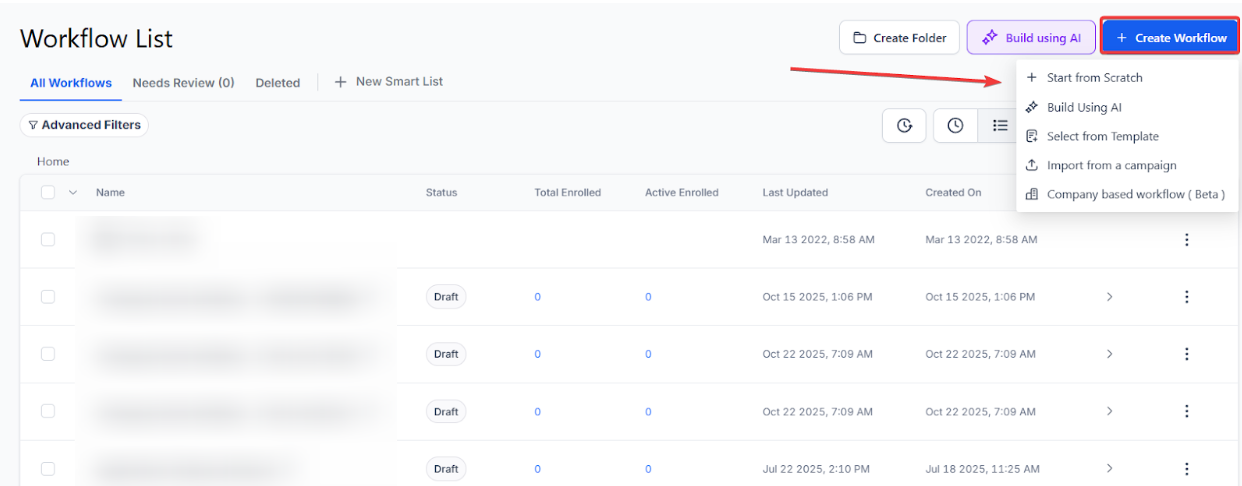
- Navigate to the Automation tab and create a new workflow.
2. Add a trigger: New Signup.
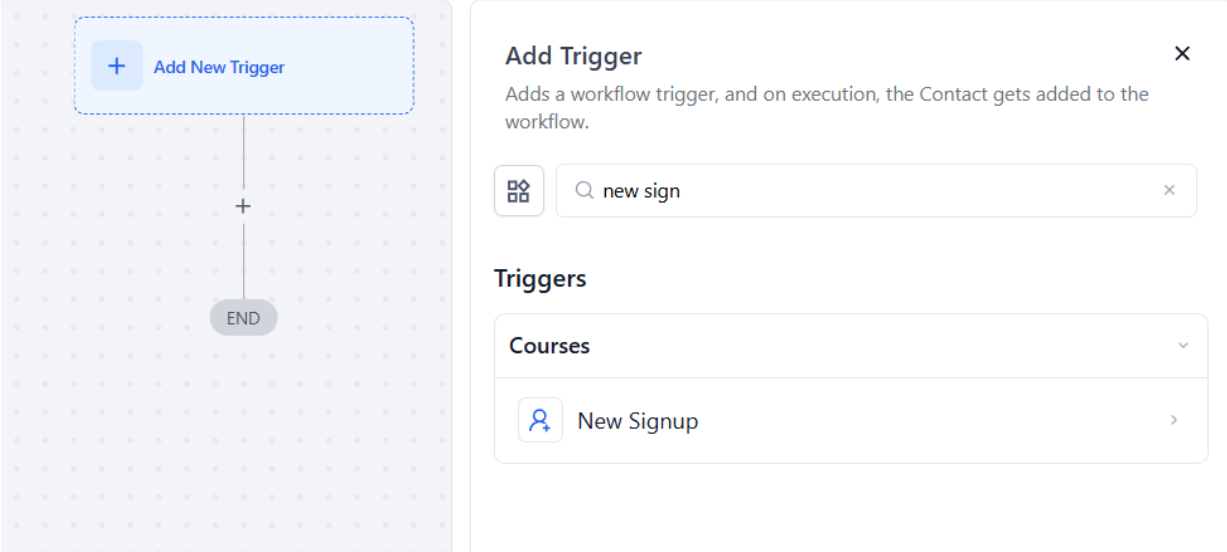
- You can add a filter if you want to trigger it for any specific course offer.
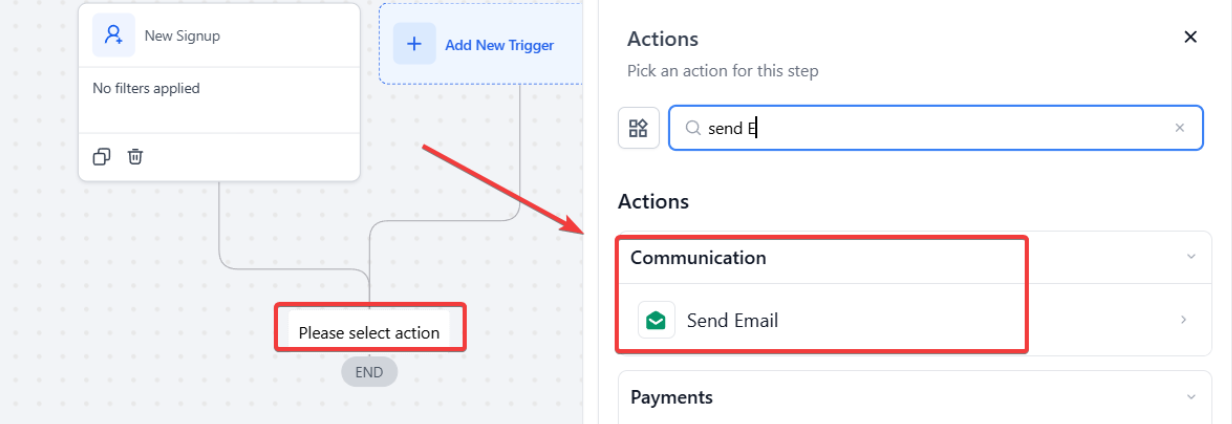
3. Add an action: Send Email.
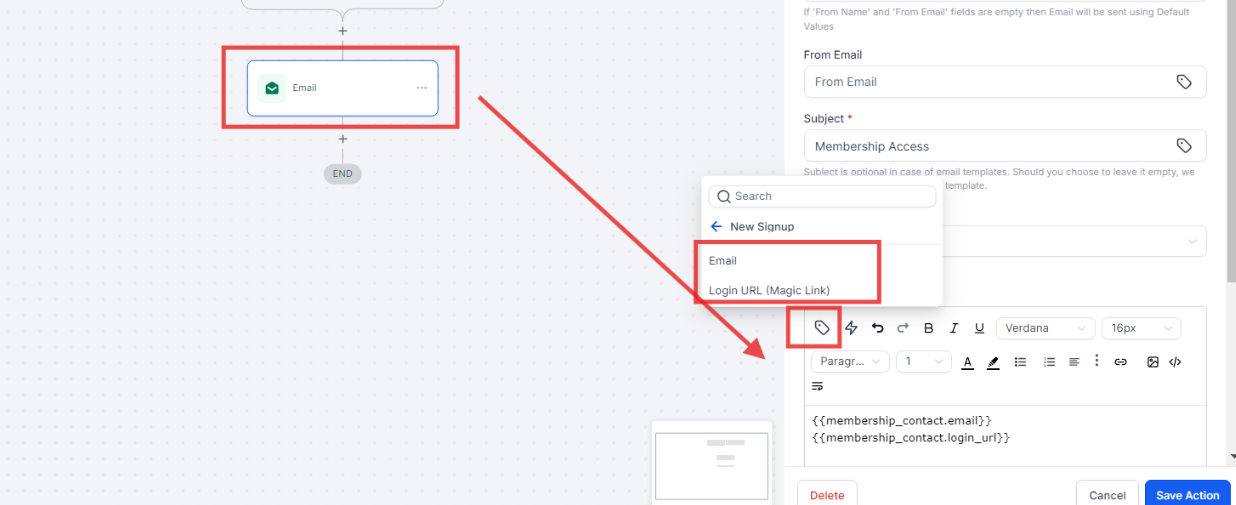
- In the email action, click on the custom value option.
- Select Course > New Signup.
- Choose the custom values: Email and Login URL (Magic Link).
Important Notes:
- Users will have the flexibility to set their own passwords, eliminating the need for automated password generation.
- Users will be redirected to the Set Password page if they try to log in without setting their password.
- Password fields in the existing templates will not be populated. Users should use the loginUrl to set their passwords.
- The Password custom field will not be visible across all template builders and workflow email options. Users also will not be able to add the password field in their new templates.
¶ Creating a Workflow for Granting Offer Access:
- Navigate to the Automation tab and create a new workflow.
- Add a trigger based on your desired criteria.
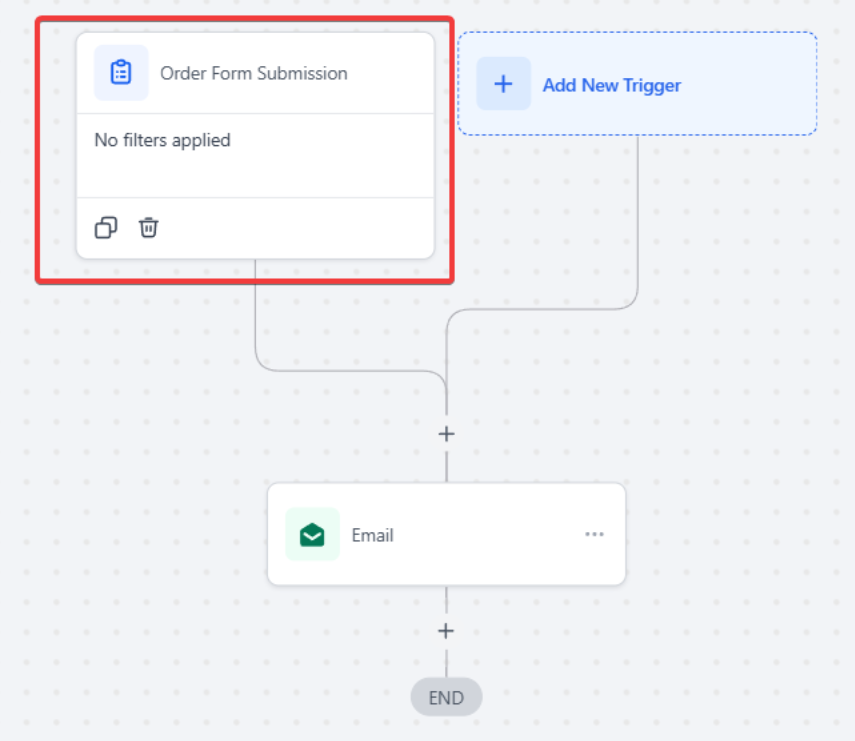
- For example, an order form submission (on a funnel or website, on a particular page, a product, etc.).
- Add an action: Course Grant Offer.

- Select the offer you want to provide access to.

-
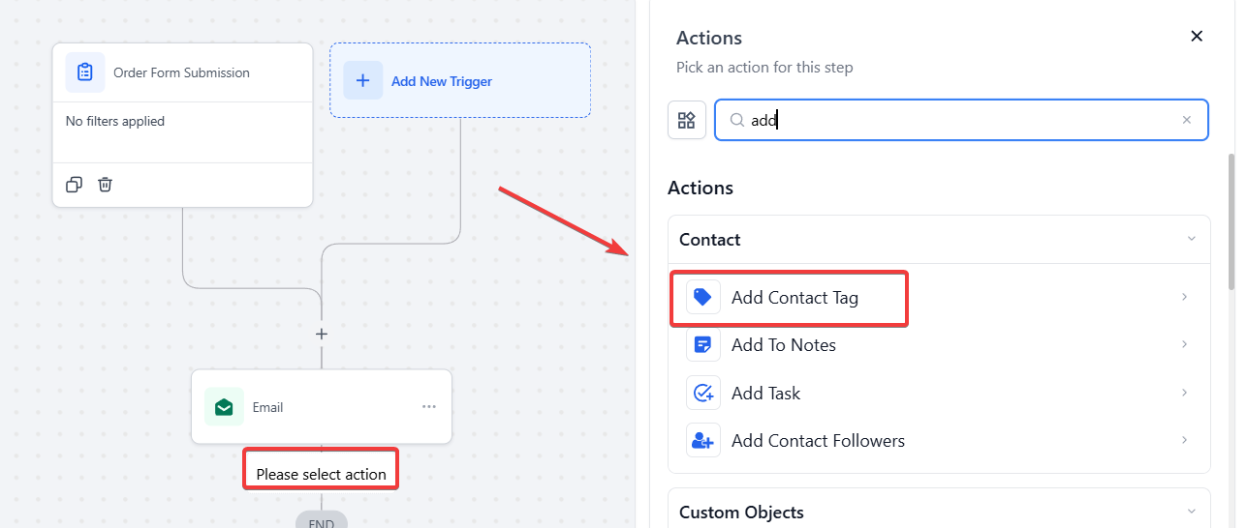
Select the “** +** ” button below the Membership Grant Offer trigger- This will pull up multiple actions where you can add specific actions related to the purchase.
-
Select the “** _Send Email button” _**
For example:Making an email that confirms their purchase****(you can add a custom message)

-
Make sure you click the “** Save Action** ” button
-
You can also “** Add Contact Tag** ” (For Example) that they purchased, or any custom note that you want to be tagged on this customer

-
If you want someone to know internally that the customer made a purchase you can do so by Selecting “Send** Internal Notification** ”
-
Click the “** Custom Values** ” Tab when using an internal email notification and under “** Contac** t” go over to the “** Email** ” option and use this value to identify the contact
-
Once completed select the “** Save Action** ” button
This will now notify an internal user of your choice.
**FAQs **
Question: What happens if a user tries to log in without setting their password?
Answer: If a user tries to log in without setting their password, they will be redirected to the Set Password page. This ensures that they can create a password before accessing the membership content.
Question: Can I use a custom password field in the email template when sending login credentials?
Answer: No, the password custom field is not available across all template builders and workflow email options. Instead, users should use the login URL (Magic Link) provided in the email to set their password.
Question: How can I trigger the workflow to send membership credentials?
Answer: To trigger the workflow for sending membership credentials, navigate to the Automation tab, create a new workflow, and add a “New Signup” trigger. You can also filter this trigger to apply to specific course offers if needed.
Question: How do I grant access to a membership offer automatically after a purchase?
Answer: To grant access automatically, create a new workflow with a trigger based on your desired criteria (e.g., an order form submission). Then, add the “Course Grant Offer” action to provide access to the selected offer.
Question: Can I notify internal team members when a customer makes a purchase?
Answer: Yes, you can notify internal team members by adding a “Send Internal Notification” action within the workflow. Use custom values to include the customer’s email or other relevant information in the notification.
Question: What should I do if I want to add a tag to a contact after they make a purchase?
Answer: You can add a tag by selecting the “Add Contact Tag” action in the workflow after the purchase trigger. This allows you to label contacts with specific tags, such as “Purchased,” for easy tracking and segmentation.
Question: Can I customize the email that is sent after granting membership access?
Answer: Yes, you can customize the email content by adding a “Send Email” action after the “Course Grant Offer” trigger in your workflow. Include a custom message or additional details relevant to the purchase or membership.
Question: Can the workflow handle multiple course offers?**
**Answer: Yes. You can filter triggers or create separate workflows for different course offers, ensuring each user receives the correct credentials and welcome communication for their specific course.
Question: How do I test the “New Signup” workflow?**
**Answer: To test this accurately, you must use a completely new email address that has never been a member in your system before. Adding a tag or manually moving a “Test Contact” into the workflow will not populate the Magic Link correctly if that contact is already a known user.