¶ Google Forms Workflow Actions & Triggers
This article serves as a comprehensive guide to the native integration of external form-building services within the automation builder of LeadMagicX. By connecting these tools directly, businesses can capture responses and initiate complex automation sequences without relying on intermediate third-party connectors. This streamlines data flow, reduces technical overhead, and ensures that lead information is actioned immediately.
¶ Key Features and Benefits
- Native Synchronization: Eliminates the need for external bridge software, reducing subscription costs and potential points of failure.
- Near Real-Time Triggers: Automated polling ensures that new submissions are detected and processed every 5 minutes.
- Granular Data Mapping: Individual question responses, form names, and submission timestamps are available as data points to be mapped directly into CRM fields.
- Advanced Search Actions: Locate specific forms or historical responses using IDs or names to enrich existing contact records.
- Conditional Branching: All search actions include “Found” and “Not Found” paths, allowing for sophisticated logic based on whether a record already exists.
- Historical Data Retrieval: Beyond new submissions, you can retrieve past responses and use pagination to manage large volumes of data.
¶ How to Use
Step: 1 Search in Workflows
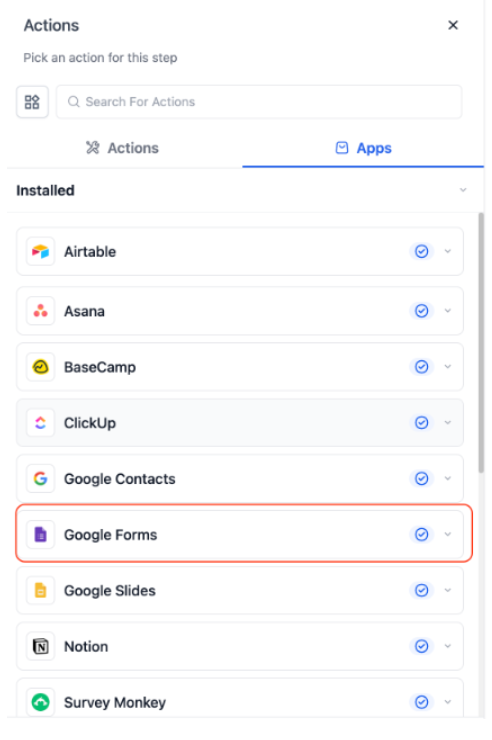
Navigate to Automation, and select Workflows. Click on an existing one, or create a new one. Select the Add Trigger or Add Action button and use the search bar to locate the Google Forms.
Step: 2 Connect your Google Account**
**
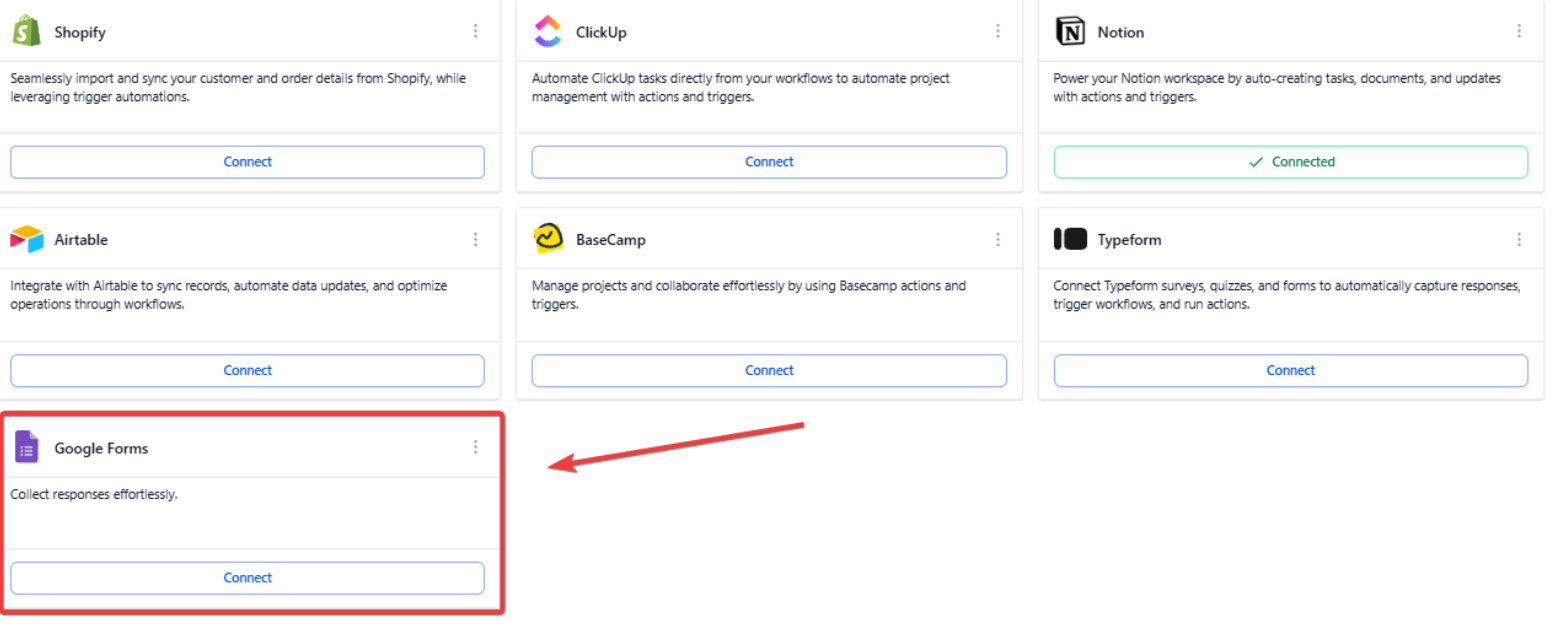
Connect via Workflows → Triggers / Actions → Google Forms.**
**Authenticate using Google OAuth.
Navigate to Settings → Integrations → Google Forms.
Step: 3****Configure Trigger or Action
Select the google forms.
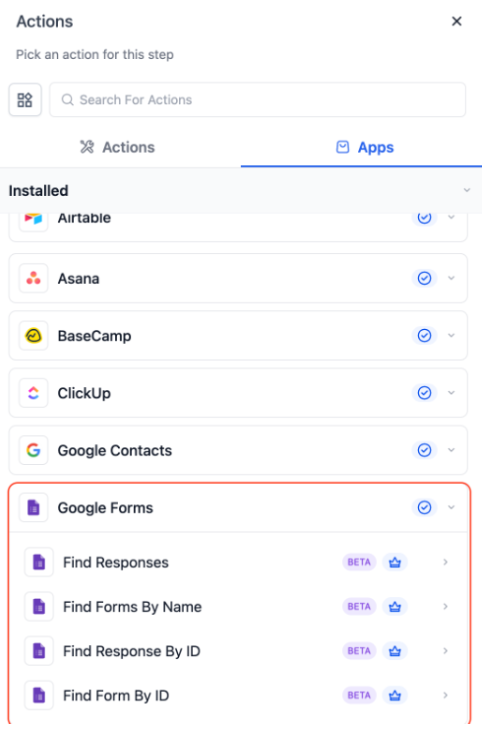
Test to fetch sample responses.
Map response fields to LeadMagicX, messaging, or logic steps.
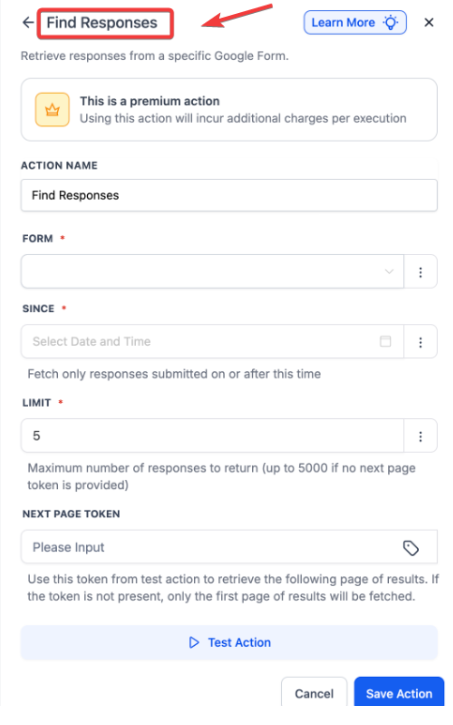 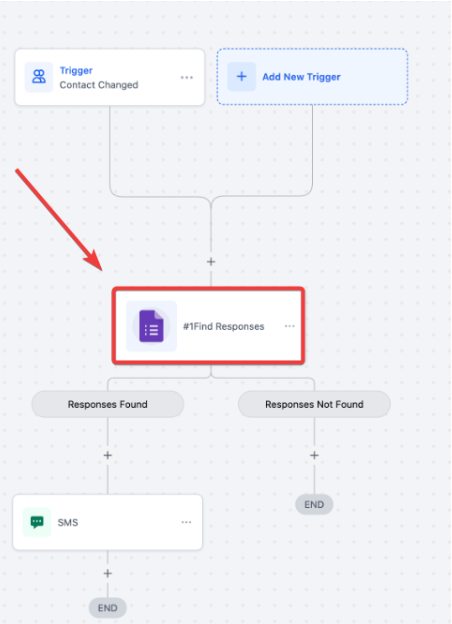 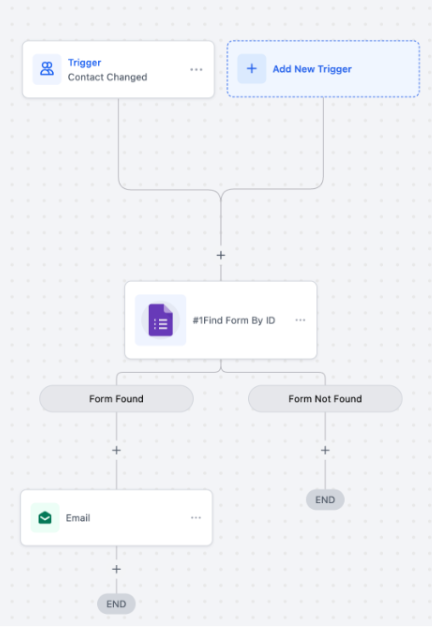

Deploy and Monitor Save and publish the workflow. Ensure your authentication remains active in the settings menu to maintain the 5-minute polling cycle.
Pro Tips
- Polling Awareness: Remember that the trigger operates on a 5-minute polling interval rather than an instant “webhook” push. Account for this slight delay when setting expectations for “immediate” auto-responses.
- Dynamic ID Usage: When using the “Find Response by ID” action, you can use custom values from a webhook or a previous search step to make your automation truly dynamic.
- Single Trigger Rule: Each form response will only trigger the workflow once. If you need to re-process an entry, you may need to use a “Find Response” action in a separate manual workflow.
¶ FAQs
Question: How quickly does the automation start after a form is submitted?
Answer: The system polls for new data approximately every 5 minutes. While it is near real-time, there may be a short window between the submission and the start of the workflow.
Question: Can I send data from LeadMagicX back to the external form?**
**Answer: No. This integration is a one-way sync. It allows the workflow builder to read and retrieve data from the form service, but it does not write or edit the forms themselves.
Question: What happens if the workflow cannot find a specific Form ID?**
**Answer: The “Find Form” action includes a “Not Found” branch. You can configure this branch to send an internal notification to an admin or stop the workflow to prevent errors.
Question: Can I trigger a workflow based on specific answers within the Google Form?
Answer: Absolutely. While the “New Response” trigger starts the workflow for every submission, you can add an If/Else branch immediately after the trigger. This allows you to set conditions, such as only sending a follow-up if the respondent selected “Urgent” in a priority field.
Question: What if I have multiple Google accounts? Can I connect all of them?
Answer: You can authenticate the Google account that owns or has access to the specific forms you need. If your forms are spread across multiple accounts, ensure they are all shared with the primary integrated account to manage them from one centralized workflow.
Question: Can I see specific answers from the form inside my workflow?**
**Answer: Yes; individual question responses, form names, and submission timestamps are available as granular data points that can be mapped directly into your LeadMagicX fields.