¶ Gamification/ Leaderboard triggers and actions for Community groups
Gamification/ Leaderboard triggers and actions for Community groups
With the enhanced gamification tools in community groups, you can streamline the assignment of leaderboard points, automate congratulatory messages, and manage engagement through customized workflows. This feature allows businesses and organizations to leverage automation by granting points based on user actions and tracking leaderboard level changes. In this guide, we’ll walk through configuring workflows that allow you to automate these activities, encourage community engagement, and make gamification a seamless part of user interaction.
¶ Key Features and Benefits
- Automated Engagement : Set up workflows to assign points or send notifications whenever a user reaches a new level.
- Customizable Triggers and Actions : Easily define and manage which groups and user levels are affected by specific workflows.
- Encourage User Participation : Award points for desired actions, incentivizing participation and keeping users engaged.
- Personalized Recognition : Send congratulatory messages automatically when a user achieves a new leaderboard level, building a sense of community.
¶ How to Set Up Workflow Triggers and Actions
¶ Step 1: Configure the “Community Group Leaderboard Level Changed” Trigger
1. Navigate to the Workflow Setup Page : Start by accessing Automation >Workflows and click on + Create Workflow to get started.
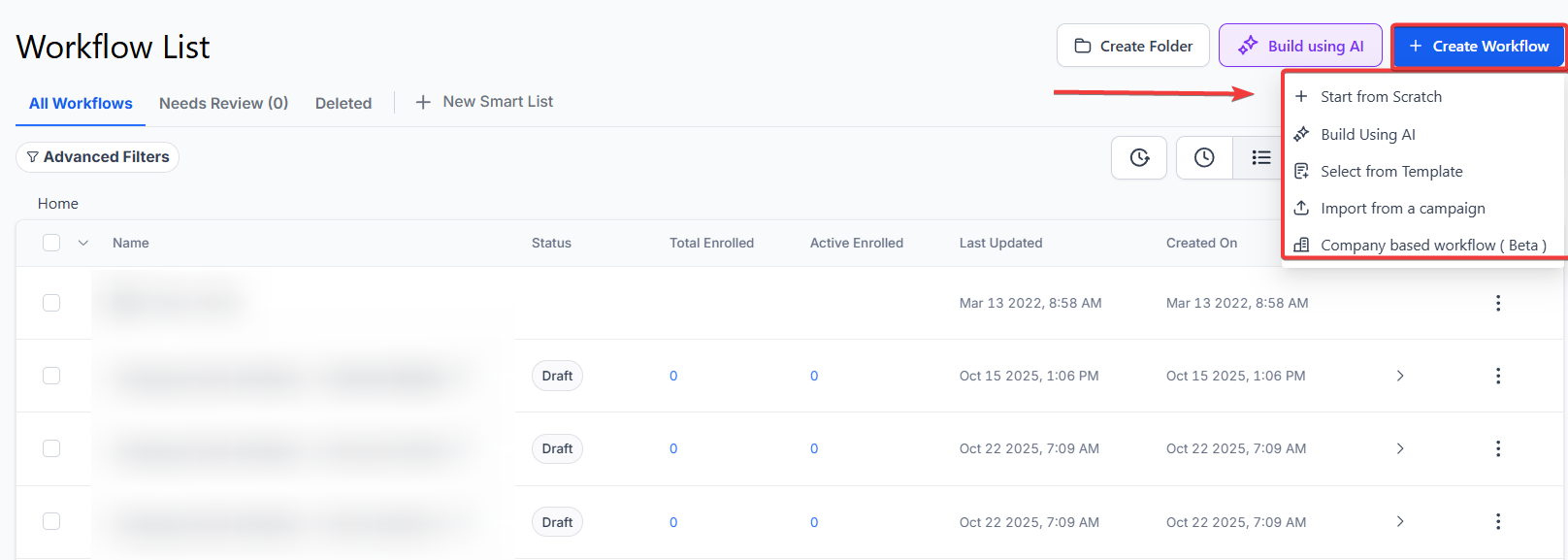
2. Choose the Trigger : Select “Community Group Leaderboard Level Changed” from the available triggers.
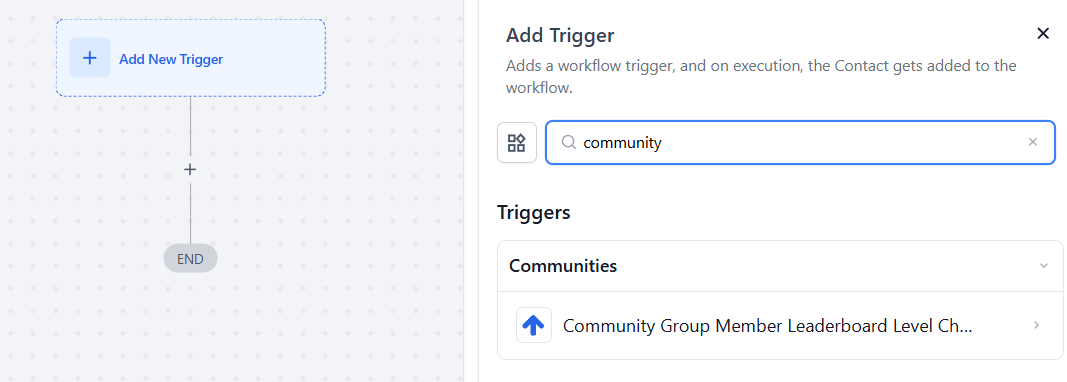
3. Set Up Filters : Configure filters to specify the group and level this trigger should apply, ensuring the trigger activates under your desired conditions.

Use Case Example : Automatically send a congratulatory email or award points when a user reaches a new level within a specified group.
¶ Step 2: Use the “Grant Community Group Leaderboard Points” Action
1. Select the Action : Choose the “Grant Community Group Leaderboard Points” action to allocate points for specific activities.
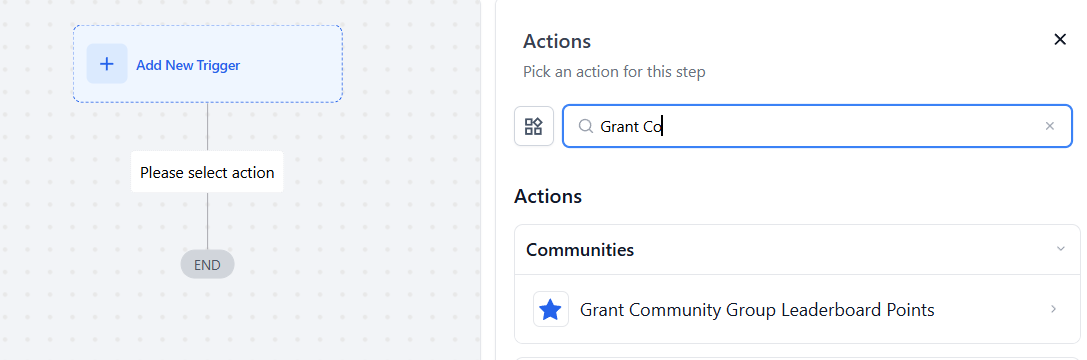
2. Configure Points and Group : In the action settings:
- Points : Define the number of points awarded.
- Group : Select the group to which this action applies, ensuring only members of this group receive the points
- If a user moves to a specific level, you can assign additional points to incentivize progression further.
- Note: If the member is not part of the group, the workflow execution will fail.
- Ensure that points are assigned consistently across different levels to maintain fair gamification.

Use Case Example : Encourage user engagement by awarding points for tasks such as event participation, helping members climb the leaderboard and stay active.
¶ Pro Tips
- Leverage Multiple Actions : Combine triggers and actions to create a comprehensive gamification experience by assigning points, sending congratulatory emails, and tracking progress.
- Configure Triggers by Group and Level : To avoid redundancy and ensure precise workflow activation, use filters effectively based on group and leaderboard level.
- Monitor Leaderboard Metrics : Regularly review community group activity and points awarded to keep engagement consistent and prevent user fatigue.
- Use a combination of leaderboard levels and custom rewards (such as badges or exclusive content) to enhance motivation beyond just point accumulation.
¶ FAQ
Question: Can I use the same workflow for multiple groups?**
**Answer: Yes, you can configure workflows to apply to multiple groups. Ensure the group filter settings specify which groups should be affected by each action.
Question: What happens if a user isn’t part of the selected group?**
**Answer: If a user is not part of the selected group, the workflow won’t execute for that user. It’s recommended that group membership is checked before taking action.
Question: How do I customize the congratulatory message for leaderboard changes?**
**Answer: Within the workflow, add a “Send Email” or “Send SMS” action after the leaderboard trigger. Customize the message content to reflect the milestone and encourage further engagement.
Question: Can I grant points retroactively?**
**Answer: No, points are awarded based on active triggers within workflows. However, you can create a workflow to grant points to all current group members by manually triggering it.
Question: Is there a limit on the number of points I can assign?**
**Answer: No strict limit exists, but we recommend setting points in reasonable increments to ensure a balanced and rewarding experience for users.
Question: How can I track engagement levels over time?**
**Answer: Use the leaderboard’s 7-day, 30-day, and all-time views to analyze user activity trends. This helps identify active members and refine engagement strategies.
Question: What happens to a workflow if points are assigned to someone who is not a member of that specific group?
Answer: The workflow execution will fail. It is essential to ensure the member is officially part of the group before the “Grant Community Group Leaderboard Points” action is triggered.
Question: How can I prevent my leaderboard from becoming predictable or stagnant?
Answer: As a pro tip, it is recommended to combine leaderboard levels with custom rewards such as badges or exclusive content. This provides motivation beyond simple point accumulation and keeps the community experience fresh.