¶ Workflow Trigger: Facebook Lead Form Submitted
The Facebook Lead Form Submitted Workflow Trigger will allow you to create a workflow that is triggered by the submission of a Facebook lead form. Contacts who submit a Facebook lead form can be added to a workflow using this trigger. This article will overview how to create a workflow using the Facebook Lead Form Submitted Workflow Trigger.
Prerequisites:
- Your Facebook account must be connected in the settings > Integration tab.
- Ensure that your account has been granted access to the Facebook Lead Forms.
- In Settings > Integrations > Facebook Form Fields Mapping, verify that the lead forms are correctly mapped and that the status is set to ✔️
Note: If the fields are not mapped, leads will not be added to the workflow.
¶ Step 1: Start a new workflow or edit an existing one
- Navigate to Automation > Workflows and start a new workflow or edit an existing one.
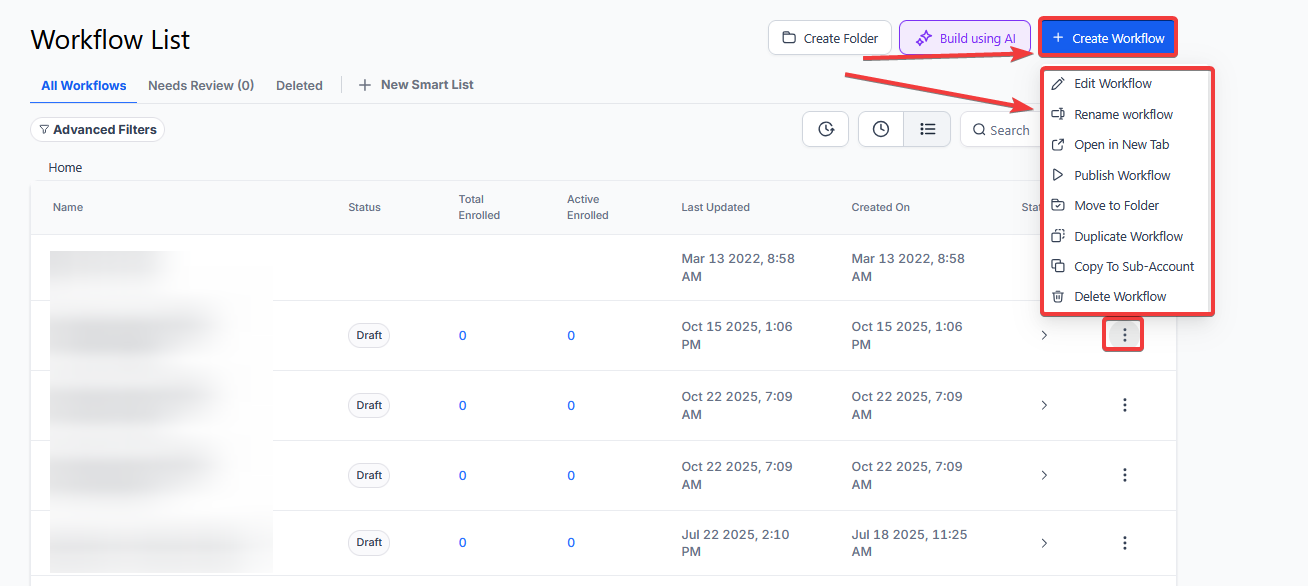
¶ Step 2: Creating and Editing the Trigger
- Click “Add New Workflow Trigger”

- Select Facebook Lead Form Submitted in the Events section of the Workflow Triggers Menu or use the search feature
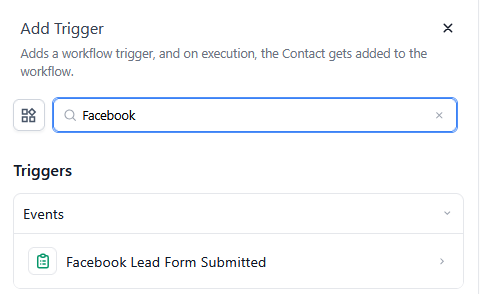
-
Once selected, the Trigger setup menu will appear where you can customize the Trigger based on your needs for this workflow.
- (Optional) Rename the Workflow Builder display name under Workflow Trigger Name.
-
Press + Add filters to bring up the Filters option.
- The In Form filter lets you specify which Facebook Lead Form will activate this trigger
- You can also filter by Custom Fields to only allow contacts that have custom fields applied to them to be added to this workflow
- Without any filters, in its default form, this workflow will trigger any time any contact submits and Facebook lead form

- Press Save Trigger in the bottom right corner of the Trigger setup menu

¶ Step 3: Set up applicable Workflow Action(s). We have multiple articles available to explain the setup of each of the Workflow Actions. Feel free to review our articles on these for more information on setting these up.
Pro Tip: You can use any Workflow Actions to be triggered by the Facebook Lead Form Submitted trigger or you can leave this workflow without any actions.
¶ Step 4: Press Save in the top right corner of your browser to save the workflow
- If your Workflow is ready to be enabled, make sure the toggle switch under Save is set to Publish
- Be sure to test your Workflow to make sure it is set up correctly using the Test Workflow button next to the Publish toggle switch.
- For an in-depth overview of Workflow Testing see our article, “Using the Testing Features in Workflows”
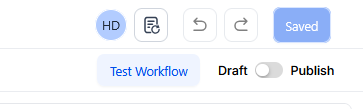
Now your workflow is set up and ready to go with the Facebook Lead Form Submitted Workflow Trigger.
¶ Example
Imagine you’re running a Facebook campaign to promote a new product, and you want to automatically send a welcome email to everyone who submits the lead form.
Choose a Workflow Trigger:
- Trigger: Facebook Lead Form Submitted
- Workflow Trigger Name: New Product Lead Form Submission
Filters (Optional):
- Filter Type: In Form
- Form Name: [Select the specific Facebook Lead Form linked to your new product campaign]
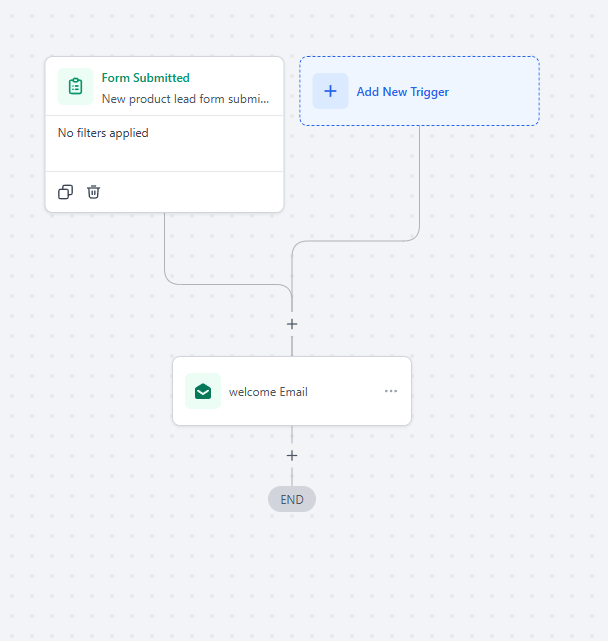
¶ ****
¶ FAQs
Question: What is the Facebook Lead Form Submitted Workflow Trigger?**
**Answer: The trigger starts a workflow when a Facebook lead form is submitted, allowing for automated follow-up actions based on the form submission.
Question: How do I start setting up a workflow with this trigger?**
****Answer: **
- Create a new workflow or edit an existing one.
- Click “Add New Workflow Trigger.”
- Select “Facebook Lead Form Submitted” from the Events section or search for it.
Question: Can I rename the trigger?**
**Answer: Yes, you can rename the trigger in the Workflow Trigger Name text box for easier identification within the workflow builder. This step is optional.
Question: What customization options are available for the trigger?**
****Answer: **
- In Form Filter: Choose which Facebook Lead Form submissions will activate the trigger.
- Custom Fields Filter: Filter contacts based on custom field data.
- Default Behavior: Without filters, the workflow will trigger on any Facebook lead form submission.
Question: What should I do after configuring the trigger?**
**Answer: Set up the applicable Workflow Actions that will be triggered. You can choose to include any actions or leave the workflow without them.
Question: How do I save and publish my workflow?**
****Answer: **
- Click “Save” to store your changes.
- Set the toggle switch under “Save” to “Publish” to activate the workflow.
Question: How can I test my workflow before publishing it?**
**Answer: Use the “Test Workflow” button next to the Publish toggle switch to ensure the workflow functions as expected. Check out our article, “Using the Testing Features in Workflows,” for more details.
Question: Can I make changes to the workflow after it is published?**
**Answer: Yes, you can edit the workflow and its triggers after publishing. Just make sure to save and republish any changes.
Question: What happens if my Facebook lead form fields are not mapped?
Answer: If the fields are not correctly mapped in the Settings > Integrations > Facebook Form Fields Mapping tab, leads will not be added to the workflow, even if the form is submitted.
Question: If I change my Facebook password, will the workflow stop working?**
**Answer: Yes. Changing your password usually invalidates the “API Token.” If you change your password, you must go back to Settings > Integrations and reconnect your Facebook account to keep the workflow active.
Question: What is the default behavior of this trigger if no filters are applied?
Answer: In its default form, the workflow will trigger any time any contact submits any Facebook lead form connected to the account.