There are multiple options for setting up workflow timing. In this tutorial, we will show you how to use time frames, or “windows,” to customize your workflow actions and timing using delivery windows.
You can set up a default setting for the workflow as a whole or use wait steps to customize just certain actions.
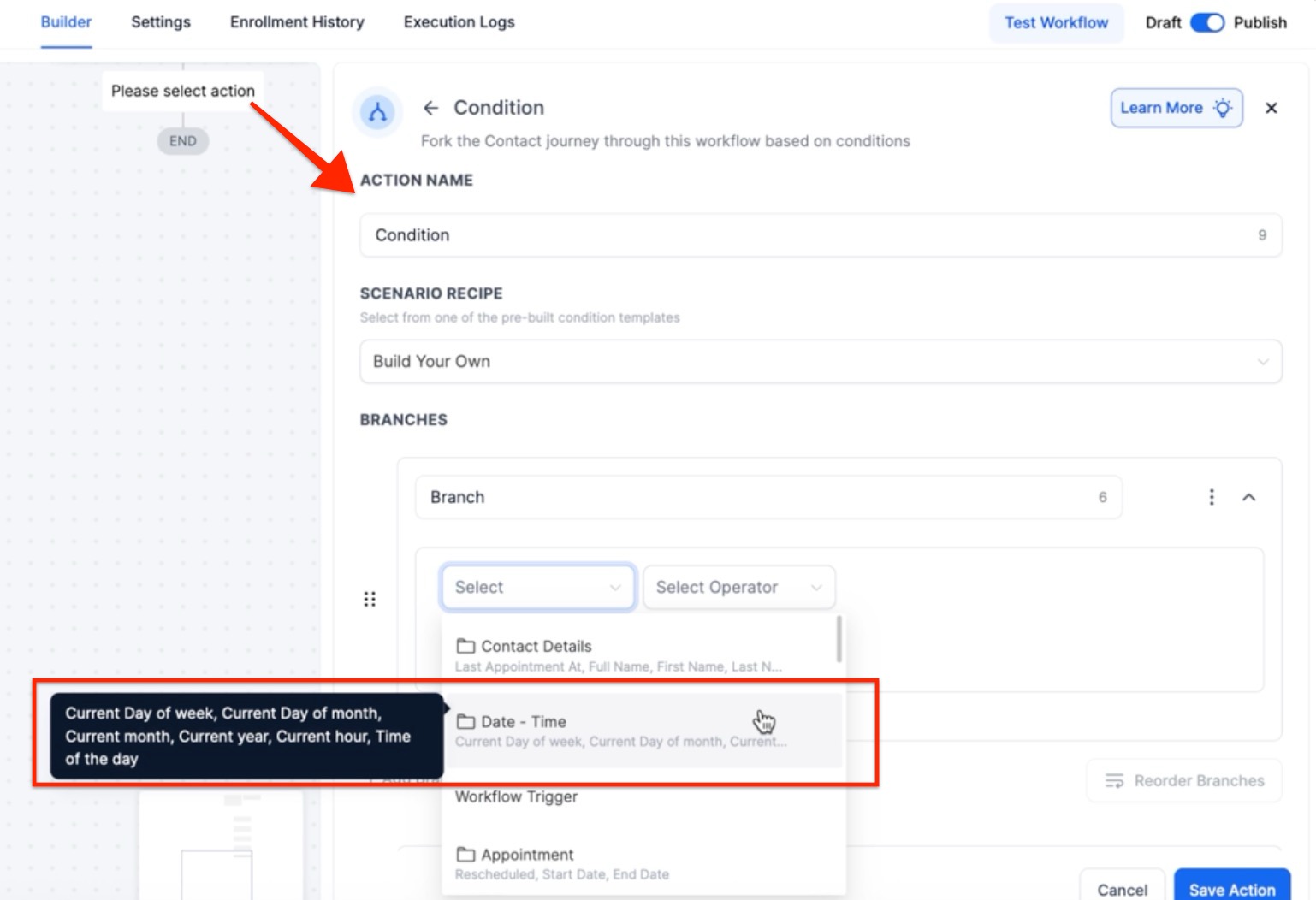
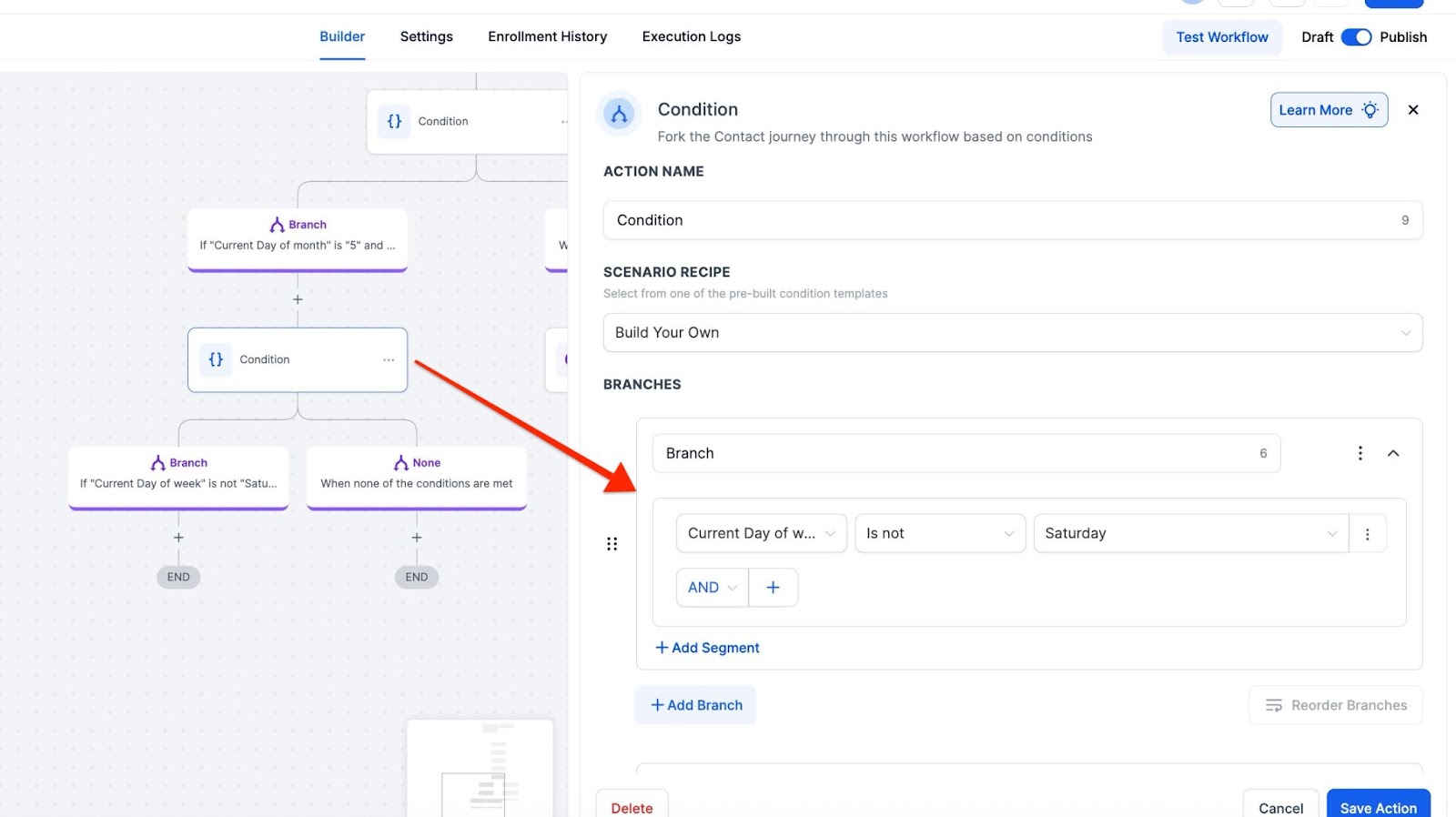
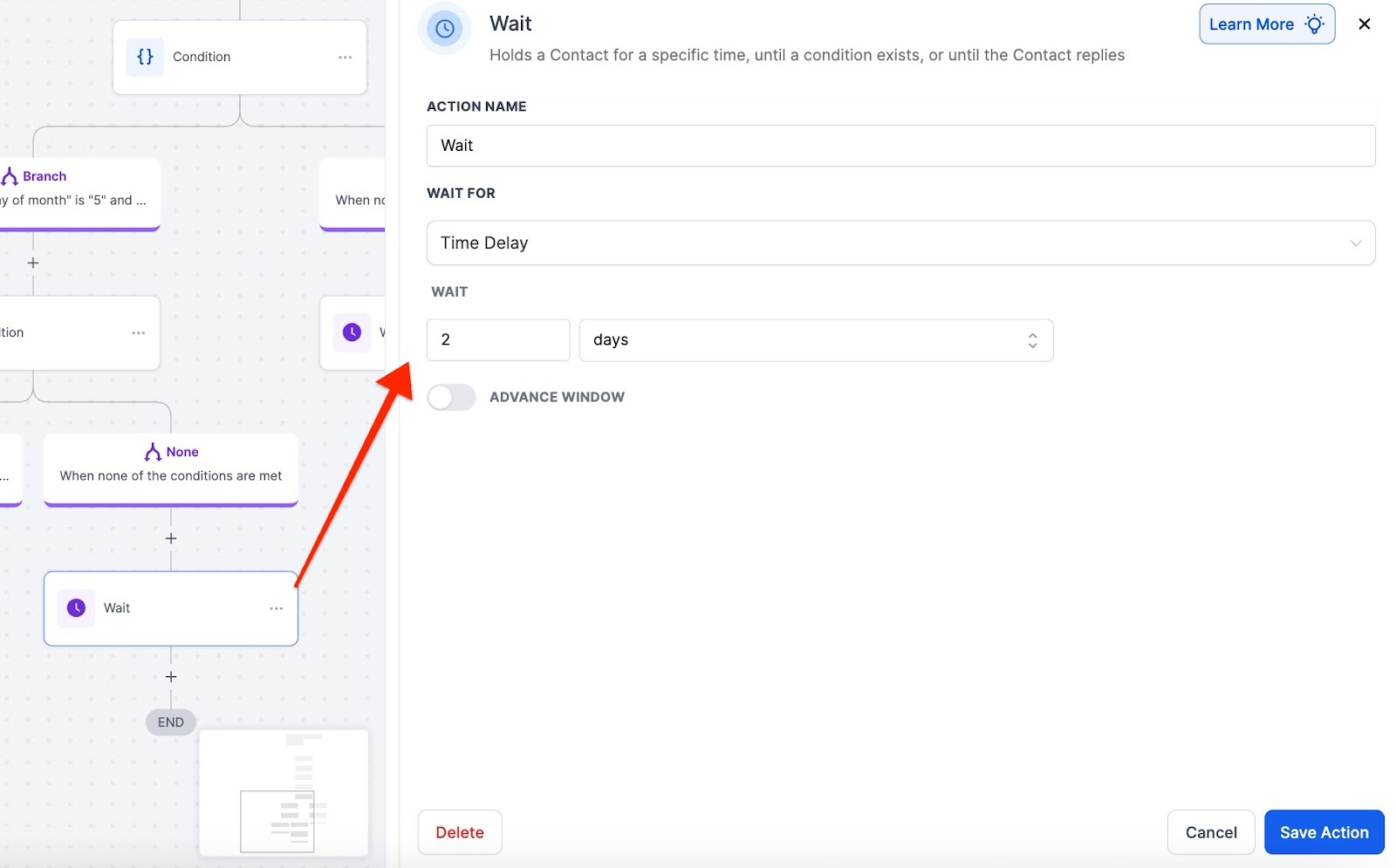
There may be instances where you want to be more specific with the delivery window, such as sending an email communication on the 5th of the month unless it’s a weekend (and, in that case, you’d want the email to be sent out the following Monday).
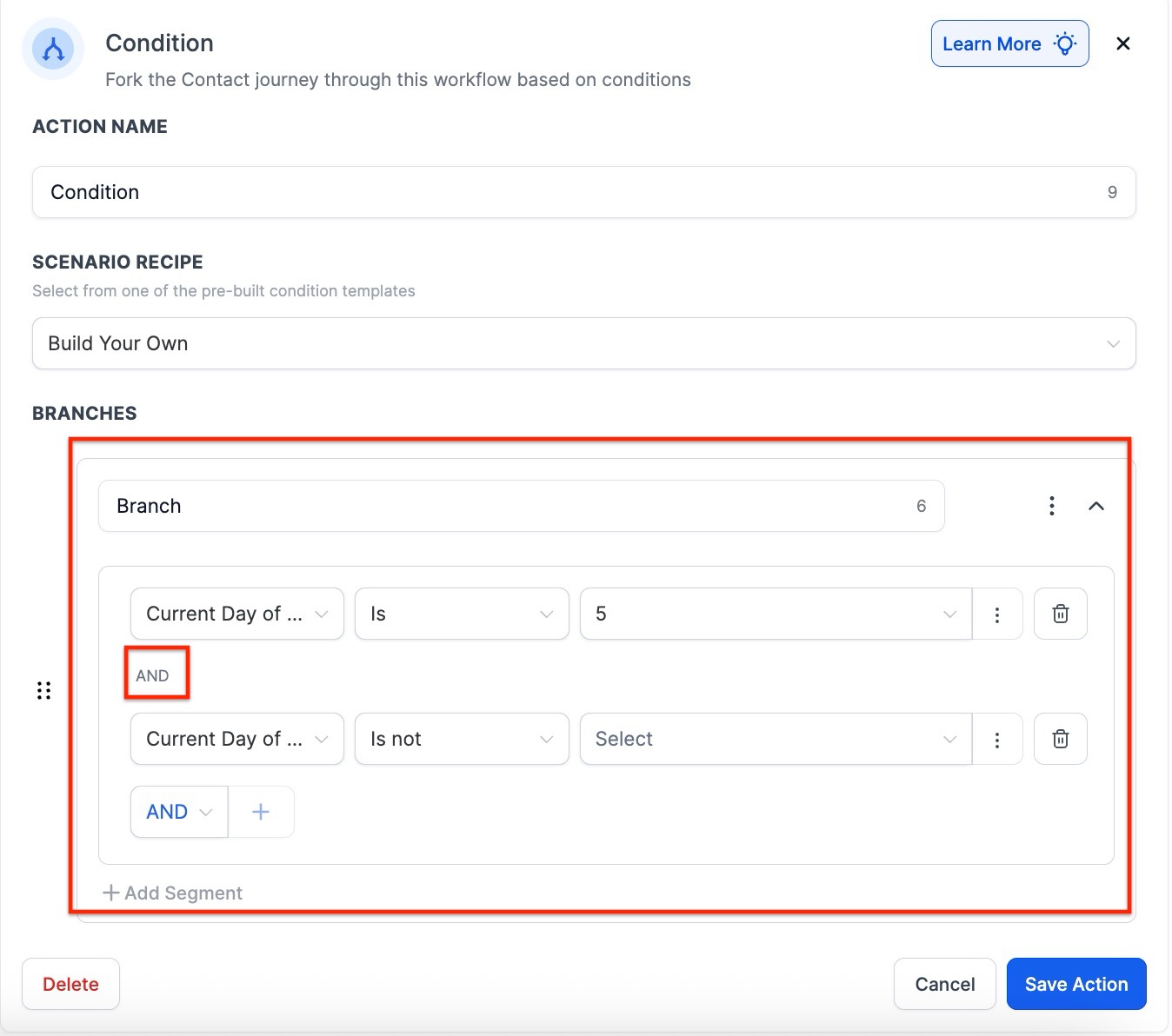
Note: An important thing to note here is that the conditions you set up include “AND” and “OR” functions. If you use the “And” function between different conditions, then all the conditions should be “True” for LeadMagicX to go to the “Yes” path. Similarly, if the function “OR” is used, this means that at least one (1) condition should hold “true” to make the lead go to the “Yes” path of the workflow.
Question: How can I set a default time window for my workflow?**
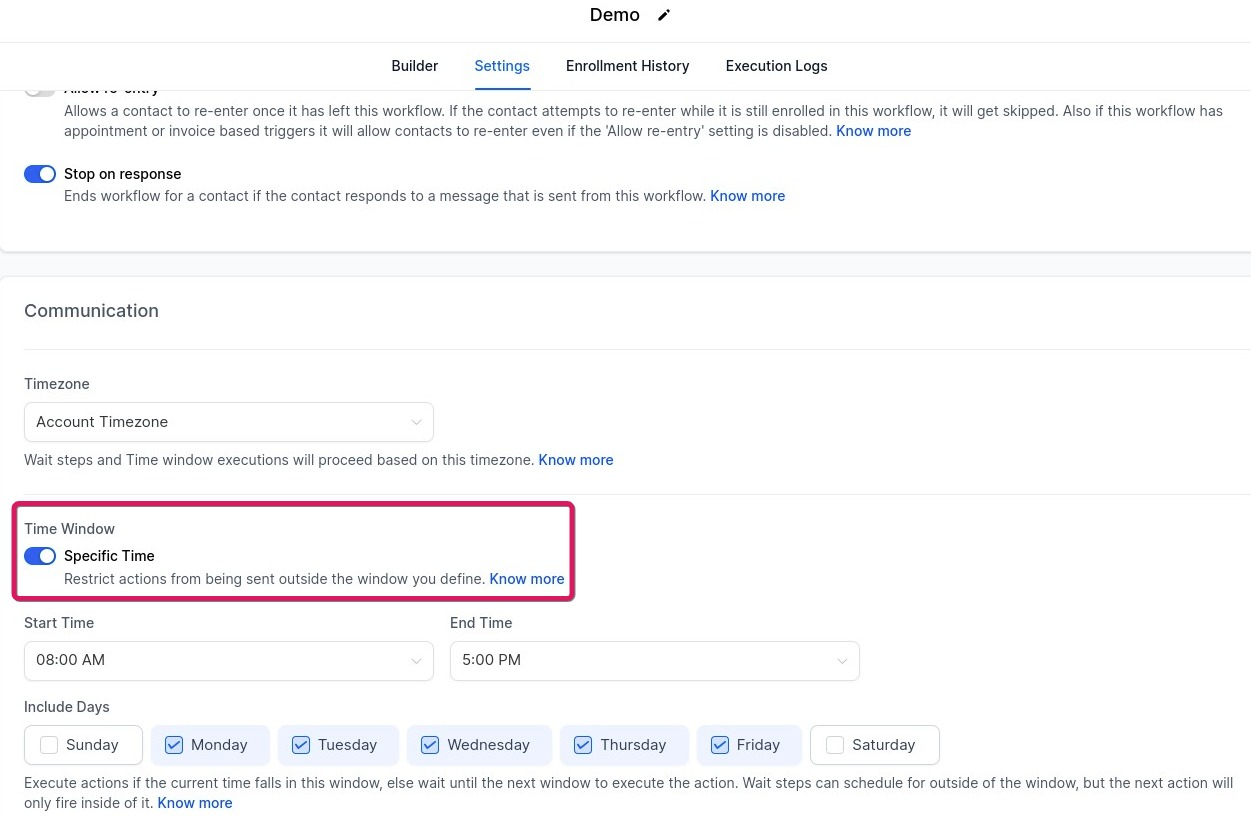
**Answer: Navigate to the Workflow Builder, click into Settings, and under “Time Window,” select either “Any Time” for unrestricted sending or “Specific Time” to define specific windows for sending messages.
Question: How do I set up a workflow to avoid sending messages on weekends?**
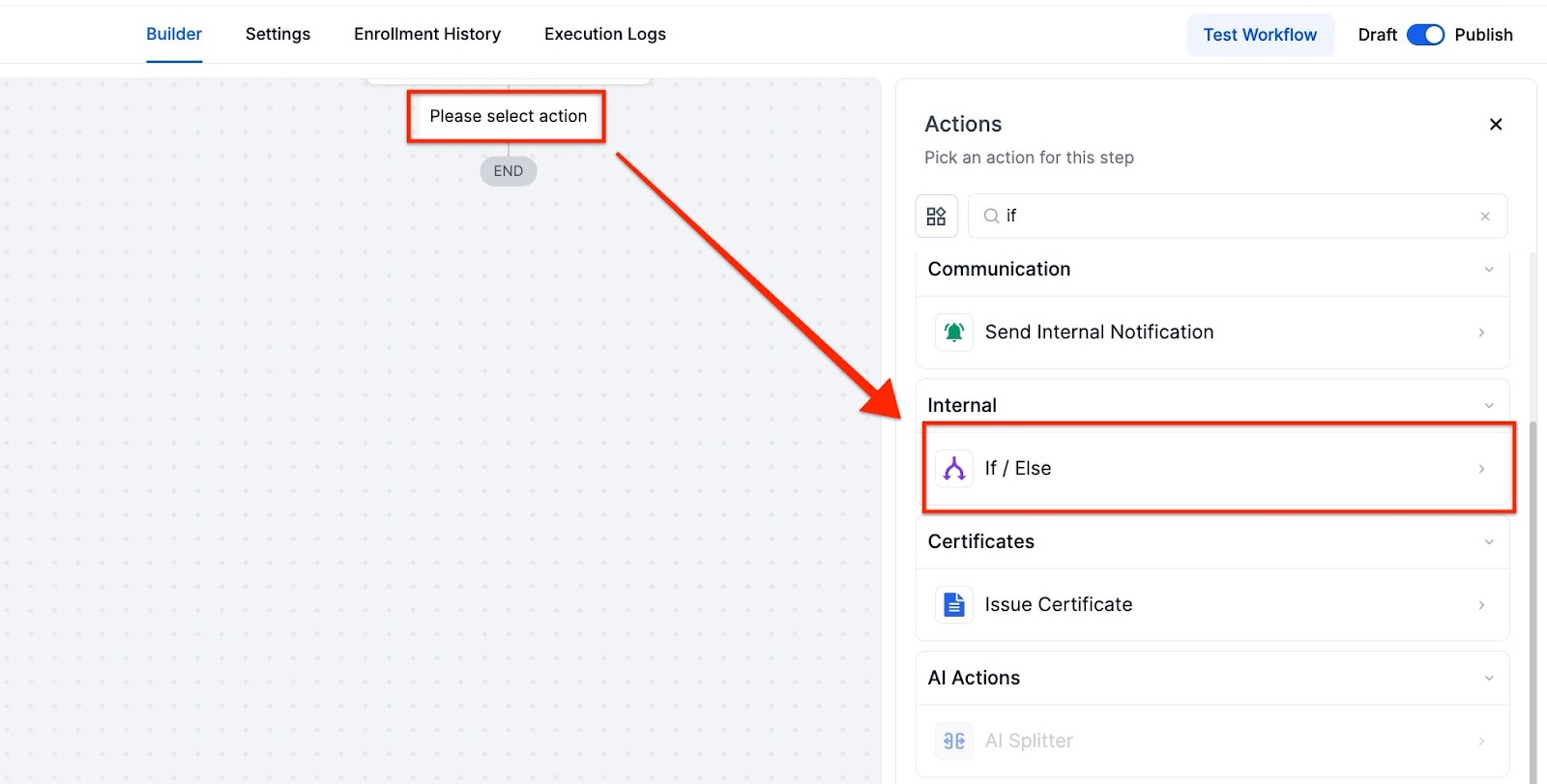
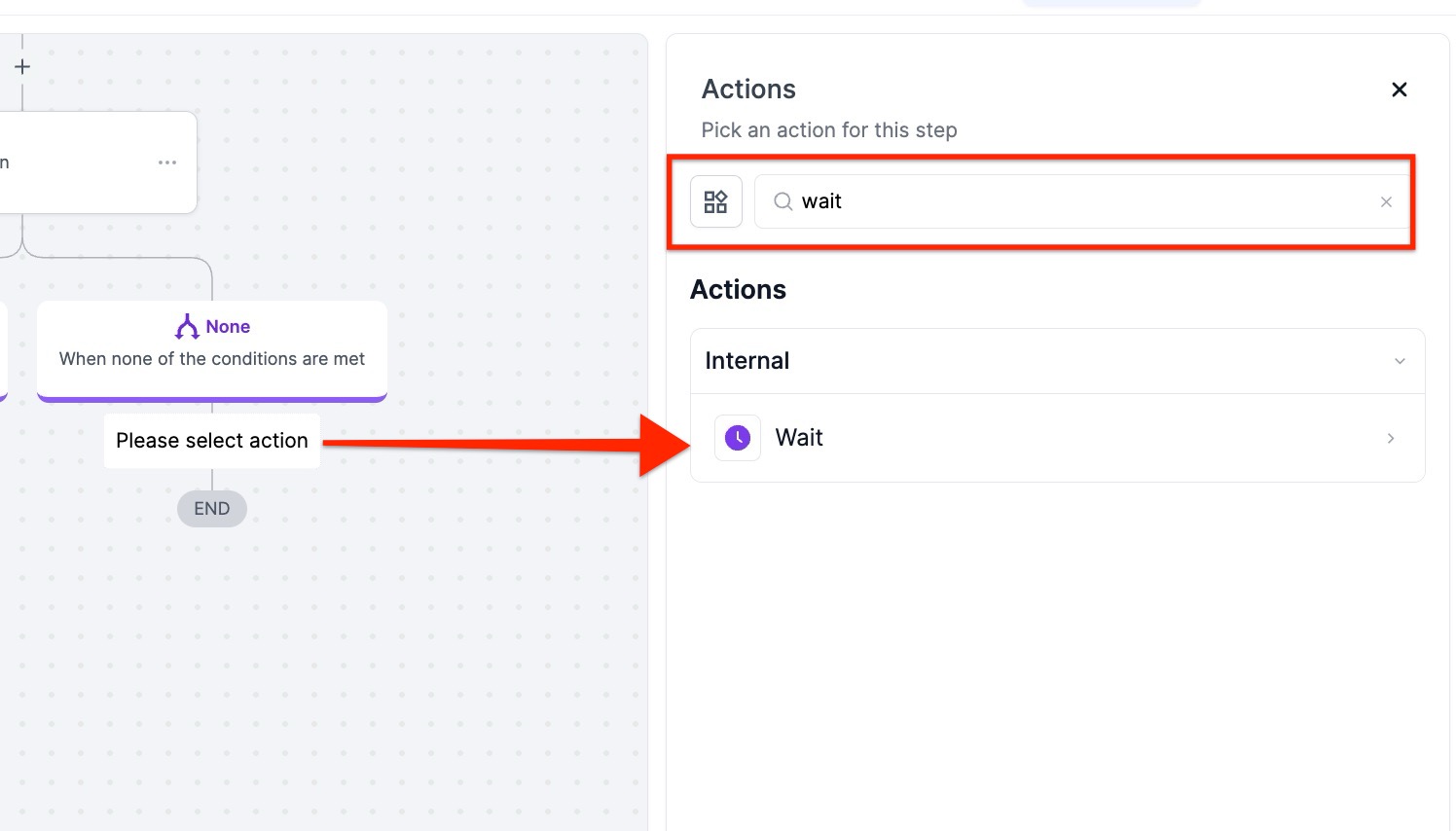
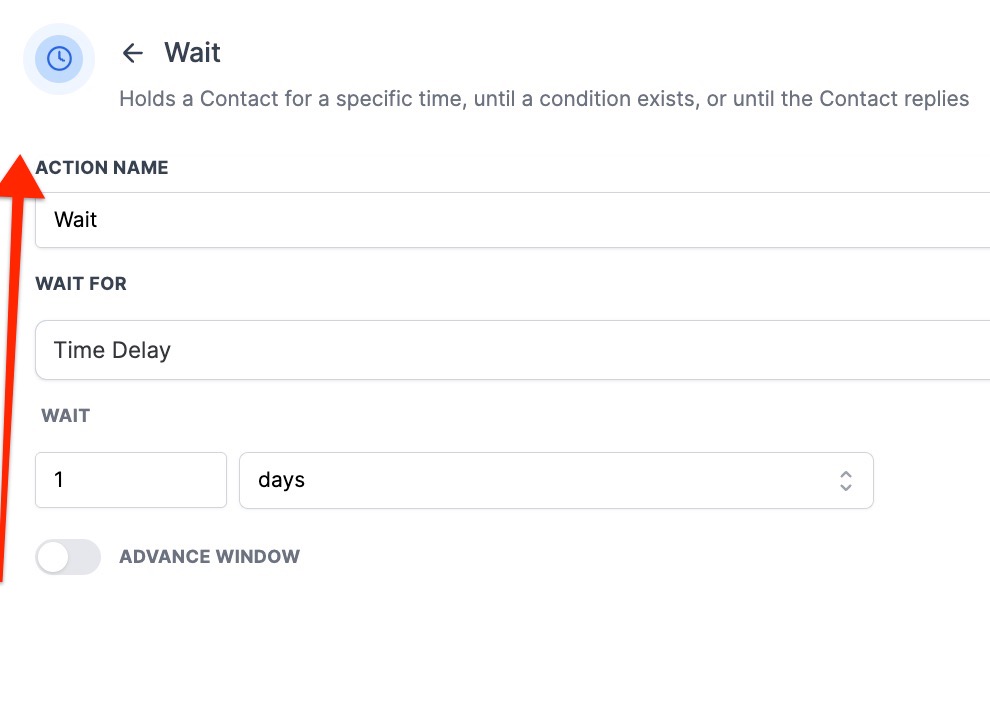
**Answer: Use an “If/Else” Workflow condition with a Date Time condition to check if the current day is a weekend. Set a wait action to delay sending until the following Monday if the condition is met.
Question: Can I customize timing for specific actions within a workflow?**
**Answer: Yes, use the “If/Else” Workflow conditions to specify timing for individual actions. For example, set conditions to handle messages differently based on the day of the week.
Question: What should I do if I need to skip steps in a time-sensitive workflow?**
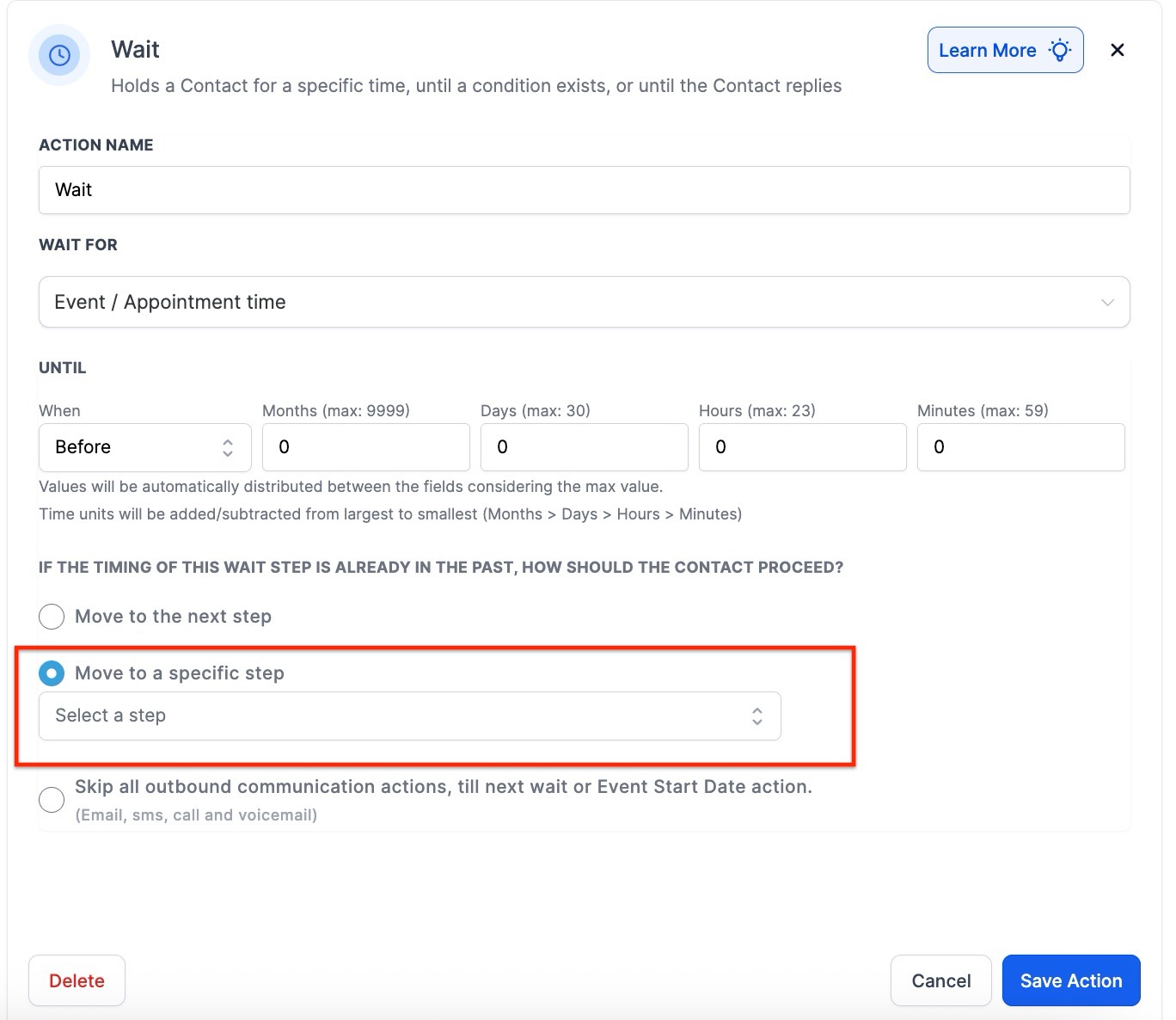
**Answer: Use the Wait step to skip a sequence of steps or fire at an exact time to ensure actions occur according to your timing requirements.
Question: How can I skip specific steps in a workflow based on timing?**
**Answer: You can use the Wait step to skip a larger sequence of steps in time-sensitive workflows. This allows you to skip a specific step later in the workflow, ensuring that actions happen at the correct time based on your conditions. You can also set the Wait step to fire at an exact time.
Question: How do the “AND” and “OR” functions affect my workflow conditions?
Answer: These functions determine how multiple conditions are evaluated. If you use the “AND” function, all conditions must be true for a contact to proceed down the “Yes” path. If you use the “OR” function, the contact will go down the “Yes” path if at least one of the conditions holds true.
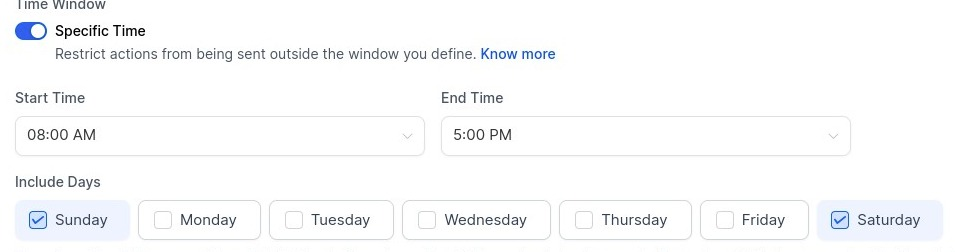
Question: How can I visualize which days are “open” for sending in a Specific Time window?
Answer: In the Workflow Settings under Time Window, any day highlighted in blue is considered “open.” If a day is not highlighted, the system will hold all actions until the next highlighted day arrives.