¶ Workflow Trigger: Customer Replied
The Customer Replied Workflow Trigger runs when an incoming message is received from a contact. This article will give a detailed overview of how to set up a workflow with the Customer Replied Workflow Trigger.
¶ Step 1: Start a new workflow or edit an existing one
- Navigate to Automation on the left > Workflows at the top and create a new workflow or edit an existing one.
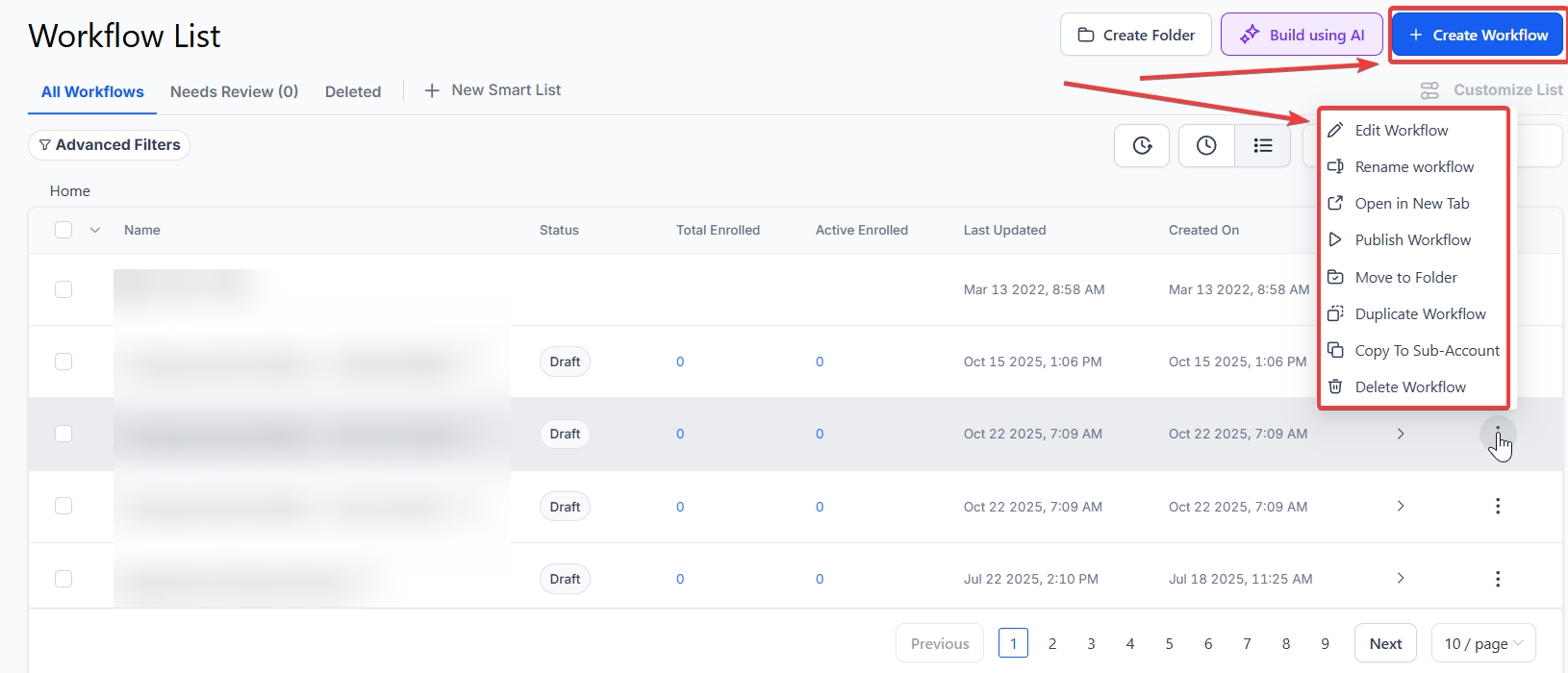
¶ Step 2: Creating and Editing the Trigger
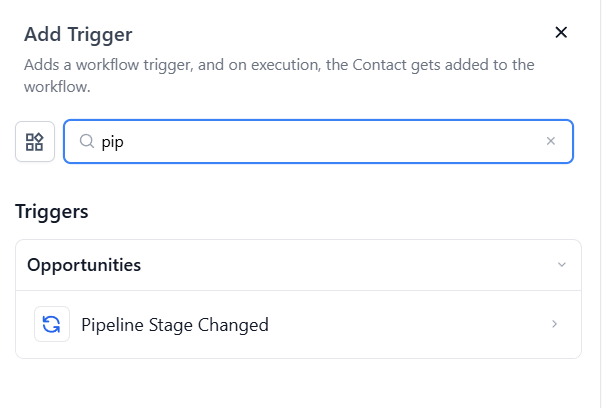
- Click “Add New Workflow Trigger”
- Select Customer Replied in the Events section of the Workflow Triggers Menu or use the search feature. Once selected, the Customer Replied trigger setup menu will appear.
-
(Optional) Change the display name of this trigger within the Workflow builder in the text box under Workflow Trigger Name.
-
Select ** + Add filters** to bring up the Filters section. There are several options for customization under Filters
-
Contains phrase will trigger this workflow when a customer’s response includes a phrase. For example, if you type “hello” in this filter, then a customer who replies “Hello, my name is Cade” would be added to the workflow because their reply included the phrase you listed.
- Note that this filter is NOT case-sensitive
-
Exact match phrase will only add customers who reply with the exact phrase that you write. Nothing more, nothing less. For example, if you type “hello” in this filter, then a customer who replies “Hello, my name is Cade” would NOT be added to this workflow. Only a customer who replies exactly “hello” in this case would be added to this workflow.
- Not that this filter is NOT case-sensitive
-
Doesn’t Have Tag will disqualify contacts that have a selected tag from being added to this workflow
-
Has Tag will only allow contacts that have a selected tag to be added to this workflow
-
Intent type will only allow either positive or negative customer replies to trigger this workflow using AI detection to determine whether the customer’s response is positive or negative
-
Replied to Workflow will add contacts to this workflow if they give a reply within a separate workflow
-
The reply channel will only allow contacts to be added to this workflow who reply through a specified communication channel.
-
Chat widget based on your Chat Type selection.
If Chat Type = Chat Widget , you’ll see a dropdown with only All-in-One chat widgets.
If Chat Type = Live Chat , you’ll see a dropdown with All-in-One Live Chat configurations.
- These channels are Chat Widgets ,Email ,Facebook Messenger ,GMB Messaging ,Instagram DM , SMS, WhatsApp, Live Chat and Call

- Users can select specific Chat Widgets or Live Chats when creating workflows, offering greater customization and precision in automating responses. This is only available for the Reply Channels: Chat Widgets and Live Chat


- Press Save Trigger in the bottom right corner of the Trigger setup menu

¶ Step 3: Set up applicable Workflow Action(s). We have multiple articles available to explain the setup of each of the Workflow Actions. Feel free to review our articles on these for more information on setting these up.
Pro Tip: You can use any Workflow Actions to be triggered by the Customer Replied trigger or you can leave this workflow without any actions.
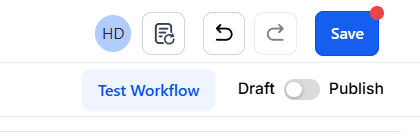
¶ Step 4: Press Save in the top right corner of your browser to save the workflow
- If your Workflow is ready to be enabled, make sure the toggle switch under Save is set to Publish
- Be sure to test your Workflow to make sure it is set up correctly using the Test Workflow button next to the Publish toggle switch.
- For an in-depth overview of Workflow Testing see our article, “Using the Testing Features in Workflows”
Now your workflow is set up and ready to go with the Customer Replied Workflow Trigger.
Use Cases
-
Creating Opportunities from Positive Replies**
**Scenario : A sales team wants to automatically create a LeadMagicX opportunity when a customer responds positively to a proposal.
Trigger Setup :- Trigger : Customer replied
- Filters : Contains phrases like “interested” or “confirm”
Workflow Actions : - Create an opportunity in LeadMagicX with the reply details
- Notify the sales team about the new opportunity
- Send an email to the assigned user for immediate follow-up
Outcome : Ensures timely creation of opportunities, improving lead management.
-
Customer Support Ticketing**
**Scenario : Automatically create a support ticket when a customer responds with a complaint or question.
Trigger Setup :- Intent Type : Complaint or Question
- Filters : Reply channel: Email
Workflow Actions : - Create a support ticket with priority settings
- Assign the ticket to the appropriate team
- Notify the support team for urgent action
Outcome : Streamlines the support process, ensuring quick resolution of customer issues.
-
Post-Purchase Follow-Up**
**Scenario : Automate thank-you messages after a customer responds positively following a purchase.
Trigger Setup :- Contains Phrase : “Thanks,” “great”
- Reply Channel : WhatsApp
Workflow Actions : - Send an automated thank-you message
- Request a review or feedback
- Log the interaction in LeadMagicX
Outcome : Enhances customer engagement and feedback collection post-purchase.
¶ ****
¶ FAQs
**Question:What is the Customer Replied Workflow Trigger?
**Answer: The Customer Replied Workflow Trigger activates a workflow when a message is received from a contact. This allows you to automate responses or actions based on customer replies.
Question: Can I rename the Customer Replied trigger?
Answer: Yes, you can change the display name of the trigger in the Workflow Trigger Name text box. This is optional and helps identify the trigger within the workflow builder.
Question: What customization options are available under the Filters section?**
****Answer: **
- Contains Phrase: Triggers the workflow if the customer’s reply includes the specified phrase. This filter is case-insensitive.
- Exact Match Phrase: Triggers the workflow only if the customer’s reply matches the exact phrase specified. This filter is also case-insensitive.
- Doesn’t Have Tag: Disqualifies contacts with the selected tag from being added to the workflow.
- Has Tag: Only allows contacts with the selected tag to be added to the workflow.
- Intent Type: Uses AI to determine if the customer’s reply is positive or negative, and triggers the workflow based on the detected intent.
- Replied to Workflow: Adds contacts to this workflow if they reply within a separate workflow.
- Reply Channel: Only triggers the workflow if the reply comes through a specified channel (e.g., Chat Widget, Email, Facebook Messenger, GMB Messaging, Instagram DM, SMS).
Question: Can I trigger workflows for replies from specific customers only?**
**Answer: Yes, by using tags, you can target specific customer segments and trigger workflows accordingly.
Question: How do intent types work with this trigger?**
**Answer: Intent types use natural language processing (NLP) to categorize replies, such as “question,” “complaint,” or “positive response.” You can configure workflows to handle each type of response appropriately.
Question: Can I trigger different workflows based on reply channels?**
**Answer: Yes, you can set up workflows for specific channels like WhatsApp or email and even filter them based on particular numbers or addresses.
Question: Can I combine multiple filters in one workflow?**
**Answer: Yes, you can use multiple filters together, such as combining “Contains Phrase” with “Reply Channel” or “Has Tag,” to create highly targeted workflows for precise automation.
Question: Are the “Contains phrase” and “Exact match phrase” filters case-sensitive?
Answer: No, both filters are not case-sensitive. For example, if you set “hello” as a filter, the workflow will still trigger if a customer replies with a capitalized “Hello.”
Question: How does the “Intent Type” filter use AI to help my workflow?
Answer: The Intent Type filter uses AI detection to analyze the sentiment of a customer’s message. It can determine if a reply is Positive or Negative , allowing you to trigger specific actions, like creating a sales opportunity for positive replies or a support ticket for negative ones.