¶ Courses Triggers Overview for the Workflow Builder
In this article, you will learn more about the course triggers within the Workflow builder.
¶ Step 1: What are the Courses Trigger Options?
- Category Started: Runs when a category of specific products starts
- Category Completed: Runs when a category of specified product gets completed
- Lesson Started: Runs when a lesson starts
- Lesson Completed: Runs when a lesson gets completed
- New Sign Up: A customer/lead subscribed for membership
- Offer Access Granted: Runs when access to the offer is granted
- Offer Access Removed: Runs when access to the offer is removed
- Product Access Granted: Runs when access to the product is granted
- Product Access Removed: Runs when access to the product is removed
- Product Started: Runs when the product starts
- Product Completed: Runs when the product is completed
- User Login: Runs when the user logs in membership
¶ Step 2: How To Use the Membership Triggers
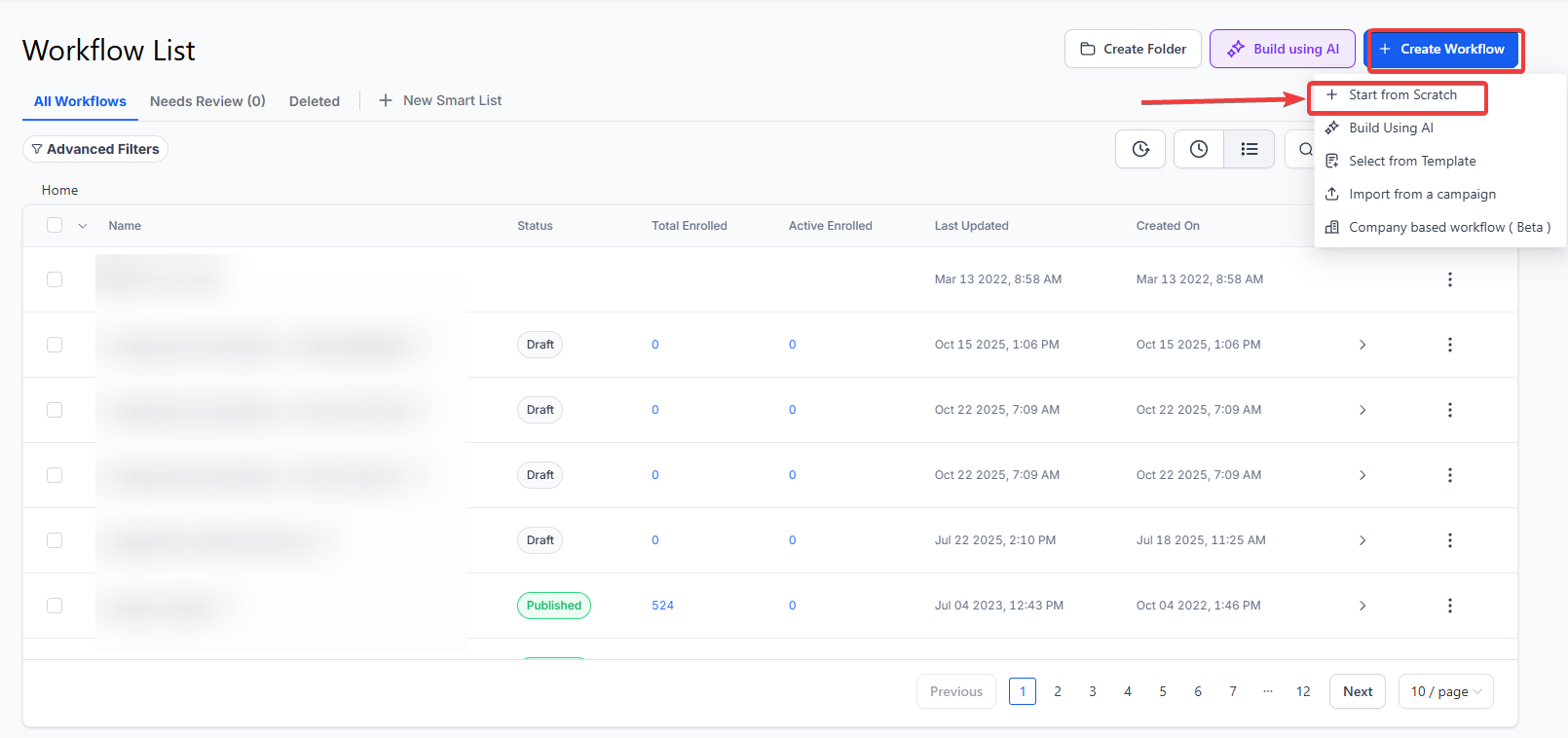
- Navigate to Automation on the left, Workflows on the top, and Create Workflow
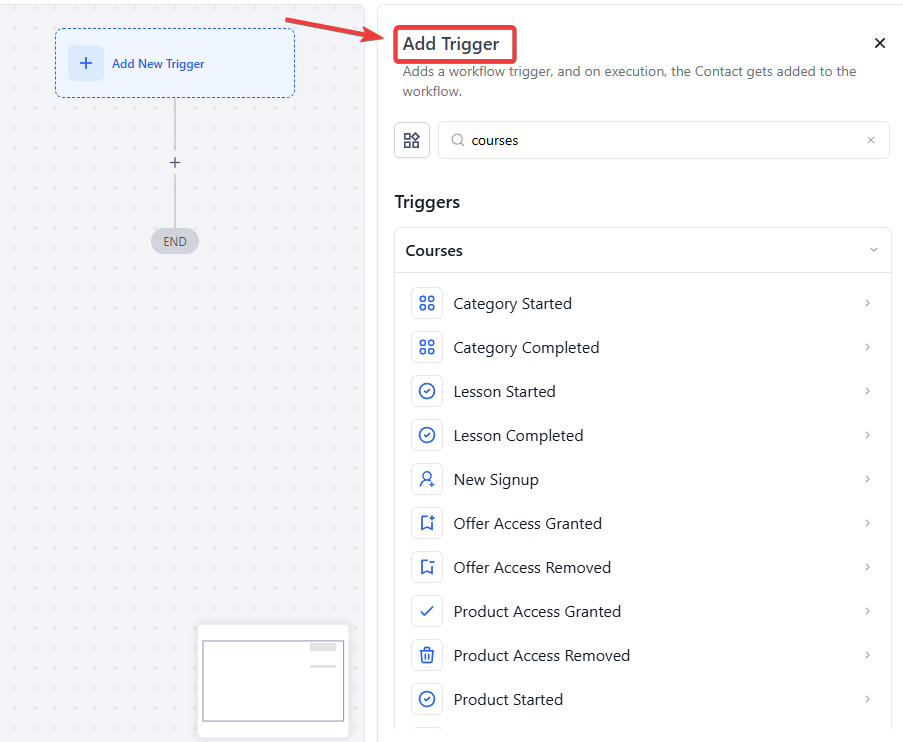
- Click “Add New Trigger” at the top.
- Name your Workflow Trigger (optional) in the pop-up on the right.
- Choose a Workflow Trigger from the dropdown (scroll toward the bottom of the list for Course Triggers).
- Add the needed actions.
- Click “Save Trigger” to add the trigger to your Workflow
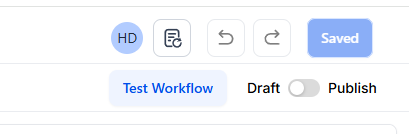
- Once the workflow is ready, publish and save it
¶ Pro Tips:
- In Workflows, several triggering events can be set to fire off the same series of actions. Perhaps you want one Workflow to run when an Offer Access or Product Access is granted. Both triggers can be used in the same workflow.
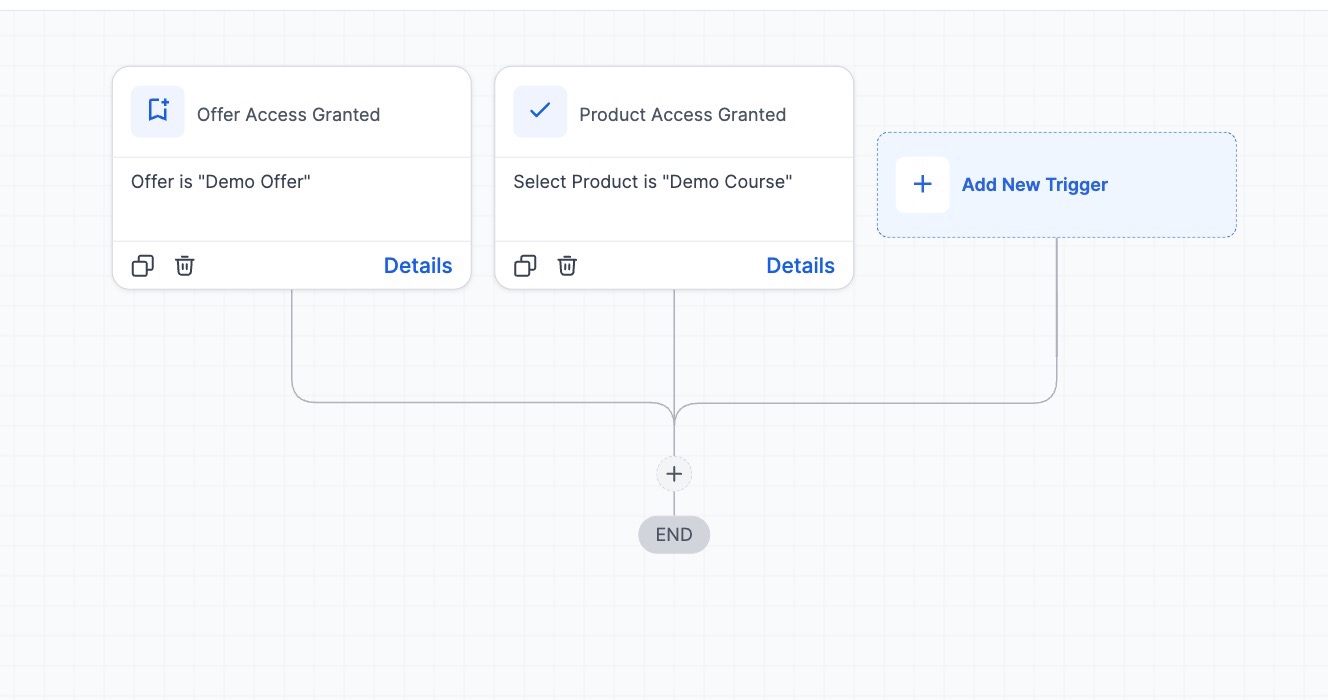
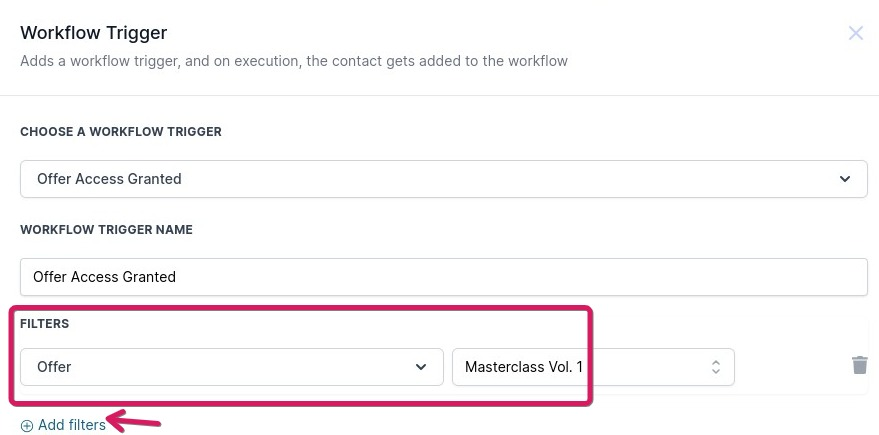
- You can add filters to the Workflow triggers to add further specifications for how they operate. When adding a Workflow Trigger, click “Add filters” and choose one or more. (In the example below, we filtered out a specific offer so the workflow would run when access to a specific offer is granted. Without this specification of a particular offer, the trigger would run for any offer access granted.)
¶ FAQ
Question: Can I use multiple membership triggers in a single workflow?**
**Answer: Yes, you can use multiple membership triggers within the same workflow. For example, you can set triggers for both “Offer Access Granted” and “Product Access Granted” to run the same series of actions when either event occurs.
Question: How do I filter triggers to target specific offers or products?**
**Answer: When setting up a membership trigger, you can add filters by clicking “Add Filters” in the trigger setup. This allows you to specify particular offers, products, or categories, ensuring the workflow runs only for those specific conditions.
Question: Can I trigger a workflow based on both product access granted and removed events?**
**Answer: You can set up separate triggers for “Product Access Granted” and “Product Access Removed” within the same workflow, enabling you to run different actions based on whether access is granted or revoked.
Question: Will the workflow trigger if a user logs in multiple times?**
**Answer: Yes, the “User Login” trigger will run each time the user logs in, making it useful for actions you want to repeat upon each login, such as sending a welcome-back message or tracking login activity.
Question: Are filters mandatory when setting up course triggers?
Answer: No, filters are optional. They allow you to narrow down the trigger to specific offers, products, or categories. Without filters, the trigger will run for all relevant events
Question: Where can I find the course-specific triggers within the Workflow builder?
Answer: To find these triggers, navigate to the Automation section and create a workflow. When you click “Add New Trigger,” you will find the Course Triggers by scrolling toward the bottom of the dropdown list.