¶ How To Connect Course and Funnel Checkout Using Workflows
How To Connect Course and Funnel Checkout Using Workflows
Follow these steps to connect your membership to your funnel checkout
¶ Part 1: Create an offer and add the course/product to it in the membership editor area.
To access the membership editor area, navigate to Membership > Products > Offers > Create Offer. You’ll see a list of all your offers.
Please note that a course must be published before it can be linked to an offer and that the offer itself must be published to appear in dropdowns.
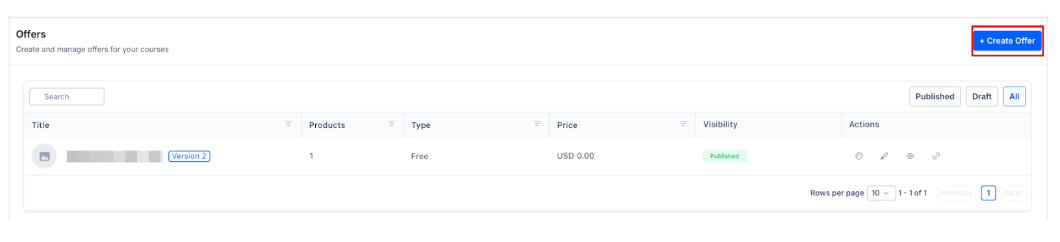
Check out the article “How to Build and Edit an Offer in Memberships” with a step-by-step guide on creating offers.
¶ Part 2: Choose between using a Workflow or Membership Email Default
¶ Option 1: Toggle on the Membership Offer option in the payment product settings.
Step 1: Click on Payments > Products
Step 2: Select “View” on the product** **

**Step 3: Click on Pricing, then click on the price itself
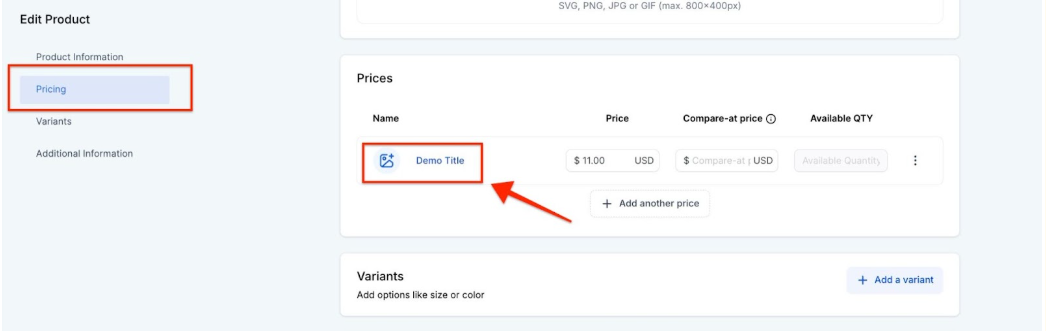
Step 4: Click on ‘Additional options’, toggle on membership offer, and select the membership

Step 5: Save to confirm your changes.
*Note:Make sure to add/re-add the product to the funnel page with the order form.
¶ Pro Tips:
1- Design Custom Welcome Emails:
- Use the email builder to create personalized templates with placeholders for member info (e.g., name, email, login credentials).
- Include a direct link to the membership area for easy access.
2- Separate Workflows for New and Existing Members:
- Set up distinct workflows to send the right emails based on member status.
- Use temporary tags to differentiate between new and existing members.
3- Handle System-Generated Email Limitations:
- Disable default system emails to avoid issues with existing members not receiving updated credentials.
- Rely on custom workflows to ensure all members get the correct login details.
4-Test and Verify:
- Send test emails and run workflow checks to confirm everything functions as intended.
¶ Option 2: Create a workflow:
To create a workflow for default emails, follow these steps:
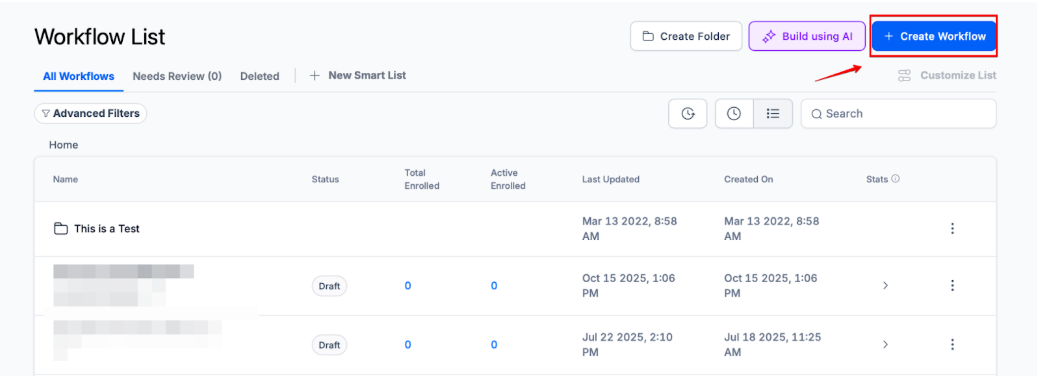
Step 1: Navigate to Automation > Workflows and click “Create Workflow” then choose “Start from scratch”
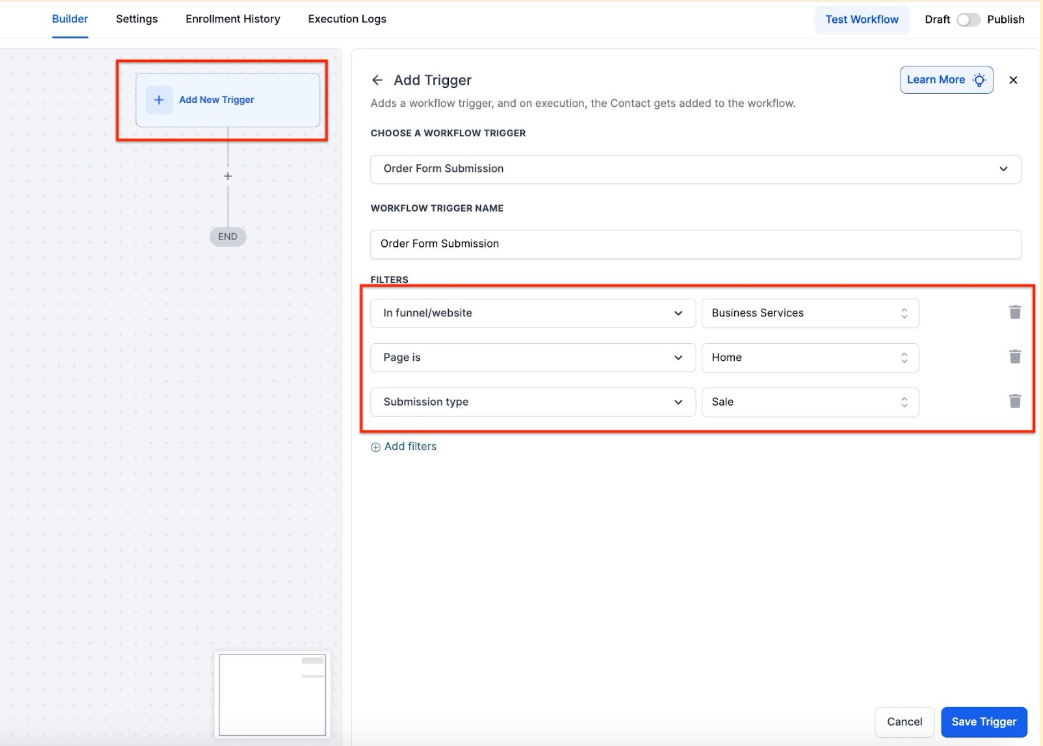
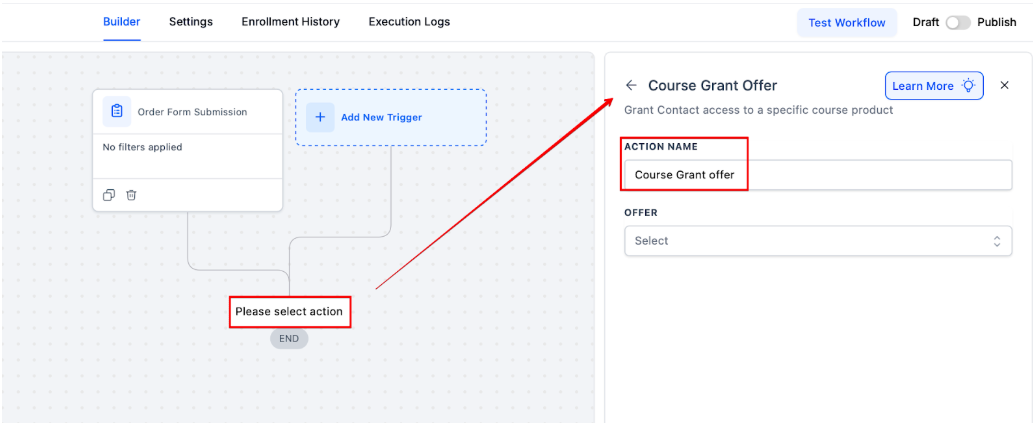
Step 2: Add a trigger for Order Form Submission and add the filters to specify the location and type
Step 3: Add an action for Course Grant Offer and select the offer
Step 4: Make sure your default emails are turned on under Memberships > Settings > Email settings.
¶ For a new signup and a customized email, create a separate workflow using the following steps:
1- Add the ‘new sign up trigger’ from the courses category in the workflow builder:
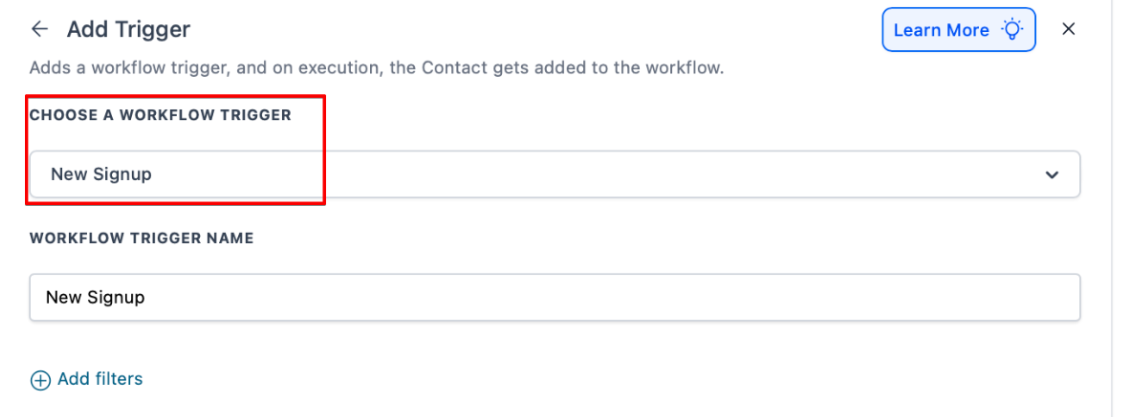
2-Save the trigger and then add the ‘email’ action to your workflow.
3-Steps to Send Membership Credentials via Email:
1. Prepare the Email Template:
- Wait for three minutes before proceeding to send the generic email.
Pro tip: Make use of waiting periods (e.g., 1-3 minutes) in workflows to allow the system time to check whether a user is a new or existing member. This detail is important for preventing automation errors.
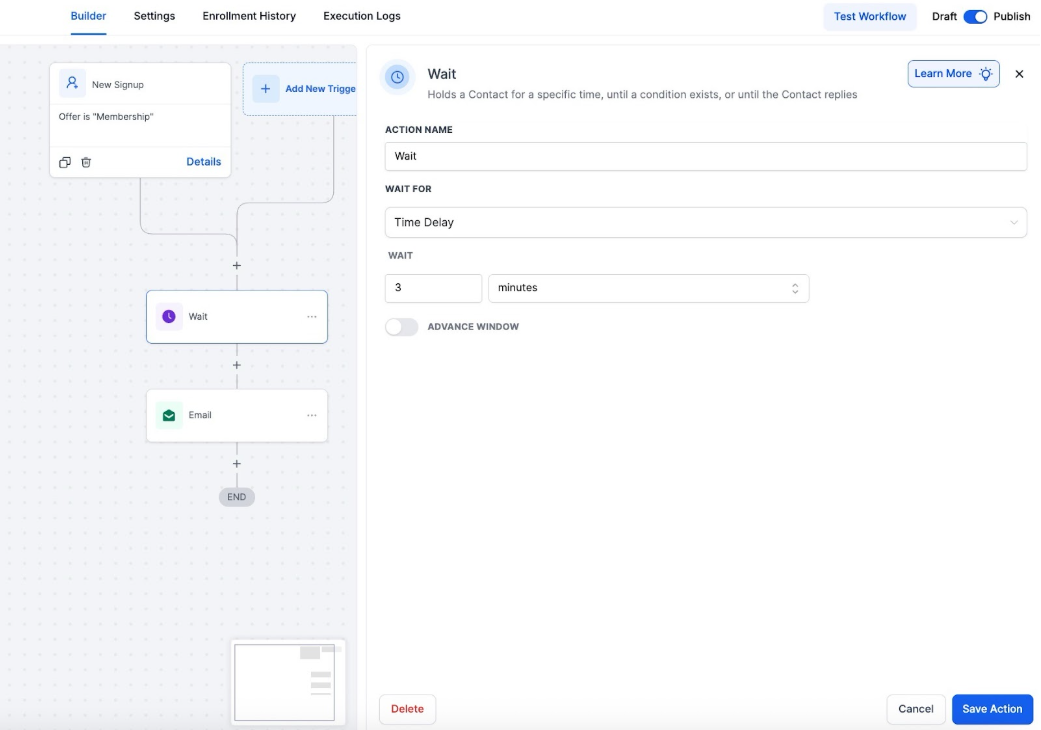
- Create the email content with placeholders for the login details.
2. Insert the Contact’s First Name:
- Use the placeholder Contact First Name to personalize the greeting in the email.
3. Add the Contact’s Email:
- Insert the contact’s email address using the custom value Contact Email to ensure it automatically fills in with the recipient’s email.
4. Insert the Login URL:
- Since this is for a new membership sign-up, use the custom value feature to pull in the Login URL.
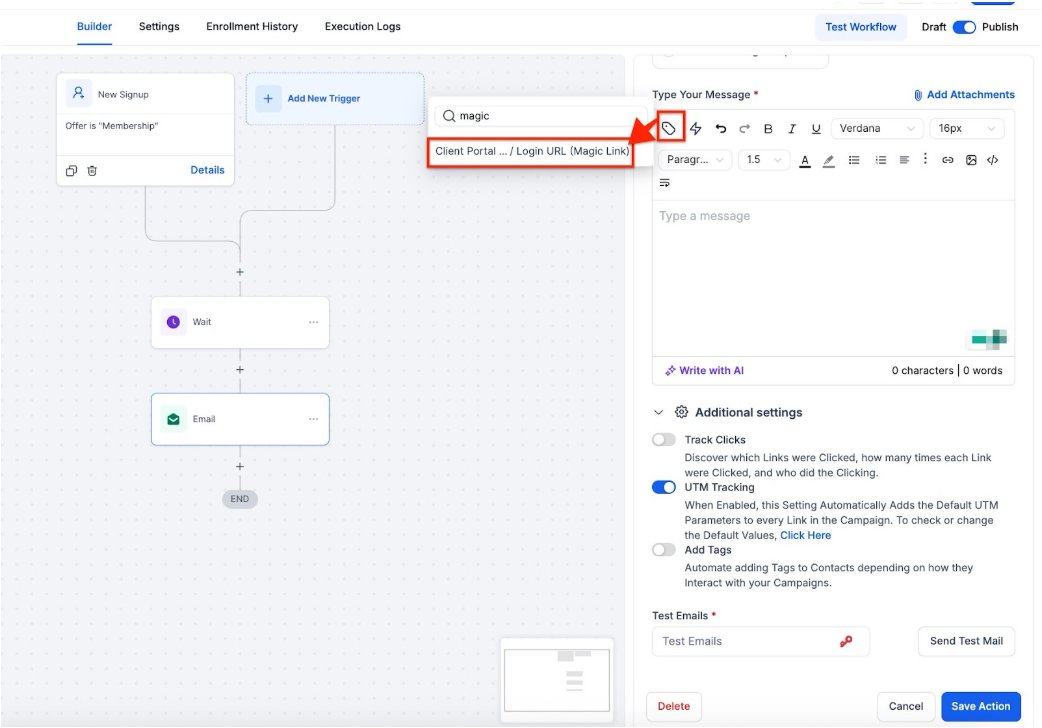
- Highlight the placeholder for the login url.
- Click on the Custom Values icon, select course>new sign up>login URL magic link to auto-fill the password field.
5. Include the Membership Site Login:
- Set the membership site login URL as a custom value, which allows you to use a preset value in the email template.
6. Send the Email:
- Once all placeholders are correctly filled in with custom values, save the action, and send the email to the contact with their login details.
Note: Using temporary tags in workflows to differentiate between new and existing members is an important aspect of ensuring that the correct email or automation is triggered based on the member’s status.
Step 4: Save everything and publish the workflow to ensure it isn’t in draft mode.
**FAQ: **
Question: How do I link my course to an offer in the membership editor?****
Answer: To link your course to an offer, first ensure that your course is published. Then, navigate to Membership > Products > Offers > Create Offer, and select your course when creating the offer. Remember to publish the offer once it’s created.
Question: What’s the difference between using a Workflow and the Membership Email Default option?****
Answer: Using the Membership Email Default option is a simpler method where you can toggle on the membership offer directly within the membership settings. The Workflow method offers more customization and control, allowing you to set specific actions and triggers, such as sending custom welcome emails or differentiating between new and existing members.
Question: How can I ensure new and existing members receive the correct emails?****
Answer: You can use temporary tags within your workflows to differentiate between new and existing members. This helps ensure that the correct email or automation is triggered based on the member’s status.
**Question: What should I do if system-generated emails aren’t working properly for existing members?
Answer: **If system-generated emails are causing issues, especially with existing members not receiving updated credentials, it’s advisable to disable those default emails. Instead, rely on custom workflows to send the necessary login details and other communications.
Question: Do I need to re-add the product to the funnel after making changes?**
Answer:** Yes. If you make changes to the product settings (such as toggling on the membership offer), be sure to remove and re-add the product to your funnel order form to ensure the updates take effect.
Question: What happens if a customer buys the same membership offer twice?****
Answer: If your workflow uses the “Grant Offer” action, the system will recognize the existing user. To prevent them from receiving “New Member” emails again.
Question: If I update my course content, do I need to redo this connection?
Answer: No. This connection links the Offer to the Funnel. As long as the Offer contains the correct Course, you can update your videos, lessons, and quizzes inside the Membership area as much as you want without ever touching your Funnel or Workflows.