¶ Workflow Trigger: Completed Task
Workflow Trigger: Completed Task
¶ Introduction
The Task Completed Trigger is a powerful feature in the LeadMagicX designed to initiate a set of pre-defined actions or automations when a task status changes to “completed.” This functionality is invaluable for streamlining operations, improving team collaboration, and automating manual processes. In this guide, we’ll walk you through how to set it up, its functionalities, and even its limitations.
Features
Supported Filters
Assigned User: Trigger actions based on the user assigned to a completed task.
Contact Custom Fields: Utilize custom fields associated with a contact to filter which completed tasks trigger actions

¶ How to Set It Up
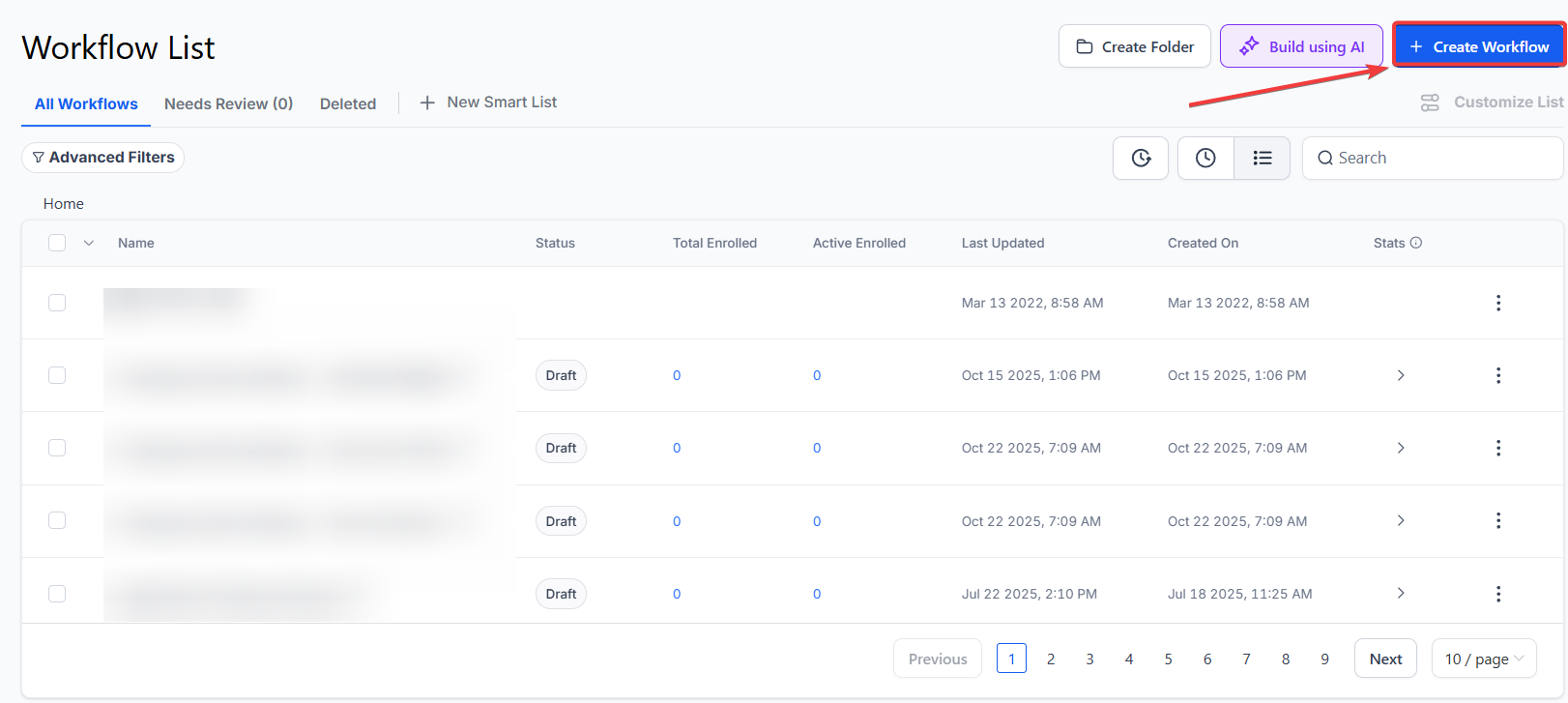
Navigate to Automation: Go to the sidebar and click on ‘Automation’ tab. Navigate to Workflows> Create a Workflow> Start from Scratch:
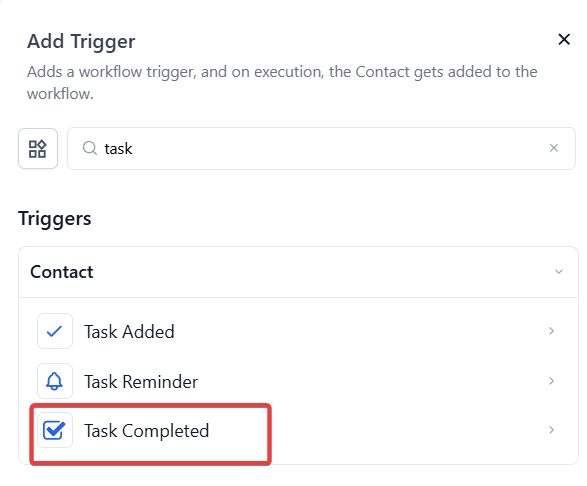
Select Trigger Type: Choose Task Completed Trigger from the list of available triggers.

Configure Filters: Based on your needs, you can set up filters using the ‘Assigned User’ or ‘Contact Custom Fields.’
Define Actions: Once the trigger is activated, you can define what actions should take place. This can range from sending an email to updating a contact status.
Save and Test: Once all parameters are set, save the workflow and test it to make sure it works as expected.
¶ Example
Suppose you want to set up a workflow that automatically sends a follow-up email to a contact once a sales task is marked as complete by a specific user.
Trigger Name: Sales Task Completed
Assigned User: John Doe
Filter: Business Niche = Real Estate
When John Doe completes a task for a contact in the Real Estate niche, this trigger will activate and automatically proceed to the next step in the workflow, such as sending an email to the contact or updating the LeadMagicX status.
Use Cases
- Sales Pipeline : When a sales rep completes a follow-up task, trigger an automation to send a thank-you email to the customer and notify the manager.
- Customer Support : On resolving a support ticket, automatically update the customer profile or send a feedback survey.
- Marketing : When a marketing task is completed, such as publishing a blog post, automatically update the project status and notify the team.
¶ Limitations
- No Multi-Step Conditions: As of now, the Task Completed Trigger does not support multi-step if-else conditional logic, limiting its complexity.
- Limited Filters: The supported filters are restricted to ‘Assigned User’ and ‘Contact Custom Fields,’ making it less flexible in some scenarios.
- Global Scope: This trigger works at a global level, meaning you cannot set it up for specific tasks or departments.
¶ FAQs
Question: What actions can be triggered by the Task Completed Trigger?**
**Answer: Actions can include sending emails, updating contact statuses, or any other predefined task you set up in the workflow.
Question: Can I use multi-step conditional logic with the Task Completed Trigger?**
**Answer: No, the Task Completed Trigger does not support multi-step if-else conditions at this time.
Question: What filters can I use with the Task Completed Trigger?**
**Answer: You can filter actions based on the ‘Assigned User’ or ‘Contact Custom Fields.’
Question: Is it possible to apply the Task Completed Trigger to specific tasks or departments?**
**Answer: No, the Task Completed Trigger operates at a global level and cannot be limited to specific tasks or departments.
Question: How can I test if my Task Completed Trigger works correctly?**
**Answer: After setting up your workflow, mark a task as completed for the assigned user and ensure the defined actions, like sending emails or updating records, are executed as expected.
Question: Can this trigger run multiple times for the same contact?**
**Answer: Yes, the trigger can run multiple times for the same contact as long as different tasks are completed and meet the configured filter criteria.
Question: Does the trigger distinguish between different types of tasks (e.g., “Calls” vs. “Emails”)?
Answer: Currently, the trigger has a Global Scope , meaning it fires for any task completion that meets the Assigned User or Custom Field filters. It does not yet support filtering by specific task categories or titles.