¶ Workflow Trigger: Appointment Status
One very common Workflow Trigger you may want to use is the Appointment Status Workflow Trigger. This will trigger any time an appointment status is assigned. This can have a wide range of use cases. In this article, we will simply overview how to set up this trigger.
¶ Steps to add the trigger to your workflow
¶ Step 1: Start a new workflow or edit an existing one
- Navigate to Automation on the left > Workflows on the top, and create a new workflow or edit an existing one
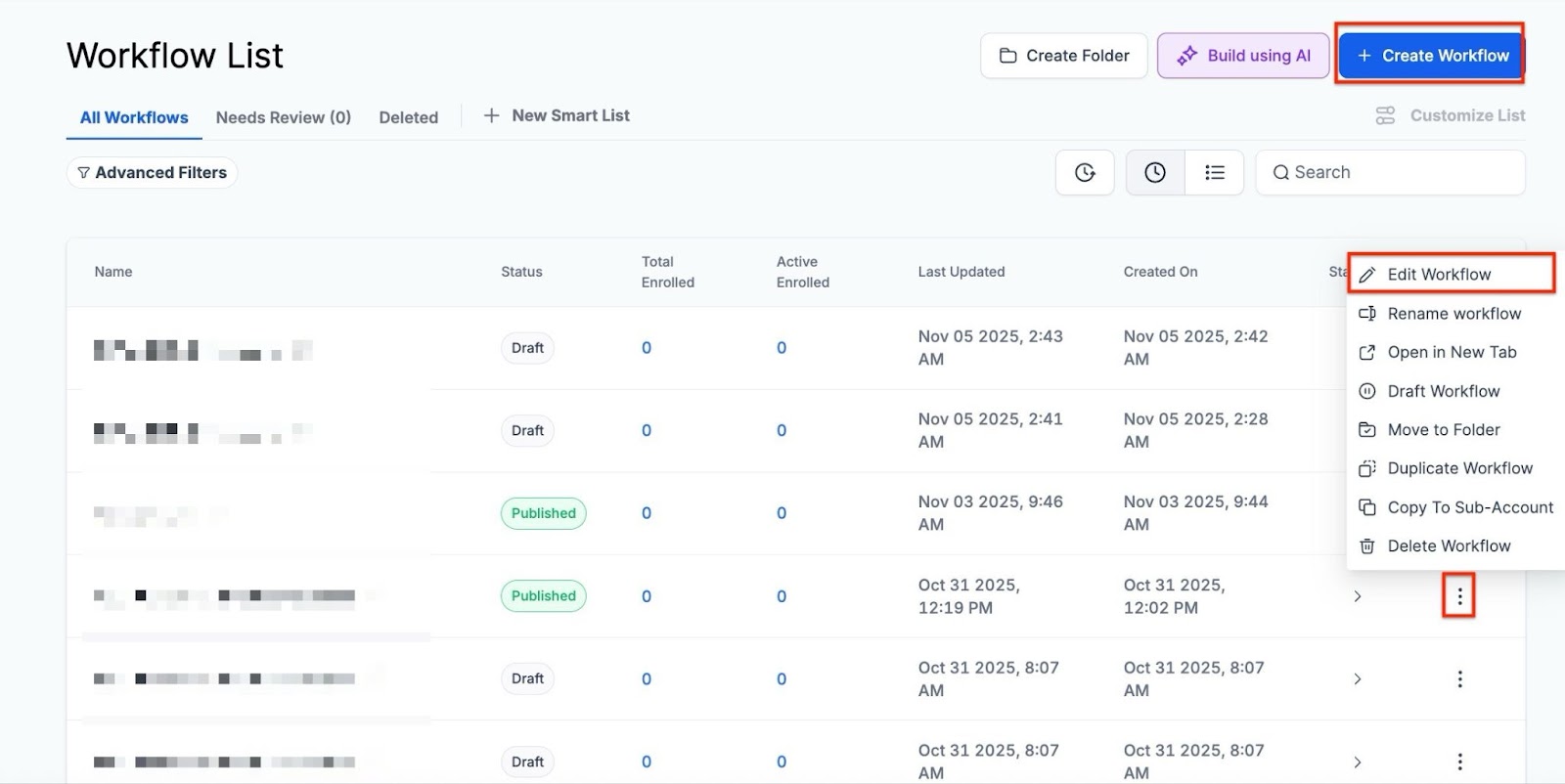
¶ Step 2: Creating and Editing the Trigger
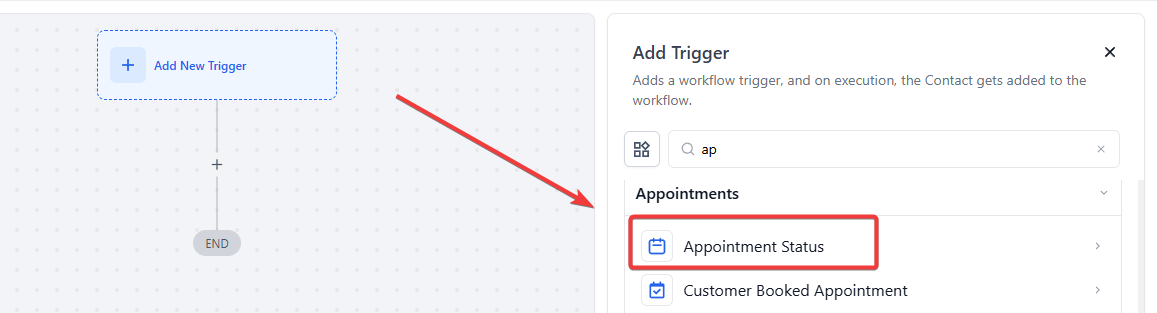
- Click “Add New Trigger”

- Select Appointment Status in the Appointments section of the Workflow Triggers Menu or use the search feature
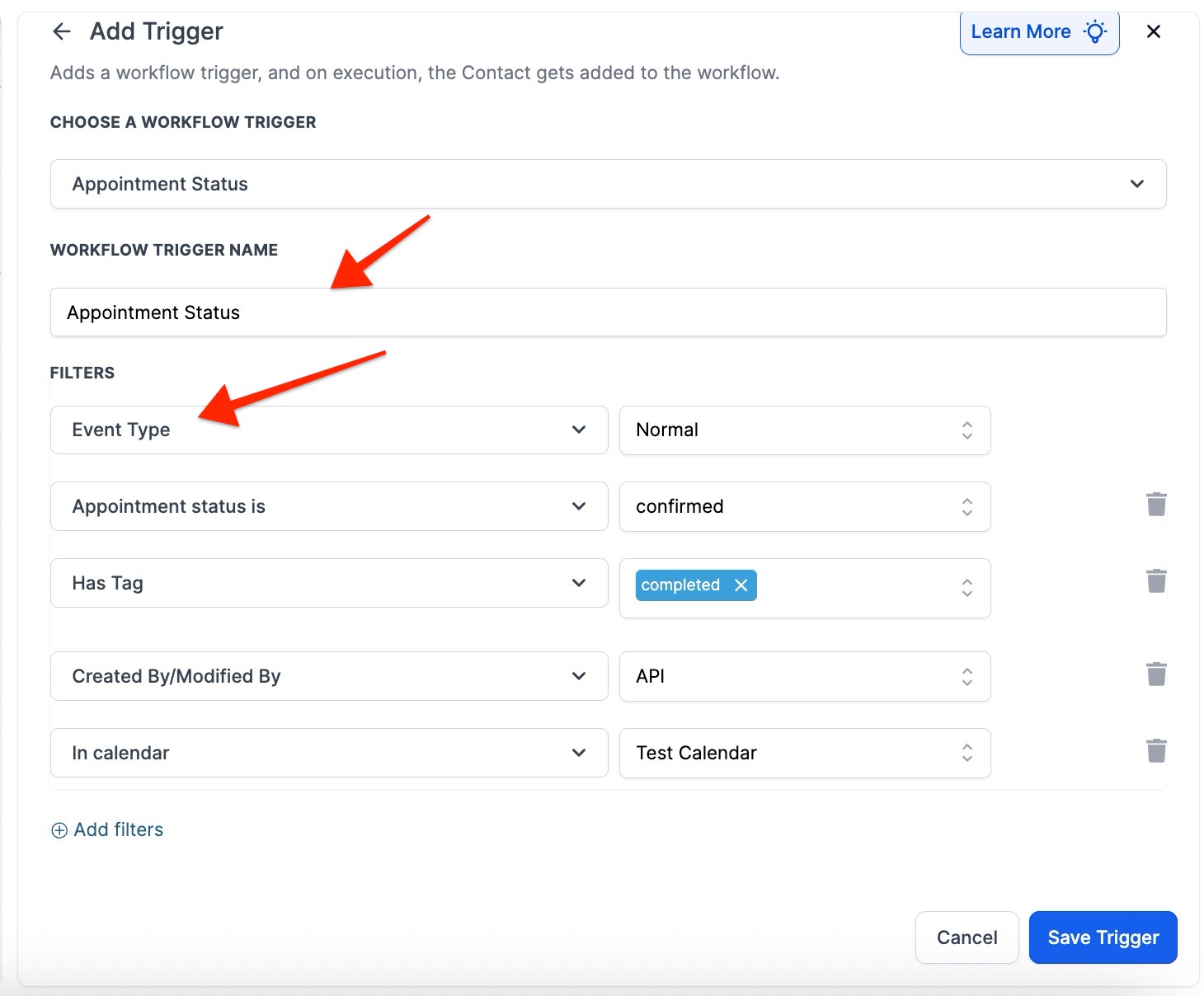
- In the Appointment Status trigger setup menu, you can change the name of the trigger if you wish
- Note that this change will only affect the display name of the trigger within the workflow builder and has no impact on the function of the trigger

-
Under Filters , specify which appointments and appointment statuses should trigger this workflow
- You must select the Event Type to which the trigger will apply to
-
Any will trigger this workflow for any appointment type
-
Normal will trigger this workflow only for non-recurring appointments
-
Recurring will trigger this workflow only for recurring appointments

-
Additional Triggers can further specify which appointment statuses will trigger this workflow
-
‘Appointment status is’ allows you to select which status will trigger this workflow
Please Note: If you don’t select a status it will trigger from any status
- Has Tag allows you to only apply this Workflow Trigger to contacts that have a particular tag that you have assigned them
- In calendar allows you to only apply this trigger to appointments within a particular calendar
- Modified By allows an Appointment Status to trigger this workflow if it was modified by either the API , User , Workflow, or **Customer. **
- You can also filter by Custom Fields that you set up elsewhere
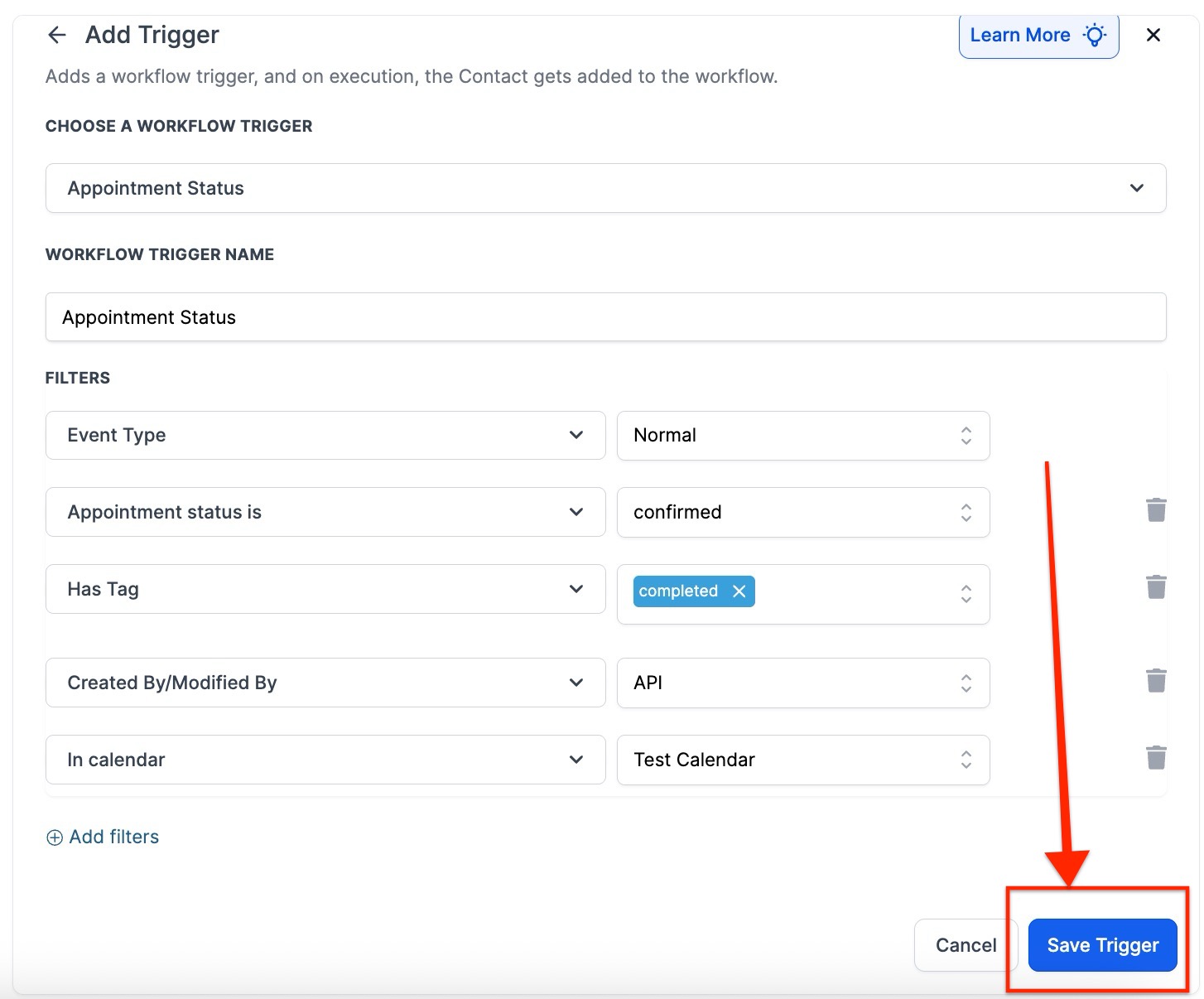
- Press Save Trigger in the bottom right corner of the Trigger setup menu
¶ Step 3: Set up applicable Workflow Action(s). We have multiple articles available to explain the setup of each of the Workflow Actions. Feel free to review our articles for more information on setting these up.
Pro Tip: You can use any Workflow Actions to be triggered by the Appointment Status trigger or you can leave this workflow without any actions.
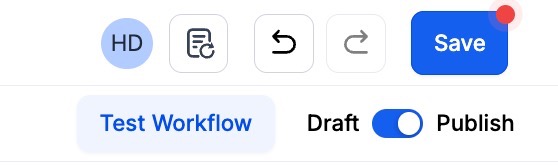
¶ Step 4: Press Save in the top right corner of your browser to save the workflow
- If your Workflow is ready to be enabled, make sure the toggle switch under Save is set to Publish
- Be sure to test your Workflow to ensure it is set up correctly using the Test Workflow button next to the Publish toggle switch.
- For an in-depth overview of Workflow Testing see our article, “Using the Testing Features in Workflows”
Now your Workflow is set up and ready to go with the Appointment Status Trigger
¶ FAQs
Question: What is the Appointment Status Workflow Trigger?****
Answer: The Appointment Status Workflow Trigger activates whenever an appointment status is assigned or updated. This trigger is useful for automating actions based on changes in appointment statuses, such as sending notifications or updating records.
Question: How do I set up an Appointment Status Workflow Trigger?****
**Answer: **
- Start a Workflow : Begin by creating a new workflow or editing an existing one.
- Add New Trigger :
- Click “Add New Trigger.”
- Select “Appointment Status” from the Appointments section or use the search feature.
- Configure Trigger :
- Optionally, rename the trigger for easier identification (this doesn’t affect functionality).
- Under Filters, specify appointment types and statuses that will trigger the workflow.
- Set additional filters if needed, such as tags, calendars, or custom fields.
- Save Trigger : Click “Save Trigger” to finalize the setup.
- Set Up Actions : Define the actions to be taken when the trigger activates.
- Save Workflow : Click “Save” and ensure the workflow is published and tested.
Question: What types of appointment statuses can trigger the workflow?****
Answer: You can select specific appointment statuses to trigger the workflow or leave it blank to trigger for any status.
Question: How do I filter the trigger to specific appointment types?****
Answer: Under the Filters section:
- Select “Any” for all appointment types.
- Choose “Normal” for non-recurring appointments.
- Select “Recurring” for recurring appointments.
Question: Can I apply the trigger to appointments from a specific calendar?****
Answer: Yes, you can filter by calendar under the trigger’s settings. This allows you to apply the workflow only to appointments within a particular calendar.
Question: How can I filter by tags?****
Answer: In the filter settings, you can specify that the workflow trigger applies only to contacts with a particular tag.
Question: What does the “Modified By” filter do?****
Answer: The “Modified By” filter restricts the workflow trigger to appointments modified by a specific entity (API, User, Workflow, or Customer). This helps in tailoring the workflow based on who made changes to the appointment.
Question: Is it possible to use multiple filters at once?****
Answer: Yes, you can combine various filters, including appointment status, tags, calendar, and custom fields, to precisely define when the workflow should be triggered.
Question: Can I trigger different actions for different calendars in one workflow?**
Answer:** While you can set the trigger to “Any” calendar, it is usually better to use If/Else steps inside the workflow. This allows the trigger to catch the appointment, and then the workflow can ask, “Was this the Sales Calendar or the Support Calendar?” before sending the correct message.
Question: If a contact reschedules, does the “Appointment Status” trigger fire again?
Answer: Generally, a reschedule is treated as an update to the existing appointment or the creation of a new “Confirmed” event. If your trigger is set to “Appointment Status is Confirmed” and you have Allow Re-entry enabled in your Workflow Settings, the contact will enter the workflow again for their new time.