¶ Workflow Actions: Add to Google Adwords
Workflow Action: Add To Google Adwords
The Add to Google Adwords Workflow Action allows you to fire a conversion event from LeadMagicX to your Google Ads account through a workflow, helping you understand how your ads drive user actions such as purchases, signups, or form submissions. This powerful feature ensures that all your conversion data is consolidated in one place for easy tracking and optimization of ad spend. For this Action to work, you must have your Google Ads account set up and connected to the system.
This article will assume that you have already set up your Google Ads conversions in your account. For a detailed overview of how to set up Google Ads, see our article, “Using the Conversion List for Google Ads with Triggers and Workflows.”
¶ Key Features and Benefits
- Conversion Tracking : Send precise conversion events such as form submissions, purchases, or page visits to your Google Ads account, allowing you to measure campaign performance effectively.
- Workflow Integration : Easily set up this action within your workflows to automate conversion tracking based on user actions.
- Ad Optimization : Gain insights into which ads are performing best, enabling better budget allocation and campaign adjustments.
- Flexibility : Track multiple types of conversions, including single-click and multi-click events, for comprehensive insights.
¶ Step 1: Start a new workflow or edit an existing one
- Navigate to Automation on the left > Workflows at the top and create a workflow or edit an existing one.
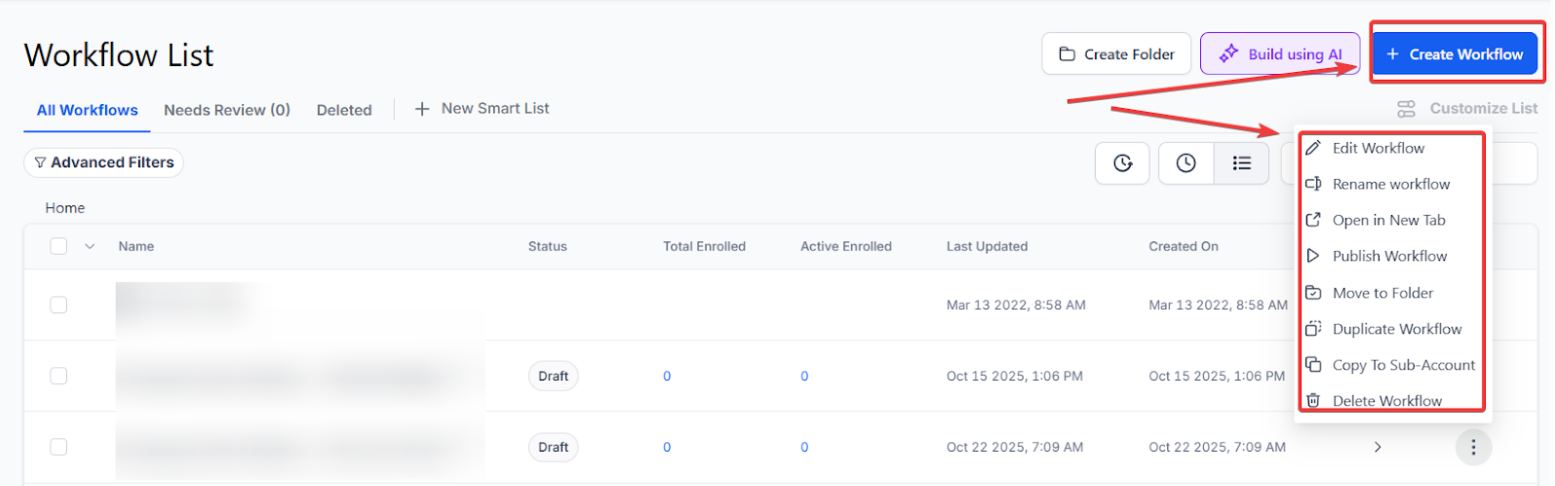
¶ Step 2: Set up applicable Workflow Trigger(s). We have multiple articles available to explain the setup of each of the Workflow Triggers. Feel free to review our articles on these for more information on setting these up.
¶ Suggested Triggers for the “Add To Google AdWords” Action
- Form Submission**
**Trigger the action when a user submits a form, allowing you to track leads generated from your Google Ads campaigns. - Appointment Booked**
**Use this trigger to track when users book appointments, measuring how effectively your ads drive bookings. - Product Purchase**
**Record purchases as conversions to understand the impact of your ads on sales performance. - Link Clicked**
**Track engagement by triggering a conversion event when users click on specific links tied to your ad campaigns. - Page Visit**
**Monitor visits to key pages, such as “Thank You” or “Order Confirmation” pages, as conversion events to gauge funnel completion.
¶ Step 3: Setting up the Add to Google Adwords Action
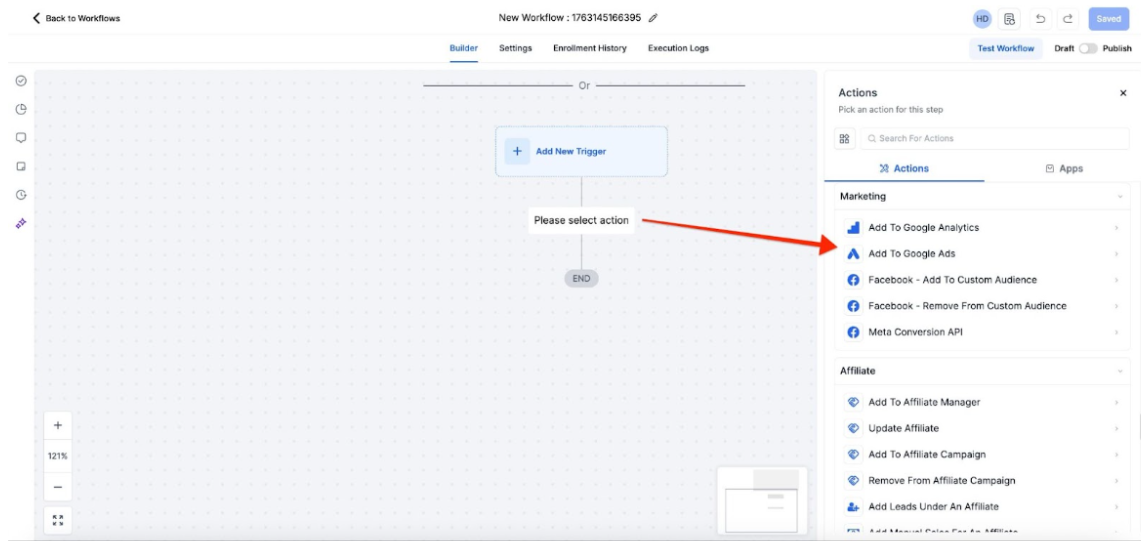
- Click on the “+” symbol below the trigger to add an action.
- Under Actions, select Add to Google Adwords in the Marketing section of the Actions Menu or use the search feature. Upon selection, the Action setup menu will appear
- (Optional) You can change the workflow builder display name of this action using the textbox below Action Name. Note that this will only affect the display name within the workflow builder and has no other impact on the content or functionality of this Workflow Action.
- Under Conversion select which conversion event you want this action to fire for your Google Ads.
Important: Copy and paste theexact conversion name from your Google Ads account to ensure accurate tracking.
- ** Fields in Conversion Action: Currency and Conversion Value**
The Currency field allows you to select the reporting currency (e.g., USD, EUR), while the Conversion Value field lets you assign a custom value to each conversion for more precise tracking. This helps improve ad spend optimization and attribution by dynamically linking conversion values to your CRM data.
How to use it:
1. Go to your conversion action setup.
2. Select the preferred currency (default is USD).
3. Set a custom Conversion Value (default is 1).
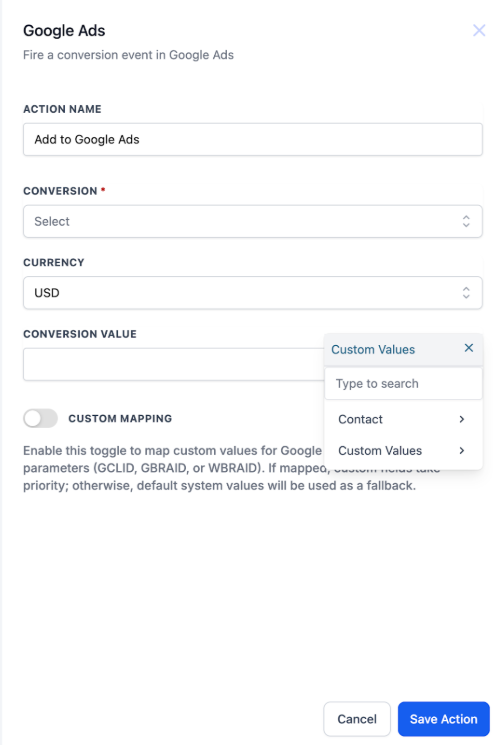
Note: Currency is customizable, and Conversion Value can be set per event.
- Press Save in the bottom right corner of the Action setup menu

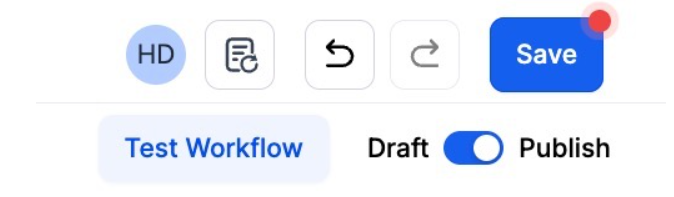
¶ Step 4: Press Save in the top right corner of your browser to save the workflow
- If your Workflow is ready to be enabled, make sure the toggle switch under Save is set to Publish
- Be sure to test your Workflow to make sure it is set up correctly using the Test Workflow button next to the Publish toggle switch.
- For an in-depth overview of Workflow Testing, see our article, “Using the Testing Features in Workflows.”
Now your Workflow is set up and ready to go with the Add to Google Adwords Workflow Action!
¶ Important Tips
- Double-Check Conversion Names : Ensure the conversion name in your workflow matches the name in Google Ads exactly to avoid errors.
- GCLID Requirement : For “One per click” conversion tracking, ensure that GCLID (Google Click ID) is included. If missing, the action will be skipped.

- Set Up Conversions in Google Ads First : Before using this action, configure the desired conversion events in your Google Ads account to receive data.
- Use Workflow Logs : If tracking doesn’t work, review the workflow logs to identify issues such as mismatched conversion names or missing data.

- Note: GBRAID and WBRAID are not supported ‘One per click’ conversion tracking and are supported for ‘Multi per click’ conversions.
¶ FAQs
Question: What does the “Add To Google AdWords” action do?**
**Answer: It sends conversion data from your workflows to Google Ads, helping you track actions like purchases, form submissions, or bookings.
Question: How do I set up this action?**
**Answer: Add it to your workflow, name the action, and copy the exact conversion name from Google Ads. Define a trigger and test the setup for accuracy.
Question: What if the action doesn’t work?**
**Answer: Check the workflow logs to identify any errors. Common issues include mismatched conversion names or missing GCLID for “One per click” conversions.
Question: Can I use this for multiple types of conversions?**
**Answer: Yes, you can track various events such as purchases, form submissions, and page visits.
Question: Are there any limitations?**
**Answer: GCLID is required for “One per click” tracking. GBRAID and WBRAID are only supported for “Multi per click” conversions.
By integrating the “Add To Google AdWords” action, you can make data-driven decisions to optimize your advertising campaigns and maximize your return on investment.
Question: How long does it take for a conversion to show up in Google Ads?
Answer: While the workflow fires the event instantly, Google Ads can take anywhere from 3 to 24 hours to process and display that data in your campaign reports. If you don’t see it immediately after a test, check your Workflow Logs first to ensure the action was “Success.”
Question: How long does it take for a conversion to show up in Google Ads?
Answer: While the workflow fires the event instantly, Google Ads can take anywhere from 3 to 24 hours to process and display that data in your campaign reports. If you don’t see it immediately after a test, check your Workflow Logs first to ensure the action was “Success.”
Question: If I change the “Conversion Value” in the workflow, will it change my historical data in Google Ads?
Answer: No. It will only affect conversions that happen after the change is saved. This is useful if you increase your product prices and want Google to know that your leads are now worth more, allowing Google’s AI to bid more aggressively for similar high-value users.