The update contact field action in workflows allows you to update the value of a specific field for a contact. With this action, you can specify a new value for the field, and the contact’s existing field value will be replaced with the new value. You can also clear the field, i.e., empty the input field or reset it to the default value.
In the article you will learn how to properly set up the Workflow Action:Update Contact Field or Clear Contact Field.
Numeric fields
Dropdown/Select fields (no manual option ID input needed)
Monetary fields
Here are some excellent usage cases for the “Update Contact Field” and “Clear Field Data” actions in workflows:
Updates the selected field with the provided value.
The “Update Contact Field” action in workflows allows you to update the value of a specific field for a contact. This feature is useful when updating a contact field with a new value, such as a phone number, email address, or custom field.
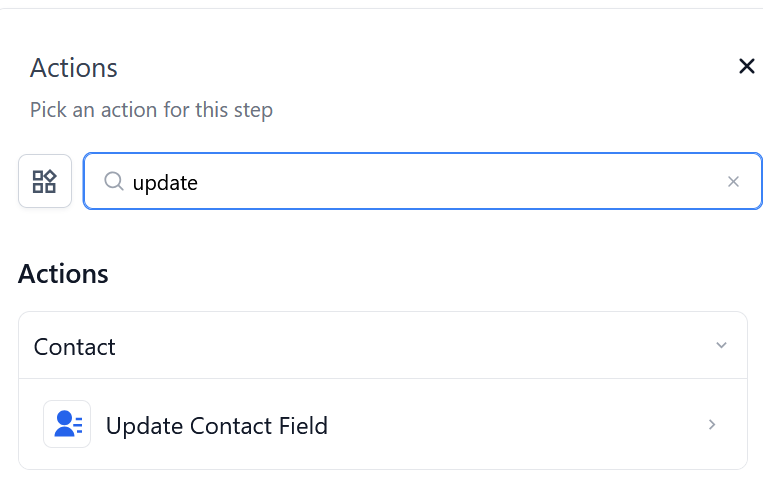
To use the “Update Contact Field” action, you must add it to your workflow, select the contact field you want to update, and specify the new value you want to set for the field. You can update the field with a static value, a fixed value that you specify in the workflow, or a custom value, which is a value dynamically generated based on other data in your workflow.
 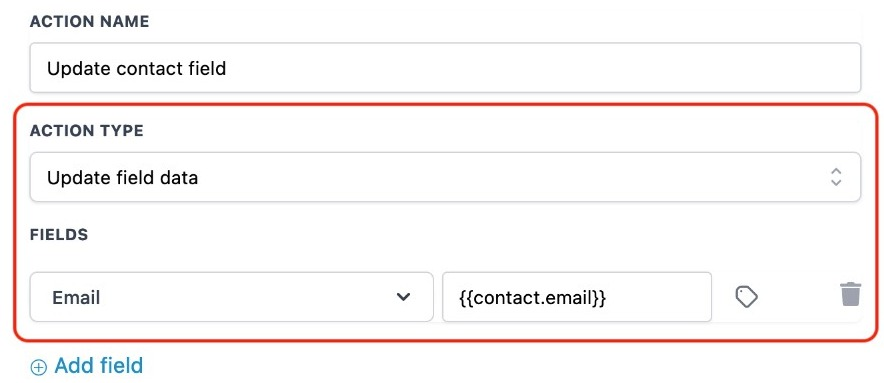
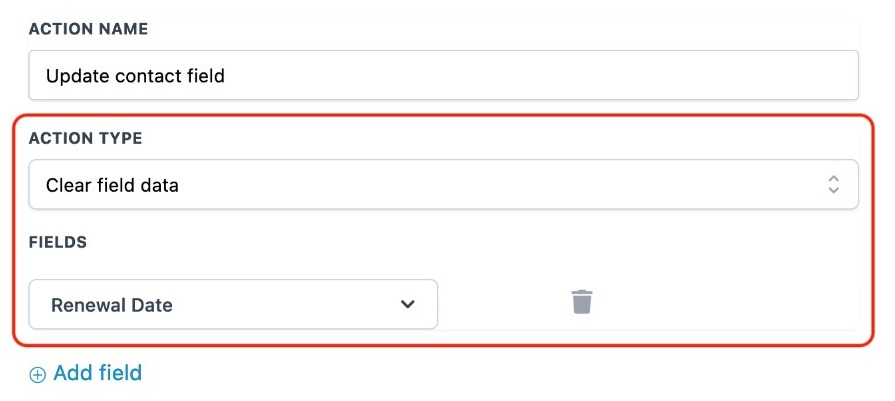
Resets the selected field to the default value (clears the data).
Clearing contact fields is a feature that allows you to remove the existing value of a contact field, effectively resetting it to an empty value. This feature is useful when removing a previously entered value from a contact field.
Note: It’s important to note that the clear field data feature currently supports only the Contact Custom Fields. This means you can use only clear custom fields you’ve created for your contacts, not standard fields like first name, last name, or email.
When you use the clear field data feature, the contact field value is set to NULL or empty. To clear a contact field in a workflow, add the “Update Contact Field” action, select the contact field you want to clear and add a filter for which field you want to clear. Once the workflow is executed, the contact field will be cleared of its previous value and set to an empty value.
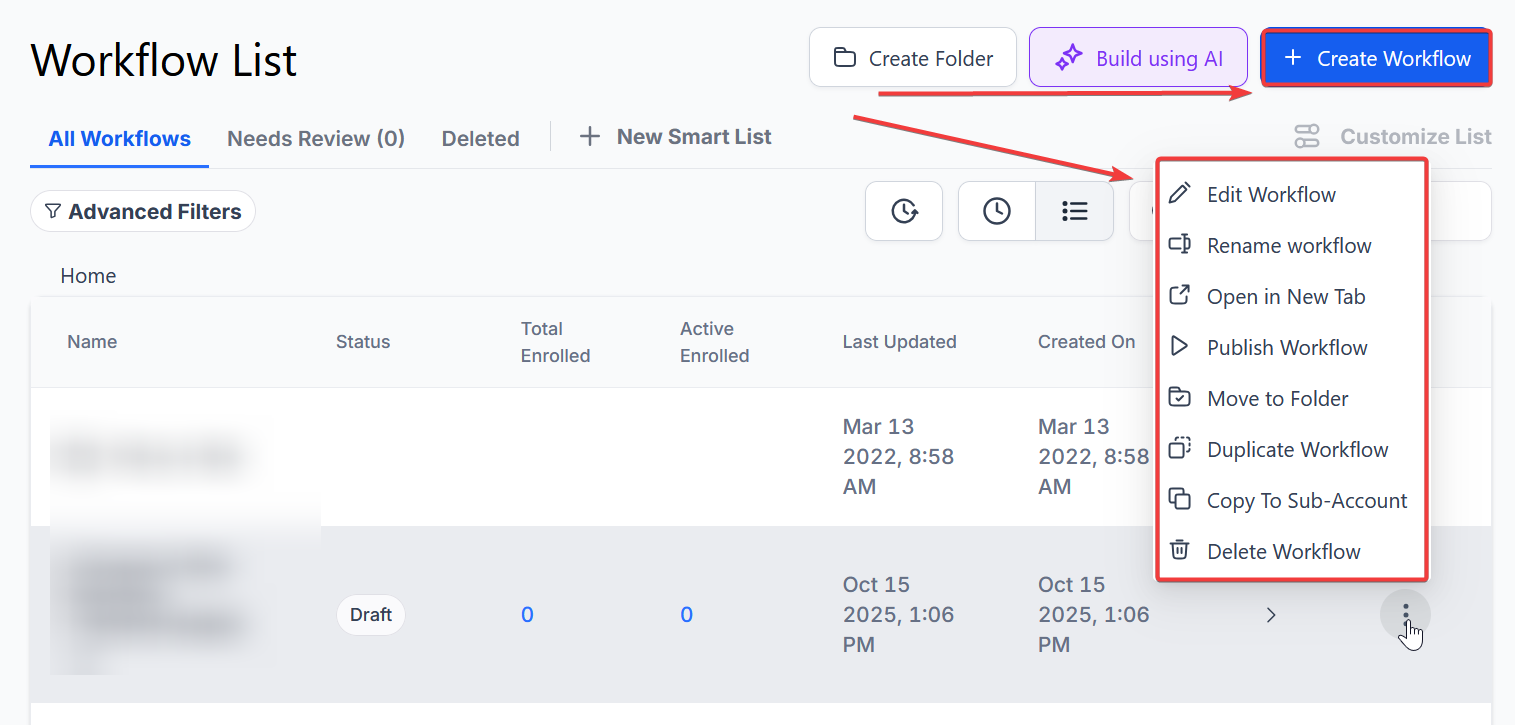
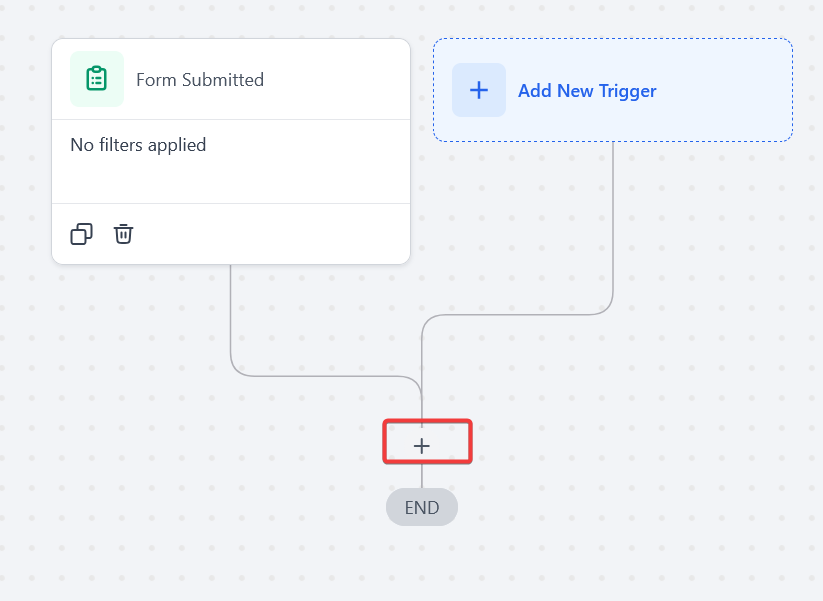
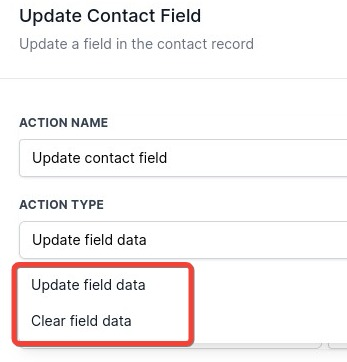
Note: You can change this action’s workflow builder display name using the textbox below Action Name. Note that this will only affect the display name within the workflow builder and has no other impact on the content or functionality of this Workflow Action.
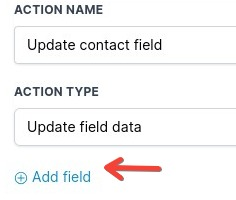
This will pull up the field’s drop-down, giving you the ability to select any that you want to update
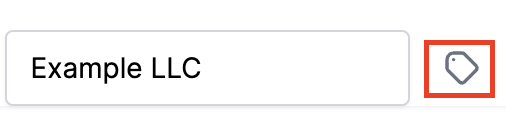
For Example: in this situation, we will select “Business Name ” and then type into the box the specific information
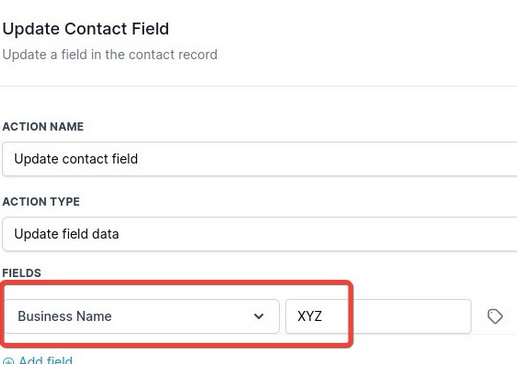
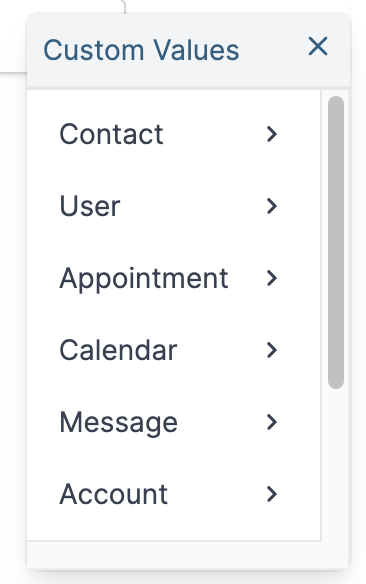
Tip: if you click on the Tag icon it will pull up custom values. You can select any of the values. They will now automatically be populated into this action. (Please Note: The information has to be entered into the account)
Now the Workflow is set up and ready to go with the Update Contact Field Workflow Action!
**Question:What does the “Update Contact Field” action do?
**Answer: The “Update Contact Field” action allows you to set a new value for a specific contact field. This could be any field you’ve defined, such as phone numbers, custom fields, or other data points. The existing value in that field will be replaced with the new value you provide.
Question: How does the “Clear Contact Field” action differ from the “Update Contact Field”?**
****Answer: **
Question: What are some common use cases for the “Update Contact Field” action?**
****Answer: **
Question: What are some use cases for the “Clear Contact Field” action?**
****Answer: **
Question: How do I set up the “Update Contact Field” action in a workflow?**
****Answer: **
Question: How do I set up the “Clear Contact Field” action?**
****Answer: **
Question: Are there any limitations to using the “Update Contact Field” action?**
**Answer: Yes, this action only supports custom fields created in your contact profiles. Standard fields like first name, last name, or email cannot be cleared using this action.
Question: Can this action overwrite existing important information?**
**Answer: Yes, so it’s important to verify the data before applying changes and avoid overwriting critical information unless intended for workflow automation.
Question: Can I use dynamic values instead of typing in a static value for a field update?
Answer: Yes. You can use Dynamic Custom Values and Live Variable Integration to pull in data from previous workflow steps or stored fields. This is supported in various field types, including numeric, monetary, and dropdown/select fields, allowing the system to automatically populate the information without manual entry.