¶ Workflow Action: Update Appointment Status
** Workflow Action: Update Appointment Status**
In this article, you will learn more about the Update Appointment Status action.
This action will allow you to update the appointment status of an already booked appointment. This can be helpful if you want to add to this workflow the leads that are new, confirmed, canceled, showed, no-show or invalid and then perhaps follow up with them, tag them or perform another action.
** **Steps to Use the Update Appointment Status Action
- Step 1: Edit or Create Your Workflow
- If Using a Trigger: If you plan to add leads to this workflow through a specific appointment trigger, ensure you include the appropriate trigger (e.g., “Appointment” or “Customer Book Appointment”).
- If Adding Leads Manually: If you are manually adding leads to this workflow, there is no need to add a trigger.
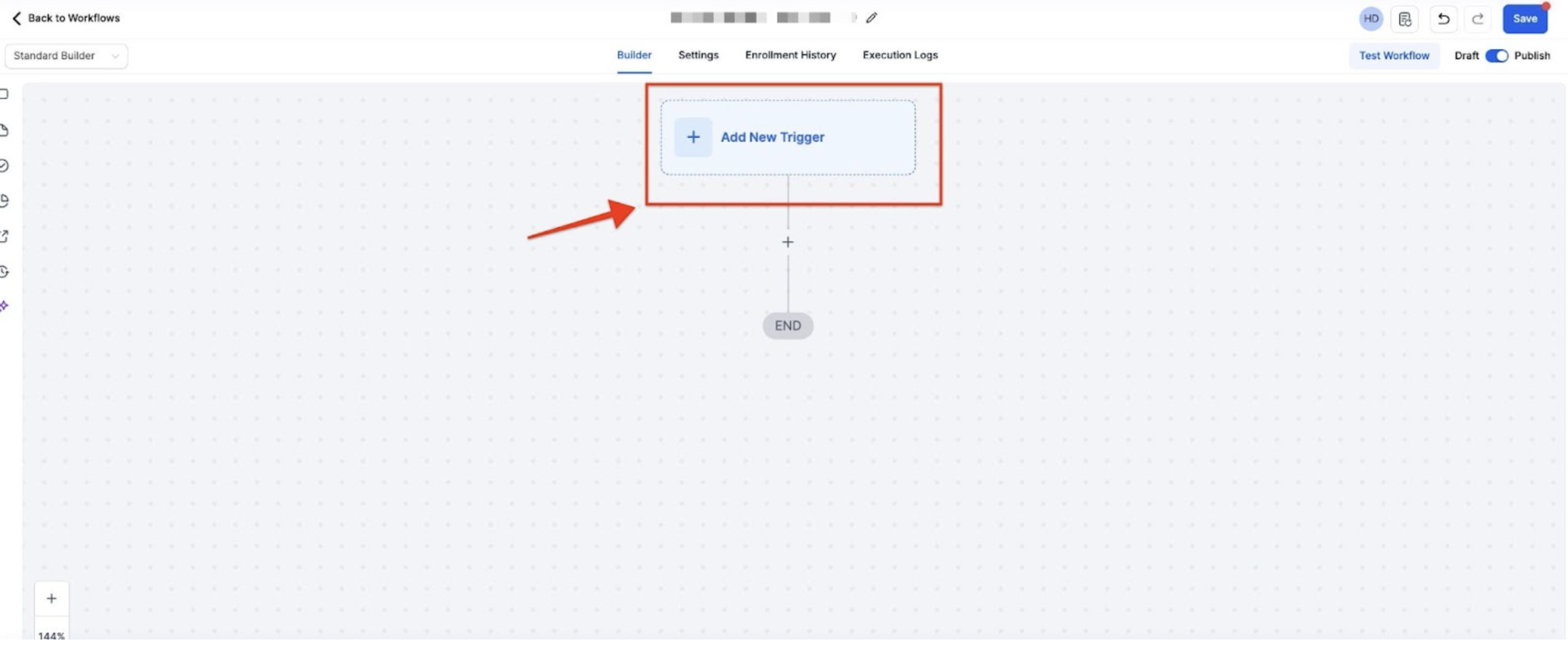
- Step 2: Add the Update Appointment Status Action
- Navigate to the workflow where you want to add this action.
- Click the “+” symbol to add a new action.
- Select “Update Appointment Status” from the list of available actions.
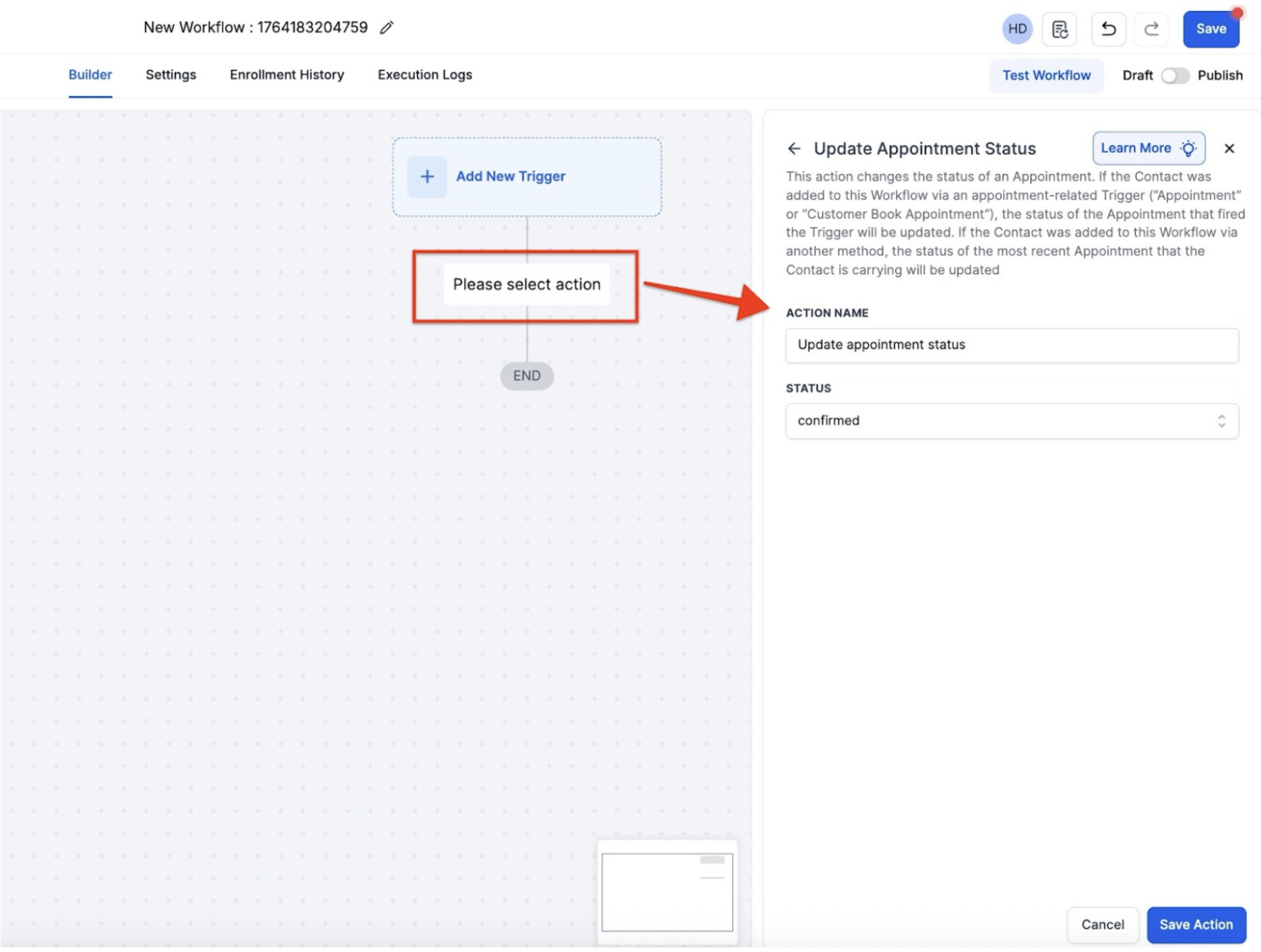
-
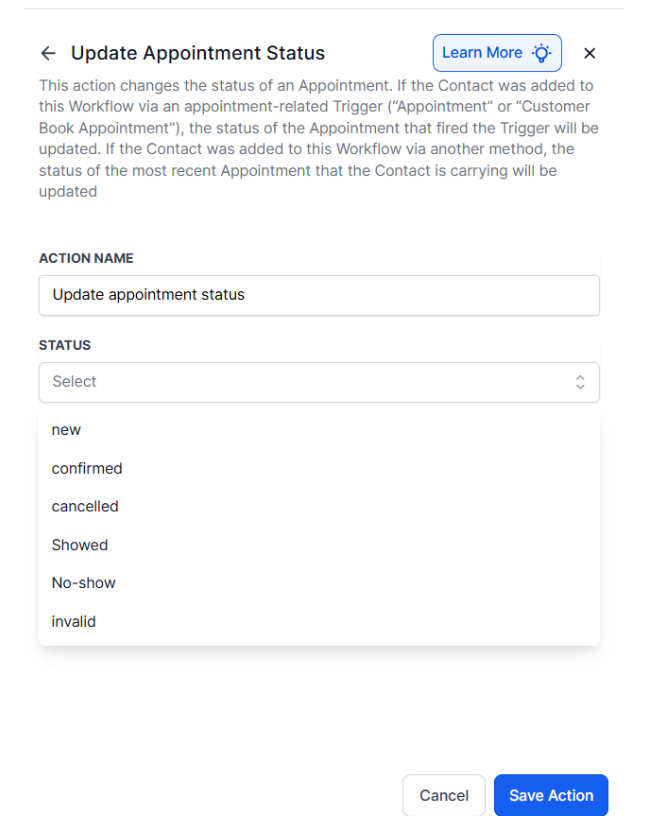
- Choose Appointment Status:
* **New**
* **Confirmed**
* **Canceled**
* **Showed**
* **No-show**
* **Invalid**
- Note: This action updates the status of an appointment. If the contact was added to this workflow via an appointment-related trigger, the status of the appointment that triggered the workflow will be updated. If the contact was added via another method, the status of the most recent appointment associated with the contact will be updated.
- Note: This action changes the status of an Appointment. If the Contact was added to this Workflow via an appointment-related Trigger (“Appointment” or “Customer Book Appointment”), the status of the Appointment that fired the Trigger will be updated. If the Contact was added to this Workflow via another method, the status of the most recent Appointment that the Contact is carrying would be updated
¶ FAQs
Question: What is the Update Appointment Status action?
Answer: The Update Appointment Status action changes the status of an existing appointment within your workflow, allowing you to automate updates based on the appointment’s state (e.g., new, confirmed, canceled).
Question: How do I add the Update Appointment Status action to my workflow?
Answer: Edit or create a workflow. Click the “+” symbol to add a new action. Select “Update Appointment Status” from the list. Choose the desired appointment status and save your changes.
Question: What appointment statuses can I choose from?**
**Answer: You can set the status to one of the following: New, Confirmed, Canceled, Showed, No-show, Invalid.
Question: How does the action determine which appointment’s status to update?**
**Answer: If the contact was added via an appointment-related trigger, the status of the appointment that triggered the workflow will be updated. If the contact was added through other means, the status of the most recent appointment associated with the contact will be updated.
Question: Can I use this action with workflows that do not include an appointment trigger?**
**Answer: Yes, you can use the Update Appointment Status action in workflows without an appointment trigger. In this case, it will update the status of the most recent appointment for the contact.
Question: Do I need to add a trigger when manually adding leads to this workflow?**
**Answer: No, when you manually add leads to this workflow, a trigger is not required. The leads will automatically follow the workflow steps without needing additional activation.
Question: Why would I want to use the Update Appointment Status action in my workflow?**
**Answer: This action is useful if you want to automate follow-up steps for leads based on their appointment outcome, such as tagging them, sending follow-up messages, or performing other actions once an appointment is marked as new, confirmed, canceled, shown, no-show, or invalid.
Question: If a contact has three upcoming appointments, which one gets updated?
Answer: If the contact was added to the workflow manually (not via a specific appointment trigger), the system will always target and update the most recent appointment associated with that contact record.