¶ Workflow Action: Text Formatter
The Text Formatter action in the Workflow Builder offers users the ability to manipulate and format text within their workflows with ease. From converting text to uppercase or lowercase to trimming whitespace and extracting URLs, the Text Formatter action provides a versatile solution to various data formatting challenges, enhancing workflow efficiency and productivity.
Suggested Triggers
- Form Submission: Trigger the Text Formatter action after a form is submitted to ensure the data is correctly formatted (e.g., fill in a default value like “no answer” if a field is left blank).
- New Contact Created: Automatically format text fields when a new contact is added to your CRM (e.g., ensure names are properly capitalized).
- Webhook Received: Automatically format the text received from an external system (consult with your developer for this setup).
¶ How to Use the Text Formatter Action:
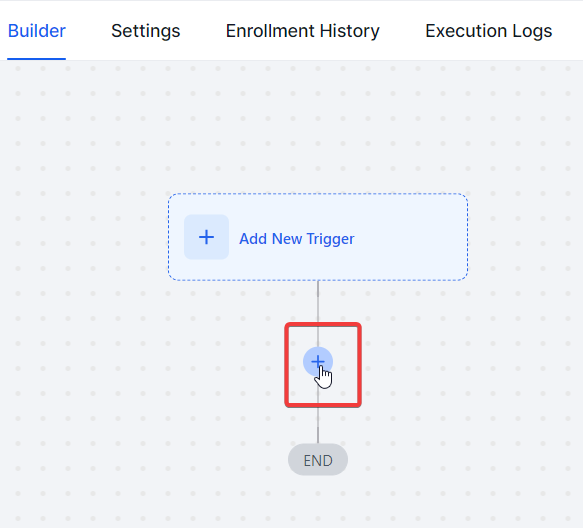
1. Click on the “+” icon to add an action in the Workflow Builder.
2. Navigate to the Internal Tools category or use the search bar to find the Text Formatter action.
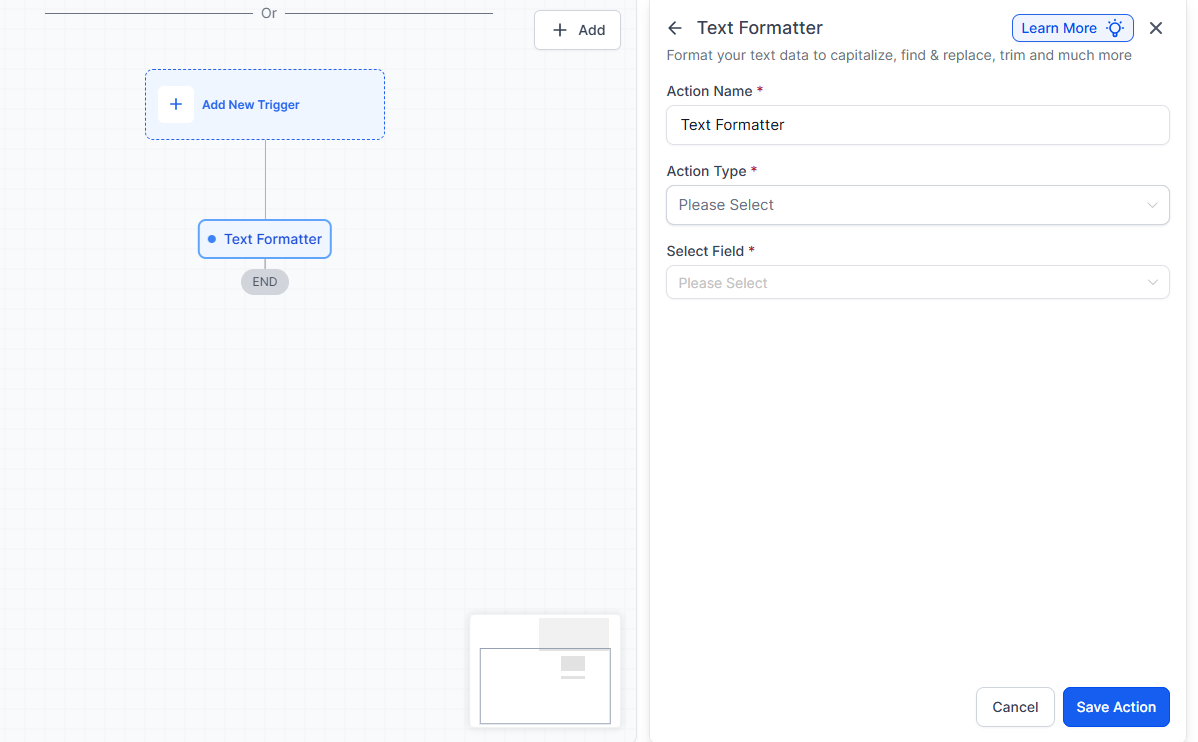
3. Select the Text Formatter action and choose from the list of available formatting options.
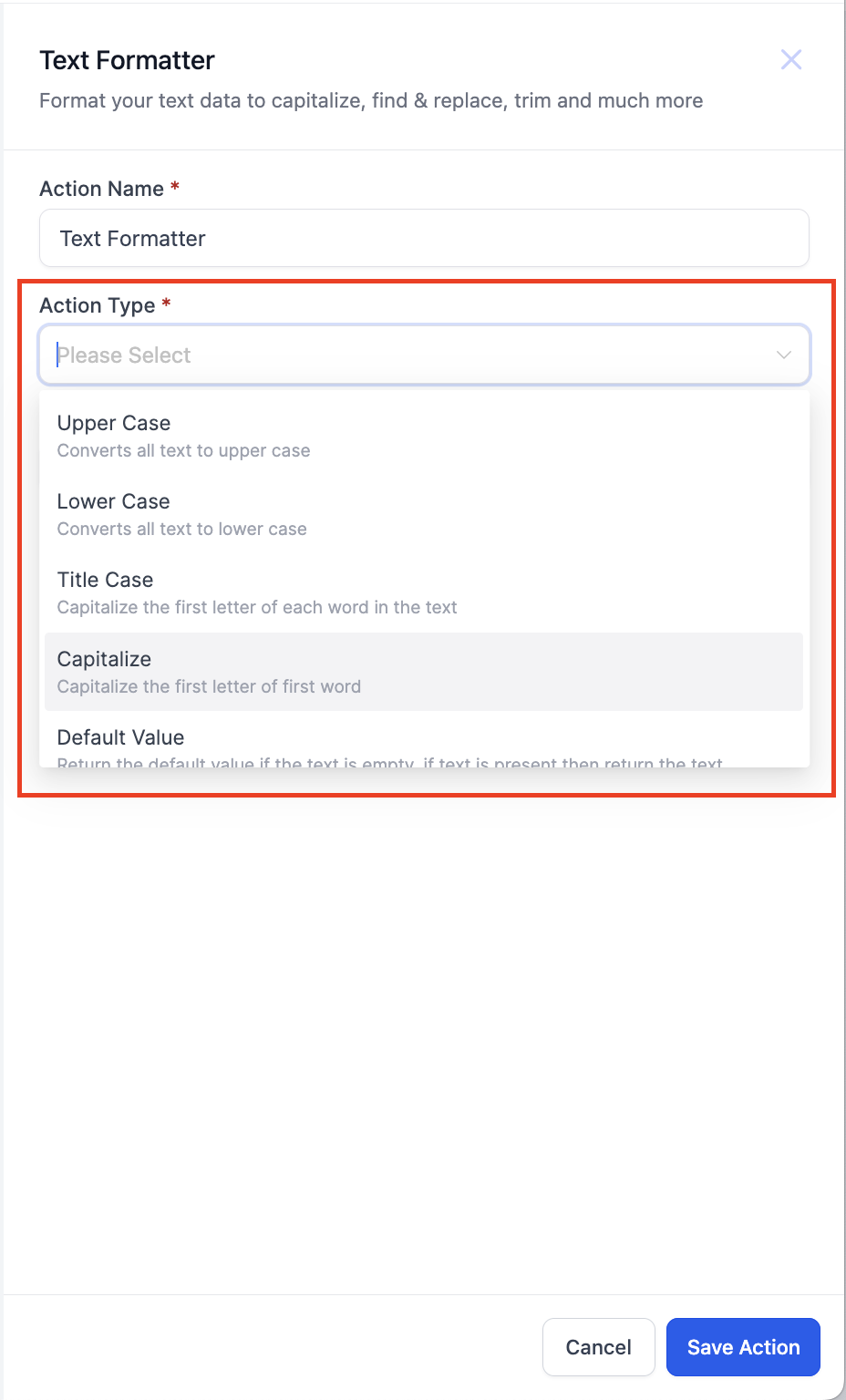
4. Configure the selected action type by specifying the input text and any additional parameters required for the chosen action.
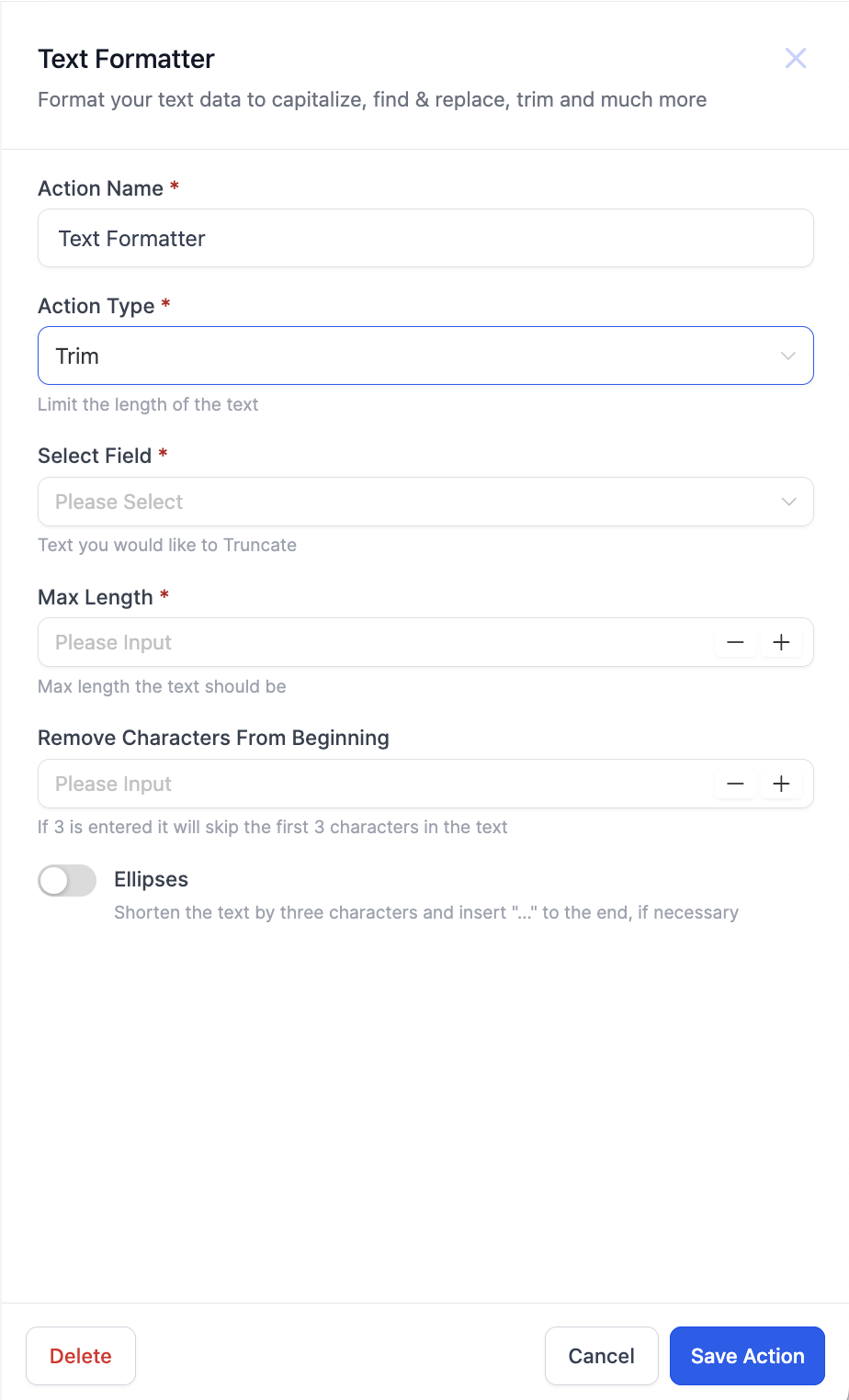
Trim Action Type - Select the input text you want to trim. Then, select the length to which you want to trim the text. These are the mandatory fields. You also have the option to skip characters from the beginning. Selecting this will remove the number of characters entered in the field from the beginning of the text. Also, there is a toggle to add an Ellipsis to the end of the text.
Split Action Type - For split action, select the input data that you want to split. Enter the “Separator”. The last step is to select which segment of the text you want returned, you can select from First, Second, Last, and Second Last.
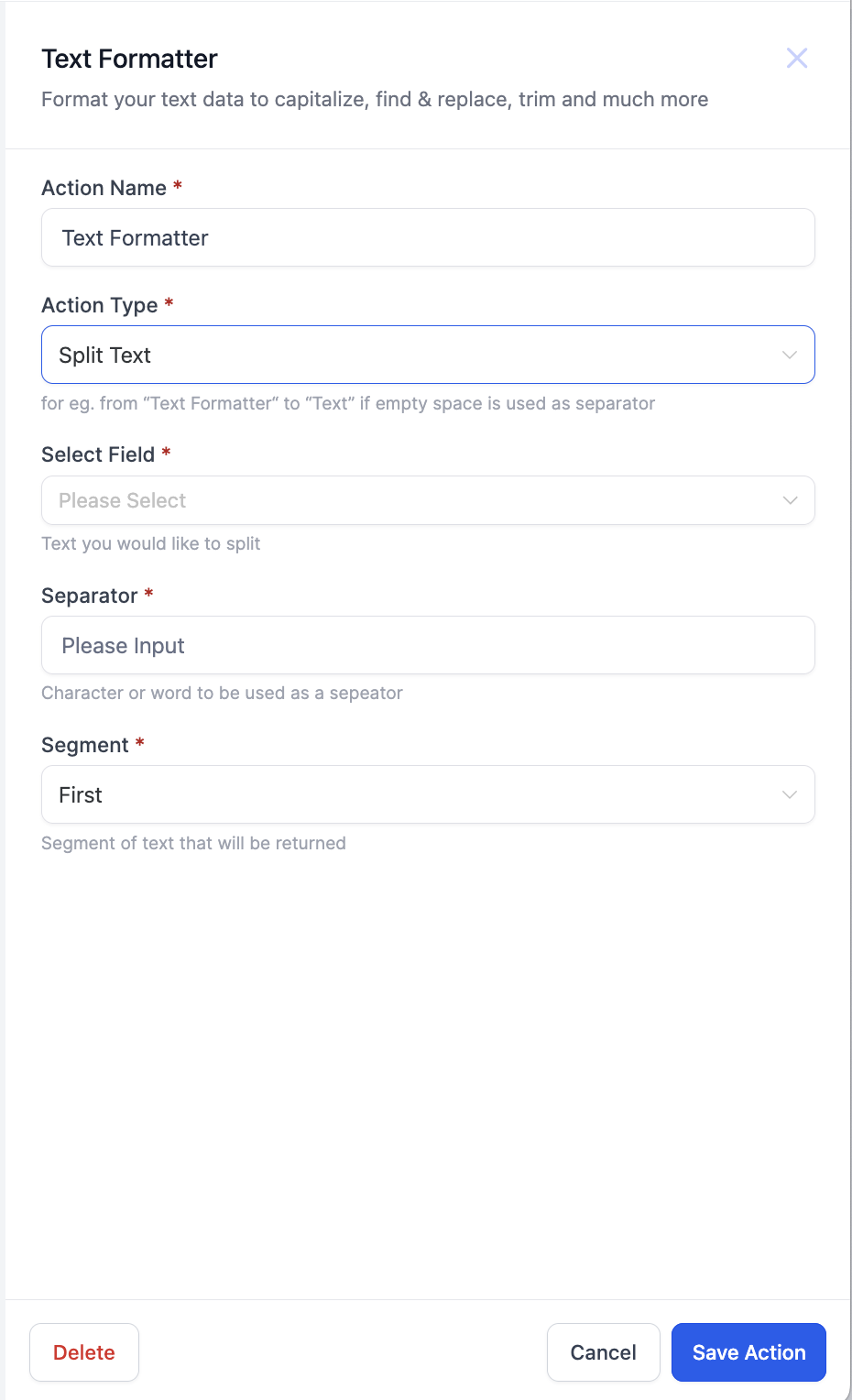
5. Customize the action settings according to your specific formatting needs.
6. Save the configured action and publish the workflow to activate the text formatting functionality.
¶ Key Features:
The Text Formatter action offers a comprehensive range of formatting options to meet diverse user needs. Some of the key features include:
- Upper Case: Converts all characters in the text to uppercase, ensuring standardized data presentation.
- Lower Case: Converts text to lowercase, facilitating case-insensitive comparisons and content uniformity.
- Title Case: Converts text to title case, enhancing the presentation and readability of titles and headings.
- Capitalize: Capitalizes the first letter of the text, ensuring proper capitalization for names and titles.
- Default Value: Returns a default value if the text is empty, ensuring consistent responses even with incomplete information.
- Trim: Shortens the text to a specified length, enforcing character limits and maintaining well-structured input.
- Trim Whitespaces: Removes whitespace from the beginning and end of text, improving readability and formatting.
- Replace Text: Replaces occurrences of specific text with a new value, facilitating content customization.
- Find: Locates the first occurrence of a specific text pattern within the text, enabling keyword identification.
- Extract URL: Extracts the first URL from the text, validating and organizing URLs from various sources.
- Extract Email: Extracts the first email address from the text, automating contact information extraction.
- Word Count: Provides the count of words in the text, enabling word count monitoring and analysis.
- Remove HTML Tags: Strips HTML tags from the text, ensuring plain text representation and proper rendering.
- Split: Splits the text into multiple segments based on a specified delimiter, facilitating content breakdown and analysis.

¶ FAQs
Question: What is the Text Formatter action and how can it benefit my workflows?**
Answer:** The Text Formatter action in Workflow Builder allows you to manipulate and format text data within your workflows. This action can handle various tasks such as converting text cases, trimming whitespace, extracting URLs or emails, and more. By using this action, you can ensure that your data is consistently formatted and meets specific requirements, enhancing overall workflow efficiency and productivity.
Question: Can I use the Text Formatter action to handle multiple text formatting needs in a single workflow?
Answer: Yes, you can use the Text Formatter action to handle multiple text formatting tasks within a single workflow. You can add multiple instances of the Text Formatter action to address different formatting needs, such as converting text cases, removing whitespace, and extracting information.
Question: What should I do if I need to format text in a specific way not covered by the available options?
Answer: If the formatting option you need is not available, consider using a combination of existing actions to achieve the desired result. For more advanced text manipulations, you may need to explore custom scripting or external tools if supported by your platform.
**Question: How does the Trim action work and what are its customization options?
Answer: **The Trim action allows you to shorten text to a specified length. Customization options include:
- Length: Define how many characters to retain.
- Skip Characters: Optionally remove a specified number of characters from the beginning.
- Ellipsis Toggle: Optionally add an ellipsis (“…”) to the end of the trimmed text.
¶ Question: What is the purpose of the Split action and how do I configure it?
Answer: The Split action divides text into segments based on a specified separator. To configure it:
- Input Data: Select the text you want to split.
- Separator: Enter the delimiter used to split the text (e.g., comma, space).
- Segment Selection: Choose which part of the split text to return (First, Second, Last, Second Last).
Question: Can I remove HTML tags from text using this action?**
**Answer: Yes. The Remove HTML Tags option strips all HTML from the text, leaving plain text for easier processing or display.
**
**Question: What is the difference between the “Title Case” and “Capitalize” features?
Answer: Title Case converts the text so that the first letter of every major word is capitalized, which is ideal for headings. Capitalize specifically ensures only the first letter of the entire text string is capitalized, which is useful for starting sentences or formatting names.