¶ Workflow Action: Split
This action will allow you to test different marketing communication and actions with your users. You can use this feature to divide your contacts into more than one path on a certain percentage and use different actions in each path. With this, you can determine which version works best for your audience.
Note that the Split Action only has one criteria: random. You can adjust what percentage of contacts go down any number of paths. If you want to “split” contacts by a criteria (like order size), then use the if/else action.
Note: Once a contact heads down one path, that is their only path. If they re-enter they will not proceed down another path, they will always head down the path they originally followed.
¶ Step 1: Create your workflow
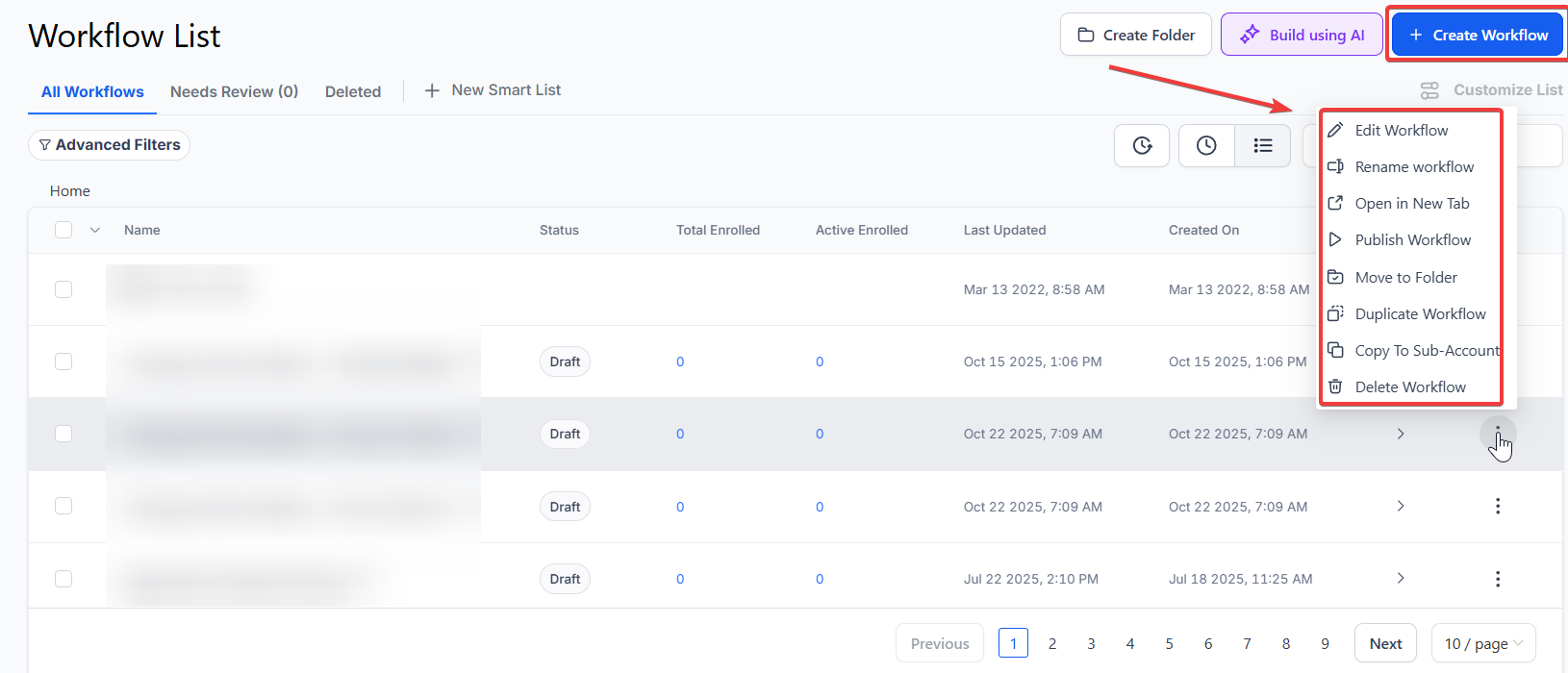
- Go to Automation on the left and then Workflows at the top
- Click on Create New Workflow or edit an existing one.
- Add your desired trigger
¶ Step 2: Add your action
- Click on the + icon to add the action
- Use the search bar and write Split
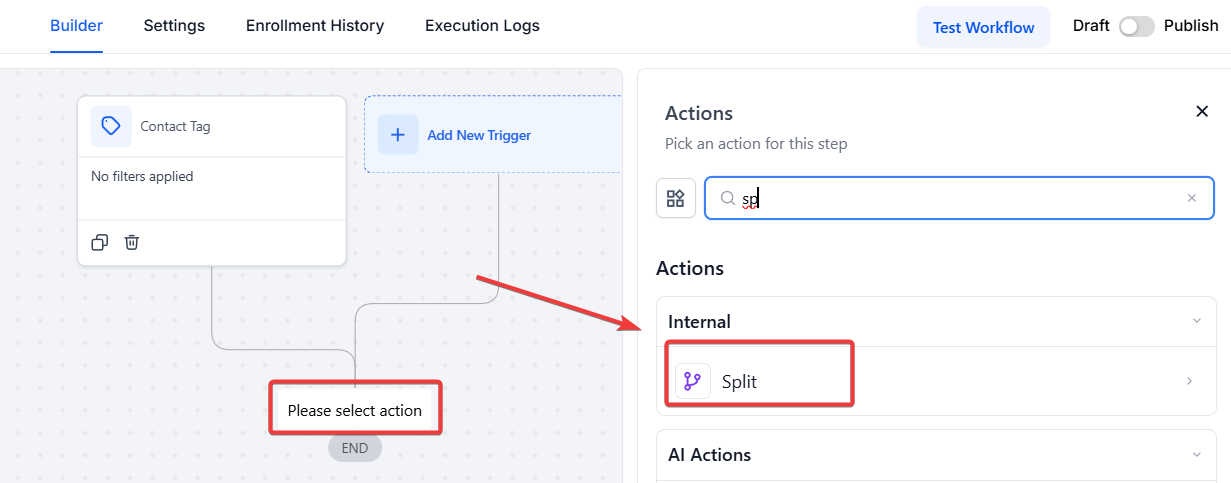
- Choose Random Split from the Distribution Type

- You will see 2 paths by default and both at 50%, you can add more paths and edit the %
- Edit the name of the paths as you need. The distribution in random split is completely random, similar to rolling a die. For instance, if 100 contacts enter a workflow with two paths, each path has an equal chance of being chosen for each contact, regardless of previous assignments.

Note: You can add up to 5 paths and delete them by clicking on the X next to one of them

Important: The path weightages (percentages) must add up to 100%. If the total is too high, or too low, you will get an error and will be unable to save the action.

¶ Step 3: Stats
- To know how the stats are going and which contacts are going into which path, click on the action “Split”, and on the Statistics button.
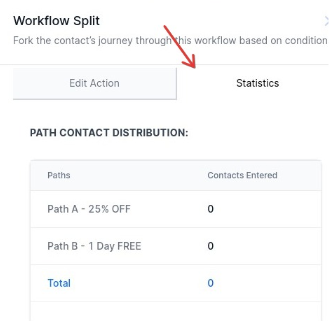
- You will see the path distribution there and how many contacts have been entered on which path.
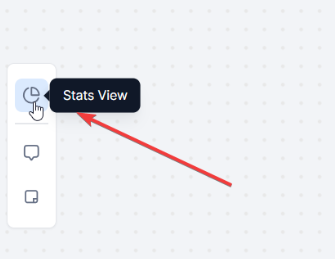
- You can also see this information in the workflow if the Stats View is turned on.
Use Cases
- A/B Testing : Experiment with different versions of emails, SMS, or other messages. For example, send 50% of contacts an email with headline A and the other 50% with headline B to determine which performs better.
- Lead Routing : Assign leads to the appropriate sales teams or marketing channels based on their capacity or expertise. For instance, allocate 75% of leads to a more experienced salesperson (A) and 25% to a trainee (B).
- Campaign Optimization : Analyze the performance of various strategies and refine future workflows to improve results.

¶ FAQ’s
Question: What is the workflow splitting feature?**
Answer:** The workflow splitting feature allows you to test different marketing communications and actions by dividing your contacts into multiple paths. Each path can have different actions, helping you determine which version works best for your audience.
Question: How many paths can I add in a split?**
Answer:** You can add up to 5 paths in a split. To add more paths, click on the + icon. To remove a path, click the X next to it.
Question: What is the Random Split action and how is it used?**
Answer:** The Random Split action allows you to divide your contacts into multiple paths within a workflow based on a specified percentage. This feature is useful for testing different marketing communications or actions to determine which version performs best for your audience. Contacts are randomly assigned to one of the predefined paths, enabling you to evaluate the effectiveness of different approaches.
Question: Can I adjust the split configuration after the workflow has started?****
Answer: Yes, you can update the Split Action settings. However, the changes will only affect new contacts that enter the workflow after the update.
Question: Once a contact is assigned to a path, do they stay on it?****
Answer: Yes, once a contact is assigned to a specific path, they will remain on that path, even if they re-enter the workflow.
Question: Is it possible to use Split Actions for workflows outside of marketing, such as customer support routing?****
Answer: Yes, Split Actions can be used for any workflow, including routing customer support tickets to different teams or agents.
Question: Does the Split Action impact workflow performance?
Answer: No. The split occurs instantly, and all paths run normally. It simply determines which set of actions each contact will experience.
**Question: If a contact is removed from the workflow and re-added, will the split happen again?
Answer: **No. The system remembers the initial path assignment for that contact. This prevents a user from receiving two different “test” versions of the same campaign, which could lead to confusion and poor data.
Question: If a contact is removed from the workflow and re-added, will the split happen again?**
**Answer: No. The system remembers the initial path assignment for that contact. This prevents a user from receiving two different “test” versions of the same campaign, which could lead to confusion and poor data.