¶ Workflow Action: Send SMS
The Send SMS Workflow Action enables businesses to send customized SMS messages as part of their workflow, ensuring timely communication that enhances engagement and improves outcomes. From appointment reminders to event updates, the SMS action helps businesses maintain a strong connection with their contacts.
¶ Key Features and Benefits
- Personalized Messaging : Customize each message with templates and dynamic fields, allowing tailored communication.
- Timely Engagement : Schedule messages based on triggers to ensure they reach contacts when it matters most.
- Attachment Support : Add URLs as attachments to enrich the message content and provide additional resources.
- Improved Contact Management : Streamline engagement, from reminders to promotions, directly in your automation.
¶ How to Set Up and Use the Send SMS Action
Follow these steps to set up the “Send SMS” action in your automation workflow:
1. Configure the SMS Action
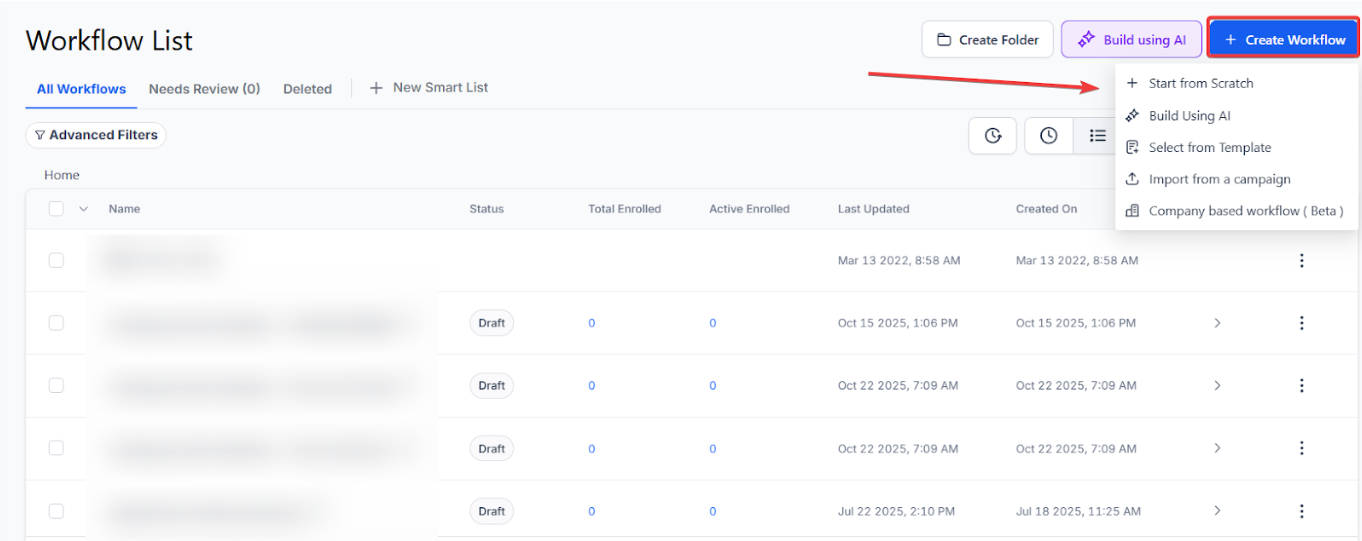
- Navigate to Automation > Workflows , click on + Create Workflow and select Start from Scratch.
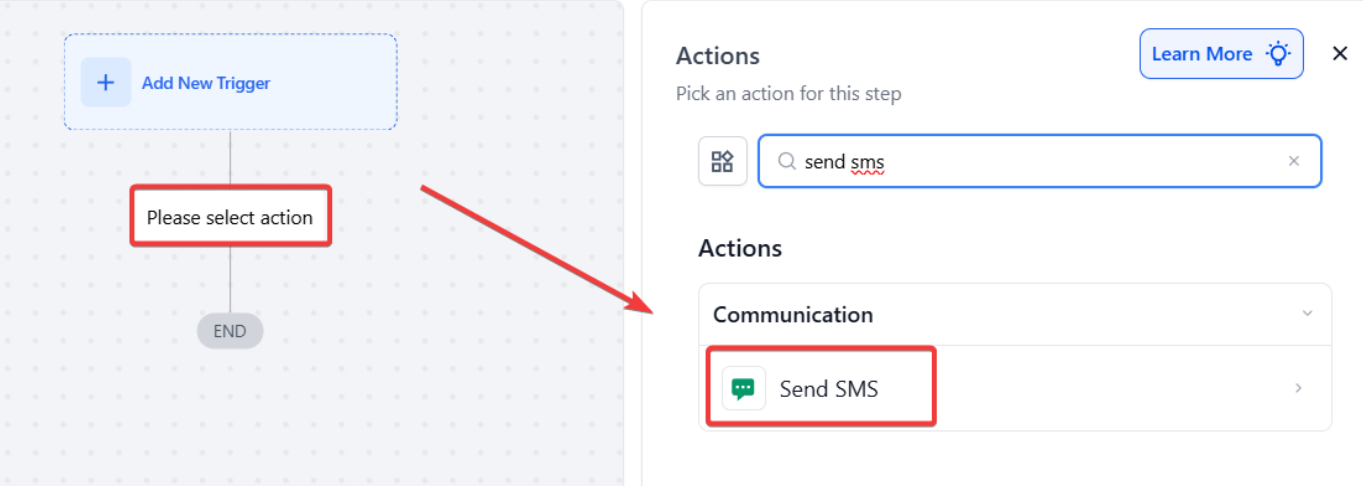
- Add the “Send SMS” action.
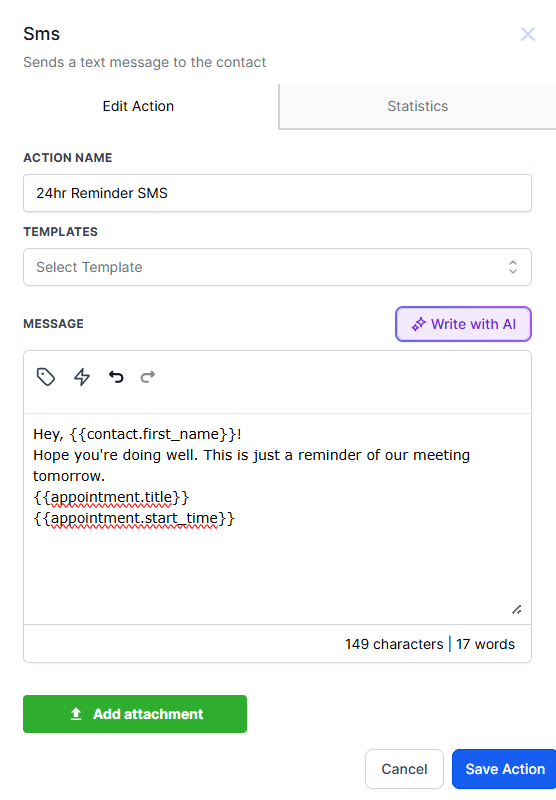
- Assign an Action Name (e.g., “24hr Reminder SMS”) for easy identification within the workflow.
2. Customize Message Content
- Add message text and use dynamic custom values, such as {{contact.first_name}}, to personalize the SMS for each recipient.
- Optionally, select an SMS template to format the message.
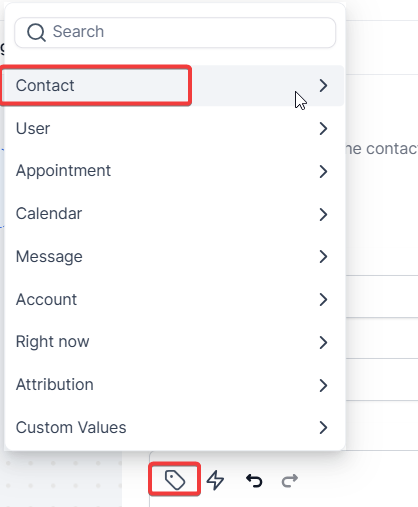
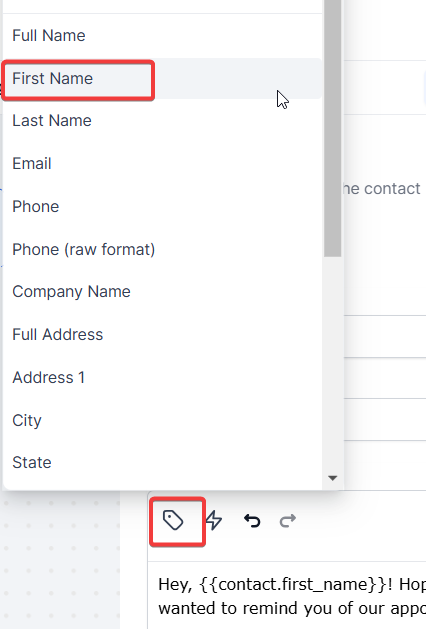
_Note: You can also use custom values for _Contact Engagement Score and Attribution Medium ID (from First/Latest Attribution).
3. Write the Message with AI:
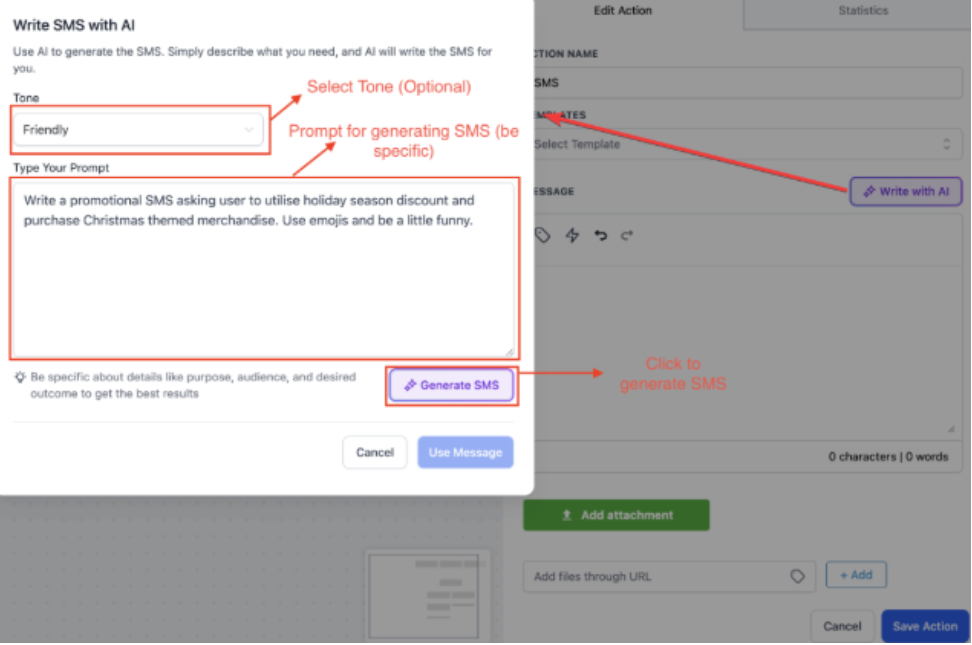
- You can leverage AI technology to generate context-aware messages instantly. Simply describe the use case, and the AI will craft a professional, high-converting SMS without the need for copywriting.
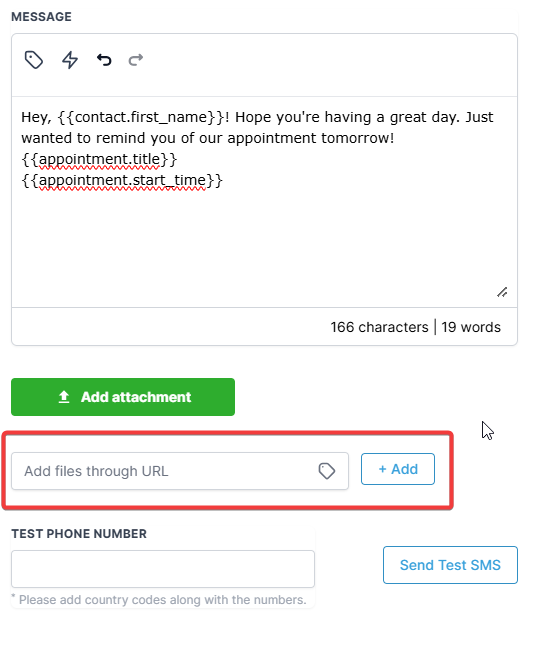
4. Add Attachments (Optional)
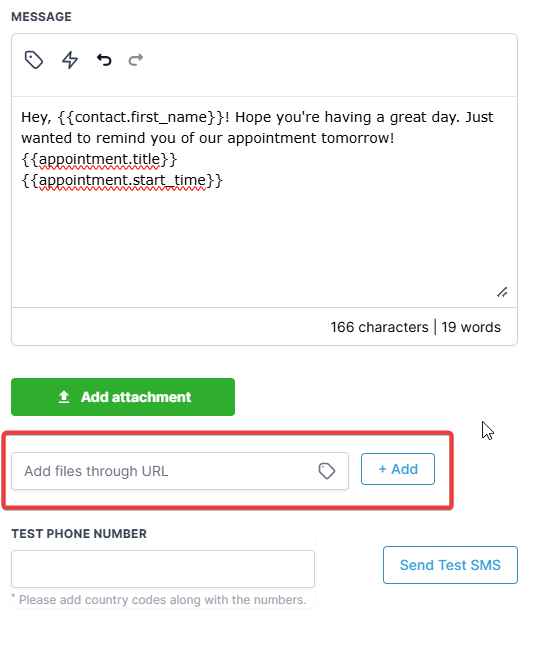
- Attach a file using a URL link to provide additional resources (e.g., event details, ticket, product link).
5. Test the SMS Message
- Use the “Test Phone Number” field to send a test SMS, allowing you to verify message content and attachments before deploying.
6. Save and Activate the Workflow
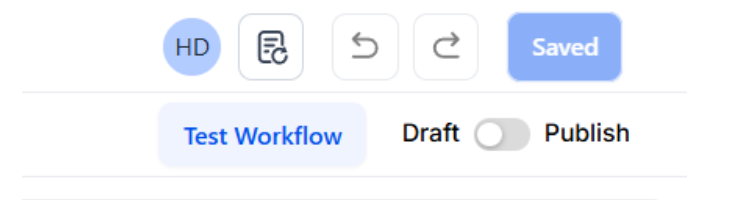
- After finalizing the message, save the action and activate your workflow.
¶ Example Use Case: Appointment Reminder Automation
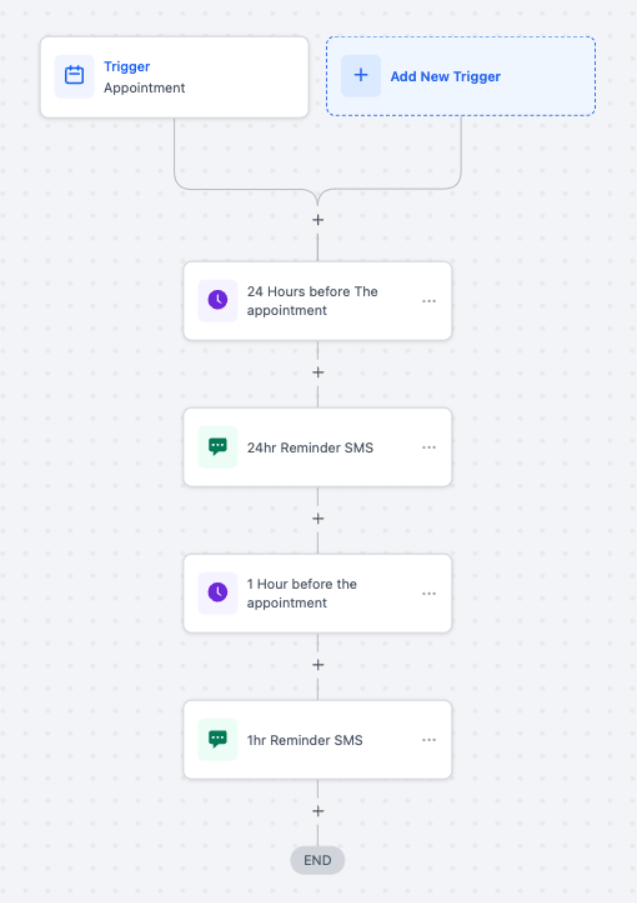
This example demonstrates how to create a multi-stage appointment reminder to reduce no-shows and keep clients well-informed:
- Trigger : Set the trigger to initiate the workflow when an appointment is scheduled.
- 24-Hour Reminder
- Action: Wait 24 hours before the appointment.
- SMS Content:
- Hi {{contact.first_name}}, This is a reminder for your appointment tomorrow at {{appointment.start_time}}. Looking forward to seeing you! Regards, {{user.name}}
3.1-Hour Reminder
- Action: Wait 1 hour before the appointment.
- SMS Content:
- Hi {{contact.first_name}}, This is a reminder for your appointment in an hour at {{appointment.start_time}}. See you soon! Regards, {{user.name}}
¶ Pro Tips
- Use Templates : Save time by creating SMS templates that can be reused across multiple workflows.
- Optimize Timing : Schedule messages strategically to ensure they reach contacts at ideal times for maximum engagement.
- Include a Clear Call to Action : Whether it’s confirming an appointment or visiting a webpage, provide clear instructions in your message to increase responsiveness.
¶ FAQ
Question: How do I add an attachment to my SMS?**
**Answer: To add an attachment, include a URL link in the “Add Attachment” field when setting up the SMS action.
Question: Can I test the SMS before it goes live?**
**Answer: Yes, use the “Test Phone Number” field to send a test SMS and confirm content and attachments.
Question: Are there restrictions on message length?**
**Answer: While the message length varies by carrier, it’s advisable to keep SMS messages concise to avoid potential issues.
Question: Where can I find the Engagement Score field?**
**Answer: The Engagement Score field is available in the custom value picker for accounts that have scoring criteria established under Settings → Manage Scoring.
Question: Can I use dynamic fields in the SMS message?**
**Answer: Absolutely. Dynamic fields like {{contact.first_name}} personalize each message based on contact data.
Question: How can I track SMS performance?**
**Answer: Check your analytics to view message delivery rates and engagement metrics, and to adjust content if necessary.
Question: Can I send images via this SMS action (MMS)?
Answer: While the “Add Attachment” field allows you to include a URL, sending an actual image file (MMS) depends on your integrated telephony provider settings. Sending a link is the most reliable way to ensure the recipient can view the content regardless of their carrier.
Question: Can I use the “Send SMS” action to automatically include a lead’s attribution information, such as how they first found my business?**
**Answer: Yes. In the message custom value picker, you can select the Attribution Medium ID. This allows you to dynamically insert data from either the First Attribution or Latest Attribution , which can be useful for internal notifications to your team to let them know which marketing channel generated the lead.