The Recurring Invoices Action within Workflows streamlines this process, enabling businesses to automate and manage invoicing with ease. With the ability to set flexible start dates, frequencies, and stop rules, this feature simplifies billing for agencies, memberships, course platforms, and services. Automating recurring invoices ensures timely billing without the need for manual intervention, improving operational efficiency and consistency.
Prerequisites
Steps
1. Add the Action :
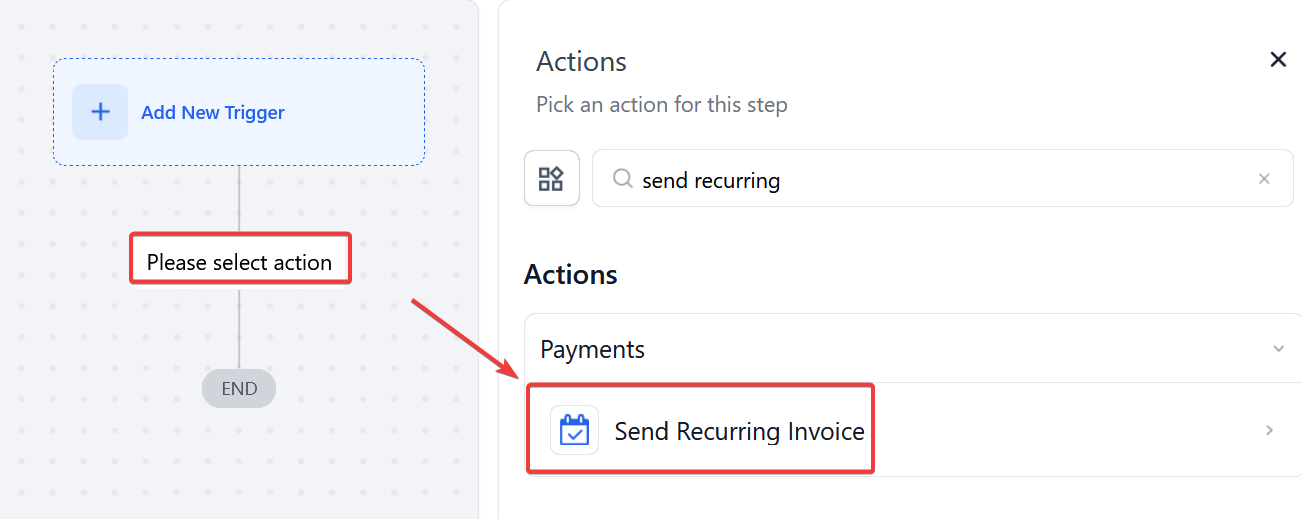
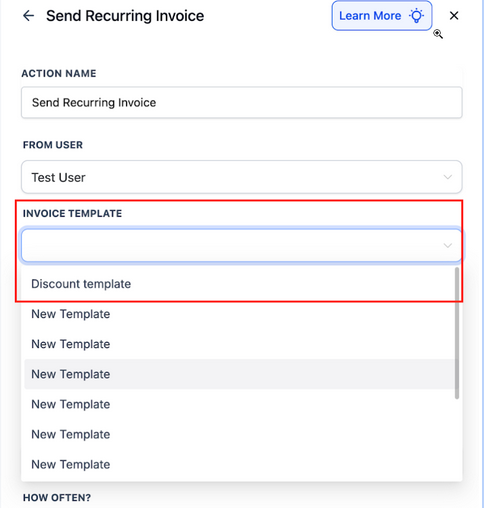
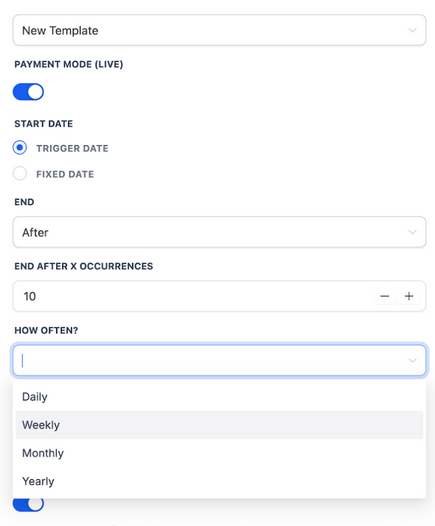
2. Basic Settings :
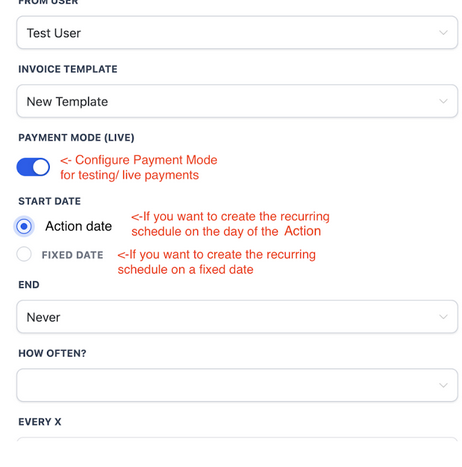
3. Set Start Date :
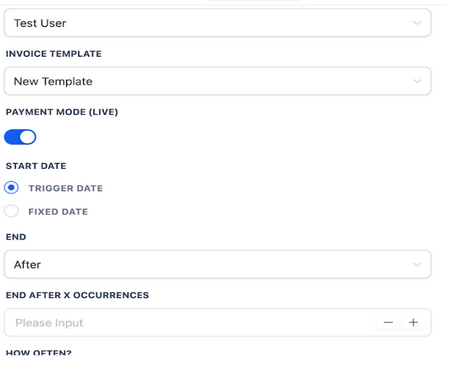
4. Define End Criteria :
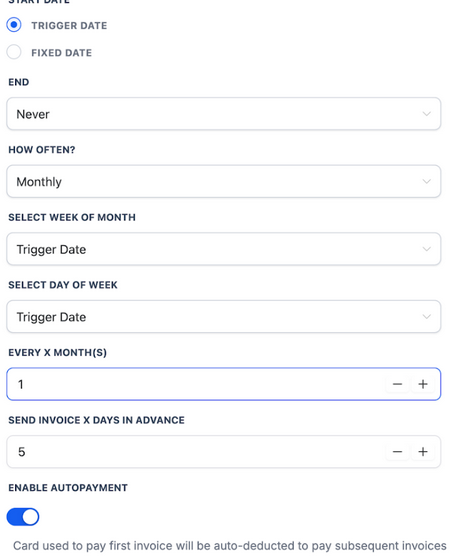
5. Choose Recurrence Frequency :
6. Enable Auto-Pay (Optional):
Turn on auto-pay if you want to automatically charge the customer’s saved card after the first successful payment.
7. Test & Go Live:
Save the action, test it with the “Test Workflow” option, and then publish the workflow to go live.
Question: Can I choose when the recurring invoice starts?**
**Answer: Yes, you can set the start date either based on the contact’s entry point or a fixed date on the calendar.
Question: Can I stop the recurring invoices after a specific number of occurrences?**
**Answer: Yes, you can define the number of occurrences for the invoices to stop after.
Question: How do I enable auto-payment for recurring invoices?**
**Answer: You can enable auto-payment by toggling the “Auto-Pay” option when setting up the recurring invoice action.
Question: Can I send invoices on a specific day of the week or month?**
**Answer: Yes, you can set the frequency of the invoices to be sent on specific days (e.g., the 2nd Wednesday of every month).
Question: What happens if a customer fails to make a payment after the first charge?**
**Answer: A: The payment gateway you’re using (e.g., Stripe or PayPal) will typically handle failed payments, and you can set up a workflow to notify the customer and retry payments.
Question: Where can I view all issued recurring invoices?**
**Answer: Inside your contact and invoice records, and also wherever issued invoices are stored in your billing modules.
Question: What are the requirements I need to have in place before I can use the Recurring Invoices Action?
Answer: You must have at least one invoice template created in the “Invoices” section and a payment gateway (such as Stripe or PayPal) configured for processing payments
Question: If I manually pause the workflow, will the invoices stop sending?
Answer: Yes. If you pause the workflow or remove the contact from the workflow, the “Send Recurring Invoice” action will stop executing for that specific individual.
Question: What is the difference between an “Action Date” and a “Fixed Date” for starting an invoice?**
**Answer: An Action Date triggers the invoice based on when the contact enters the workflow (e.g., immediately after they submit a form). A Fixed Date schedules the invoice to start on a specific calendar day for everyone (e.g., ensuring all customers are billed on the 1st of every month).