¶ Workflow Action: Send Email
In this article, you will learn more about the Send Email action.
This action will allow you to send follow-up emails to your leads.
¶ What you will need:
- A workflow.
- Email Configuration.
¶ Part 1: Adding the Send Email action
- Click on the “Add your first action” button and select the first action “Send Email”.
- The Send Email action settings will show up. Edit this as needed.
.png) .png)
Note: if you need to add a trigger to this workflow, do that first. If you manually add your leads to this workflow, a trigger will be unnecessary.
Email Action AI
Email Action AI leverages AI to create context-aware, conversion-optimized emails, eliminating the need for manual writing or external copywriting tools. Describe the email’s purpose, choose a tone (optional), and generate your message. Note: The email subject line is optional, and AI-generated content can be revised with follow-up prompts before implementation.
.png)
NOTE: the {{message. body}} variable, if added, will always return the entire message body, rather than being trimmed to 100 characters.
- Once you have all the fields filled out, click on Save Action.
- Cc/bcc in Email Action: This allows users to add CC and BCC fields in the Email Action, providing more flexibility in email distribution. The communication enables users to send copies of emails to additional recipients without modifying the main recipient’s information. You can include multiple CC/BCC emails, separated by commas, for streamlined communication.
.png) .png)
Please note: CC and BCC emails will not be reflected in the email statistics, and the Test Email action will not function for CC/BCC emails.
Custom Values
You can use custom values in the Send Email action while drafting your email. To tailor the message, use custom values like this: "Hi {{contact.first_name}}, thanks for reaching out! See you on {{appointment.start_time}}.
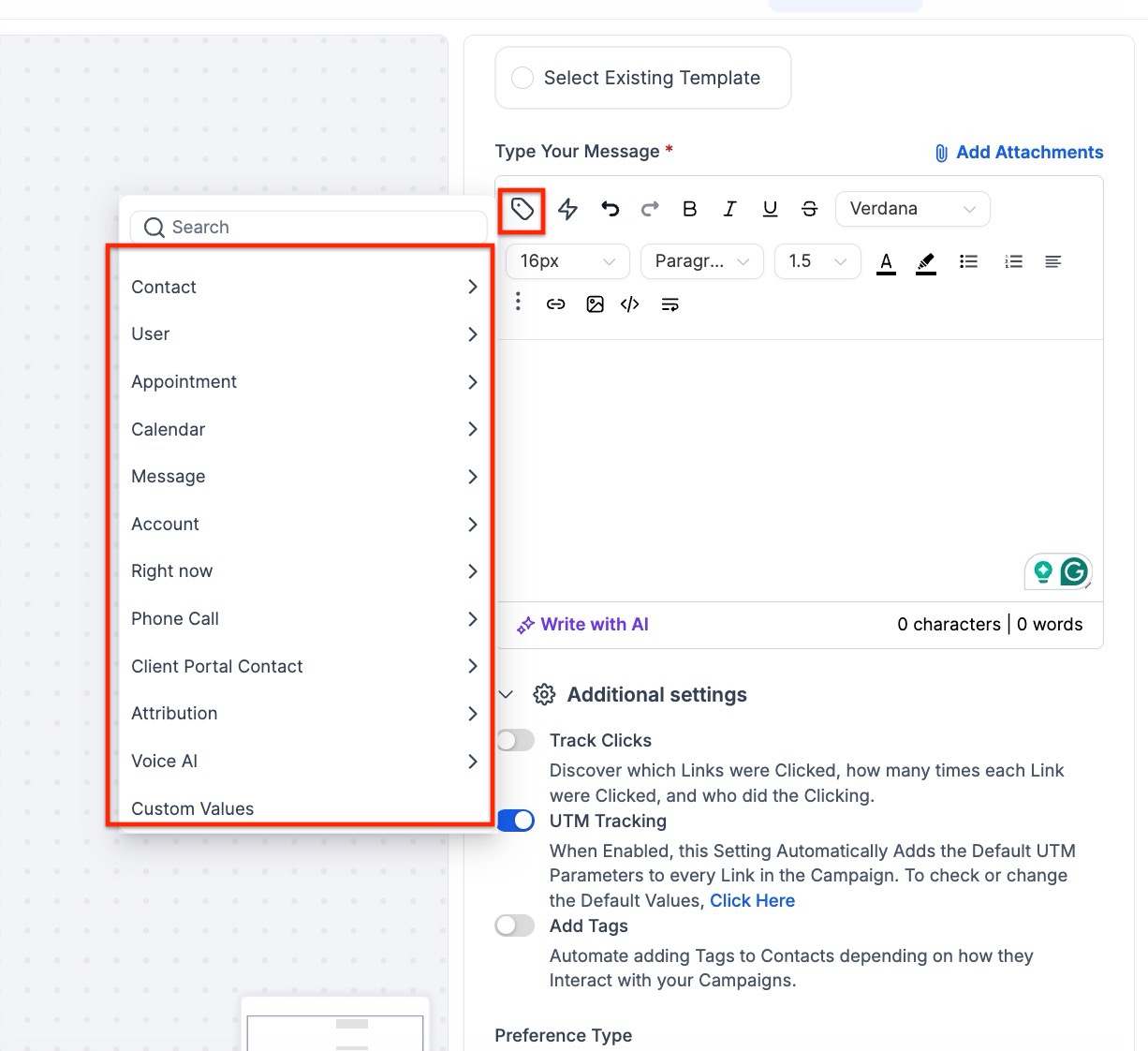
_Note: You can also use custom values for _Contact Engagement Score and Attribution Medium ID (from First/Latest Attribution).
Text-Wrap Tool for Send Email Action
Ensure emails are properly formatted and responsive by using the new text-wrap tool in the Send Email action of the workflow builder. This feature addresses issues some users experienced when copying content from other editors, where line breaks were not preserved, resulting in non-responsive emails on Outlook mobile. With this tool, users can ensure their emails are properly formatted and responsive across different email clients.
How to Use: In the Send Email action, look for the text-wrap icon and click on it after adding your content to ensure proper formatting.
.png)
Note: If you want to send additional follow-up emails, it is suggested that you add a Wait step in between the Send Email action steps to give time between emails. You can add minutes, hours, or days.
.png)
**Once your workflow is ready, place it in Publish mode and save. **
¶ Email Template Builder Available in “Send Email” Workflow Action
The Email Template Builder’s “Send Email” workflow action enhances your workflow creation process by providing unparalleled convenience and efficiency.
¶ Key Benefits:
1.Streamlined User Experience: Simplify your workflow by editing and viewing email templates directly within the workflow environment.
.png)
2. Reduced Back-and-Forth: Eliminate confusion by integrating the Email Template Builder. With this feature, there’s no need to toggle between different sections, allowing you to focus on creating workflows efficiently for smoother execution.
.png)
¶ 3. Drag and Drop Email Template Editor in Workflows:
This enhancement in the Email Template Builder within Workflows allows users to save their changes as new templates, ensuring the original templates remain unaltered. This provides flexibility for tailoring templates to specific needs without starting from scratch.
For instance, marketing teams can now create multiple versions of an email campaign by tweaking the original template and saving each version separately.
To use this feature, navigate to Workflows, open the Email Action, choose a template from the dropdown, click on the Edit option on the thumbnail, make the required edits, and then select “Save as New Template.”
.png)
Specify the name of the new template
.png)
Note: In other integrations (Like Template builder integration with Contacts), we still support only the “Save” option.
¶ Please note:
Auto-Focus on Text Editor: When adding a comment in any action, the cursor automatically focuses on the text editor.
Email Template Selection in Workflows: When selecting an email template in workflows, the “updated at” date is displayed in sync with the “updated at” date shown in the Email Templates section.
Flow for Email Templates in Workflows: Email templates in workflows ensure that when you add or edit a template-based email, changes only apply to that specific workflow, avoiding unintended impacts on other workflows using the same template.
- To use this , simply add an email using a template in your workflow, and any edits will be isolated to that step. For global updates, you can visit the templates section, select your email, and sync changes when needed. Please note that syncing replaces the entire content of the selected email, and the update applies only to new email actions going forward.
¶ Additional Tips and Best Practices
- Use Variables Thoughtfully: Adding variables like {{message.body}} will insert the full message body text. Ensure this aligns with your email’s content structure for clear communication.
- Leverage the Auto-Focus Feature: When adding a comment within any action, the cursor will automatically focus on the text editor, saving time and ensuring an efficient editing experience.
- Stay Organized with Template Names: If you’re frequently saving new versions of email templates, name them logically to help identify different versions.
- Test Workflow Emails: Before publishing, consider sending test emails to yourself or team members to confirm that email formatting, variables, and triggers work as intended across devices and email clients.
¶ FAQs
Question: What is the “Send Email” action in workflows?**
**Answer: The “Send Email” action enables you to automate follow-up emails to leads within a workflow, allowing you to configure and personalize your email interactions effectively.
Question: What do I need to start using the “Send Email” action?**
**Answer: You will need an active workflow and the email configuration settings completed.
Question: How do I add the “Send Email” action to my workflow?**
**Answer: Click on “Add your first action,” select “Send Email,” and adjust the settings as required. Remember to add a trigger if you want to automate lead entry into the workflow, though it’s not necessary if leads will be added manually.
Question: How can I ensure my emails are responsive across devices?**
**Answer: Use the Text-Wrap Tool within the “Send Email” action. This tool ensures that line breaks are preserved and emails display correctly on all clients, including Outlook mobile.
Question: Can I send multiple follow-up emails?**
**Answer: Yes, you can. Add a “Wait” step between “Send Email” actions to schedule emails with customizable delays of minutes, hours, or days.
Question: How can I edit and save email templates within workflows?**
**Answer: In the “Send Email” action, open the template, make changes using the drag-and-drop editor, and select “Save as New Template” to create new versions. This leaves the original template unchanged.
Question: Why do some integrations only support the “Save” option?**
**Answer: Certain integrations, such as the Template Builder with Contacts, currently offer only the “Save” option for direct updates without saving new versions.
Question: How can I see when an email template was last updated?**
**Answer: When selecting a template in workflows, you’ll see the “updated at” date, matching the date in the Email Templates section for reference.
Question: How do changes to templates affect other workflows?**
**Answer: Edits to a template within a workflow only apply to that workflow. For global updates, you must sync the template from the Templates section, which updates new email actions going forward.
Question: How can I prevent my emails from looking “broken” or losing line breaks when I copy and paste content from other external editors?**
**Answer: You should use the Text-Wrap Tool icon located in the Send Email action. This feature ensures that line breaks are preserved and the email remains responsive across all devices—specifically solving formatting issues that occur on Outlook mobile.