¶ Workflow Action: Send Documents & Contracts
Workflow Action: Send Documents & Contracts
The “Send Documents & Contracts” workflow action allows you to automate the process of sending contract templates to clients or team meNavigate to Automation on the left > Workflows at the top and choose to create a new workflow or edit an existing one.mbers via Email or SMS, or both Email & SMS. This streamlines the contract management process, reducing manual effort and ensuring that the right documents are sent at the right time, all while maintaining consistency and professionalism.
¶ How to Use:
1. Create a Workflow :
- Navigate to Automation on the left > Workflows at the top and choose to create a new workflow or edit an existing one.
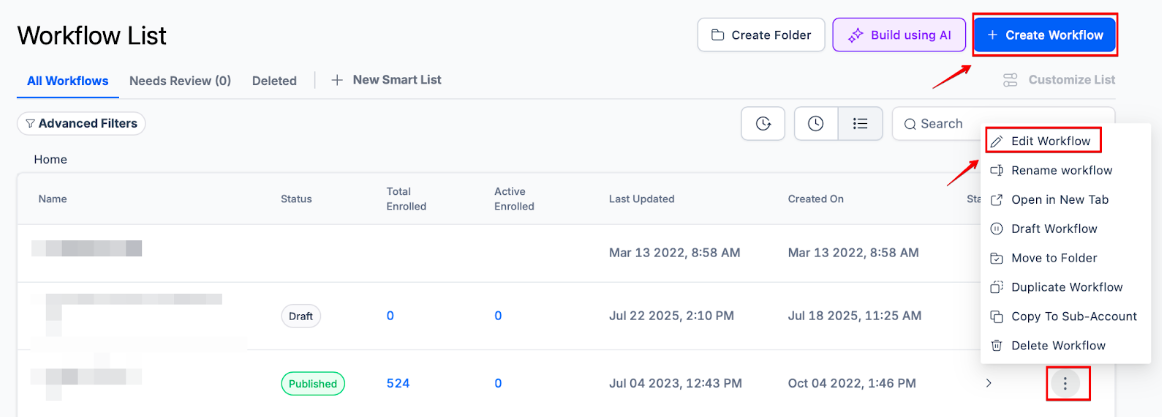
- Set up a new workflow and choose a trigger to initiate the process.
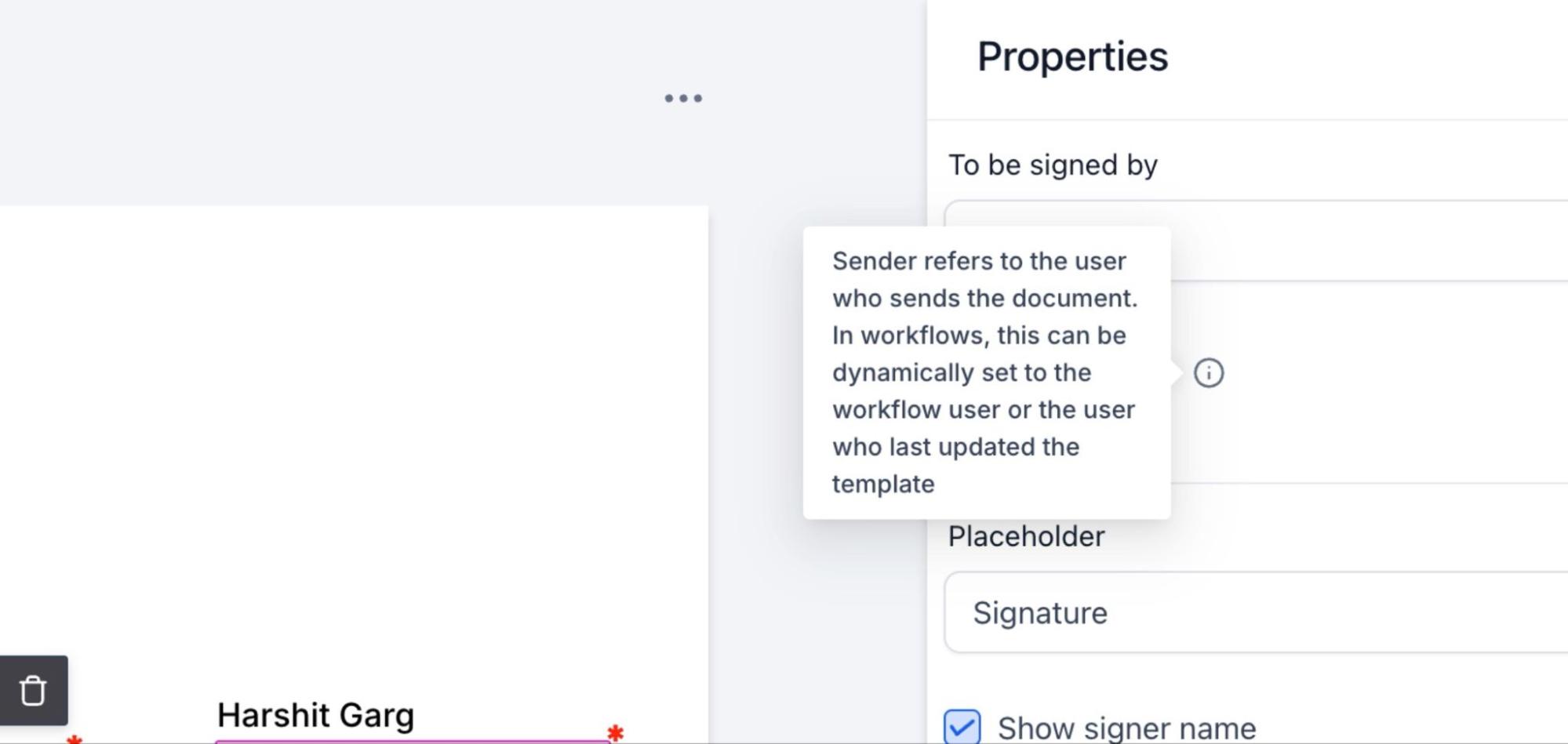
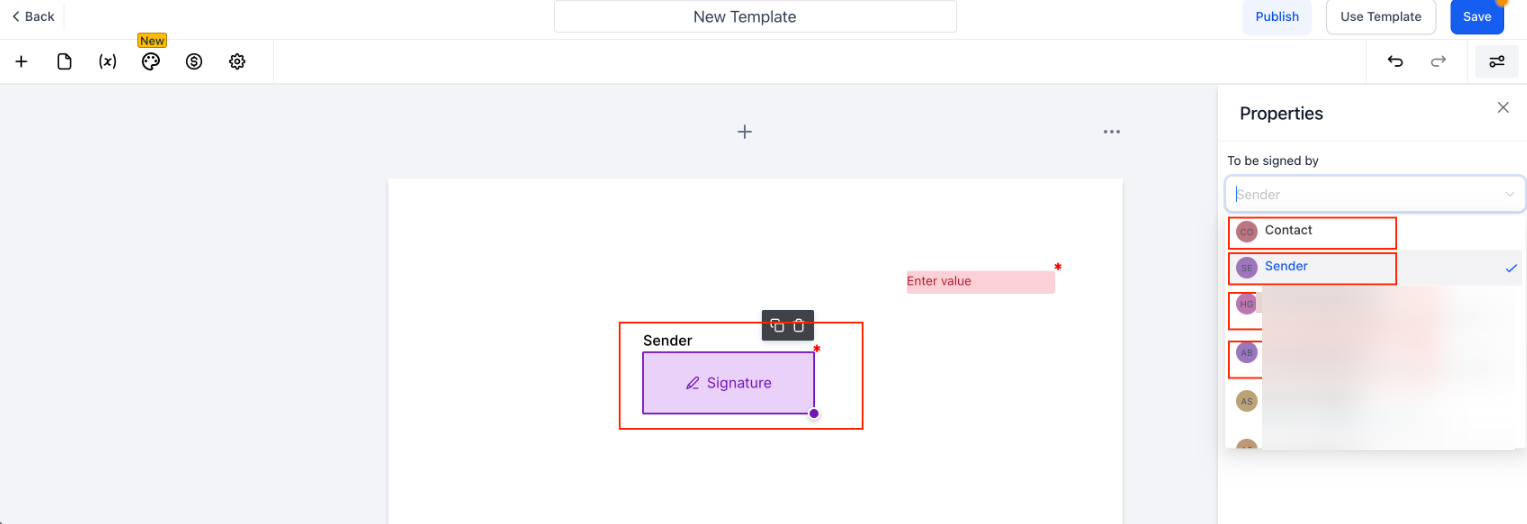
_Note: You can link fillable fields in your Documents & Contracts templates directly to the Workflow ‘From user’. For that, Create a Template with Sender Field in Payments > Documents & Contacts > Templates.Open the template editor by clicking New. Add a Signature (or any fillable field) and set “To be signed by” to Sender. Save the template.
_
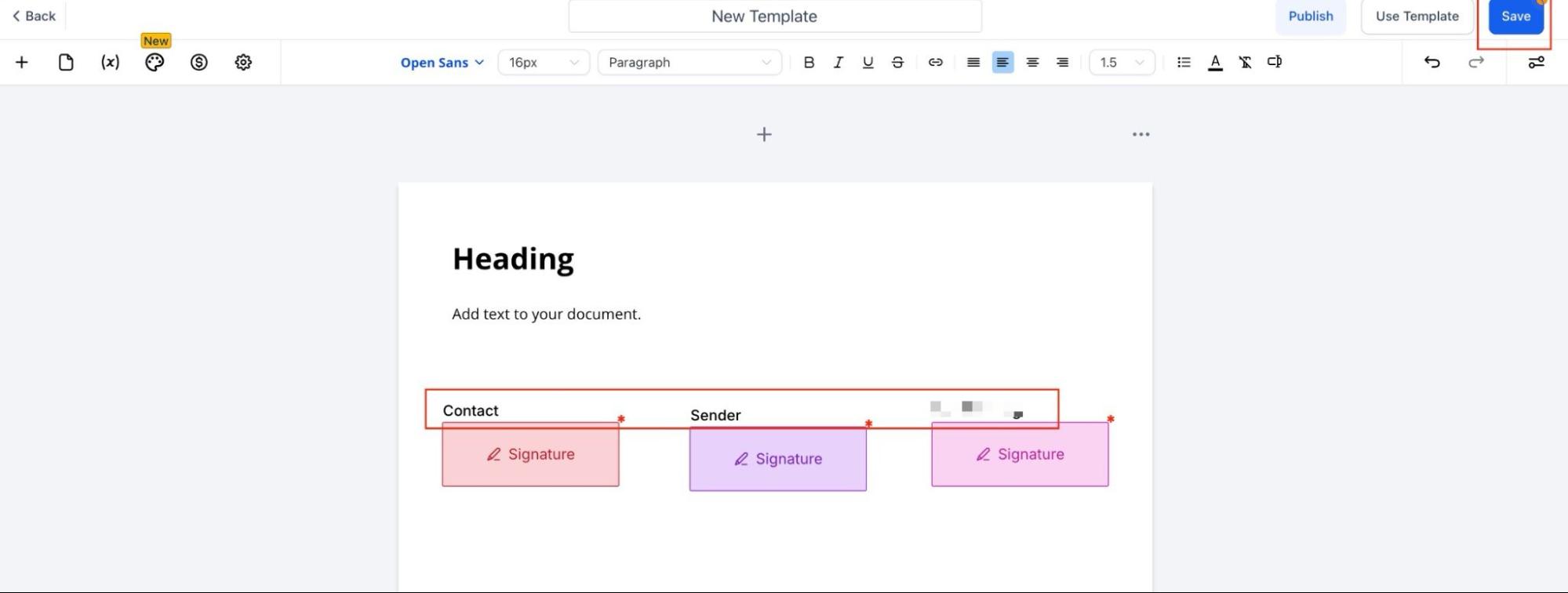
Admins can also access and assign signature fields to the entire staff list directly within templates.
2. Add Action :
- In the workflow editor, add the action “Send Documents & Contracts.”
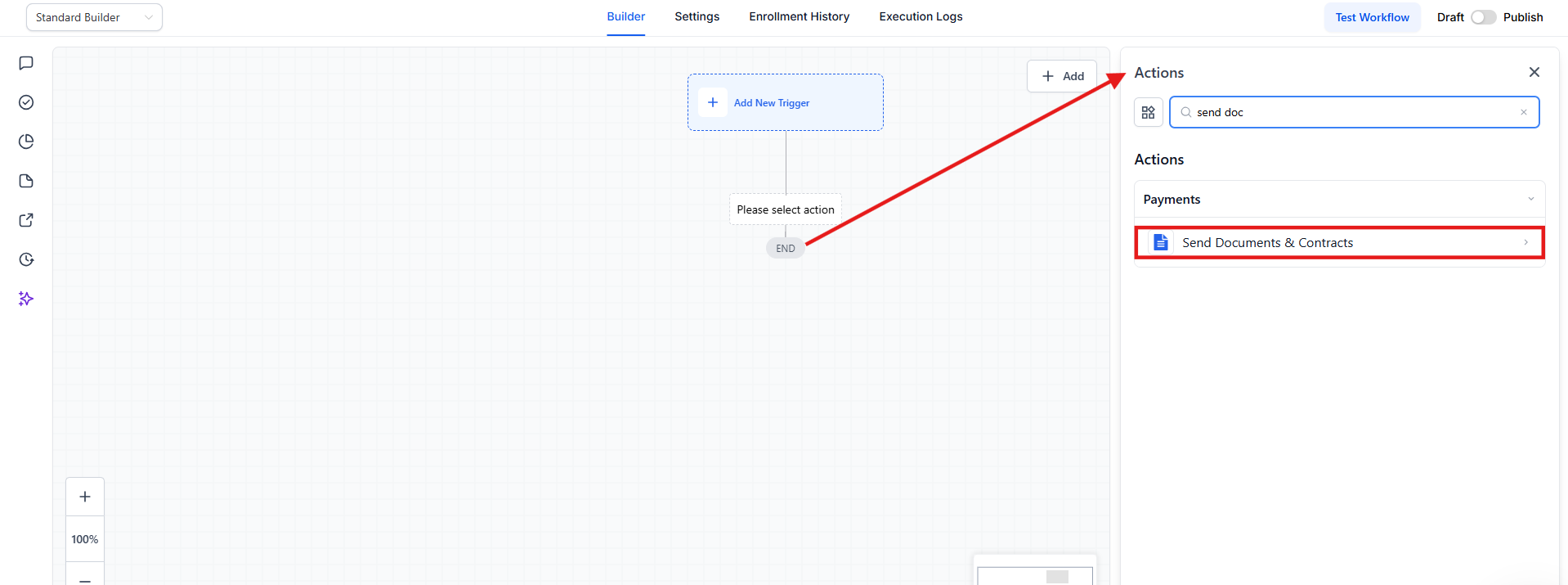
3. Customize Action Settings :
- Choose the “From User ” for contract creation and select your specific contract template.
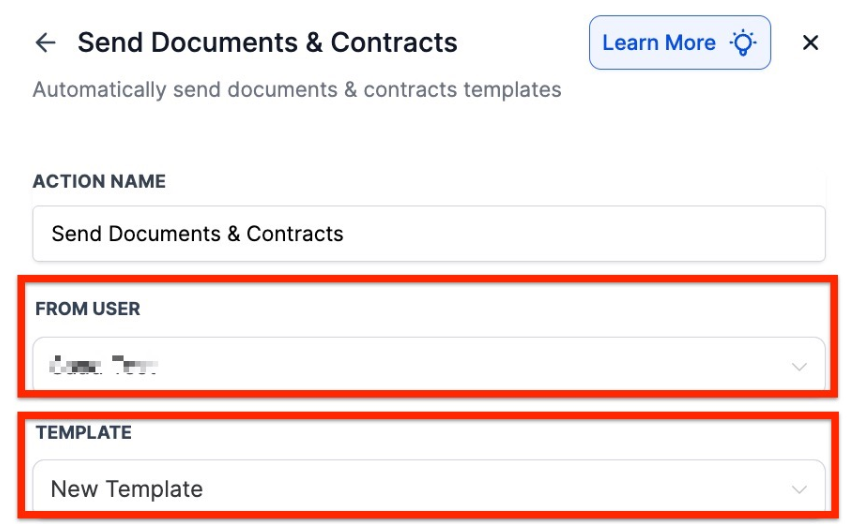
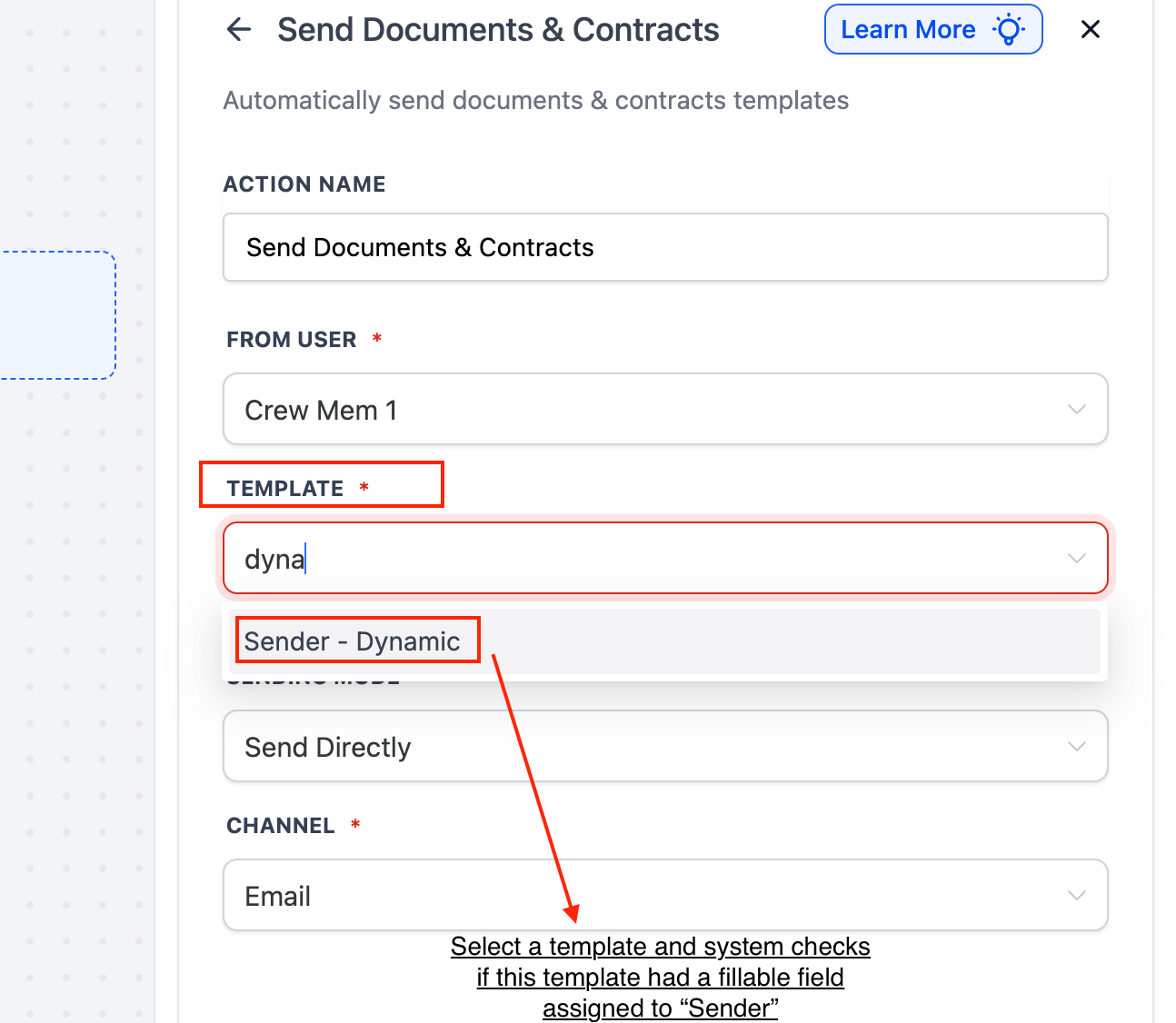
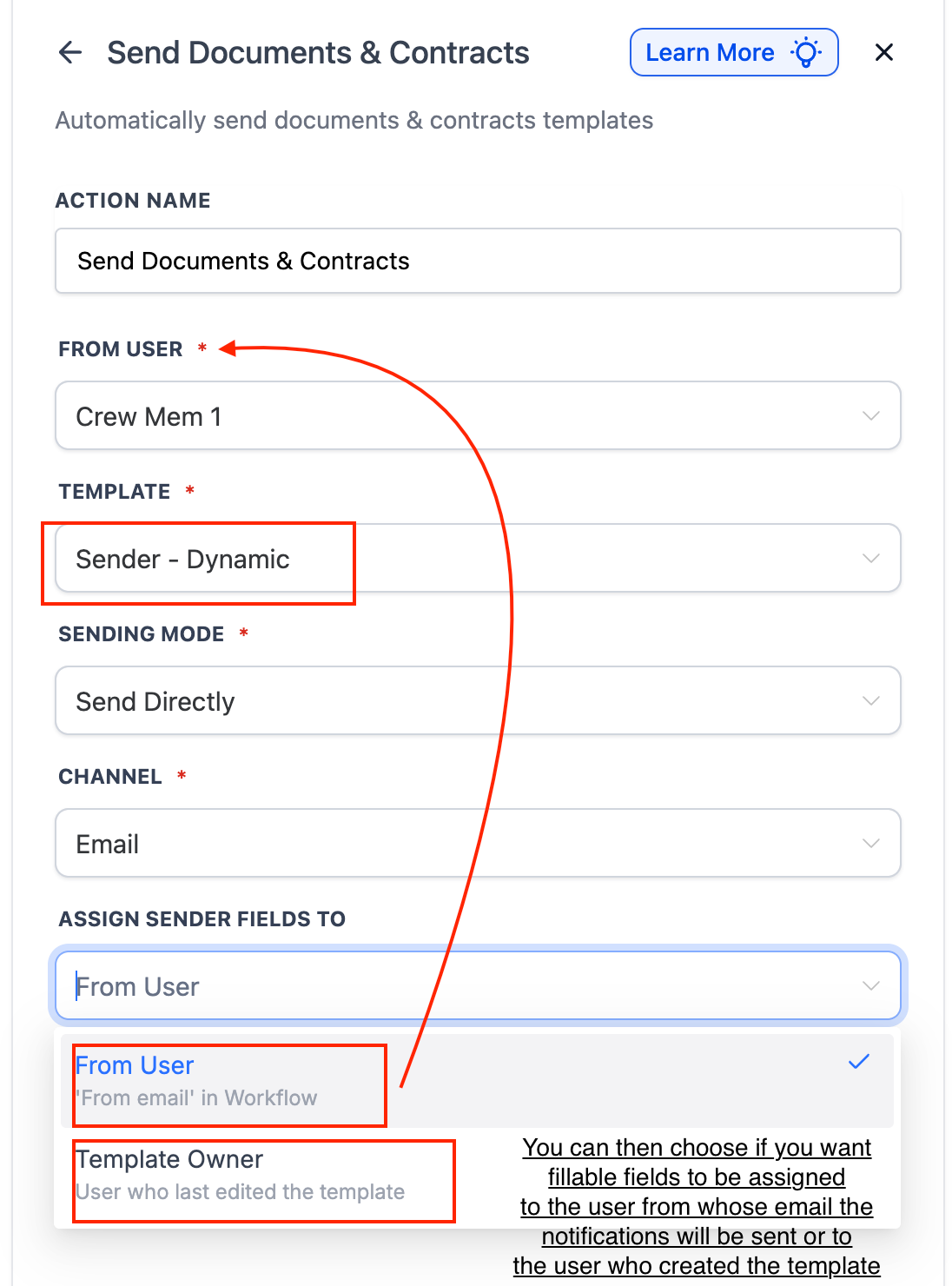
Note: For assigning fillable fields in your Documents & Contracts templates directly to the Workflow ‘From user’, first use From User to set your email credentials in the workflow you are setting up. Then, pick a template that includes Sender fields. The system will automatically check to make sure they’re included. In the Assign Sender Fields To section, choose From User if you want the person sending the workflow to act as the signer. Alternatively, select Template Owner if the signing responsibility should fall to whoever most recently modified the template.
-
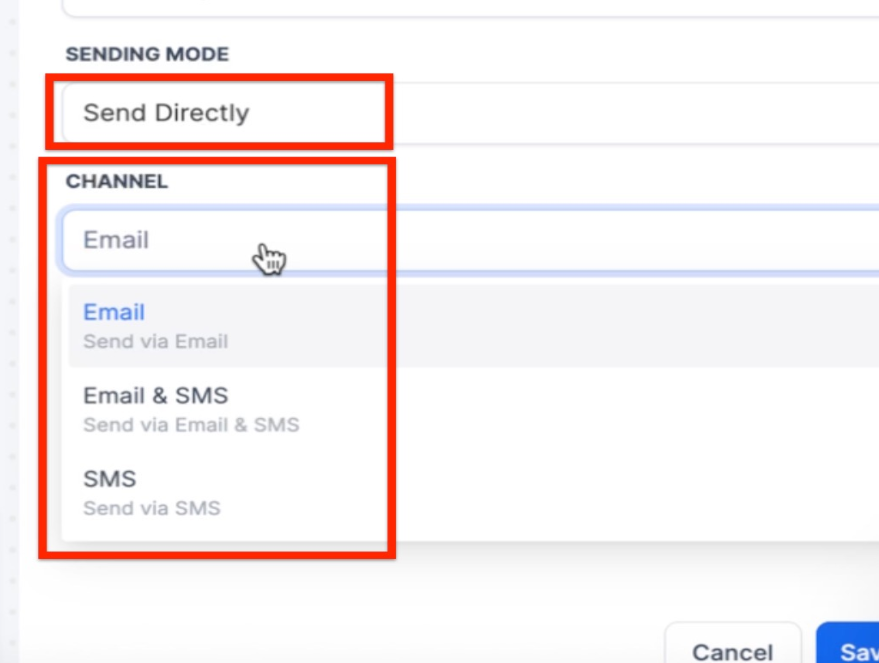
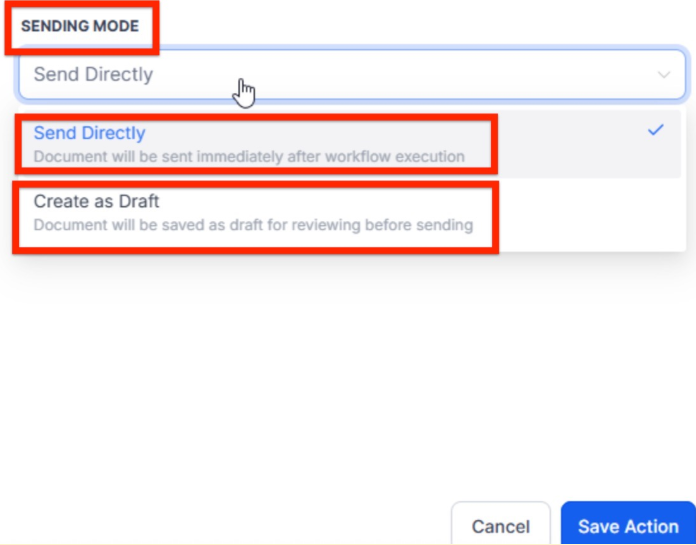
Set the Sending Mode to either “Send Directly” or “Create as Draft. ”
-
When you select “Send Directly,” you will see the option: “Channel” with 3 options: Email, SMS, or both.
4. Publish the Workflow :
- Publish and save the workflow.
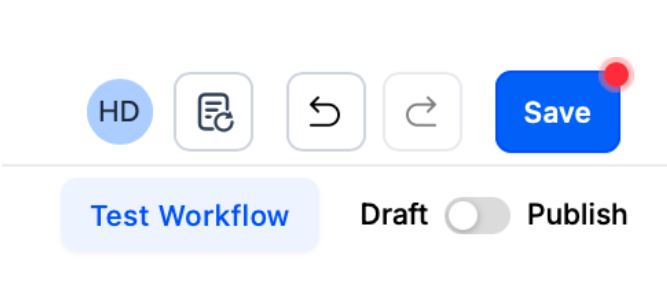
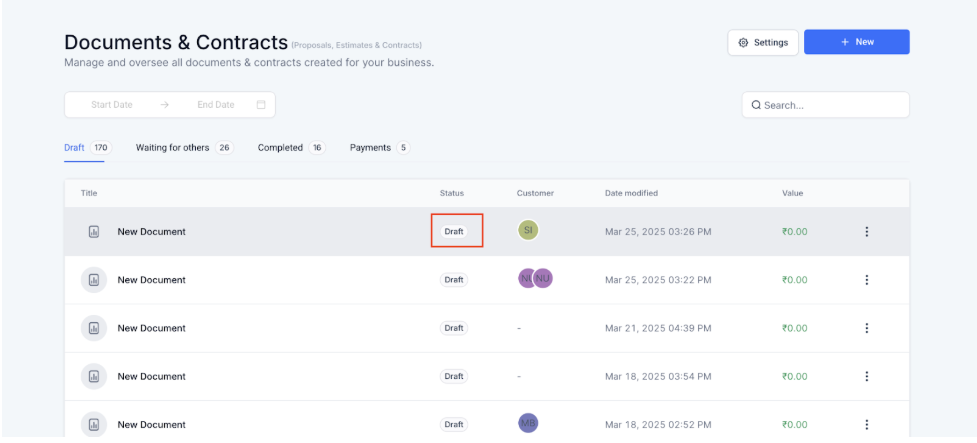
- Once the trigger fires, a draft contract will be automatically created and stored for review.
5. Review & Send:
- The responsible person or team can finalize the draft from the Documents & Contracts section and send it once approved.
Pro Tips
- Template Organization: Keep your contract templates well-organized by naming them clearly and categorizing them for easy access. This will help save time when selecting the right document for each workflow.
- Use Drafts for Accuracy: Set your workflow to “Create as Draft” rather than sending documents directly, especially for critical contracts. This ensures that your team has a chance to review and make necessary changes before finalizing the document.
- Set Specific Triggers: Be mindful of the triggers you select for contract sending, ensuring they align with key events such as client onboarding, contract renewals, or project initiation, so you send documents at the most relevant times.
- Incorporate Conditional Logic: If you have different contracts for various client types, use filters or conditions to send the correct document based on criteria such as customer segment, service type, or contract length.
- Track Document Status: Once contracts are sent or drafted, keep an eye on the document status for any approvals or actions needed, helping ensure timely follow-ups and reducing delays in the process.
¶ FAQs
Question: Can I send multiple document templates in one workflow action?**
**Answer: Currently, the “Send Documents & Contracts” action allows sending one document template per action.
Question: Can I use this action for non-contract documents, like agreements or proposals?**
**Answer: Yes, the “Send Documents & Contracts” action can be used for any document type you choose, provided you have set up the appropriate templates in your system.
Question: What happens if the workflow triggers, but the document template is missing or incorrect?**
**Answer: If the document template is missing or incorrectly set up, the workflow will not be able to send the document. Make sure the template is properly configured before enabling the workflow.
Question: Can I set a reminder to follow up with clients after sending the document?**
**Answer: Yes, you can add additional actions to the workflow, such as sending a follow-up email or creating a task, to remind your team or clients about the document that was sent.
Question: How can I ensure the right person reviews and sends the document after it is created as a draft?**
**Answer: You can assign a task to the responsible person or team to review the draft. Additionally, use notifications to alert them when a document is ready for review in the “Documents & Contracts” section.
Question: How can I send documents via SMS through workflows?**
**Answer: To send documents via SMS in workflows, open the workflow editor and add a “Send Document” action. Select the delivery method as SMS, or choose both Email and SMS for greater visibility. This will send documents using your predefined SMS templates for a streamlined process.
Question: Can document links be personalized for each client?**
**Answer: Yes, dynamic variables such as client name, company, price, or custom fields can be inserted in the sending message so each client receives a personalized document.
Question: Why is using drafts important for accuracy?**
**Answer: Drafts allow your team to catch errors, make edits, and verify details before the contract is officially sent, reducing mistakes and improving accuracy.