Workflow Action: Respond On Comment for Facebook and Instagram
Responding to comments on social media platforms like Facebook and Instagram is crucial for engaging with your audience and fostering meaningful interactions. The “Respond On Comment” feature allows users to automate responses to comments, enhancing customer engagement and driving conversations.
Pre Requisite
1. Access Workflows: Navigate to**Automation > Workflows **
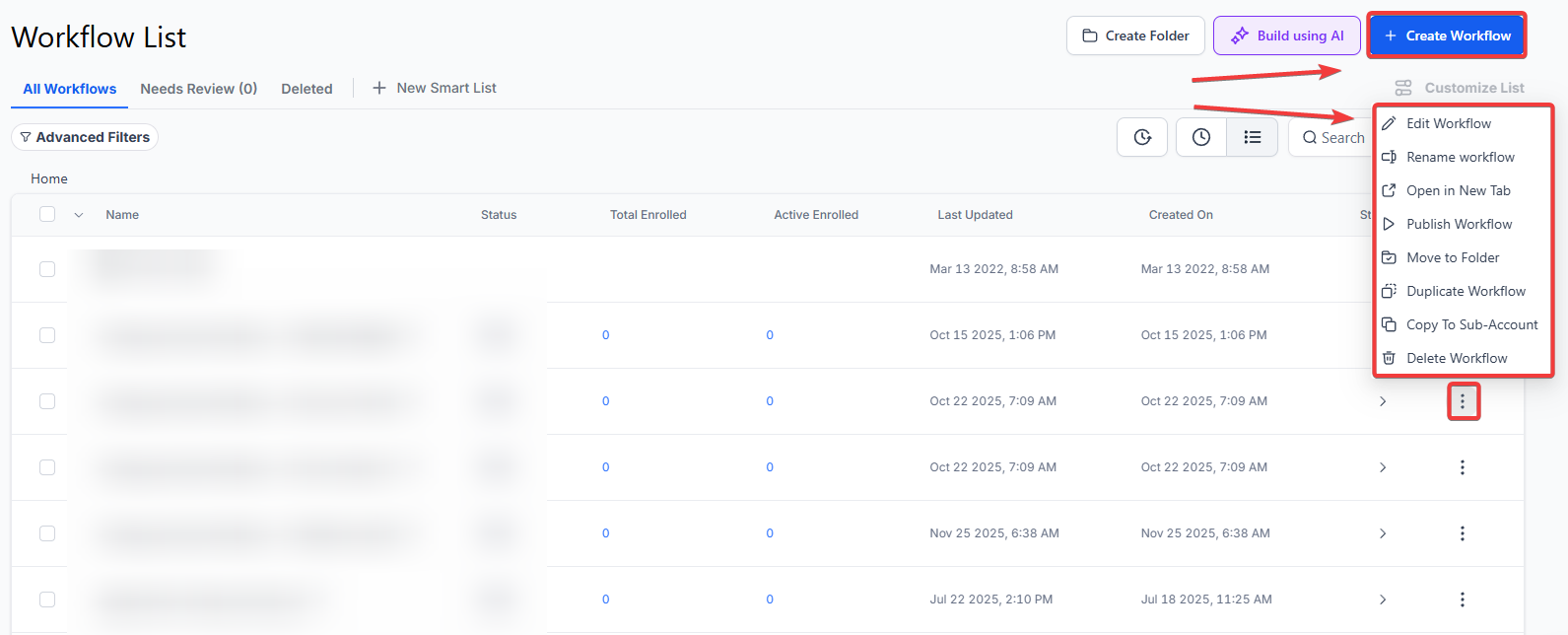
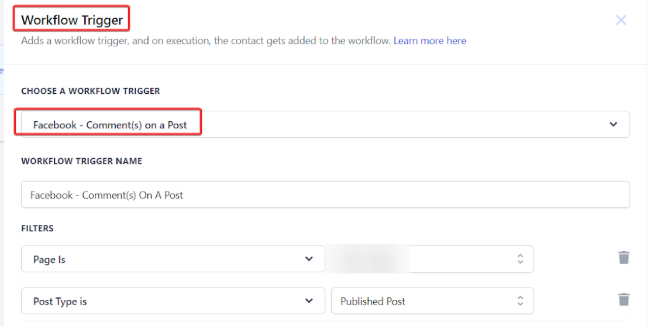
2. Select Trigger: Create a new workflow and click on “Add Trigger”. Look for the “Facebook/Instagram events” category and choose “Facebook - User comments on a post”.
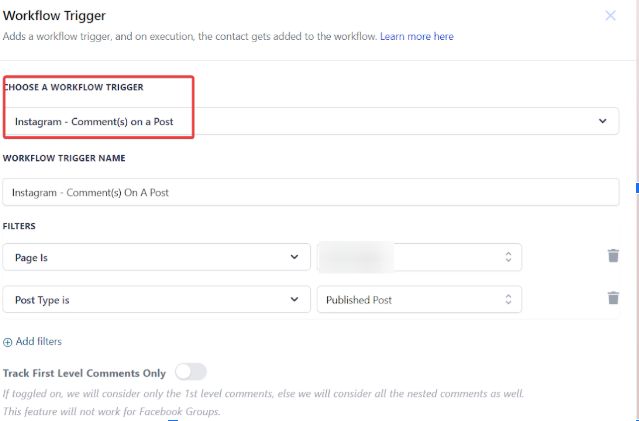
3. Similarly, select the “Instagram - User comments on a post” trigger for Instagram.
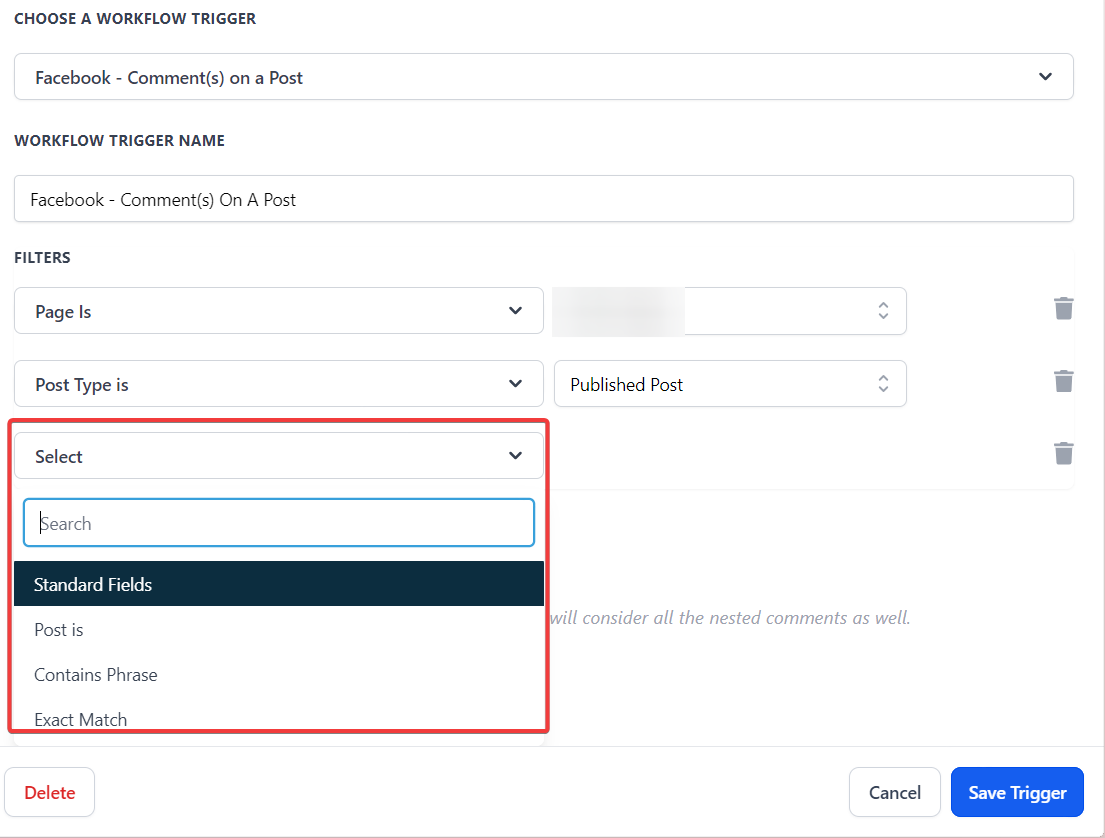
4. Specify Page and Post: Select the relevant Facebook and/or Instagram page and specify the post type as either “Published” or “Custom”. For a custom post, provide the post URL or ID.
5. Define Comment Criteria: Specify the criteria for the comments you want to respond to, such as containing a particular phrase or being an exact match.
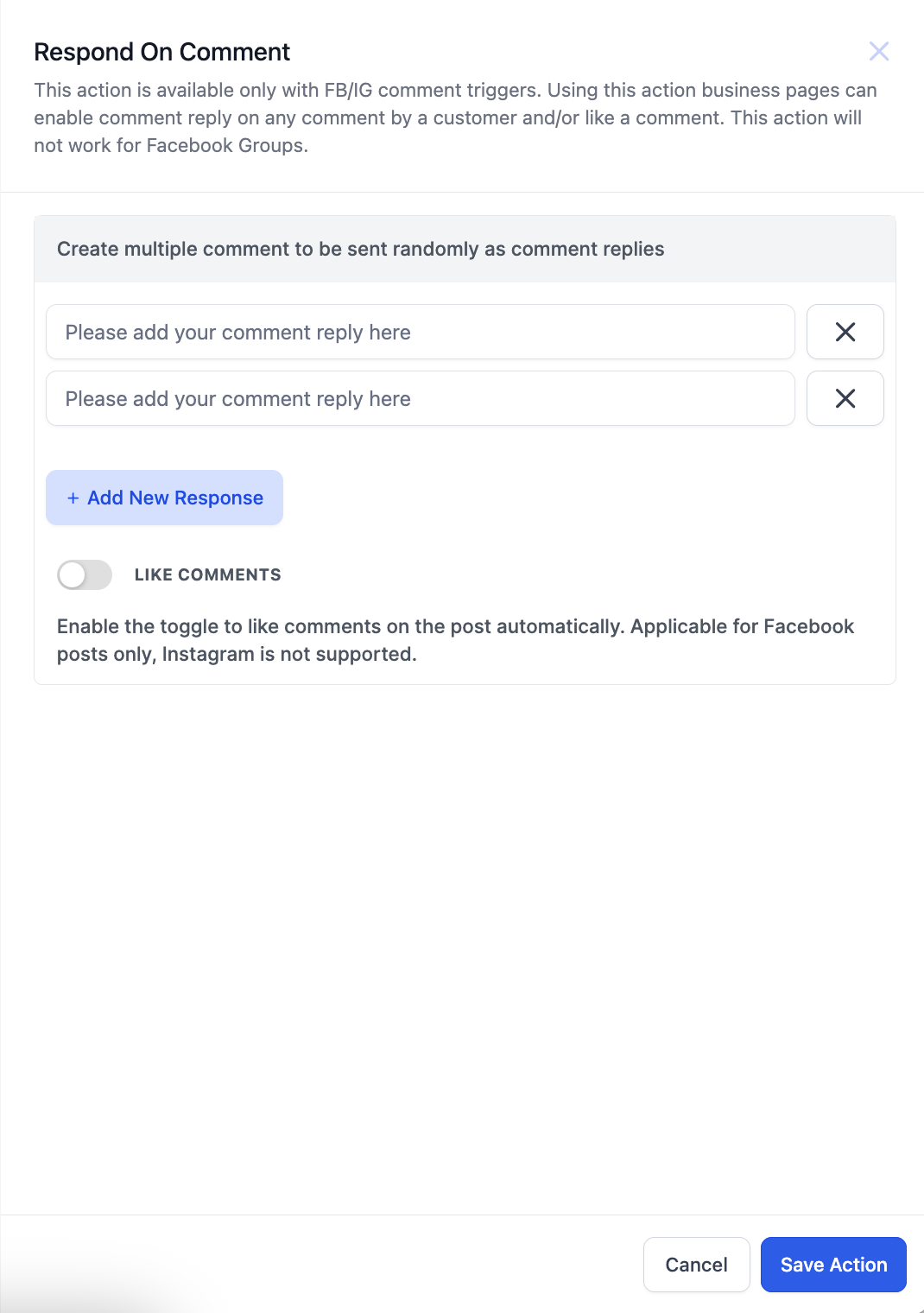
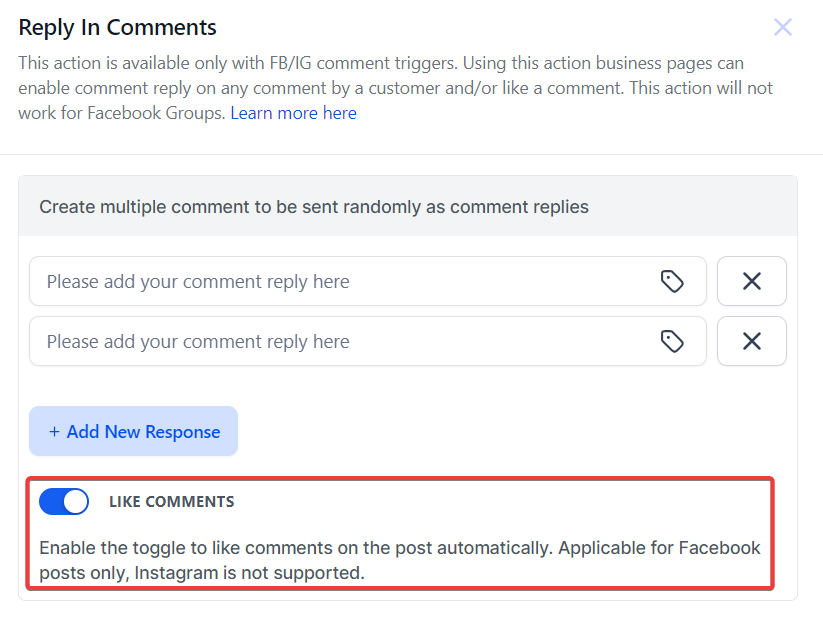
6. Configure Response: Choose the “Respond on comment action” and set up your responses. You can add multiple replies, and the system will randomly select one to reply to the comment.
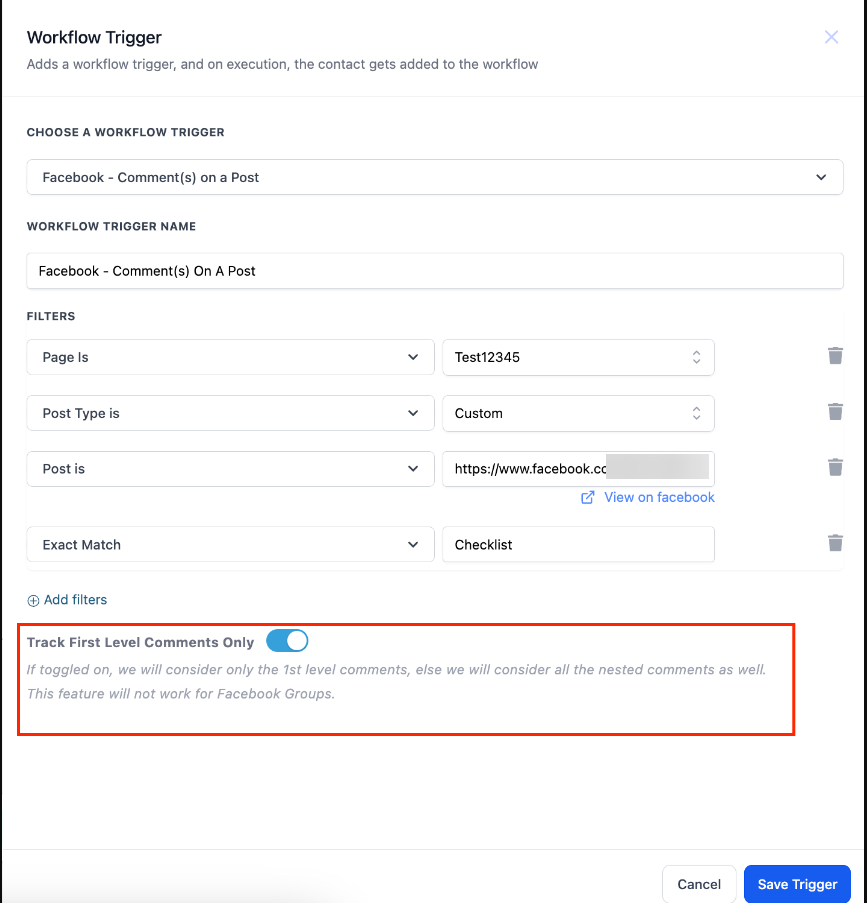
7. You can enable the toggle to track only the initial level of comments. When this is activated, only the first level of comments will initiate the workflow.
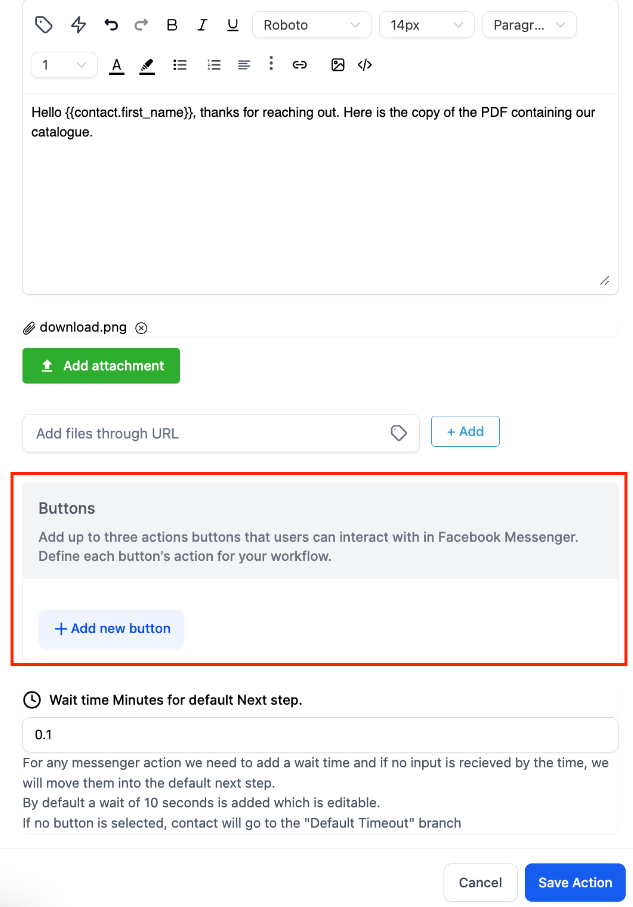
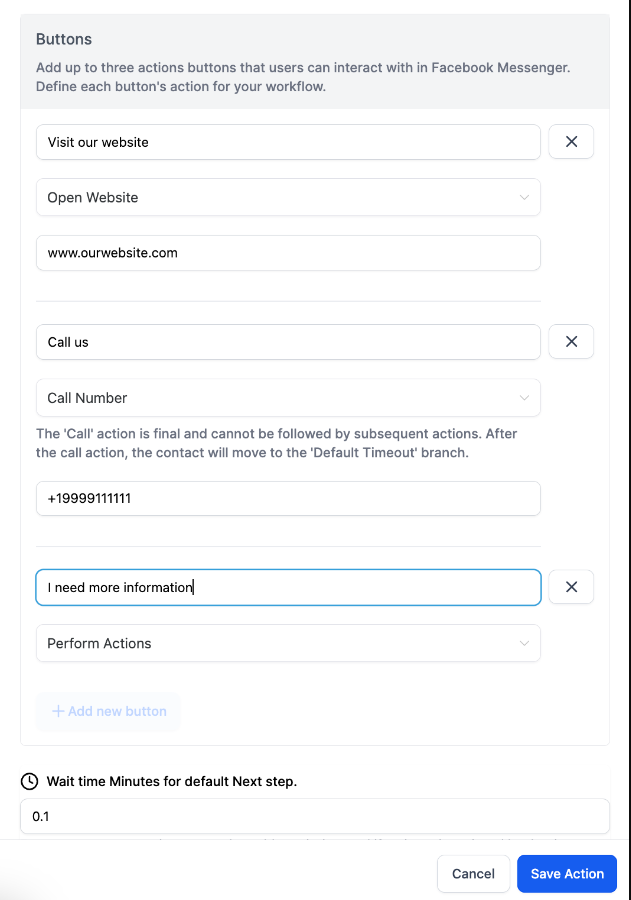
8. You can also add buttons to your messages. Buttons are an effective way to interact with your customers and allow you to perform actions based on their selection, such as sharing your phone number or website link. Click on “Add Button” to include buttons, and you can add up to 3 buttons.
There are 3 types of buttons to select from:
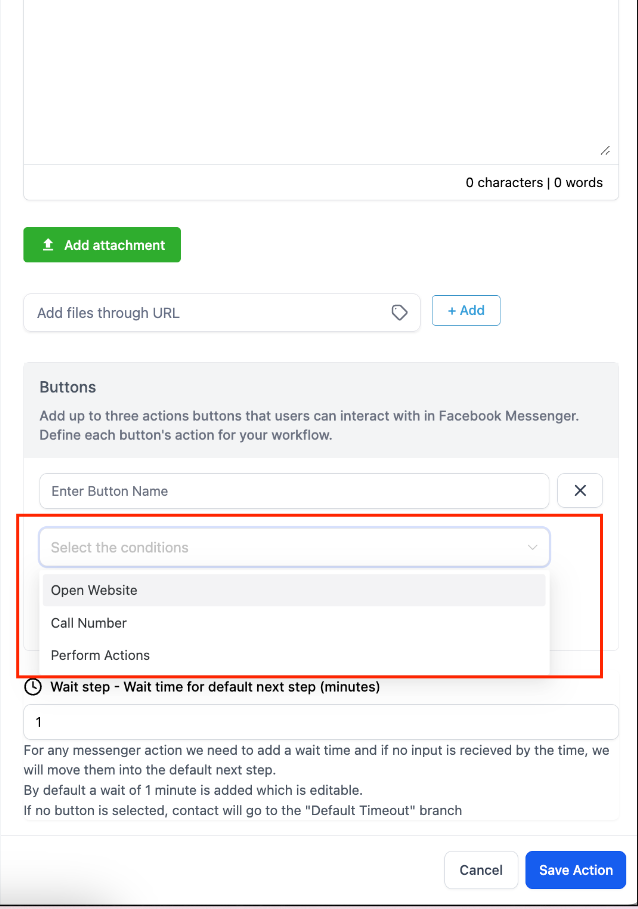
The first step in adding a button is to provide a Button Name. Next, choose one of the 3 button types, and finally, enter the phone number or URL for the Call or Website button, respectively.
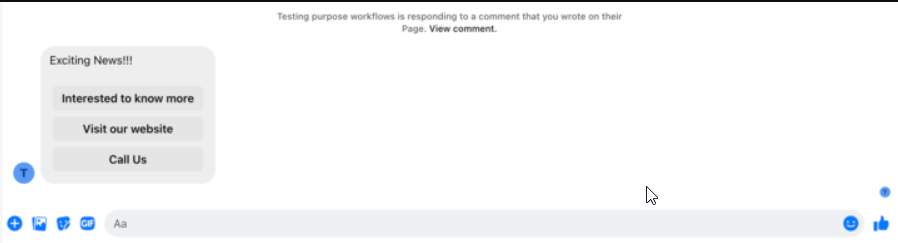
Here is how the message will look in Facebook and Instagram
Toggle Like Option: Optionally, enable the toggle to automatically like the comment when responding.
FAQ
Question: Can I set specific criteria for which comments receive automated responses?**
**Answer: Yes, you can define specific criteria for comments, such as containing certain keywords or exact phrases, to ensure only relevant comments trigger responses.
Question: Can I respond to comments on both Facebook and Instagram posts using this feature?**
**Answer: Absolutely, you can set up triggers for both Facebook and Instagram. Just select the appropriate page and post type for each platform.
Question: Is it possible to add multiple responses to comments?**
**Answer: Yes, you can add multiple response options, and the system will randomly select one to respond to each comment, making interactions feel more personalized.
Question: What happens if a user clicks on one of the buttons in the automated response?**
**Answer: Buttons in responses provide further engagement opportunities. Depending on the button type, users can be directed to a website, initiate a call, or proceed with additional actions defined by you.
Question: Will automated responses appear publicly on the post?**
**Answer: Yes, responses generated using the Respond on Comment action are posted publicly as replies to the user’s comment on the original post.
Question: Will the workflow trigger if a user comments multiple times on the same post?
Answer: This depends on your Workflow settings. If you enable “Allow Re-entry” in the workflow settings, the user will receive a response every time they comment with the specified criteria. If disabled, they will only receive the automated response once.
Question: Is it possible to limit the automation so it only responds to the main comment and not to subsequent replies in a thread?
Answer: Yes. You can enable a specific toggle to track only the initial level of comments. When this is activated, the workflow will only be triggered by the first level of comments, ignoring any replies nested beneath them.