¶ Workflow Action: Messenger
Workflow Action: Messenger
In the article you will learn how to properly set up the Workflow Action: Messenger
** Note:** You must have a Facebook business profile already integrated into the account settings > integrations and the messenger option should be enabled after integrating the Facebook account.
¶ Step 1: Start a new workflow or edit an existing one
- Navigate to Automation on the left > Workflows on the top and create a new workflow or edit an existing one
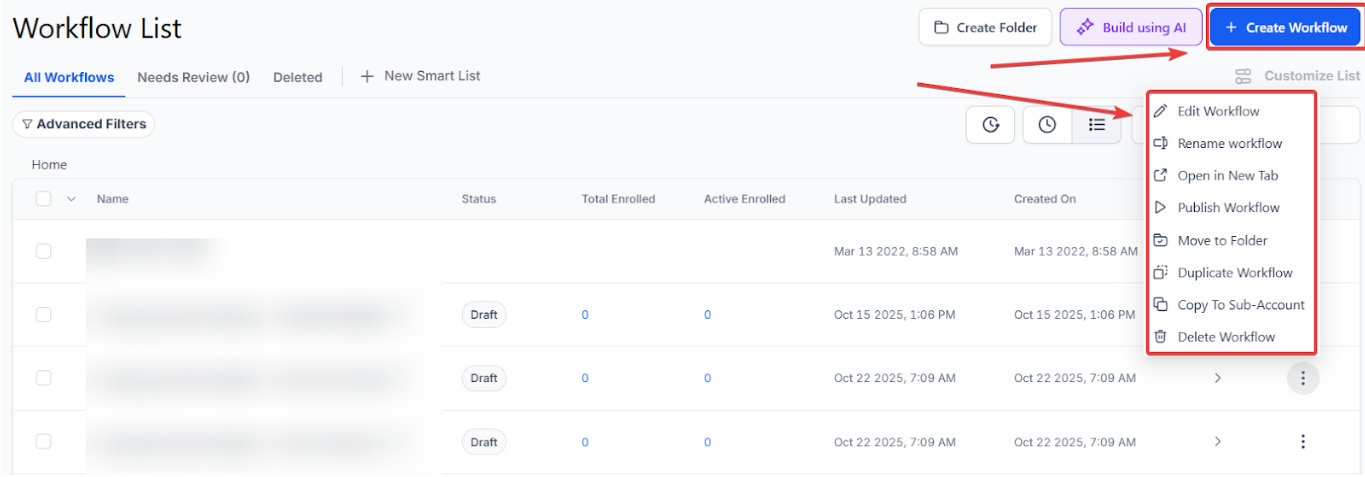
¶ Step 2: Set up applicable Workflow Trigger(s). We have multiple articles available to explain the setup of each of the Workflow Triggers. Feel free to review our articles on these for more information on how to set them up.
¶ Step 3: Setting up the Messenger Action
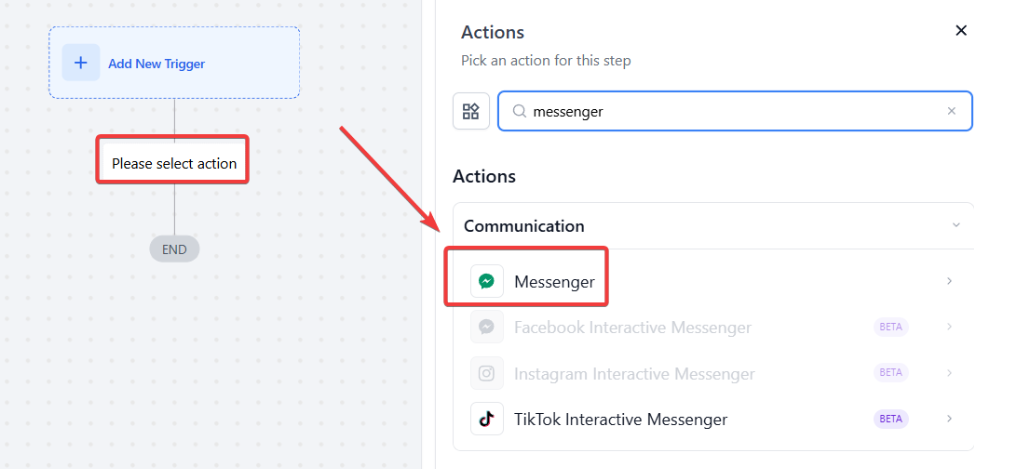
- Click on the “+ ” symbol below the trigger to add an action.

- Under Actions, select Messenger in the External Communications section of the Actions Menu or use the search feature. Upon selection, the Action setup menu will appear.
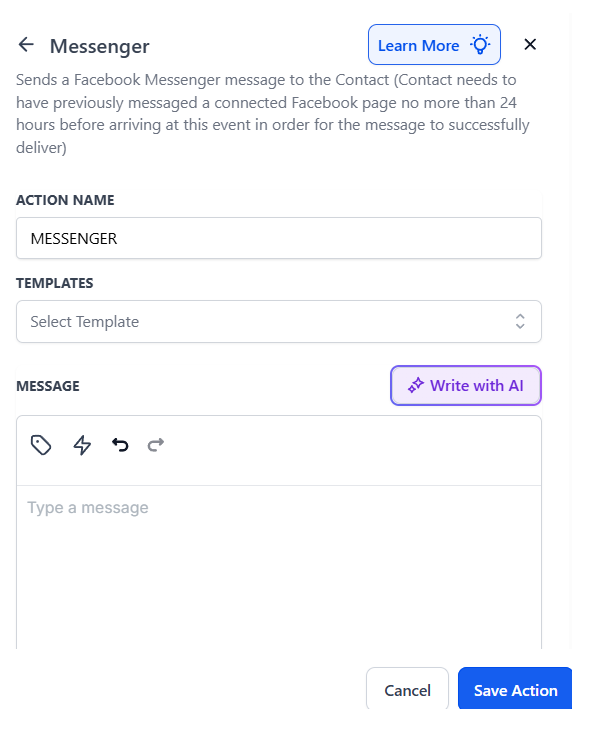
- (Optional) You can change the workflow builder display name of this action using the textbox below Action Name. Note that this will only affect the display name within the workflow builder and has no other impact on the content or functionality of this Workflow Action.
-
You also have the option to use a previously created template for this message
-
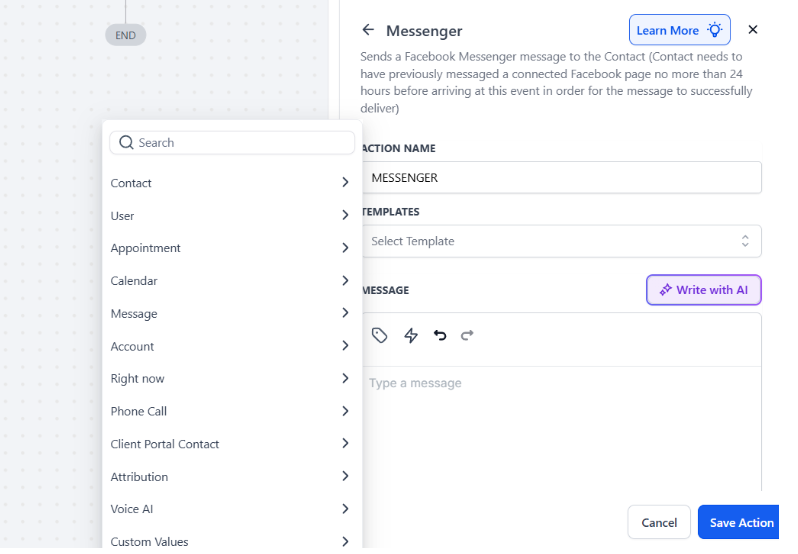
In the message drop you can select any of the custom values that apply to your specific needs (see below)
-
For Example, I selected the custom field **Contact >First Name **&Contact >Last Name; this will automatically populate the contact’s First and Last name in the Messenger
-
Press Save Action in the bottom right corner

¶ Step 4: Press Save in the top right corner of your browser to save the workflow
-
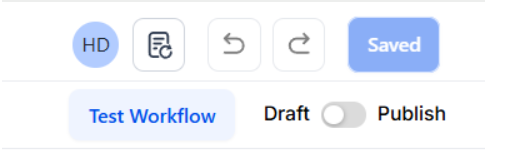
If your Workflow is ready to be enabled, make sure the toggle switch under Save is set to Publish
-
Be sure to test your Workflow to make sure it is set up correctly using the Test Workflow button next to the Publish toggle switch.
- For an in-depth overview of Workflow Testing see our article, “Using the Testing Features in Workflows”
Now your workflow is set up, and you are ready to go with the Messenger Workflow Action!
¶ FAQs
Question: What is the Messenger Workflow Action?
Answer: The Messenger Workflow Action allows you to send messages via Facebook Messenger to your contacts directly from within your workflow. It helps automate communication through Messenger, which is useful for engaging with leads, sending updates, or following up on inquiries.
Question: What do I need before setting up the Messenger Workflow Action?
Answer: You must have a Facebook business profile integrated with your account to use the Messenger Workflow Action. Make sure the integration is complete before setting up this action.
Question: How do I set up the Messenger Workflow Action in a workflow?**
**Answer:
- Start Workflow :
- Begin by creating a new workflow or editing an existing one.
- Set Up Trigger :
- Configure the appropriate Workflow Trigger(s) for your needs. Refer to our articles on Workflow Triggers for detailed setup instructions.
- Add Messenger Action :
- Click the “+” symbol below the trigger to add an action.
- Select “Messenger” from the External Communications section of the Actions Menu or use the search feature.
- Configure Action :
- Optionally, rename the action using the Action Name textbox (this only affects the display name within the workflow builder).
- Choose a pre-created template for the message if applicable.
- Utilize custom values from the dropdown menu to personalize your message (e.g., Contact>First Name & Contact>Last Name).
- Press “Save Action” in the bottom right corner.
Question: Can I use templates for the Messenger action?
Answer: Yes, you can use previously created templates for your messages. This helps maintain consistency and save time when sending common messages.
Question: How do I personalize messages with custom values?
Answer: In the Messenger action setup, you can use custom values to personalize the message. For example, inserting Contact>First Name and Contact>Last Name will automatically fill in the contact’s first and last names in the message.
Question: How do I save and enable the workflow?**
**Answer:
- Save Workflow :
- After configuring the Messenger action, press “Save” in the top right corner of your browser.
- Publish Workflow :
- If the workflow is ready to go live, ensure the toggle switch under Save is set to “Publish.”
- Test Workflow :
- Use the “Test Workflow” button next to the Publish toggle switch to verify that everything is set up correctly.
Question: What should I do if the Messenger Workflow Action is not working as expected?**
**Answer:
- Verify that the Facebook business profile integration is set up correctly.
- Check if the Messenger action is configured properly and that the message template is accurate.
- Ensure that the custom values you are using are correctly populated.
- Test the workflow to identify any issues and make necessary adjustments.
Question: Does this work for personal Facebook profiles?**
**Answer: No. The Messenger Workflow Action is strictly for Facebook Business Pages. Automated messaging is not supported for personal Facebook profiles via API integrations.
Question: Can I trigger a workflow** when**someone messages my Facebook Page?
Answer: Yes. Use the “Customer Replied” trigger and add a filter for “Reply Channel: Facebook Messenger.” This allows you to create an “Auto-Reply” or “Chatbot-style” experience that greets customers immediately when they reach out.