¶ Workflow Action: Add Leads Under an Affiliate
Workflow Action: Add leads under an affiliate
The workflow action “Add Leads Under an Affiliate” enables businesses to automate the assignment of leads to specific affiliates, ensuring accurate tracking and rewarding of affiliate efforts. Here’s a detailed look at how this workflow action works and how you can implement it.
¶ Step-by-Step Guide
¶ Step 1: Access Workflow Settings
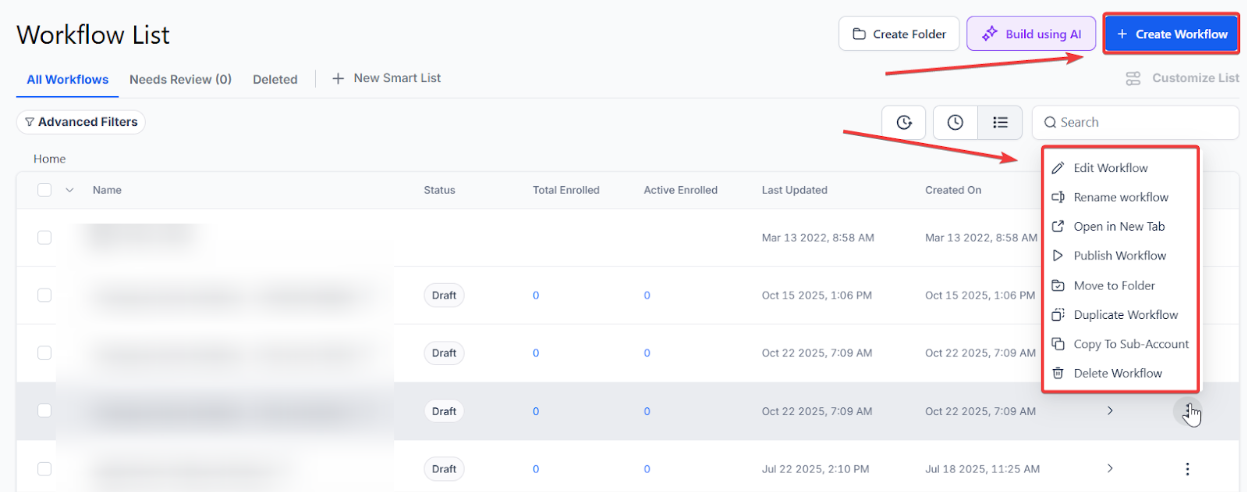
- Navigate to your workflow settings within the automation tab.
- Select the option to create or edit an existing workflow.
¶ Step 2: Add the Action
- Within the workflow editor, choose the action “Add Leads Under an Affiliate.”
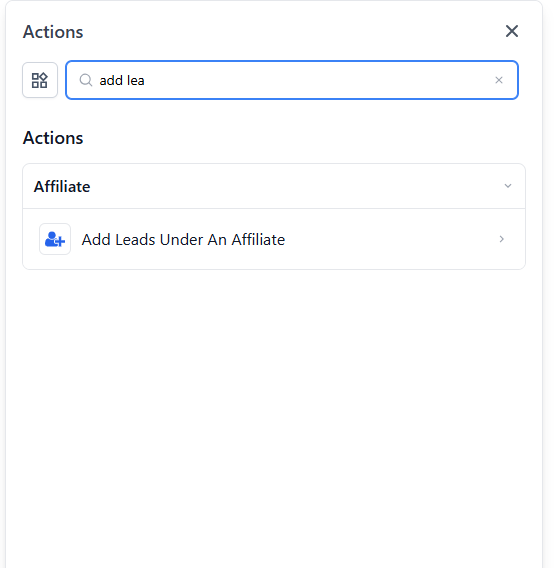
- This action can typically be found in the list of available workflow actions.
Step 3: Configure the Action
- Select Affiliate : Choose the affiliate under whom the leads should be added. This can usually be done by selecting from a drop-down list of registered affiliates.
- Select Campaign : Specify the affiliate campaign associated with the lead. This ensures that the lead is attributed correctly for tracking and commission purposes.
Step 4: Choose an Assignment Method:
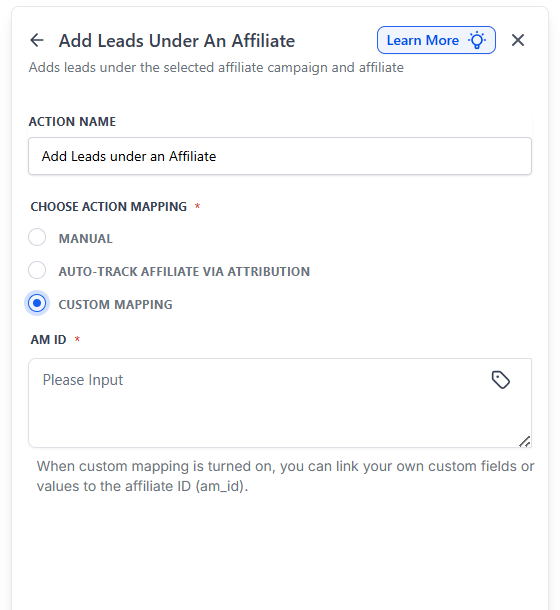
Choose your preferred assignment method: Manual, Auto (Attribution), or Custom Mapping.
- Manual : Assign leads to affiliates manually, perfect for form submissions or internal routing.

- Auto (Attribution via URL) : Automatically assigns leads using the am_id passed in the URL parameters, supporting first or last-click attribution.

- Custom Mapping : Use if am_id is stored in a custom field or passed as a workflow value. Best for API pushes or third-party integrations.
¶ Step 5: Set Triggers
- Define the triggers that will initiate this workflow. Common triggers include:
- Form submissions
- Survey completions
- Calendar bookings
- Configure the conditions under which the lead will be added to the selected affiliate.
¶ Step 6: Save and Activate
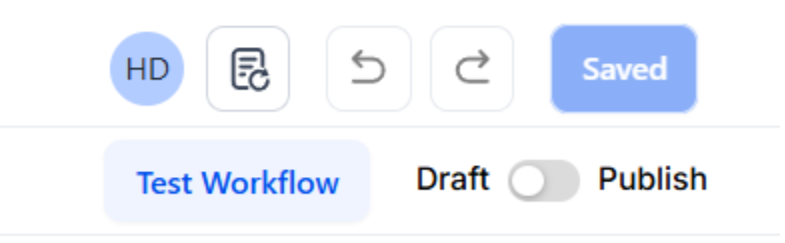
- Once you have configured the action and set the triggers, save your workflow.
- Activate the workflow to start automatically adding leads under the specified affiliate based on the defined triggers.
¶ Benefits of Adding Leads Under an Affiliate
- Accurate Lead Attribution : Ensures that leads generated through various channels are correctly attributed to the right affiliate.
- Enhanced Affiliate Engagement : Affiliates are more likely to stay motivated and engaged when their efforts are accurately tracked and rewarded.
- Streamlined Administrative Tasks : Automating lead assignment reduces manual work, making affiliate management more efficient.
¶ Pro Tips for Optimizing Workflow Action
- Segment Leads : Use custom fields and tags to segment leads based on their source or other criteria. This helps in creating more targeted follow-up actions.
- Regular Review : Periodically review the workflow settings to ensure they align with your current affiliate marketing strategy.
- Combine Actions : Enhance the effectiveness of this action by combining it with other workflow actions such as automated email follow-ups or task assignments for sales teams.
¶ FAQs
Question: What is the “Add Leads Under an Affiliate” workflow action?
Answer: This action allows businesses to automatically assign leads to specific affiliates, ensuring accurate tracking of leads and rewarding affiliates for their efforts. It simplifies affiliate management and ensures proper lead attribution.
Question: Where can I find the “Add Leads Under an Affiliate” action?
Answer: The action can be found in the workflow editor under the list of available workflow actions. Navigate to the automation tab, create or edit a workflow, and search for the “Add Leads Under an Affiliate” action.
Question: What information do I need to configure this action?
Answer: To configure this action, you will need:
The affiliate to whom the lead should be assigned.
The campaign is associated with the lead (optional but recommended for accurate tracking).
Question: How do I decide which lead assignment method to use?
Answer: The choice of assignment method depends on your specific needs. Use the Manual for straightforward assignments, such as when you want to assign a lead to a known affiliate in a campaign. Auto (Attribution) is best when you want automatic lead assignment based on URL parameters, ideal for tracking attribution in funnels. Custom Mapping is recommended for more advanced setups, such as when using third-party systems or custom fields to assign leads.
Question: What triggers can I use to initiate this workflow?
Answer: Common triggers include:
Form submissions
Survey completions
Calendar bookings
Other custom events specific to your setup
You can also set conditions to filter leads and ensure they are assigned to the correct affiliate.
Question: Can I assign leads to multiple affiliates at once?
Answer: No, this action typically assigns a lead to one affiliate per workflow instance. If you need to assign leads to multiple affiliates, you can create separate workflows or use additional conditions.
Question: Will this action overwrite an existing affiliate assignment on a lead?
Answer: This depends on your workflow configuration and conditions. If the workflow runs on a lead that already has an affiliate assigned, it may overwrite the existing assignment. Use conditions carefully to prevent unintended changes.
Question: Will this action work for “Imported” leads?
Answer: Yes. If you import a list of contacts and include a column for “Affiliate ID,” you can trigger a one-time workflow to run on those imported contacts using the Custom Mapping option to bulk-assign them to their respective partners.