¶ Workflow Action: Instagram Interactive Messenger
Instagram Interactive Messenger is a feature within the Workflow Builder toolkit, designed to facilitate customer engagement on Instagram through direct messaging channels. This tool empowers businesses to drive sales and conversations while ensuring timely and personalized interactions with potential leads. With Instagram Interactive Messenger, businesses can attract and engage customers when they’re ready, never missing an opportunity to provide assistance or gather valuable feedback.
¶ How to Use the Feature:
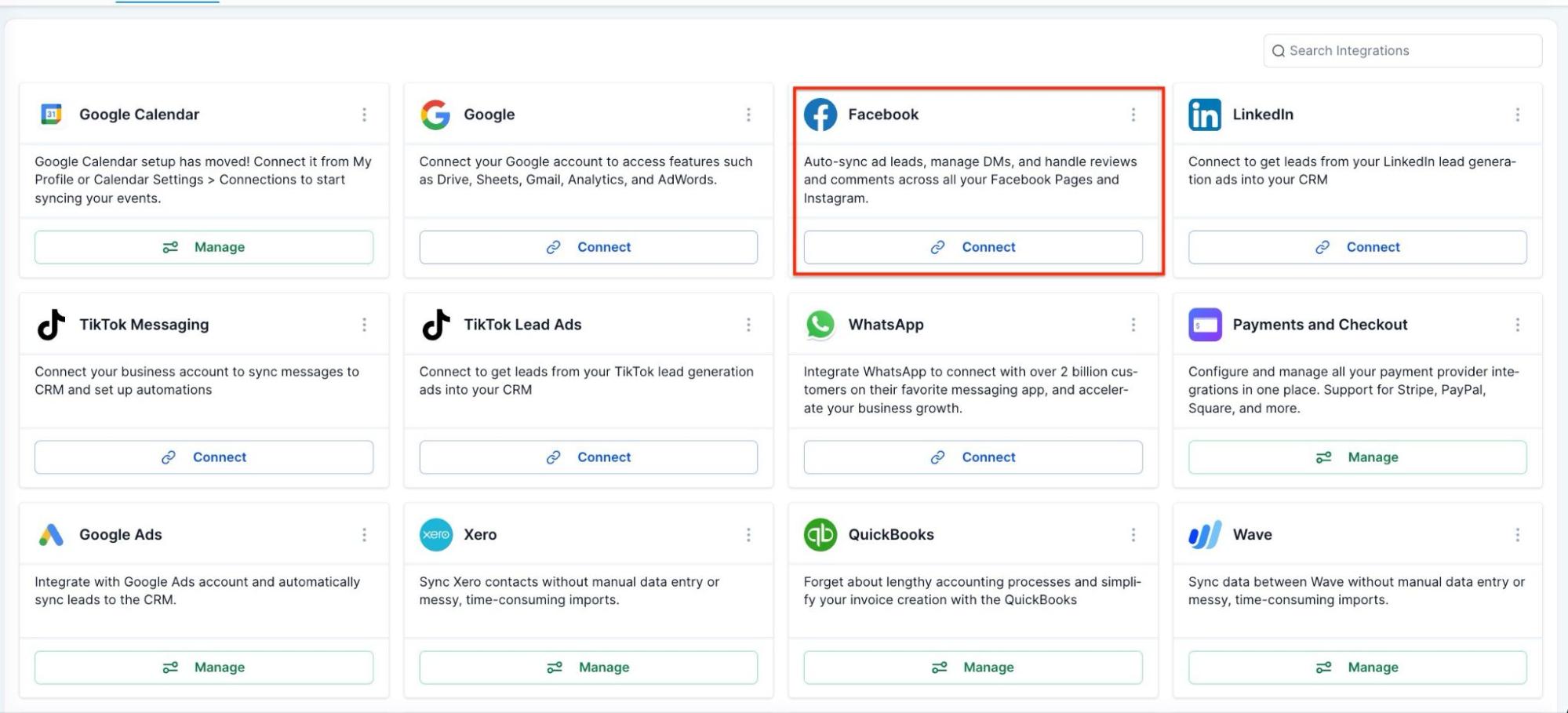
Prerequisites: Ensure that your Instagram account is integrated with the platform.
- Go to settings.
- Navigate to integrations.
- Hover over to the Facebook and Instagram sections.
- Connect your account.
Access the Action: In the Workflow Builder, navigate to the “Communications” category. Select the Instagram Interactive Messenger action.
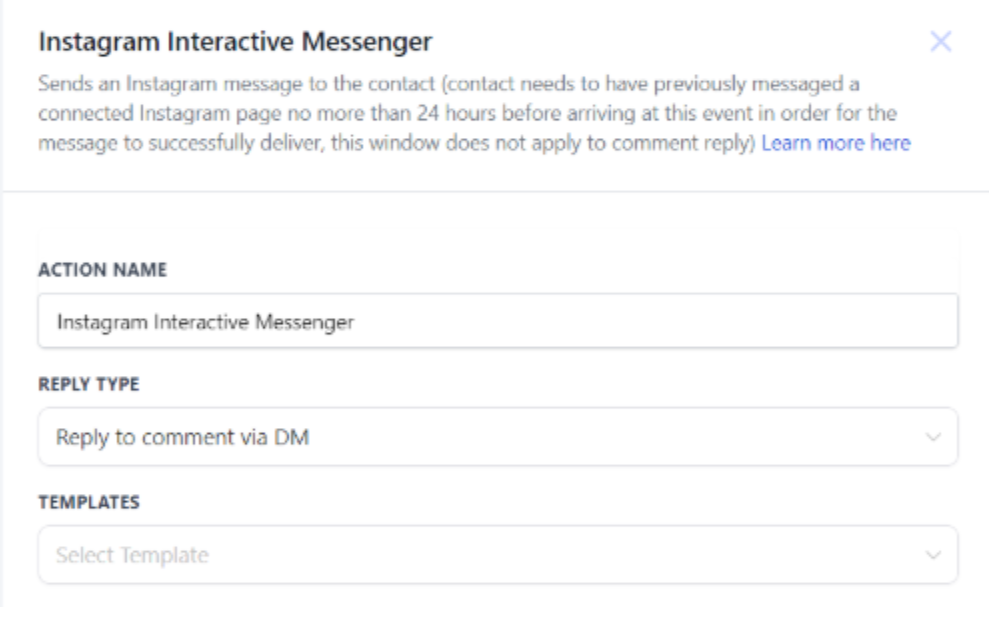
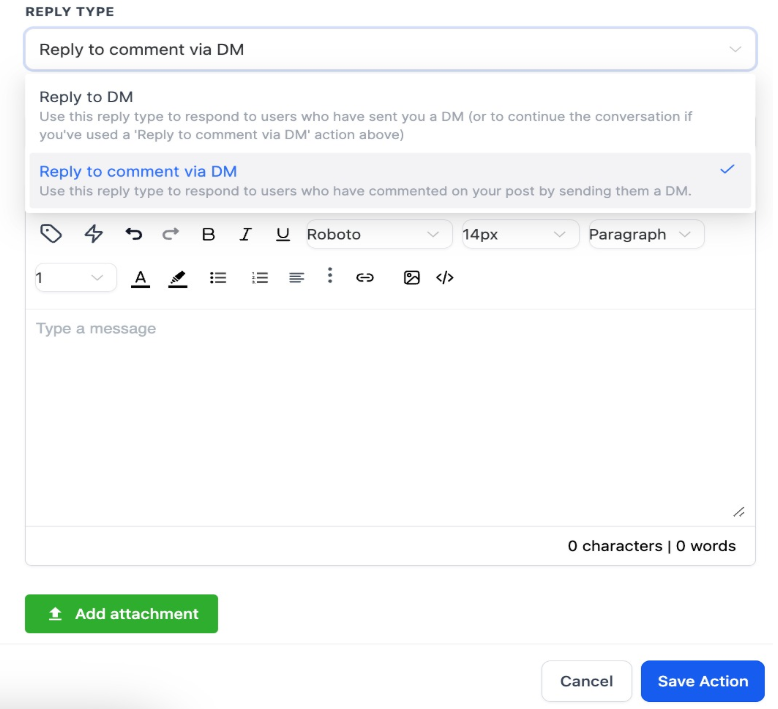
Configure Reply Type: Choose between “Reply to DM” and “Reply to comment via DM” based on your communication needs.
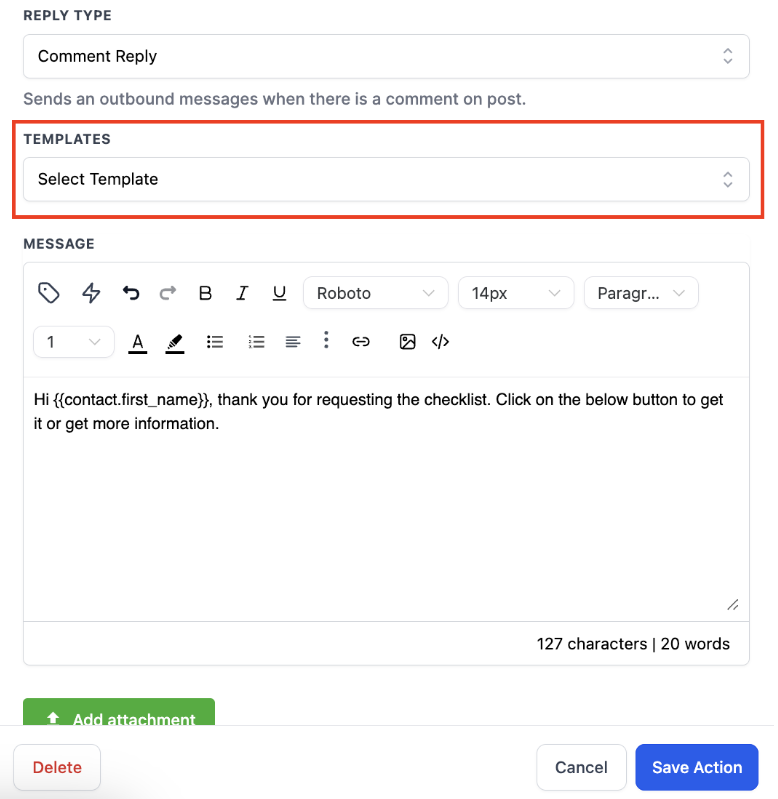
Compose Message: Configure the message to be sent, either by selecting from pre-existing templates or writing a custom message. Attach files or add buttons to enhance communication.
Add Buttons: Include up to three buttons in your message offering customers options to open a website, call a number, or perform actions.
There are 3 types of buttons to select from -

1. Open website - Add a URL to this button. Enter the link here and the user will go to that link when the button is clicked.
** 2. Call Number** - You can enter the number here and the user can call on that using this button.
** 3. Perform Actions **- This button can be used to further progress the conversation with the customer. You can add actions after this button to continue the flow.
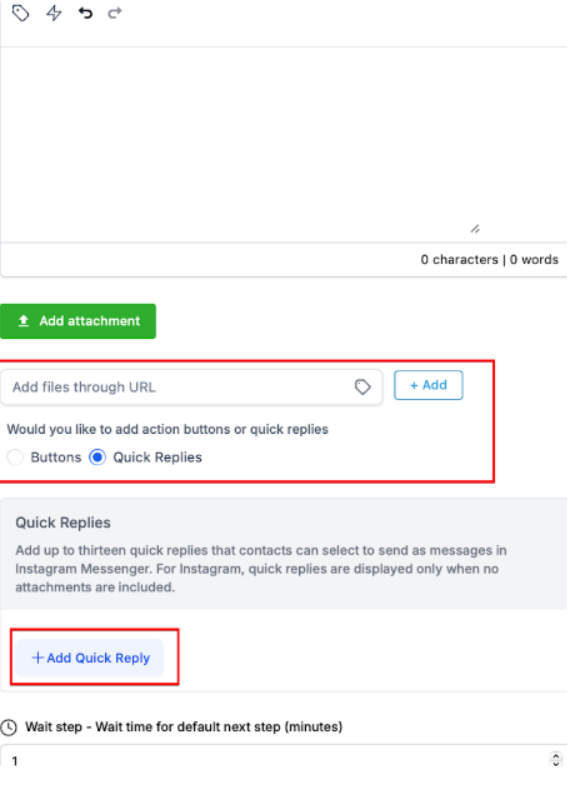
Quick Replies: Enables businesses to streamline customer interactions by providing predefined message options that customers can easily select with one tap. This improves the speed and efficiency of conversations, ensuring faster responses and guiding customers toward desired actions.
Key Benefit: It helps keep communication clear and structured, enhancing engagement.
**How to Use: **
- Simply configure up to 13 quick replies, each with a maximum of 20 characters, and integrate them into your messaging workflows for smooth customer interactions.
Visibility and Functionality:
- Quick Replies are visible only as part of the most recent message and function as single-tap responses.
- Once a quick reply is selected, the customer cannot change their choice, ensuring a focused interaction.
- All available quick reply options will be displayed in the conversation, offering full visibility to the user.

Note: You can either add buttons or Quick Replies in a message. Quick Replies can only be added when no attachments are included in the same message.
Set Default Wait Time: Specify a default wait time before the contact moves to the default branch. This ensures a seamless flow of communication.

Publish Workflow: Once configured, publish your workflow to activate the Instagram Interactive Messenger action.
¶ Important Points to Note:
- Ensure that the “Page is” filter is selected as the first field in triggers to avoid deletion of dependent filters.
- Maximum of three buttons can be added in the Interactive Messenger action.
- No further actions can be added after the “Call” button.
- A default wait time of 10 seconds is added, which can be edited as needed.
- Failure to reply within a 7-day window in the “Reply to comment via DM” scenario may result in delivery failure.
¶ Benefits:
- Enhanced Customer Engagement: Instagram Interactive Messenger enables businesses to attract and engage customers when they’re ready, leading to increased sales and conversions.
- Efficient Lead Management: Never let a lead slip away with instant engagement. Identify interested leads and re-engage them without the need for expensive retargeting ad campaigns.
- Personalized Communication: Instantly engage with each comment, attracting customers faster than ever before. Customize messages to suit individual customer needs and preferences.
¶ FAQs
Question: What are the prerequisites for using Instagram Interactive Messenger?****
Answer: To use Instagram Interactive Messenger, you need to have your Instagram account integrated with the platform. Ensure that you follow the integration steps in the settings by navigating to integrations and connecting your Instagram account under the Facebook and Instagram sections.
Question: How do I access and set up Instagram Interactive Messenger in the Workflow Builder?****
Answer:
- Go to the Workflow Builder and navigate to the “Communications” category.
- Select the Instagram Interactive Messenger action.
- Configure your reply type (either “Reply to DM” or “Reply to comment via DM”).
- Compose your message or select from pre-existing templates.
- Add up to three buttons if needed and set a default wait time before moving to the default branch.
- Publish your workflow to activate the action.
Question: Can I add more than three buttons to a message?****
Answer: No, you can only add a maximum of three buttons to your message in the Instagram Interactive Messenger action.
Question: What should I do if I need to edit the default wait time?****
Answer: The default wait time is set to 10 seconds but can be edited as needed. Simply adjust the wait time in the workflow settings before publishing.
Question: What happens if I don’t reply within the 7-day window for the “Reply to comment via DM” scenario?****
Answer: Failure to reply within the 7-day window for “Reply to comment via DM” may result in delivery failure, and your message may not be sent to the customer.
Question: Are there any limitations on actions that can follow the “Call” button?****
Answer: No additional actions can be added after the “Call” button in your message. Plan your workflow accordingly to ensure that all necessary actions are included before the “Call” button.
Question: Why is it important to select the “Page is” filter as the first field in triggers?****
Answer: Selecting the “Page is” filter as the first field in triggers helps to avoid the deletion of dependent filters, ensuring that your workflow operates correctly.
Question: Are these interactive messages supported on Instagram Desktop?
Answer: While users can see and click buttons on a computer, Quick Replies are primarily designed for the Instagram Mobile App. For the best user experience, assume your audience is on a mobile device when designing these flows.