¶ Workflow action: End IVR Call
Workflow action: End IVR Call
The workflow action called End IVR Call is aimed at providing flexibility and control over Interactive Voice Response (IVR) interactions. This feature empowers workflow owners to manually terminate IVR calls, ensuring a seamless transition for callers and preventing them from being stuck in a loop of hold music.
¶ How to Use End IVR Call Workflow Action:
1. Access Workflow Builder: Navigate to Automation on the left > Workflows on the top and create a new workflow or edit an existing one
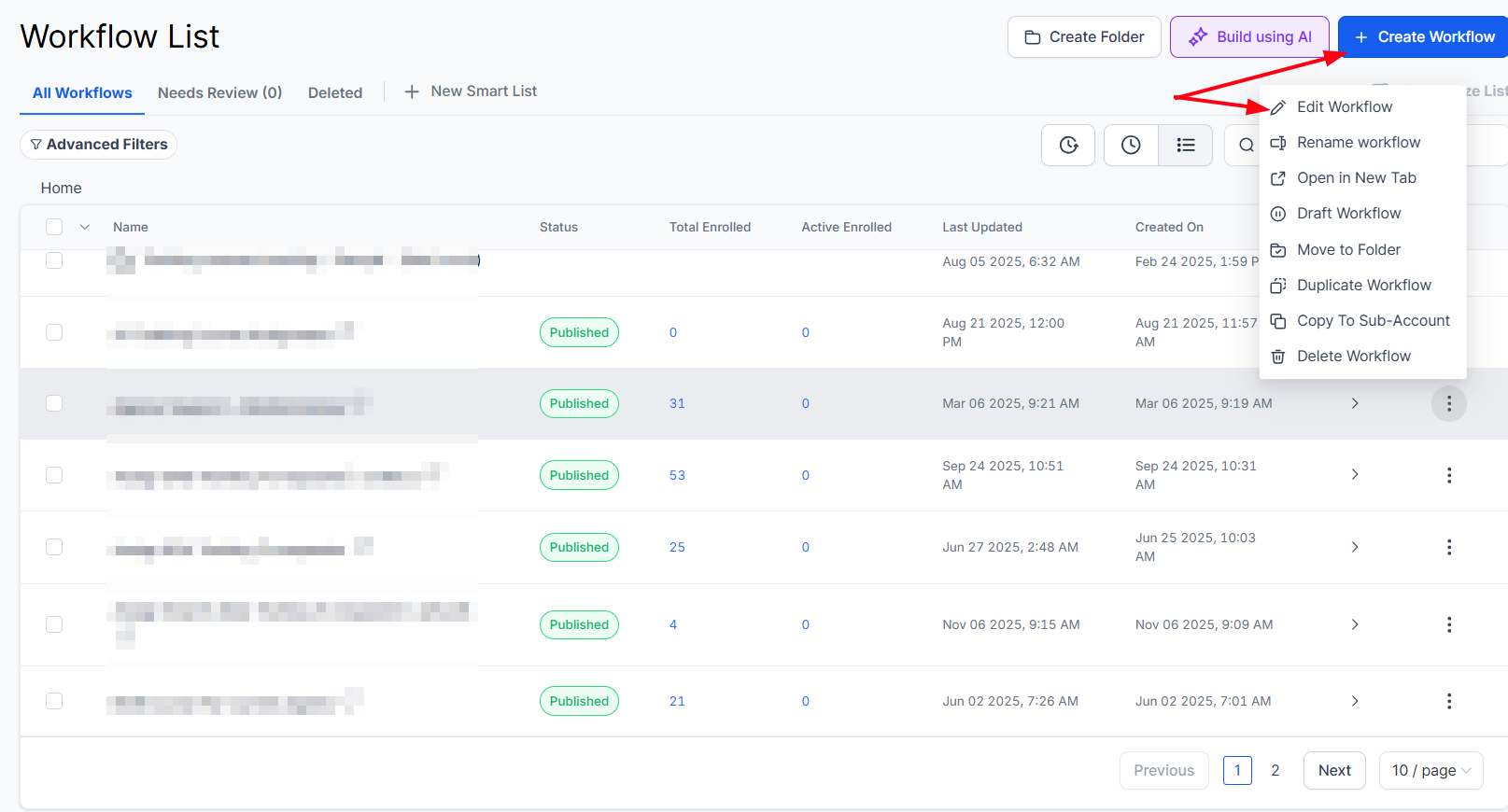
2. Drag and Drop End IVR Call Action: Locate the End IVR Call action within the workflow builder interface and drag it to the desired location in your workflow.

3. Customize Voice Instructions (Optional): Optionally, customize voice instructions to inform callers that the IVR call is ending. This can include a brief automated message indicating the call is concluding.
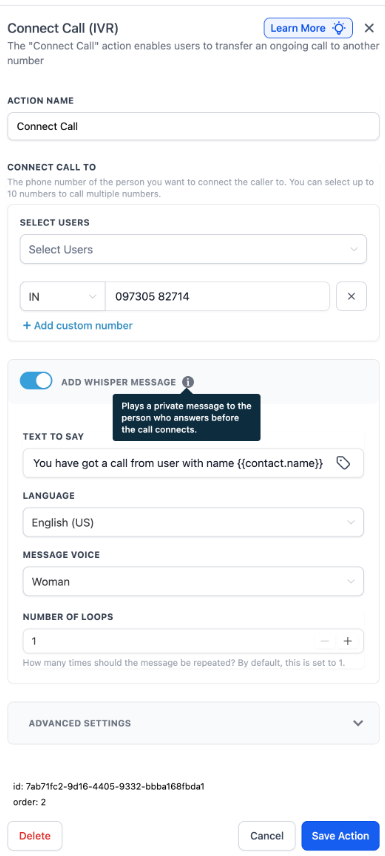
4. Upload Custom Message (Optional): If desired, upload a custom audio file to play to the caller before ending the IVR call. This could include instructions or a personalized message tailored to the caller’s needs.


5. Configure Trigger Conditions (Optional): Define any trigger conditions that must be met for the End IVR Call action to activate. This could include specific time-based triggers or conditions based on caller responses.
6. Test Workflow: Before deploying the workflow action, thoroughly test it to ensure it functions as intended. Simulate various scenarios to validate the effectiveness of the End IVR Call action.
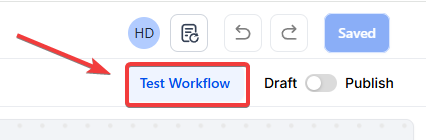
NOTE: For an in-depth overview of Workflow Testing see our article, “Using the Testing Features in Workflows”
Additional Notes:
- If Add Voice Instructions is disabled, the call will end immediately without any final message.
- Using text-to-speech can be effective for providing dynamic, real-time information before ending a call.
¶ Example
Scenario : At the end of a customer service call, you want to confirm that the system is going to disconnect and thank the customer for their call.
- Action Name : End IVR Call
- Add Voice Instructions : Enabled
- Say or Play Message : Say a message
- Text to Say : “Thank you for calling ABC Services. Your call will now end.”
- Language : English (US)
- Message Voice : Woman
- Number of Loops : 1
When configured, the system will play the message and then disconnect the call automatically.
¶ Benefits of End IVR Call Workflow Action:
- Enhanced Caller Experience: By manually ending IVR calls, businesses can prevent callers from being stuck in a loop of hold music, ensuring a more pleasant and efficient experience.
- Flexibility and Control: The End IVR Call action provides workflow owners with the flexibility to control when IVR interactions conclude, enabling them to adapt to changing caller needs in real-time.
- Personalized Communication: Customizable voice instructions and the option to upload custom audio messages allow businesses to deliver personalized communication to callers, enhancing engagement and satisfaction.
- Improved Workflow Efficiency: By automating the conclusion of IVR calls, businesses can streamline workflow processes and optimize resource allocation, ultimately improving overall operational efficiency.
¶ FAQs:
1. How will implementing the End IVR Call action impact the current flow?
Implementing the End IVR Call action enhances the user experience during IVR calling by preventing users from being indefinitely subjected to holding music. Moreover, it directly reduces IVR call durations for users once IVR actions are completed, giving workflow owners the option to end from their end, which was earlier not available.
2. Is the End IVR Call action a premium feature?
No, the End IVR Call action is not a premium feature.
3. What custom options are available for the End IVR Call action?
Users can choose from three different custom types:
- End Abruptly: Terminate the IVR call instantly without any warning or message.
- Text Message: Users can type a custom message to be played before ending the call, along with specifying the number of loops.
- Custom Music: Users have the option to upload a voice message, branded music, or any other audio format to be played before ending the call, along with specifying the number of loops.
4. What happens to the IVR actions after the End IVR Call action is executed?
All IVR actions occurring after the End IVR Call action would be skipped. Note that non-IVR actions in the workflow would continue to occur as usual.
¶ FAQs
Question: How will implementing the End IVR Call action impact the current flow?****
Answer: Implementing the End IVR Call action enhances the user experience during IVR calling by preventing users from being indefinitely subjected to holding music. Moreover, it directly reduces IVR call durations for users once IVR actions are completed, giving workflow owners the option to end from their end, which was not previously available.
Question: Is the End IVR Call action a premium feature?****
Answer: No, the End IVR Call action is not a premium feature.
Question: What custom options are available for the End IVR Call action?****
Answer: Users can choose from three different custom types:
- End Abruptly: Terminate the IVR call instantly without any warning or message.
- Text Message: Users can type a custom message to be played before ending the call, along with specifying the number of loops.
- Custom Music: Users have the option to upload a voice message, branded music, or any other audio format to be played before ending the call, along with specifying the number of loops.
Question: What happens to the IVR actions after the End IVR Call action is executed?****
Answer: All IVR actions occurring after the End IVR Call action would be skipped. Note that non-IVR actions in the workflow would continue to occur as usual.
Question: Can I use this action to redirect the caller to a voicemail instead?**
Answer:** No. The End IVR Call action is designed specifically to disconnect the line. If you want a caller to leave a message, you should use the Voicemail or Record action instead of “End IVR Call.”
Question: Can I change the voice or language of the automated message?
Answer: Yes. When you enable “Voice Instructions” and choose the “Say a message” (Text-to-Speech) option, you can select the specific Language (e.g., English US) and the Message Voice (e.g., Woman) to match your brand’s tone.