¶ Workflow Action: Call
The Call Action in workflows can be a valuable tool in many applications. You can use this to connect with clients and leads throughout your funnels and other specific events. The Call Action works very well with other Actions such as Voicemail.
This article will show how to set up a Call Action in your workflows and explain the various customization options for this action.
¶ Step 1: Navigate to Workflows within the Automation tab. Start a new workflow or edit an existing one
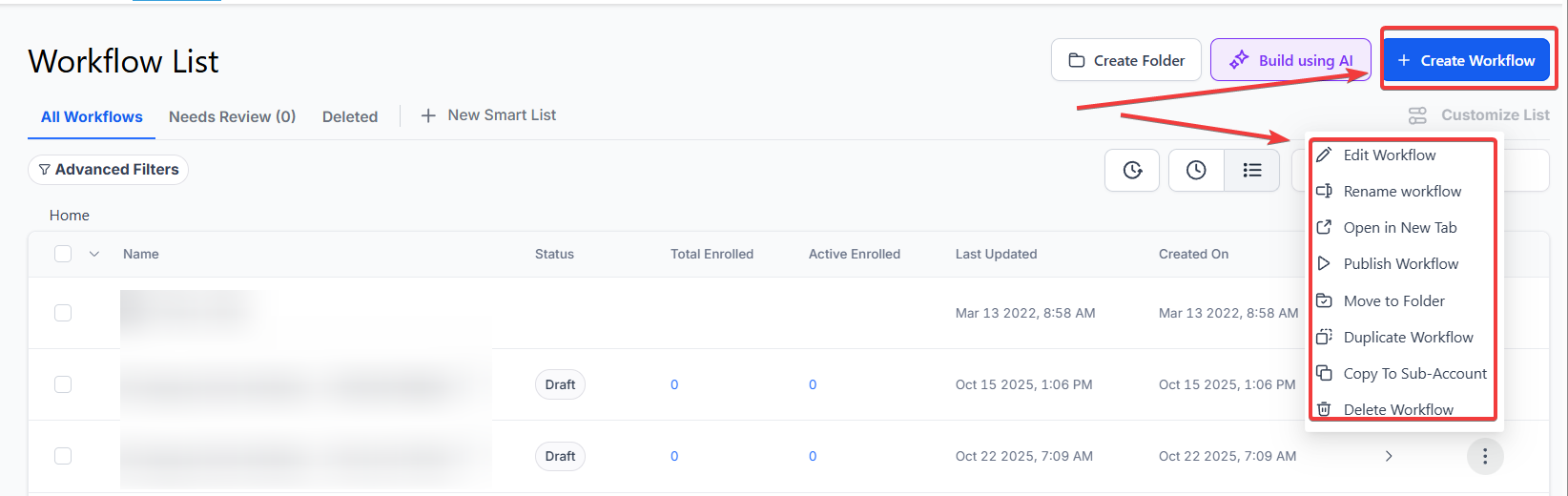
¶ Step 2: Set up applicable Workflow Trigger(s). We have multiple articles available to explain the setup of each of the Workflow Triggers. Feel free to review our articles for more information on setting these up.
Pro Tip: You can use any Workflow Trigger(s) to trigger the Call Action or leave this workflow without any triggers.
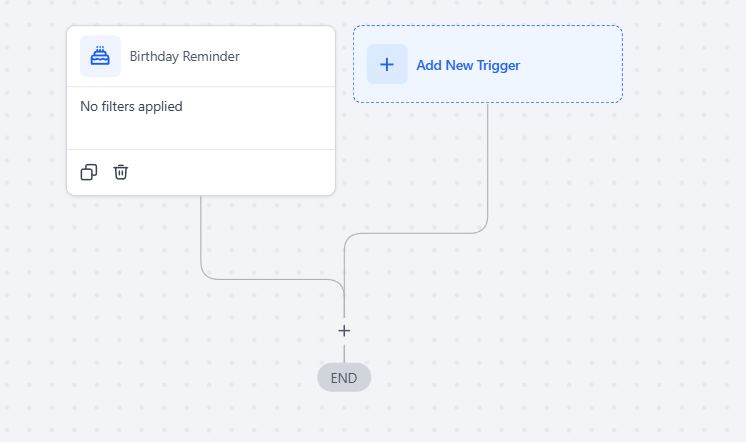
¶ Step 3: Setting up the Call Action
- Click on the “+” symbol below the trigger to add an action.
- Under Actions, select Call in the Actions section of the Actions Menu or use the search feature
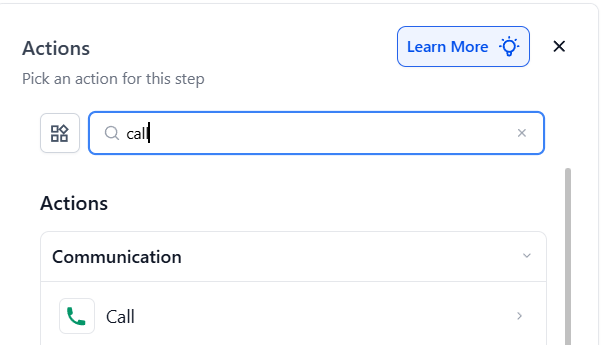
-
Customize the Call Action parameters
- Name the Action under Action Name or leave it as default (This will only appear within your workflow builder and doesn’t affect the workflow action itself)
-
The Call Whisper text box is there to choose an automated message that will be said on the phone to you before your call is connected to the applicable party. Type your chosen message in this box.
- If you leave the box blank, the default message will play. This message is, “You have a new lead, John Smith. Press any button to connect”
- You can customize each whisper message by clicking on the little tag image to the right of the text box, using custom fields in this text box.
- For example, you can have the message list the full name of a new lead who is calling you. This can add some relevant client information before connecting your call.
-
Set your Call Timeout (S) number. This is the number of seconds that the call will ring before routing to voicemail.
-
Set your toggle preference for the Disable Voicemail Detection toggle switch.
- Voicemail Detection is on by default. This detects whether someone answers the call or if the call gets routed to voicemail, but it causes there to be some delay for some other actions/settings.
- If you have this action followed by a prerecorded Voicemail Action, you would generally disable voicemail detection.
- If you have “Stop On Response” turned on in your Workflow Settings, then Voicemail Detection will differentiate between an answered call and a voicemail so that if the call is sent to voicemail the workflow is continued. In this case, if voicemail detection is disabled, then a call that is routed to voicemail will be considered to be a “response” and end the workflow.
- For more in-depth information about Voicemail Actions and Workflow Settings, see related articles in our Helpdesk.
-
When the Connect Call After Keypress is enabled (default), the system will wait for the agent to press any key to connect the call with the contact. When disabled, it will play the whisper message three times and automatically connect the call.
-
Press Save in the bottom right corner of the Action setup menu

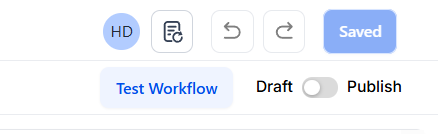
¶ Step 4: Press Save in the top right corner of your browser to save the workflow
- If your Workflow is ready to be enabled, make sure the toggle switch under Save is set to Publish
- Be sure to test your Workflow to ensure it is set up correctly using the Test Workflow button next to the Publish toggle switch.
- For an in-depth overview of Workflow Testing see our article, “Using the Testing Features in Workflows”
Now your Workflow is set up and ready to go with the Call Action
Example
Workflow Configuration Example:
- Trigger : “Appointment Confirmed” – The workflow is triggered when an appointment status changes to confirmed.
- Action : “Call” – Initiates a call to the assigned user to remind them of the upcoming appointment.
- Action Name : “Appointment Call Reminder”
- Call Whisper : “You have a new appointment scheduled with [Contact Name] at [Appointment Time]. Press any key to confirm.”
- Call Timeout : 30 seconds
- Disable Voicemail Detection : Enabled (for quicker connection)
- Connect Call After Keypress : Enabled (to ensure the call connects to a person)
Possible Triggers for This Action (not limited to):
- Appointment Confirmed : Automatically calls the assigned user when an appointment is confirmed.
- Lead Form Submitted : Initiates a call when a lead submits a form, such as the “First Contact Form.”
This configuration ensures proactive communication, ensuring that users are contacted during critical events like confirmed appointments or lead status changes, ultimately improving customer engagement and response time.
¶ FAQs
Question: What is the Call Action in workflows?**
**Answer: The Call Action automates phone calls to contacts based on specific triggers, allowing you to connect with clients and leads efficiently. It integrates with other actions like Voicemail.
Question: How do I customize the Call Whisper message?**
**Answer: You can enter a custom message in the Call Whisper text box. Use custom fields to personalize the message with specific client information.
Question: What is the purpose of Call Timeout?**
**Answer: Call Timeout determines how long the call will ring before being sent to voicemail. This setting helps manage how quickly calls are routed if not answered.
Question: When should I disable Voicemail Detection?**
**Answer: Disable Voicemail Detection if you are using a prerecorded Voicemail Action to prevent delays. If “Stop On Response” is enabled, voicemail detection helps continue the workflow if voicemail is detected.
Question: What happens if Connect Call After Keypress is disabled?**
**Answer: If disabled, the whisper message will play three times, and the call will connect automatically without waiting for you to press a key.
Question: Can I test the Call Action before publishing the workflow?**
**Answer: Yes, use the Test Workflow button to check that the Call Action is set up correctly and functioning as expected.
Question: Can I use the Call Action without a workflow trigger?**
**Answer: Yes, you can add the Call Action to a workflow with or without a specific trigger. If no trigger is used, the action will not be initiated automatically.
**Question: Can a Call Action be followed by other actions?
Answer: **Absolutely, you can sequence it with voicemail actions, notifications, SMS, email, or other workflow steps depending on the response.
Question: How does “Stop On Response” affect the Call Action?**
**Answer: If “Stop On Response” is enabled in your Workflow Settings, an answered call is considered a “response,” and the contact will be removed from the workflow. If the call is not answered and Voicemail Detection is on, the system knows it wasn’t a real response and can continue with follow-up actions like an SMS or a second call attempt.
Question: Can I route the Call Action to multiple team members at once?
Answer: To do this, you should first use the “Assign to User” action and select a User Group. If the group is set to “Round Robin,” the system will dial the next available agent. If you want everyone to ring at once, you would typically use a “Call Queue” configuration outside of the standard workflow call step.