¶ Workflow Action: Book Appointment
The Book Appointment workflow action allows users to automate appointment bookings seamlessly, integrating dynamic and standard scheduling options. This feature brings flexibility, enabling businesses to handle appointments more effectively by dynamically assigning time slots, overriding availability, and responding to booking statuses.
¶ Key Features and Benefits
- Automated Scheduling: Automatically book appointments directly through workflows without manual intervention.
- Dynamic and Standard Time Slots: Supports both fixed and dynamic time slot values, offering adaptability to varying requirements.
- Override Availability: Allows booking over unavailable slots when necessary, adding flexibility.
- Booking Success and Failure Conditions: Provides detailed status handling for every booking attempt, ensuring workflows adapt accordingly.
- Integration Options: Use data from external triggers, like webhooks, to schedule appointments dynamically.
¶ How to Use the Feature
- Access the Workflow Builder:
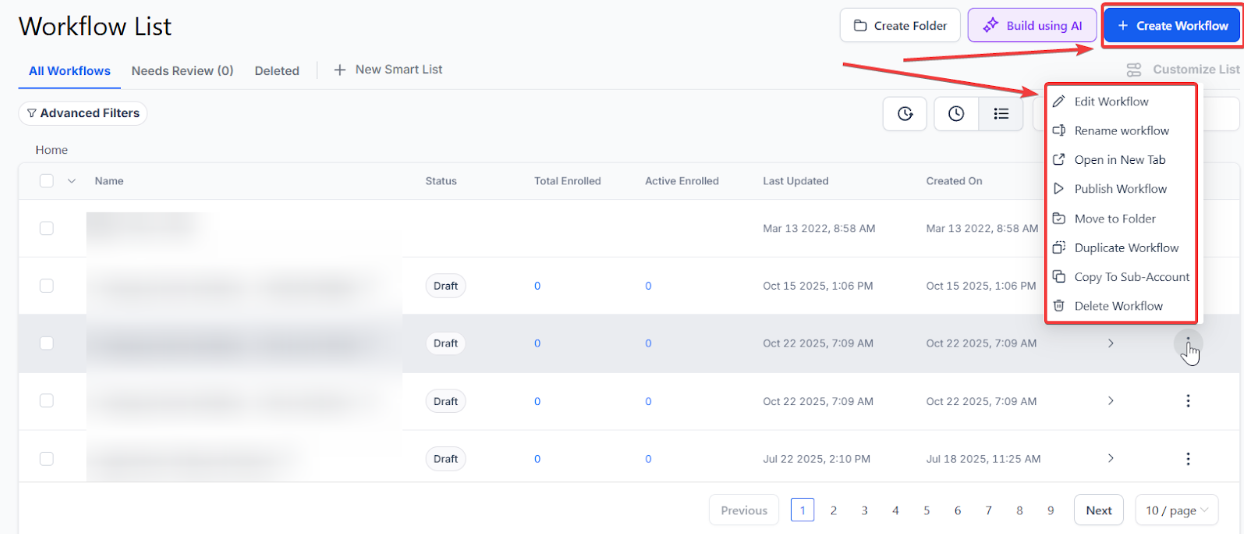
- Navigate to Automation on the left and Workflows on the top.
- Create a new Workflow or edit an existing one.
2. Add a Trigger:**
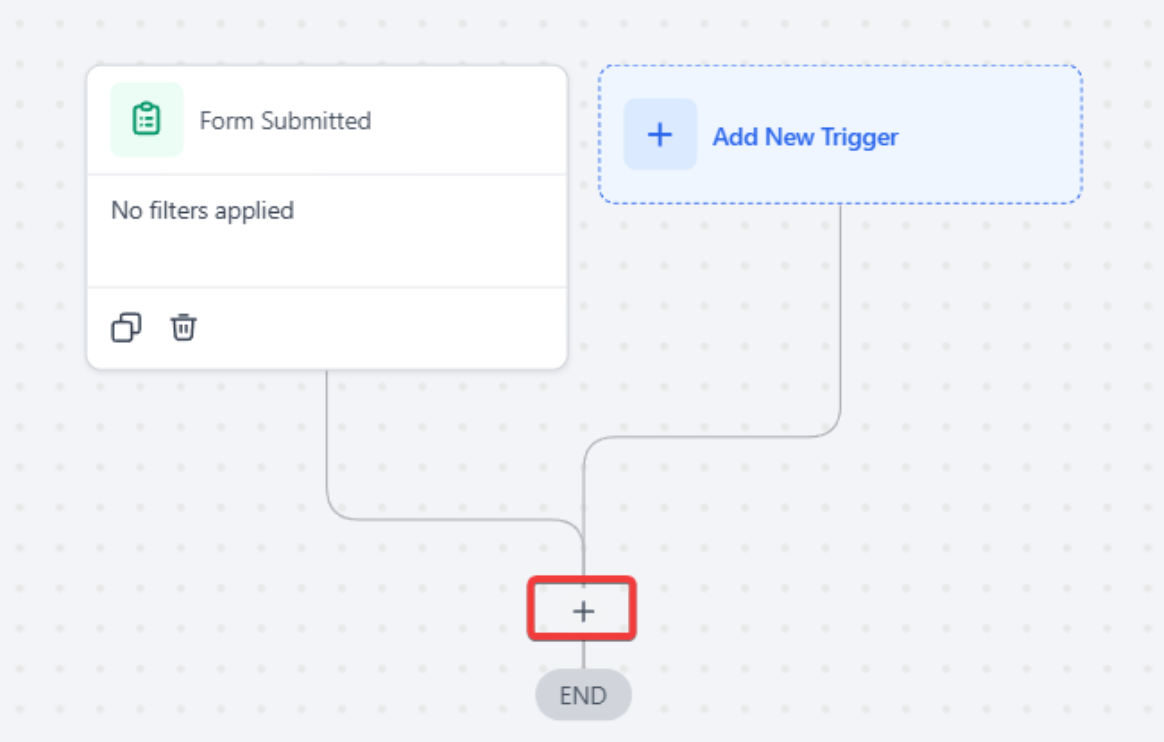
**Select a trigger, such as ‘Form Submitted’ or inbound webhook.
Note: You can add any trigger based on which you want to book the appointment in the workflow.
3. Select the Book Appointment Action:
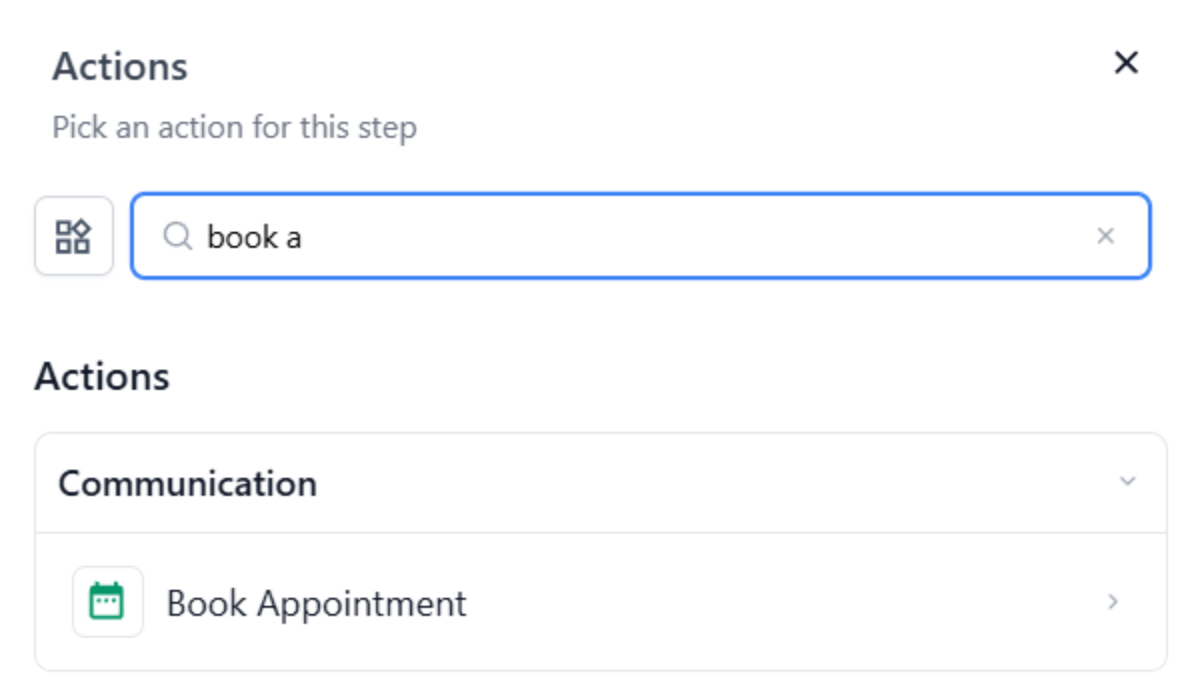
Click on the + symbol and add the “Book Appointment” action to the workflow.
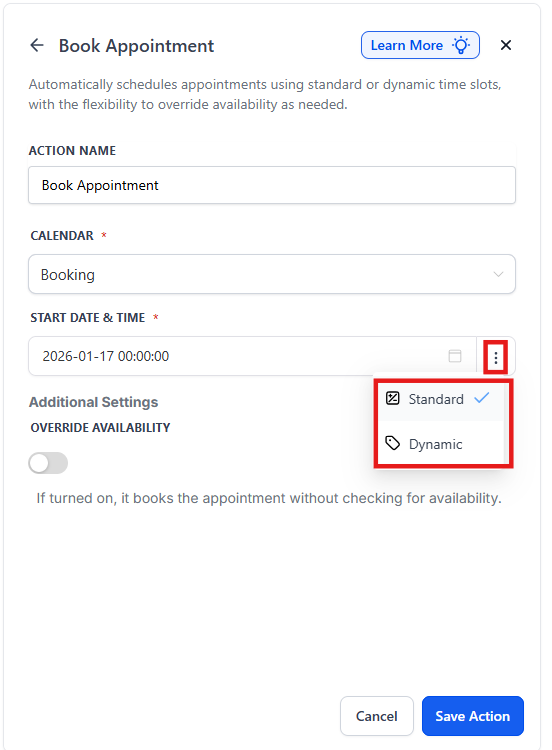
- Configure details like the calendar, date, and time slots.
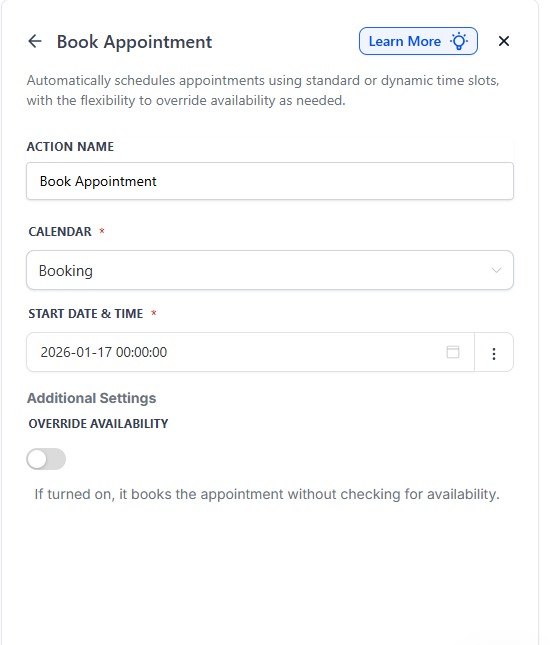
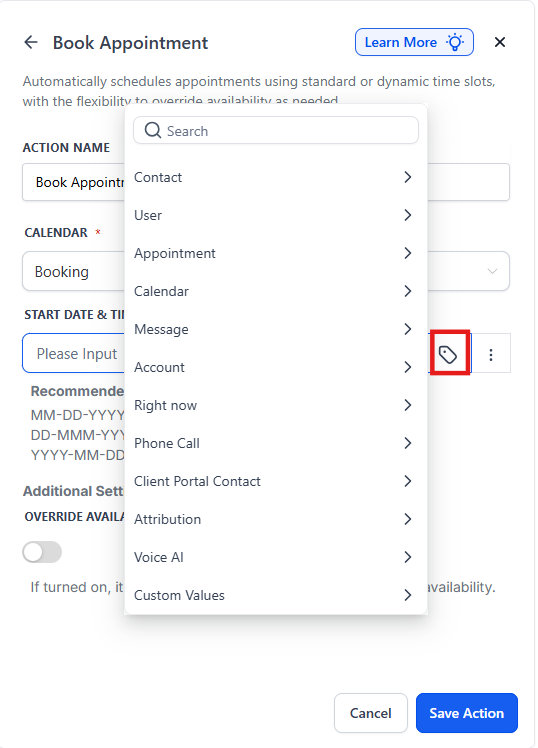
- Use standard time or dynamic values sent via the trigger.
- Dynamic values in the Book Appointment action allow you to schedule appointments based on real-time data from triggers like webhooks or form submissions. For example, if a webhook sends a specific date and time from an external system (e.g., a customer booking through a third-party app), the workflow can automatically use these values to create an appointment. This ensures seamless integration and eliminates manual data entry for scheduling.

4. Override Availability (Optional):
Enable the override toggle to book appointments in unavailable time slots when required.
5. Assign Team Members:**
**Specify whether team members will handle the appointment or leave it dynamic for automatic allocation.
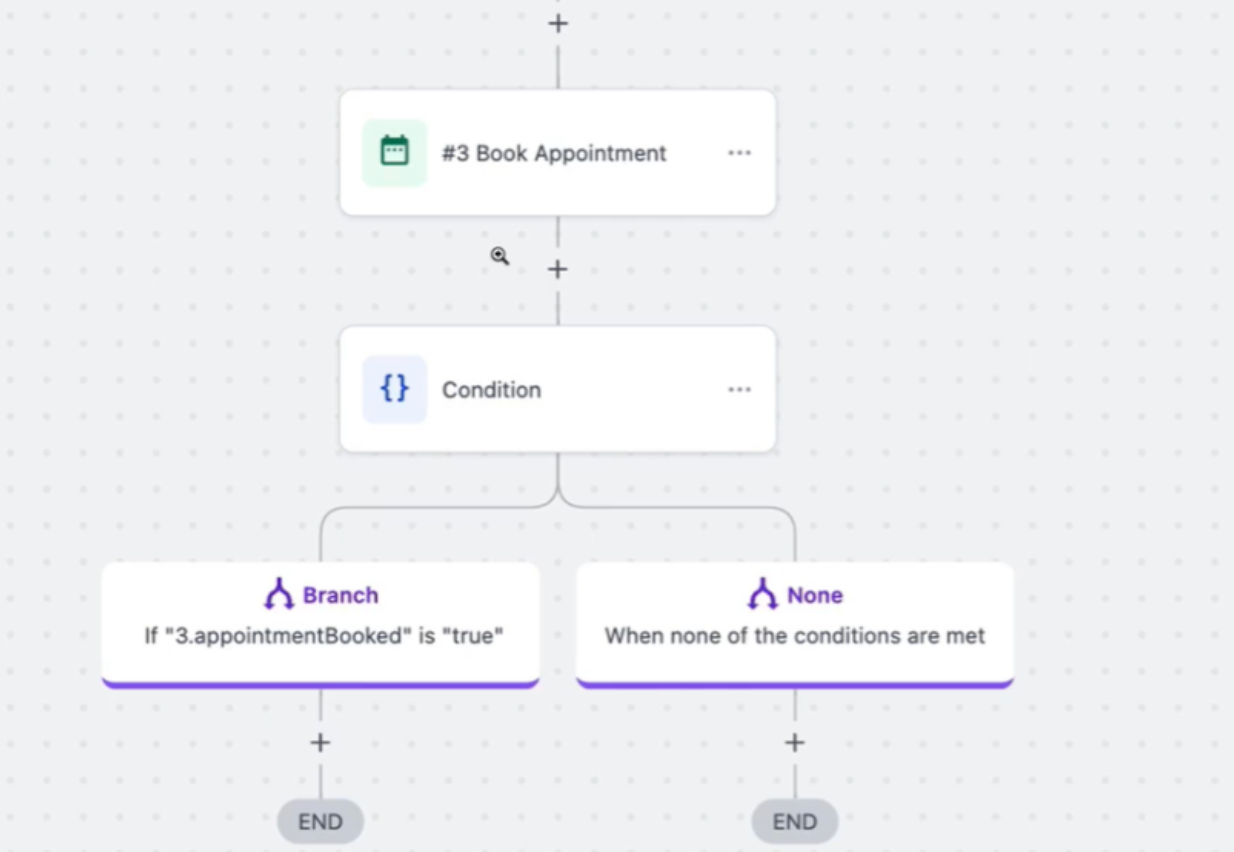
- Set Success and Failure Paths:
- Configure actions based on whether the appointment is successfully booked or not.
- Use conditional logic to manage alternative workflows.
¶ Pro Tips
- Leverage Dynamic Values: Use data from webhooks to automate appointments for specific times.
- Handle Overlapping Events: Use the override feature judiciously to prevent overbooking critical slots.
- Monitor Workflow Performance: Regularly review logs to ensure bookings are being handled efficiently.
¶ FAQs
Question: Can I override calendar availability for specific bookings?**
**Answer: Yes, the override option allows you to book appointments in unavailable slots when necessary.
Question: How do I set up dynamic booking times?**
**Answer: You can use data sent via triggers, such as webhooks, to define appointment times dynamically in the workflow.
Question: What happens if a booking fails?**
**Answer: The workflow provides failure status handling, enabling you to configure alternative actions like sending notifications.
Question: Are team members automatically assigned to appointments?**
**Answer: You can configure team assignments dynamically or manually specify members in the workflow settings.
Question: Is it possible to cancel or reschedule an appointment using workflows?**
**Answer: This action focuses on booking appointments. Cancellation or rescheduling requires separate workflow actions or manual updates, depending on your system setup.
Question: What are the benefits of using “Dynamic Values” instead of “Standard Time”?
Answer: Dynamic values allow the system to schedule appointments based on real-time data from the trigger (like a date a customer typed into a form), which eliminates the need for manual data entry and ensures the booking matches the customer’s specific request.