¶ Workflow Action: Assign To User
Workflow Action: Assign To User
Efficient lead management is crucial for any organization aiming to optimize its sales processes. One effective strategy is to use workflows to assign new leads to users in a round-robin style automatically. This ensures an even distribution of leads among team members and helps streamline communication. This article will guide you through setting up a workflow to automatically assign leads and notify users about their new assignments.
¶ How to Automatically Assign Users to Leads In Workflows
¶ Step 1: Create a New Workflow
-
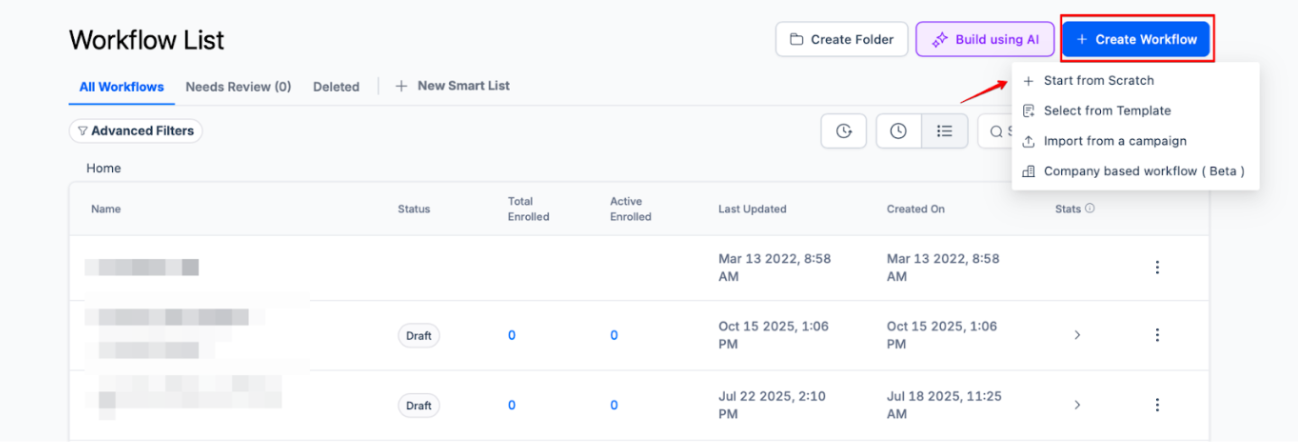
Navigate to the Automations section and select Workflows.
-
Click the Create Workflow button.
-
Choose the Start from Scratch option to begin building your workflow from the ground up.
¶ Step 2: Add a Trigger
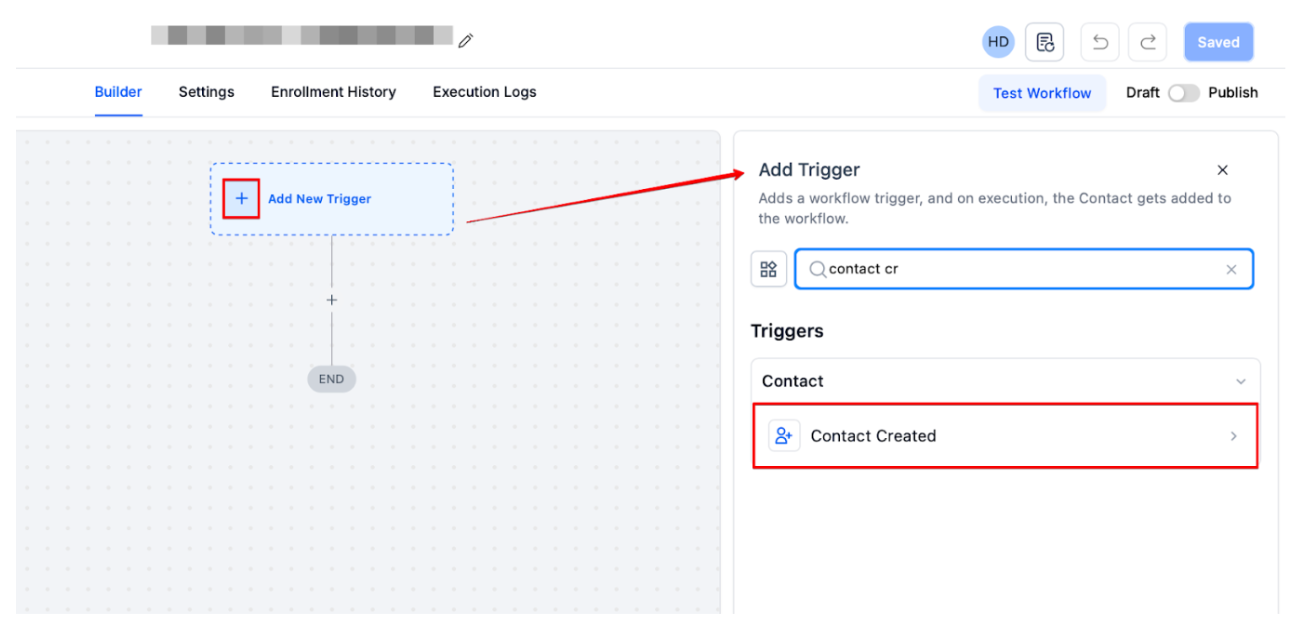
- Define a trigger to activate the workflow. For simplicity, select contact created as the trigger. This setup ensures that the workflow initiates every time a new contact is added to the system.
¶ Step 3: Assign Users
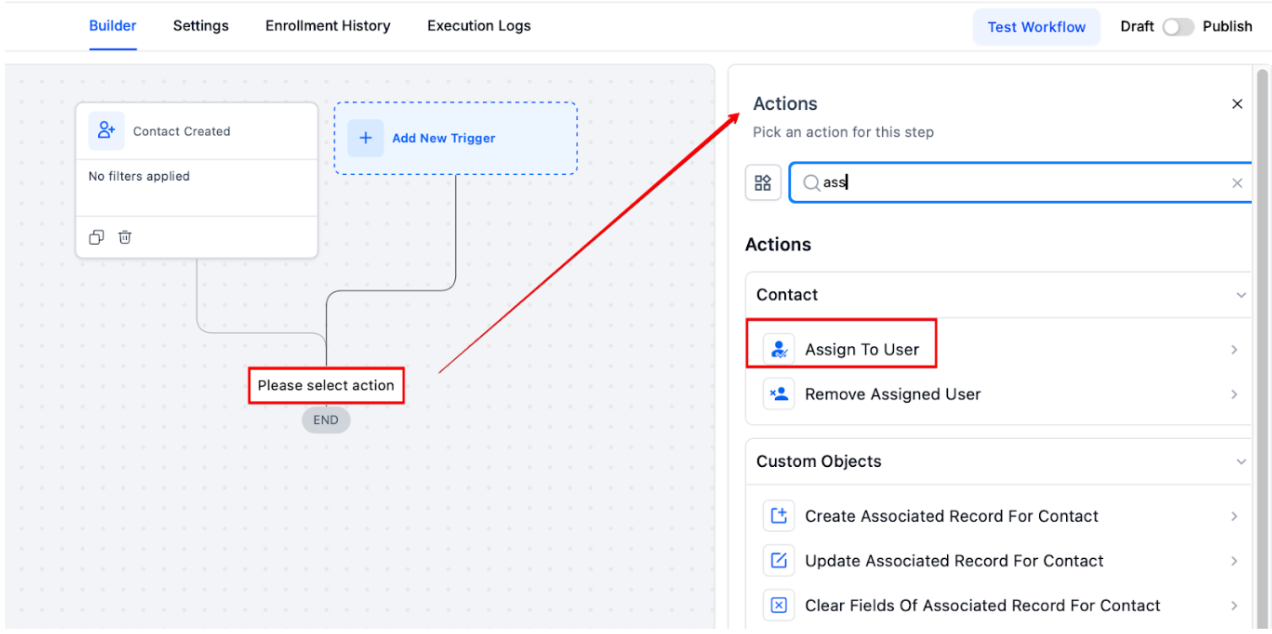
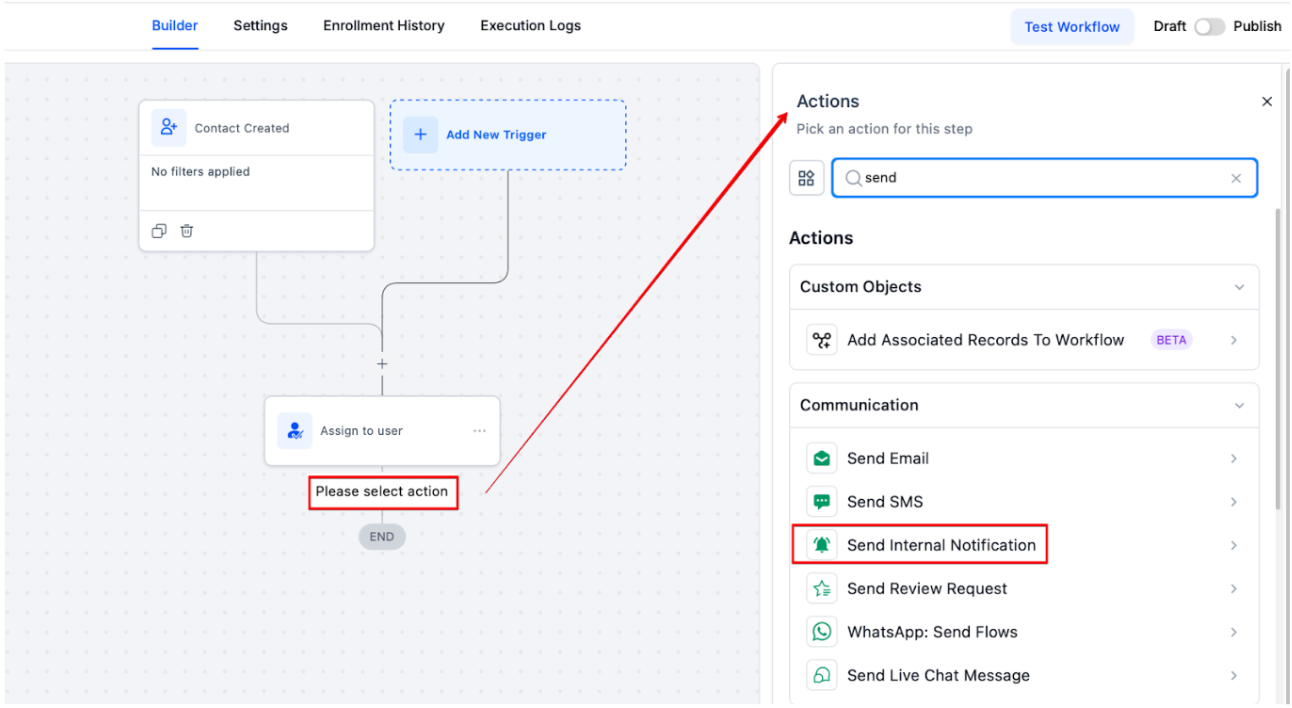
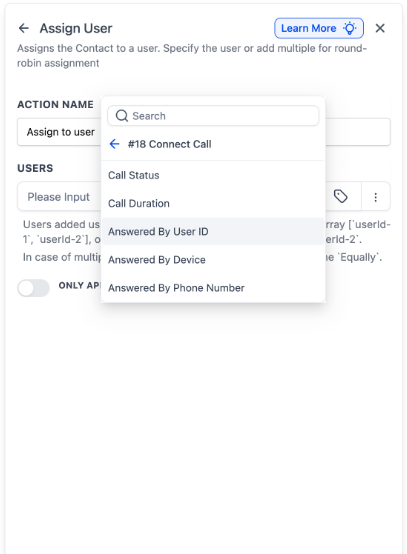
- Add the Assign to User action to the workflow. This feature allows you to assign new contacts to users in a round-robin manner.
-
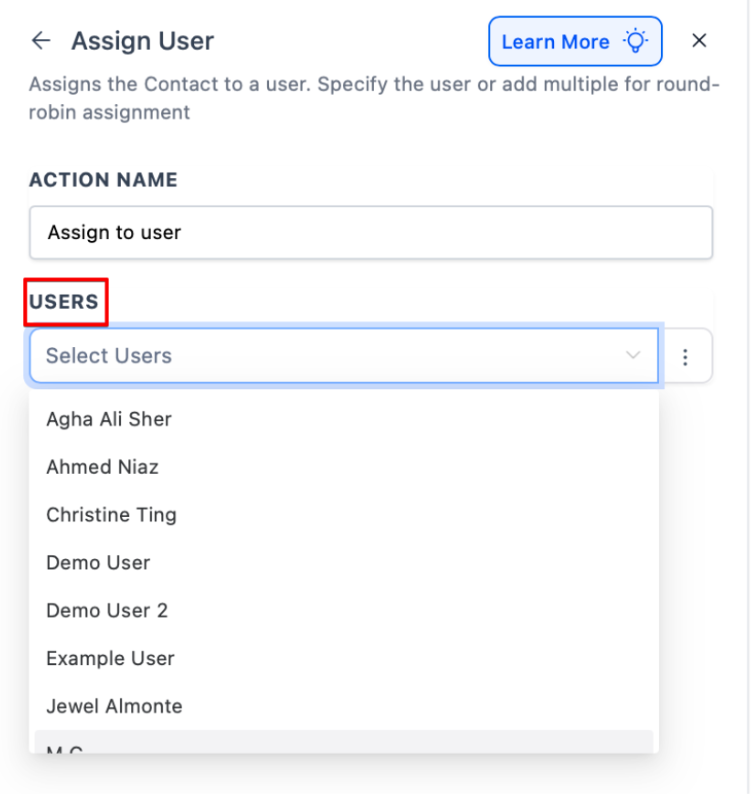
Customize the distribution settings:
- Select users from the sub-location to include in the round-robin.
¶ Step 4: Notify Assigned Users
- Add the Internal Notification action to the workflow. This action notifies users about the new leads they are assigned.
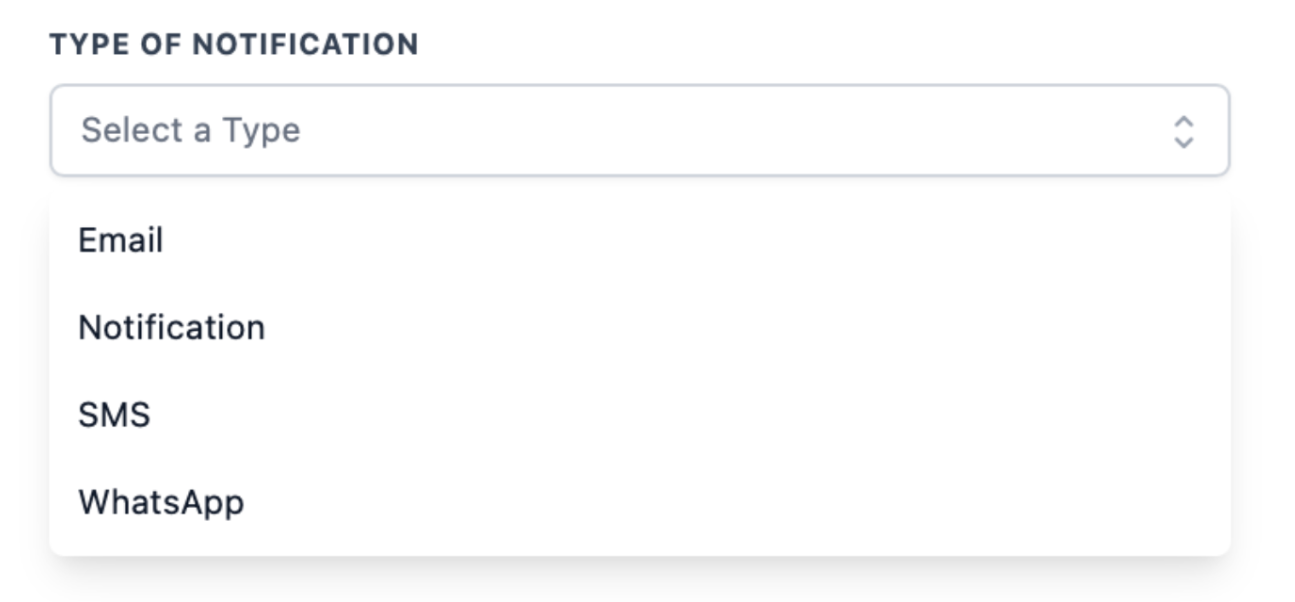
- Choose the notification channel(s):
- Select from in-app notifications, SMS, or email.
- Use multiple channels if necessary to ensure prompt delivery.
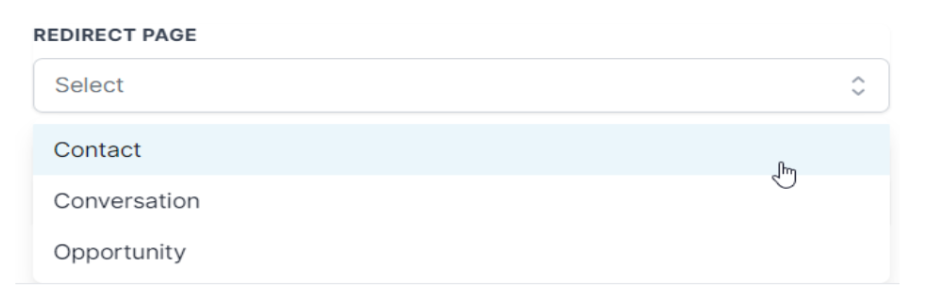
- In the Redirect Page option, select where the user will be redirected when they click the notification. Typically we recommend the Contact or Conversation.
- Under user type , select assigned user to ensure notifications are sent only to the designated user.
- Make sure the Internal Notification action is placed after the Assign to User action in the workflow sequence to ensure accurate notifications.
¶ Step 5: Publish and Save
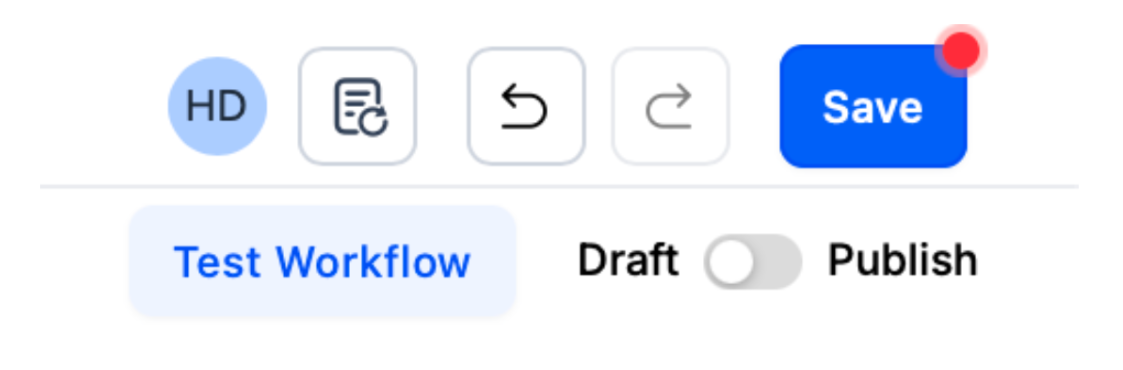
- After configuring the trigger, user assignment, and notification actions, enable the Publish toggle at the top right of the screen.
- Click Save to activate the workflow and start automatically assigning leads.
¶ Pro Tips
- Review User Roles: Ensure that user roles and permissions are correctly set up in the system to avoid any issues with lead assignment and notifications.
- Test the Workflow: Before fully deploying the workflow, test it with a few sample leads to confirm that the round-robin assignment and notifications work as expected.
¶ Use Case
Customer Onboarding
- Scenario: A company is onboarding new customers and wants to assign onboarding specialists to each new customer based on availability.
- How It Works: New customers are assigned to onboarding specialists in a round-robin manner, ensuring each specialist has an equal number of onboarding tasks and no one is overloaded.
¶ FAQs
Question: How does the round-robin assignment work?**
**Answer: The round-robin assignment evenly distributes new leads among selected users. Each new lead is assigned to the next user in line, ensuring an equitable distribution.
Question: Can I assign leads to users based on specific criteria?**
**Answer: While this setup focuses on round-robin distribution, more advanced workflows may allow for criteria-based assignments depending on user roles and lead attributes.
Question: What happens if a user is unavailable?**
**Answer: If a user is unavailable or removed, the workflow will automatically reassign leads to the remaining users in the round-robin setup.
Question: Can I modify the workflow after publishing?**
**Answer: Yes, you can edit the workflow at any time. However, ensure that changes are saved and published so that they can be applied to new leads. However, if you make changes to a workflow, the changes will not reflect on the leads currently added to the workflow. You might need to re-add them to the workflow to reflect the changes on them.
Question: What happens if no users are selected in the rotation list?**
**Answer: The workflow cannot assign owners without users defined. Make sure at least one active user is added to the round-robin list.
Question: Can I pause lead assignments temporarily?
Answer: Yes. You can disable the workflow at any time by turning off the Publish toggle. Lead assignment will resume once the workflow is re-enabled.
Question: Where is the best place to send a user when they click on a lead notification?
Answer: It is typically recommended to redirect the user to either the Contact or Conversation page to ensure they can immediately access the necessary lead details.