Setting up an SMTP provider can greatly improve your email deliverability and ensure that emails sent from your system are processed through a reliable and trusted email service. However, issues can arise during the integration process. This guide will walk you through common issues and solutions related to SMTP provider setup, helping you troubleshoot and resolve any problems with your email configurations
Answer:**
**Setting up Gmail or Google Workspace (formerly G Suite) as your SMTP provider requires specific configurations to ensure emails are sent securely and efficiently.
How to fix it:
1. Navigate to Settings > Email Services > Add New Service.
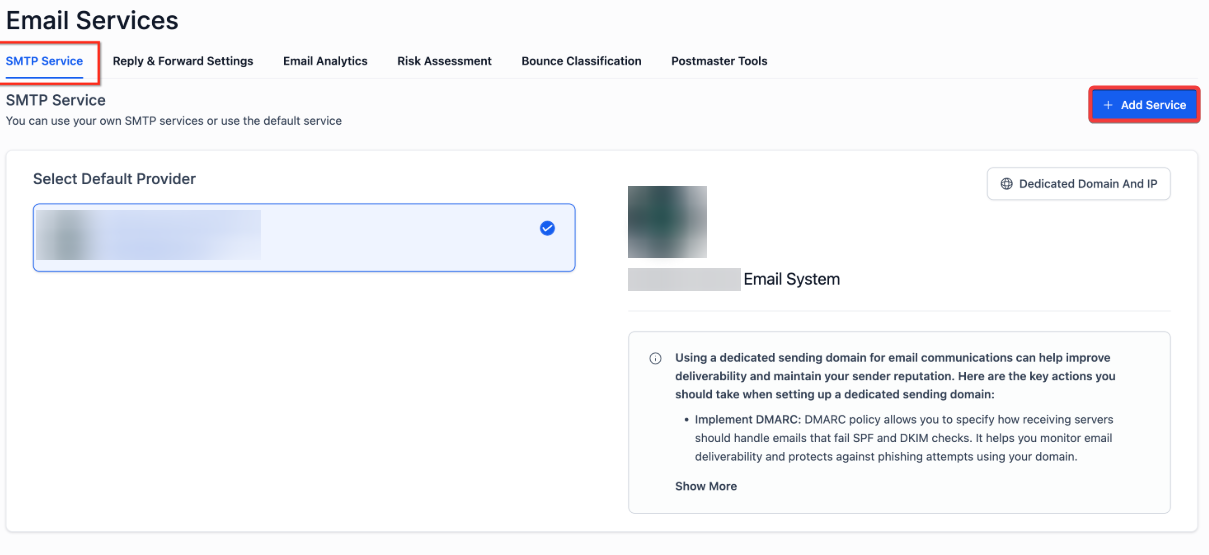
2. Select Google/Gmail from the available providers.
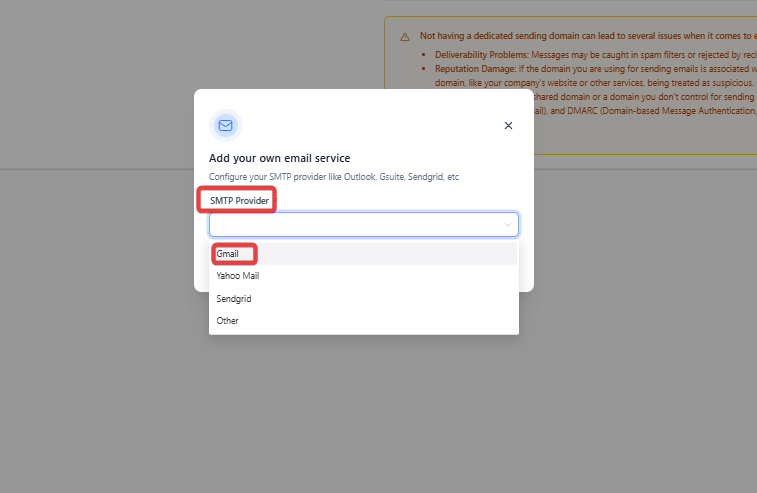
3. Follow the on-screen instructions to authenticate and link your Gmail account.
4. Test the SMTP connection to ensure it’s working correctly by sending a test email.
Fix : If you encounter issues, ensure that 2-step verification is disabled and that you have entered the correct SMTP server address and port for Gmail.
Answer:**
This issue arises due to changes inMicrosoft’s security** for third-party applications. Even with 2-step verification off, Microsoft now requires SMTP Authentication to be enabled for third-party email services.
How to fix it:
Fix : After enabling SMTP authentication, your integration should work without errors. If the issue persists, contact Outlook support for further troubleshooting.
Answer:**
Amazon SES requires correctIAM credentials** and proper DNS configuration for email delivery. If emails are not being sent, it could be due to missing or incorrect settings.
How to fix it:
Fix : Ensure all credentials are accurate and that you have production access if necessary. Check SES logs for additional error details.
Answer:**
Free email services like Gmail often havelimitations** when used for SMTP integrations, especially when sending a high volume of emails. These services may block or restrict your account if they detect suspicious or mass emailing activity.
How to fix it:
Fix : For better reliability, consider using dedicated email services like Mailgun or SendGrid for higher email volume.
Answer:**
If your emails are not being delivered after setting up your SMTP provider, the issue could lie withDNS settings** , incorrect email configurations , or sending limits imposed by your email provider.
How to fix it:
Check DNS Records :
Test SMTP Settings :
Verify Sending Limits :
Check Email Content :
Fix : Make sure all DNS records are properly configured, SMTP settings are correct, and you’re within sending limits. If the issue persists, contact support for assistance.
Question: What ports should I use for different SMTP providers?**
Answer:
**Different providers use specific ports for secure email delivery:
Fix: Always use the correct port based on your provider’s security protocol to avoid connection errors.
Question: How can I test if my SMTP integration is working correctly?
Answer:**
**Send a test email from the SMTP settings page. If it’s delivered successfully, the configuration is correct.
Tip: If the test fails, recheck credentials, ports, and DNS records.
Question: I’ve entered all my credentials correctly, but I still get a “Connection Timed Out” error. What is wrong?
Answer: A “Connection Timed Out” error usually means your server or local network is being prevented from reaching the SMTP provider’s server. This is often caused by a firewall or your hosting provider blocking the specific ports required for email (like 25, 465, or 587).
How to fix it:
Fix: If the connection times out, try switching between Port 587 (TLS) and Port 465 (SSL). If neither works, contact your network administrator or hosting provider to confirm that outbound mail traffic is allowed.
Question: Does using a custom SMTP affect my “Unsubscribe” links?
Answer: No. Your system will still generate and manage the unsubscribe links. However, using a custom SMTP ensures that the “From” address matches your domain, which builds trust with your recipients and reduces the likelihood of them clicking the “Report Spam” button.