¶ Troubleshooting Guide: Adding a Product to a Funnel or Website
Adding products to your funnels or websites is essential for processing transactions and ensuring your offers are presented clearly. This guide addresses common troubleshooting questions when adding products to a funnel or website, walking you through the steps and offering fixes for potential issues.
¶ FAQ: Troubleshooting How to Add a Product to a Funnel or Website
Question: How do I add a product to my funnel or website?
Answer:**
**To add a product to your funnel or website, follow these steps:
-
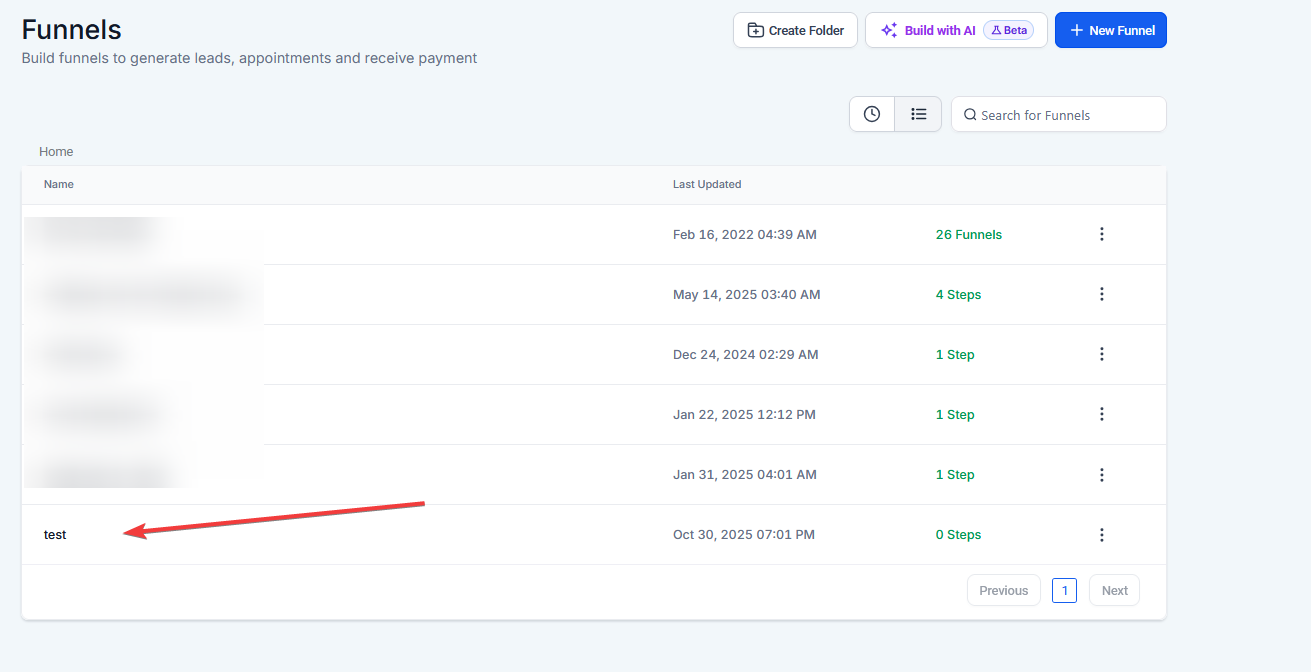
Navigate to the Funnel Page :
- Go to the funnel you want to add a product to and open the order form page (either one-step or two-step)
-
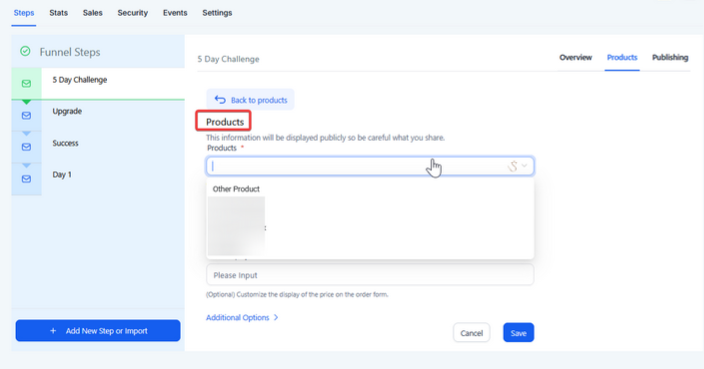
Go to the Products Tab :
- Click on the Products tab within the funnel editor to start the process of associating a product with the funnel.

-
Click on Add Product :
- Select Add Product , and choose the product from the list of available products in your system.
-
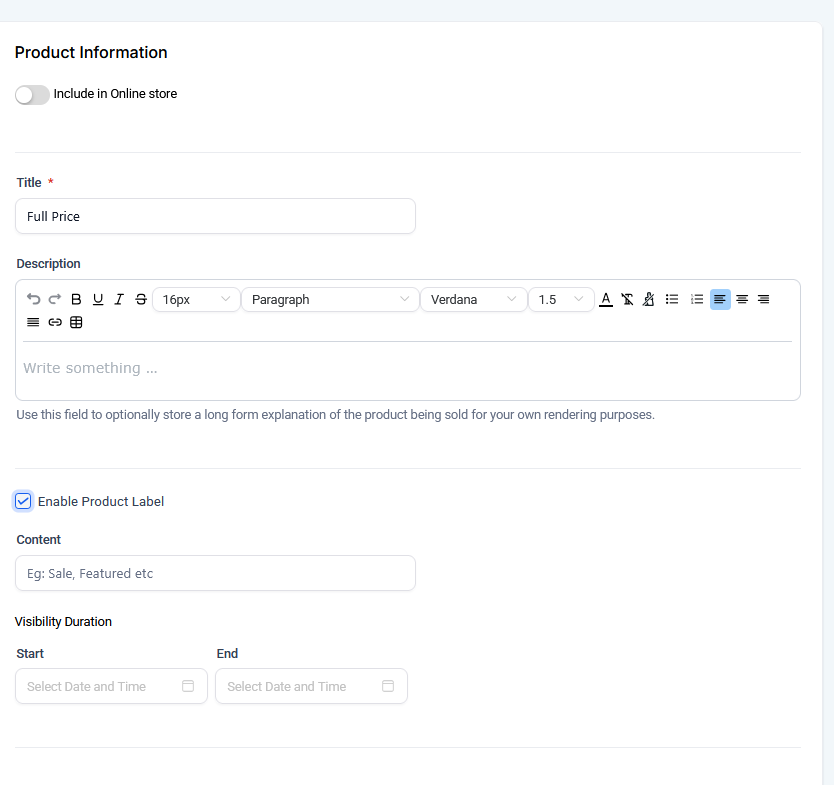
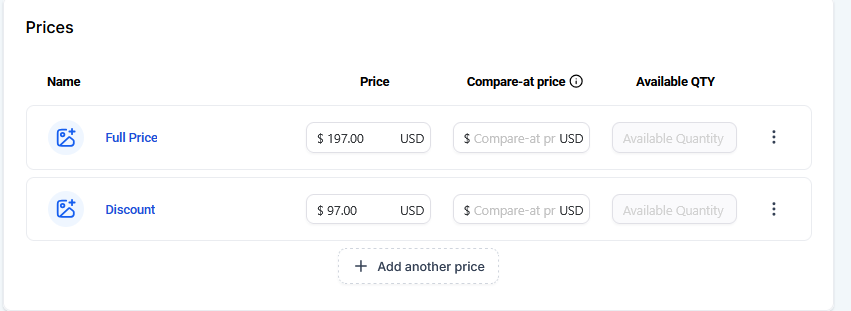
Select Price & Set Additional Options:
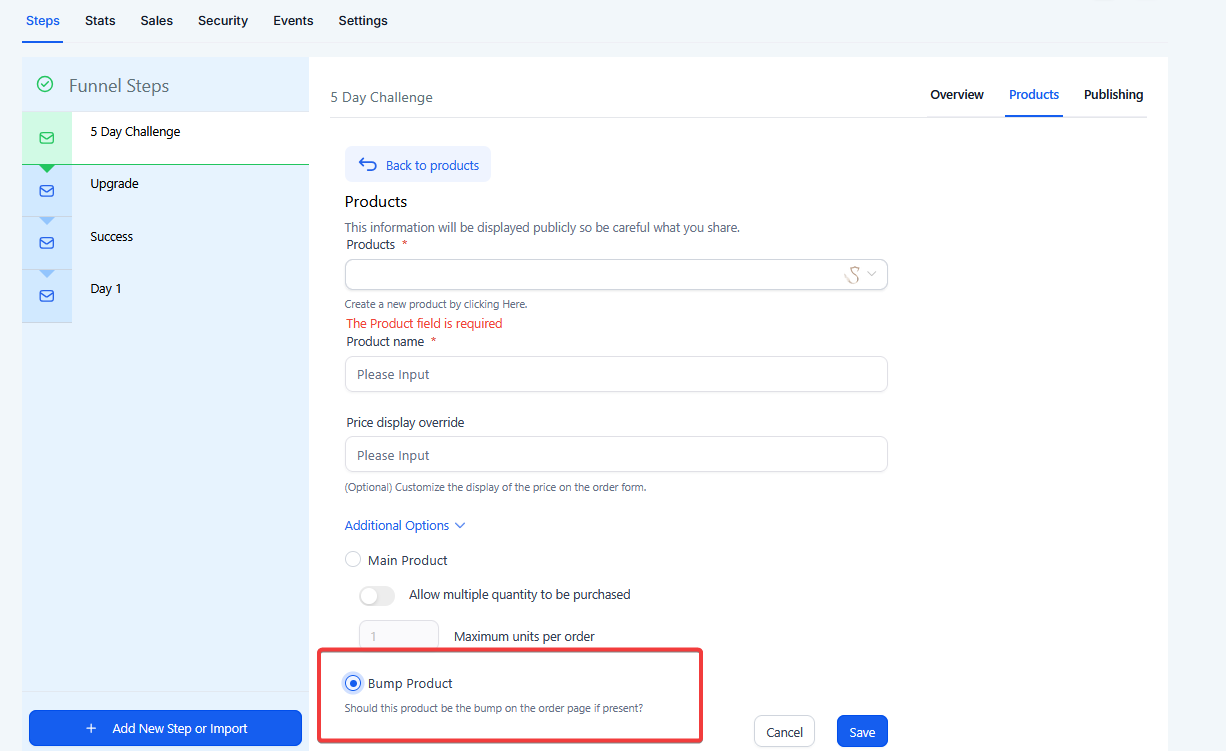
- Choose the price for your product, and decide if you want to set a main product or order bump. An order bump is an additional offer that is typically added during checkout.
-
Customize the Product :
- Optionally, provide a custom display name for the product and set quantity limits if needed.
-
Save and Publish :
- After selecting and customizing the product, click Save and Publish your funnel.
Fix : If the product is not appearing, ensure that the product is properly created and published in the Products tab before adding it to the funnel.
**Question:My product isn’t appearing in the product selection dropdown. What should I do?
Answer:
**If the product doesn’t appear in the dropdown when trying to add it to the funnel, follow these troubleshooting steps:
-
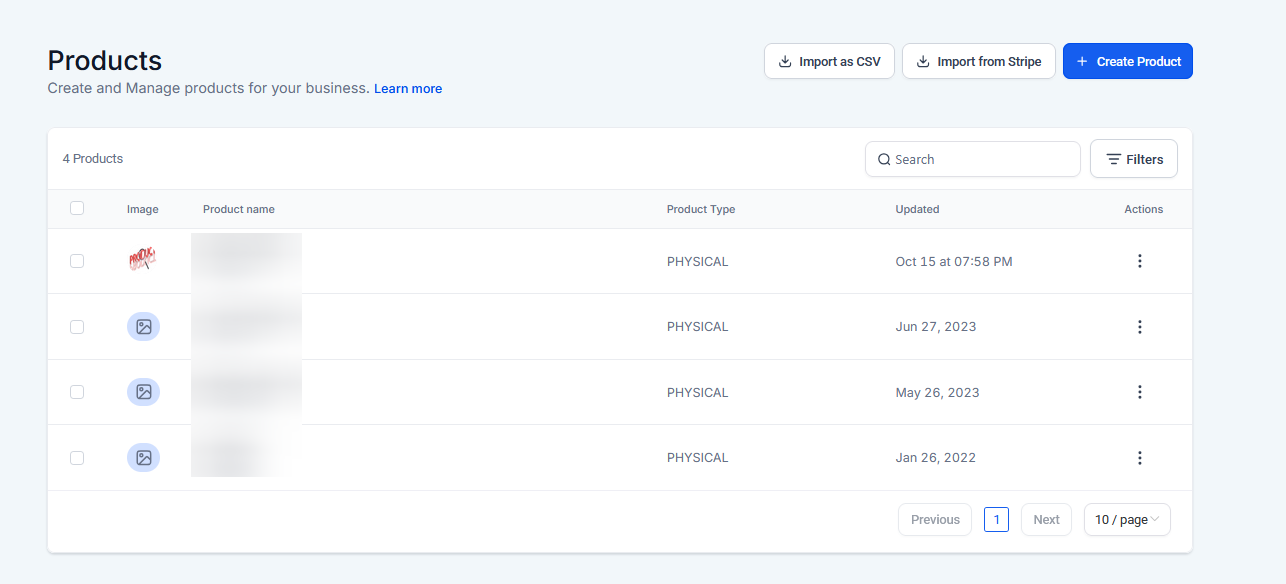
Check the Product Creation Process :
- Go to the Products section in your Payments tab and ensure the product is created and published.
-
Verify Product Status :
- Ensure that the product is set to the correct Variant type (e.g., size, color). Only published products will appear in the dropdown for funnel integration.
-
Refresh Your Settings :
- Try refreshing the page or logging out and logging back in to reset any possible glitches in the product list.
Fix : After confirming the product is properly published, it should appear in the funnel’s product selection dropdown.
Question: How do I set an order bump in my funnel?
Answer:**
Anorder bump** is an additional product or service offered at checkout. Here’s how to set one up:
-
Go to the Products Tab :
- In your funnel editor, go to the Products tab and add your primary product.
-
Select Order Bump Option :
- For any additional products, select the Order Bump checkbox when adding the product to your funnel.
-
Customize the Order Bump :
- Give it a headline, description, and set the price. The order bump should be presented but separate from the main product.
-
Set Purchase Quantity Limit :
- You can set quantity limits if you want to restrict the number of order bump products a customer can purchase.
-
Save and Publish :
- Once the order bump is set up, click Save and Publish your funnel.
Fix : If the order bump option isn’t showing, ensure that it is correctly marked as an order bump during product selection and that the product is saved.
¶ Question: My product page isn’t showing the updated pricing or order bump. How can I fix this?
Answer:**
**If the page isn’t reflecting the changes, such as updated pricing or the addition of an order bump, follow these troubleshooting steps:
-
Double-Check Your Pricing Settings :
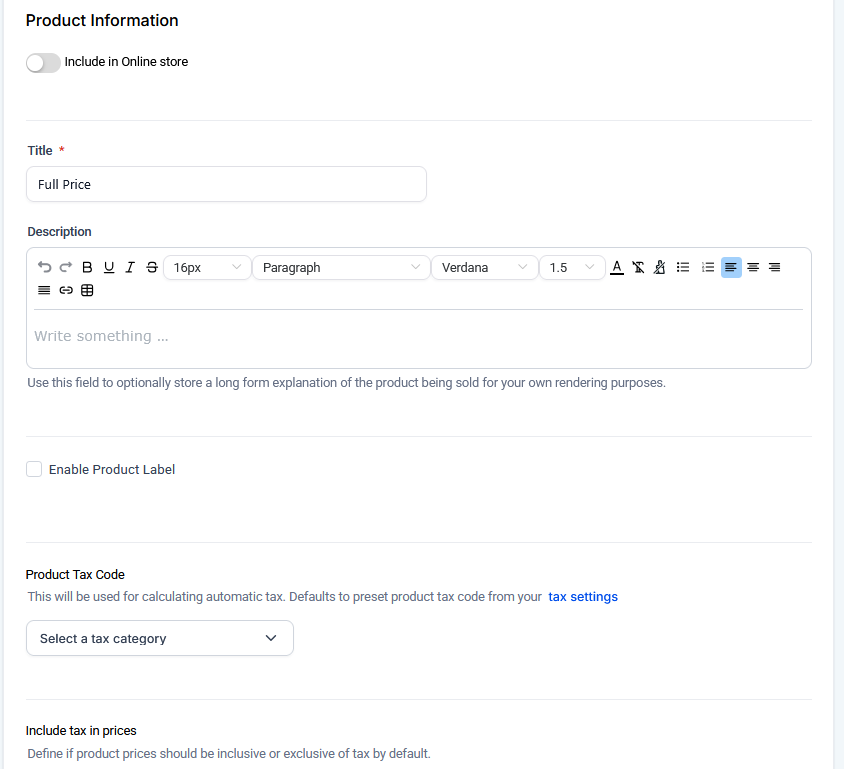
- Ensure that the price for the product is correctly set in the Product Details section and that the price override is set if needed.
-
Verify Cart Mode :
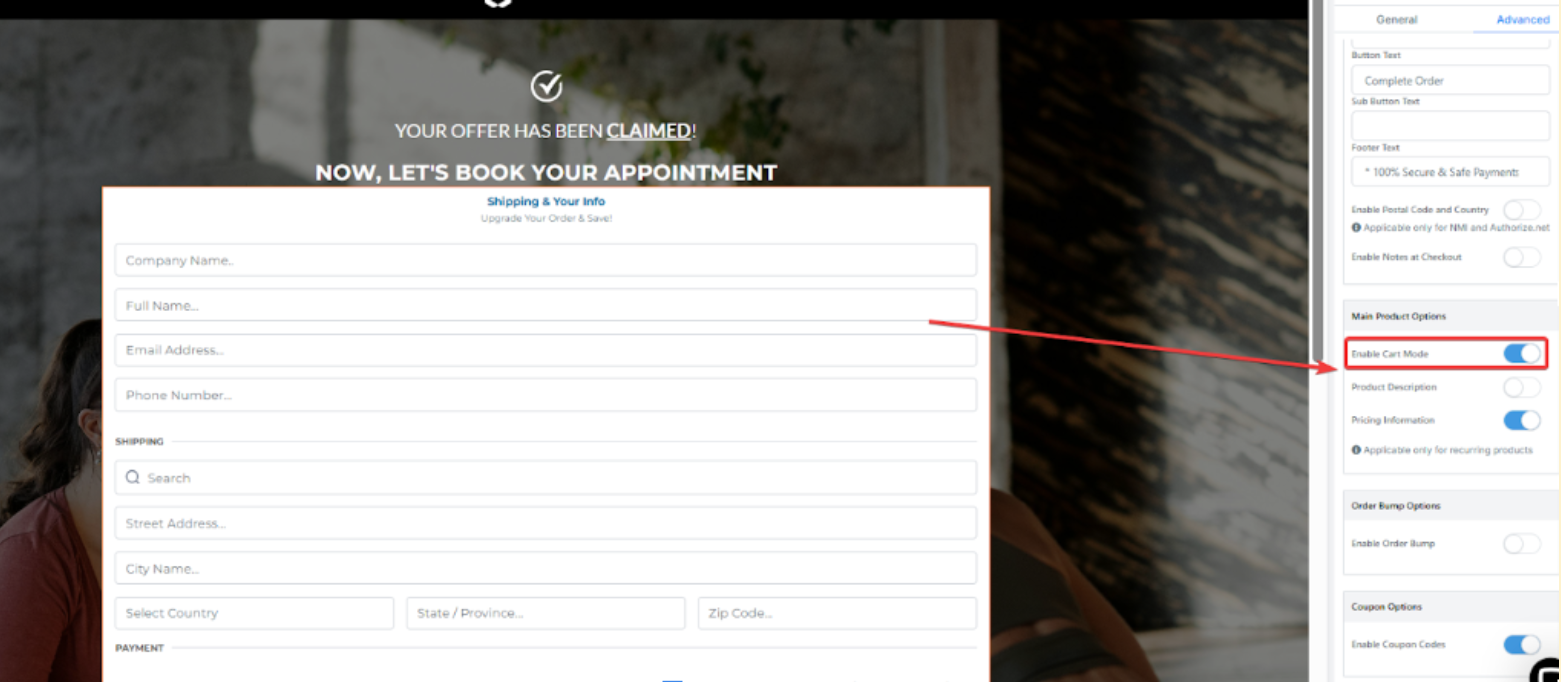
- Check if cart mode is enabled in the funnel settings. If cart mode isn’t enabled, it will show only one product option (without the ability to choose between products). For this edit an existing funnel>add in a one-step or two-step order form and enable card mode from the right menu
-
Ensure Proper Funnel Page Updates :
- After editing the funnel and adding the product, click Save and Publish again to make sure the changes are applied to the live page.
Fix : If the product or pricing isn’t updating, make sure to refresh the page and republish the funnel to reflect all changes.
¶ Question: I’m unable to remove a product from my funnel. What should I do?
Answer:**
**If you need to remove a product but cannot, follow these steps:
-
Access the Product Tab :
- Open your funnel editor and navigate to the Products tab where the products are listed.
-
Select the Product to Remove :
- Click on the product you wish to remove.
-
Click Delete :
- Look for the Delete option (trash icon) next to the product name, and click it to remove it from your funnel.
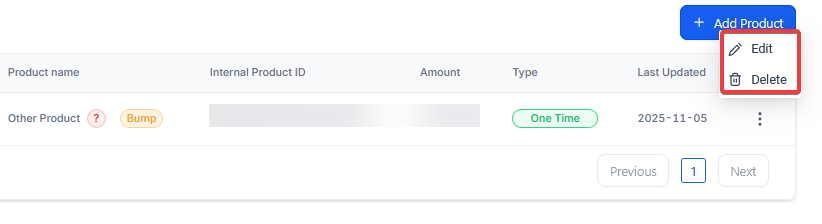
Fix : If the product doesn’t delete, ensure the funnel is not in draft mode , and that the product is not linked to any active workflows.
Question: Why is my product showing “No Payment Method Available” on the live page?
Answer:
If your product is correctly added to the funnel but visitors see an error message regarding payment methods, it usually means the backend payment processor is not properly synced. Follow these steps:
- Check Integration Status: Navigate to Payments > Integrations and ensure your payment processor (e.g., Stripe, PayPal, or Authorize.net) is “Connected” and not in “Test Mode” unless you are performing a trial run.
- Verify Currency Consistency: Ensure the currency of the product (e.g., USD) matches the currency supported by your integrated payment gateway.
- Toggle Live/Test Mode: If you are testing the funnel, ensure the funnel page settings are set to Test Mode. If you are ready for sales, ensure both the funnel and the payment gateway are set to Live Mode.
Fix: If the error persists, disconnect and reconnect your payment gateway integration to refresh the API connection between your system and the processor.
Question: Can I limit a product to one purchase per customer?
Answer: Yes. When adding a product to your funnel, you can set a Quantity Limit. If you set this to “1,” the system will prevent the customer from increasing the quantity in their cart, which is ideal for digital courses or exclusive memberships.