Overview of Error Codes and Their Resolution
This article provides insights and solutions for specific error codes exclusive to our WordPress hosting system. By understanding the nature and remedial steps for each error, you can quickly resolve issues to maintain a smooth operation.
Detailed Explanation and Solutions for Common Error Codes
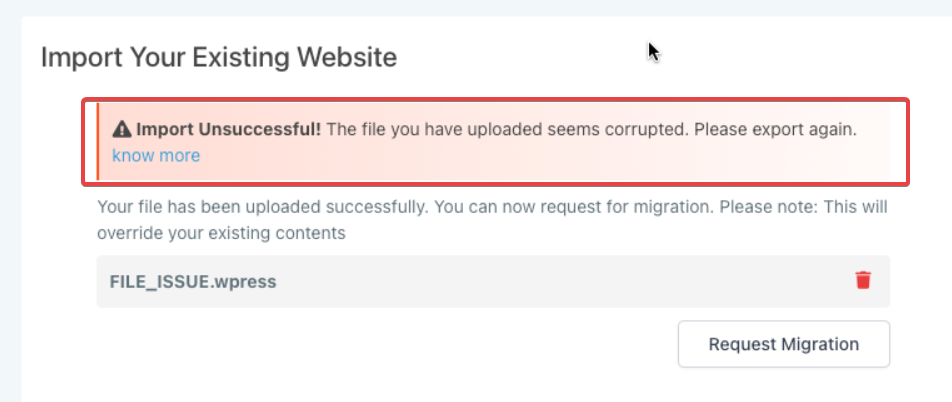
1- File Corrupted :
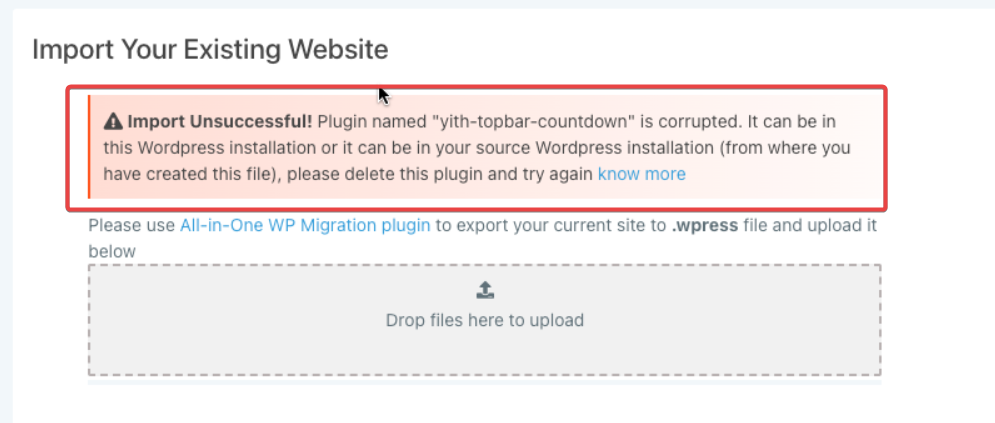
2- Plugin Issue :
3- Unknown Error (Potential Plugin and File Corruption) :
FAQs
Question: What should I do when I see a file corruption error?**
**Answer: Delete the corrupted file from your WordPress installation and attempt to import or use the file again.
Question: How do I handle errors related to corrupted plugins?**
**Answer: Remove the corrupted plugin from your WordPress setup and reinstall it or replace it with an alternative if necessary.
Question: What steps should I take if both file and plugin errors appear?**
**Answer: First, address the plugin error by deleting the corrupted plugin. If the error message then shifts to file corruption, remove the problematic file as well.
Question: What should I do if I encounter an “Unknown Error”?**
**Answer: An “Unknown Error” may point to a plugin or file corruption. First, remove any corrupted plugins, then if the issue persists, delete the corrupted file and try importing again.
Question: Can plugin conflicts cause these error codes?**
**Answer: Yes. Sometimes plugins conflict with each other or with your WordPress version, resulting in corruption errors. Try disabling all plugins and reactivating them one by one to identify the problematic plugin.
Question: What should I do if I see a corrupted plugin error message for a plugin like ‘yith-topbar-countdown’?
Answer: If you encounter an error message that a plugin, such as ‘yith-topbar-countdown’, is corrupted, remove the plugin from your WordPress installation and attempt to reinstall or replace it. If the plugin was originally from a source installation, ensure you remove it completely and attempt the import again.
Question: Where did the corrupted file or plugin likely originate from?
Answer: Corruption can occur in your current WordPress installation or within a source installation that was used to create the files for importing.
Question: Will deleting a “Corrupted Plugin” delete my settings for that plugin?
Answer: Typically, yes. Deleting a plugin removes its files from your server. However, many professional plugins store their settings in the WordPress database. If you reinstall a fresh version of the same plugin, your settings may reappear, but you should always have a backup of your source site before performing deletions.