¶ Lead Ad Debugging for Facebook
Lead Ad Debugging for Facebook
This article will explore how to troubleshoot issues with Facebook Lead Ads to ensure smooth operation and accurate lead capture.
¶ How to Use
- Check Facebook Form Field Mapping
- Within LeadMagicX navigate to Settings (bottom left) > Integrations, and access the Facebook form field mapping option.
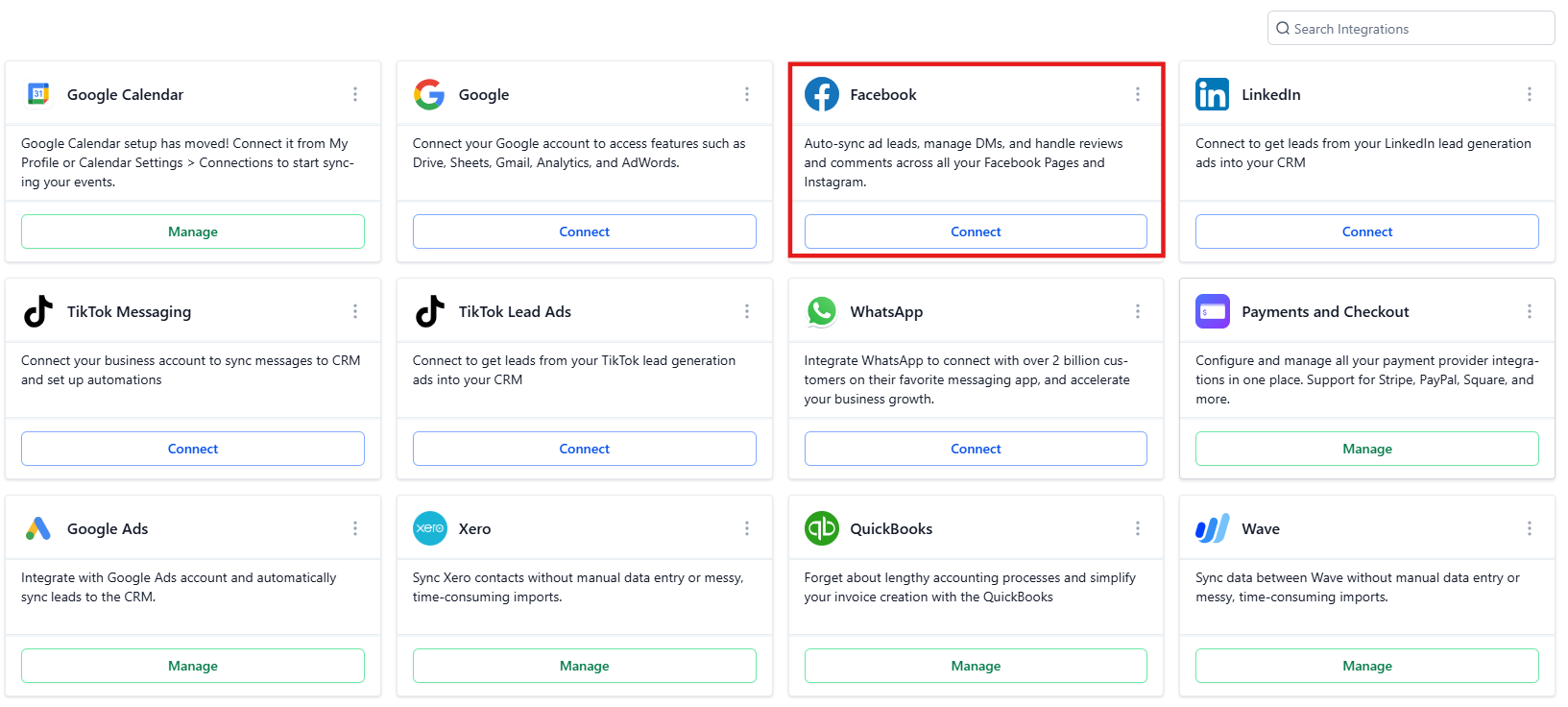
- If the list of forms appears blank , copy the URL from your browser’s address bar and enter incognito mode.
- On the address bar in incognito mode, replace the end of the URL with facebook_page_select and hit Enter.
- Note: If the lead ad campaigns appear in the ‘Facebook Form Fields Mapping’ section, make sure they are mapped and have a tic status on it. Otherwise, edit them to set the mapping, and save them to set their status to active.

- This will bring up the page selection dialog. Re-select your Facebook page and click Connect.
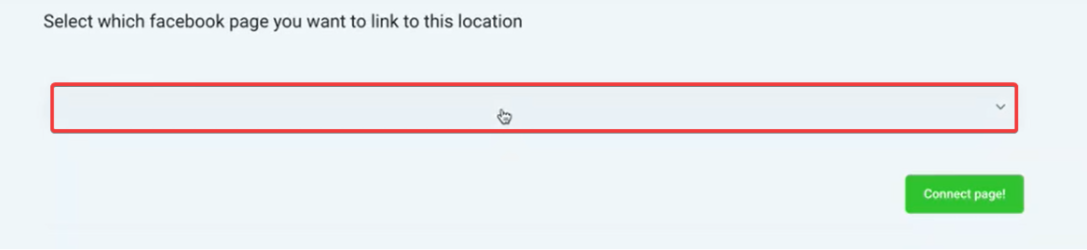
- Once it’s done loading, go back to Facebook form fields mapping and refresh the page or toggle it off and on to see if your forms reappear.
2. Address Connection Issues
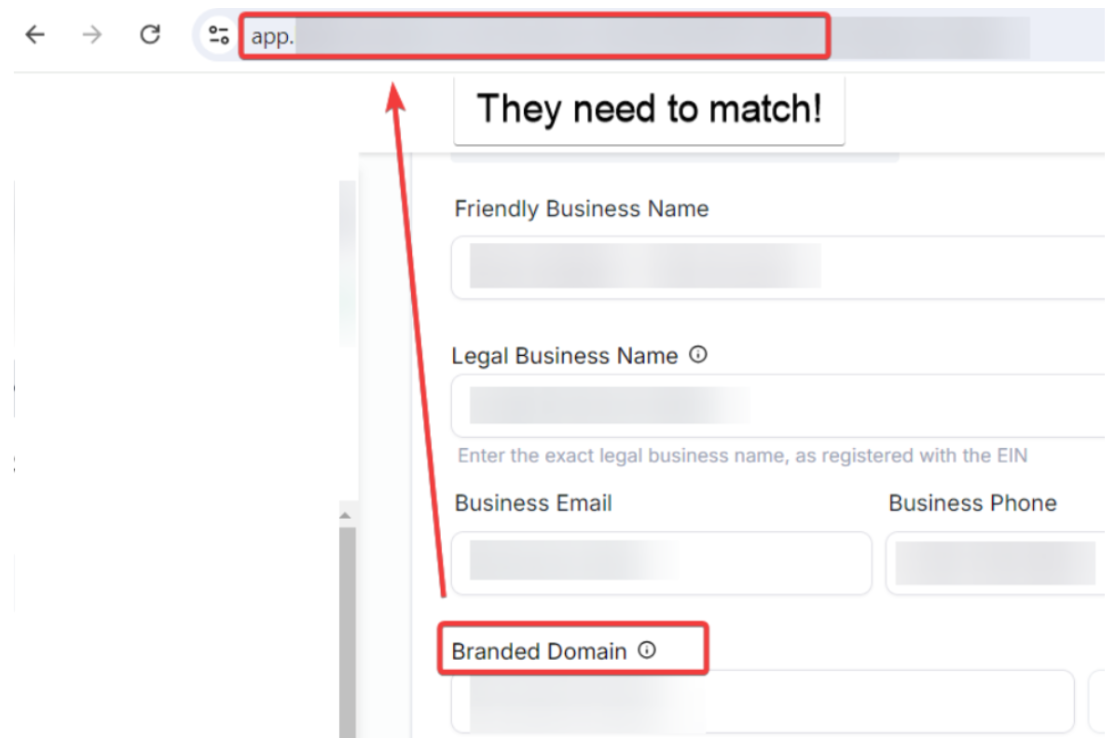
- If you encounter issues connecting your Facebook account or if the connection process keeps spinning, ensure you are logged in under the correct domain.
- Verify that you are logged in under the same domain that you have set in your Business Profile inSettings > Business Profile > Branded Domain to ensure the connection page’s proper functionality.
3. Verify Lead Data
- Visit the Facebook Lead Ads Testing Tool here** _ _**

- Select your Facebook page and the relevant form from the options available.
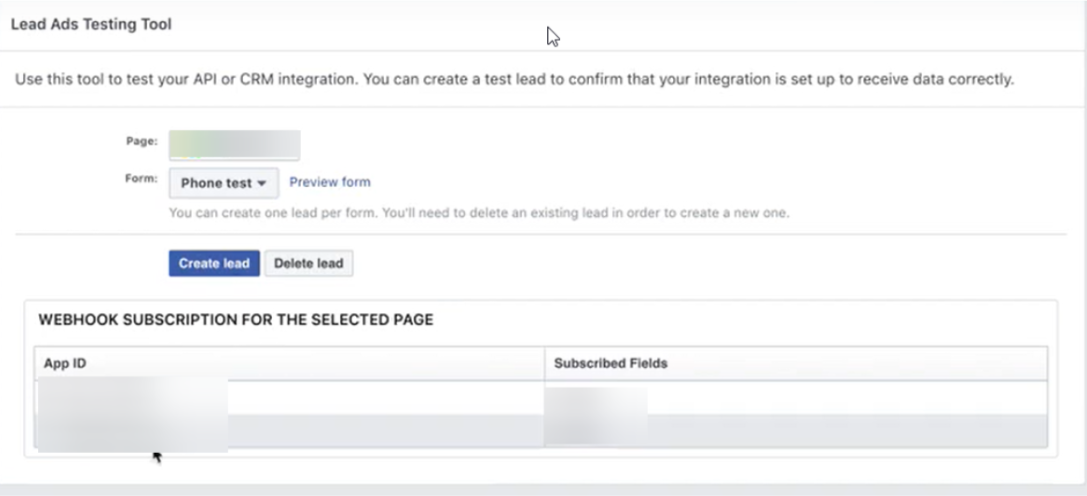
- Check the app IDs listed to ensure that LeadMagicX app is connected properly.
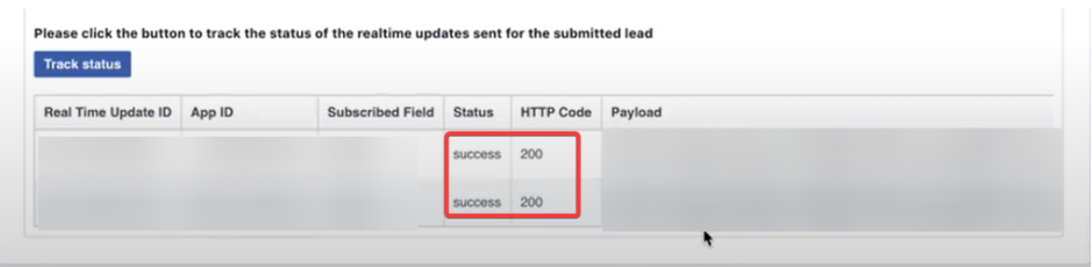
- Create a test lead and verify the payload’s status. Ensure you see a success (200) status without error codes.
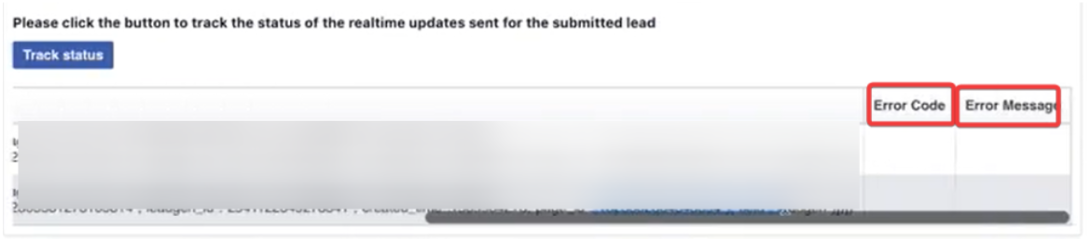
- If errors are present, such as permissions being removed, you may need to re-add the app in Facebook Business Manager.
¶ ****
¶ FAQ’s
Question: Why are my Facebook forms not appearing in the LeadMagicX?**
**Answer: This may be due to a connection issue. To refresh the connection, try re-selecting your Facebook page using the provided URL.
Question: What should I do if the connection page keeps spinning?**
**Answer: Ensure you are logged in under the applicable domain. Also, check for any browser or network issues that might affect connectivity.
Question: How can I test if my lead ads are working correctly?**
**Answer: Use the Facebook Lead Ads Testing Tool to create test leads and verify the payload status for successful integration.
Question: What if my test leads are not showing up in the LeadMagicX?**
**Answer: Check the app ID and permissions in the Facebook Business Manager. If necessary, re-add the app and ensure all permissions are correctly set.
Question: How can I avoid having issues with Facebook Lead Ads in the future?**
**Answer: Verify connections, permissions, and test lead forms regularly to ensure everything is functioning correctly. Keeping your system updated and monitoring for issues will help maintain smooth operation.
Question: How can I fix incorrect or missing form field mappings in Facebook Lead Ads?**
**Answer: If the form field mappings are incorrect or missing, go to the Facebook form field mapping section in LeadMagicX, ensure that the forms are mapped, and set their status to active. If the forms don’t appear, follow the troubleshooting steps to refresh the connection and re-select your Facebook page.
Question: What should I do if the Facebook forms are not mapped correctly in LeadMagicX?**
**Answer: To fix incorrect or missing form field mappings, go to the Facebook form field mapping section in LeadMagicX, ensure that the forms are mapped correctly, and set their status to active. If the forms don’t appear, follow the troubleshooting steps to refresh the connection and re-select your Facebook page.
Question: How can I prevent future issues with Facebook Lead Ads integration?**
**Answer: Regularly verify connections, test lead forms, and ensure app permissions are correctly set. Monitoring for updates and testing periodically will help maintain smooth operation.
Question: How can I verify the technical “payload status” of my Facebook leads?
Answer: Use the Facebook Lead Ads Testing Tool to create a test lead and check for a “success (200)” status. If you see error codes instead, the connection is not working properly.