This guide helps you identify and resolve common errors that potentially occur when importing files into your system. Each issue also has its practical solution to ensure smooth imports and accurate data management. Follow the outlined steps to troubleshoot and fix these errors, streamlining your import process for greater efficiency.
Answer:**
**To resolve this error:
1. Check Your Import File:**
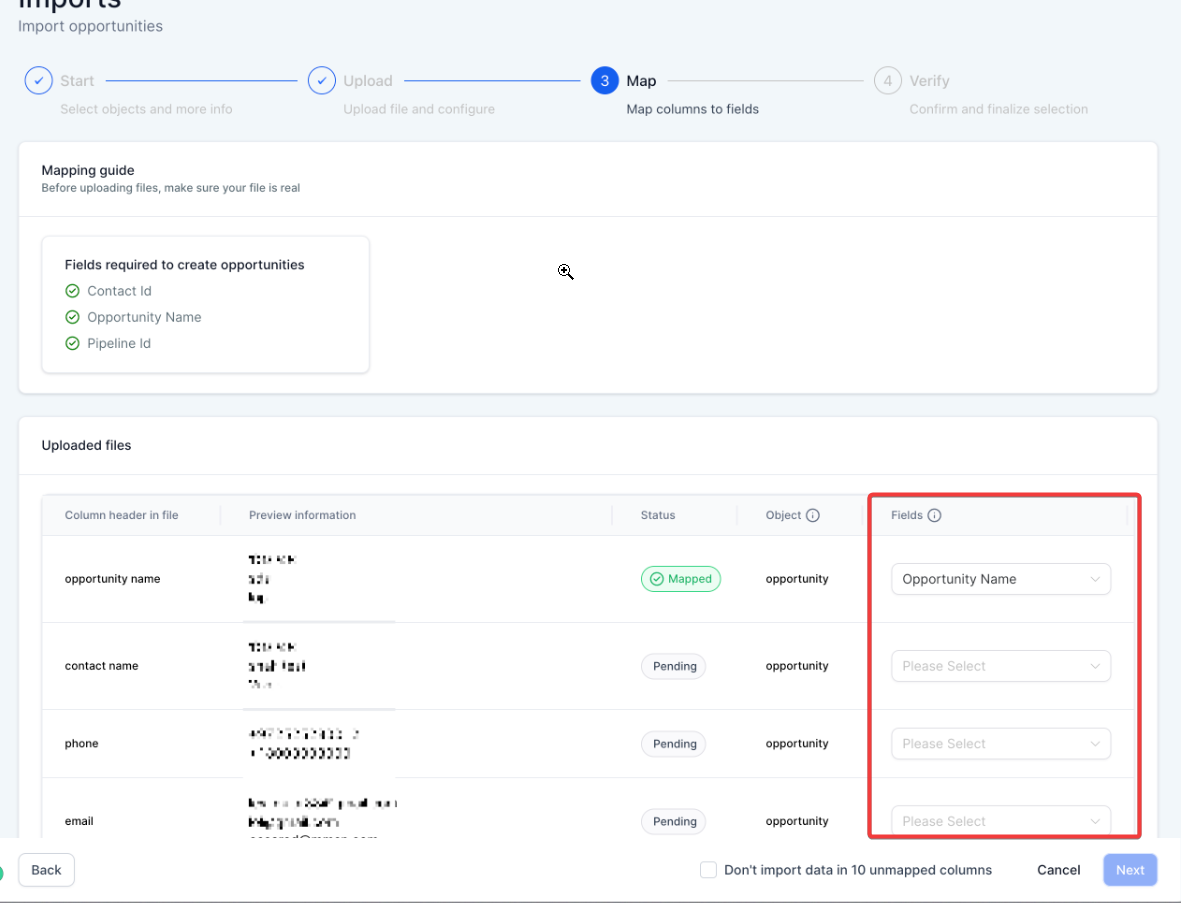
**Open the import file and review the values in the multi-select or dropdown fields.
2. Verify Options:**
**Ensure that the values match the options available in the system. If you find any mismatched options, either update them to match existing choices or add them as custom options in your system.
3. Re-import the File:**
**Once the values are corrected, save your file and re-upload it for import.
Tip:**
**Always double-check that the data in your import file aligns with the predefined values in your system to avoid mismatches.
Answer:**
**To fix this error:
1. Check the Contact ID:**
**Verify that the Contact ID in the file exists within the system. If it doesn’t, the system will flag it as invalid.

2. Remove the Contact ID:**
**If you are not updating an existing contact, remove the Contact ID from the import file.
3. Re-import:**
**After correcting or removing the Contact ID, save your changes and try re-importing the file.
Tip:**
**Ensure that you are only updating existing contacts with valid Contact IDs to avoid this error.
Answer:**
**To resolve this error:
Check Date Fields:**
**Open the import file and review all date fields.
Ensure Correct Format:**
**Confirm that the dates are in one of the accepted formats:
Re-upload the File:**
**After correcting the date formats, save the file and re-import it.
Tip:**
**Be consistent with the date format used throughout the file to avoid parsing errors.
Answer:**
**To fix this error:
Tip:**
**Always ensure unique fields contain no repeated values before importing to prevent this error.
Answer:**
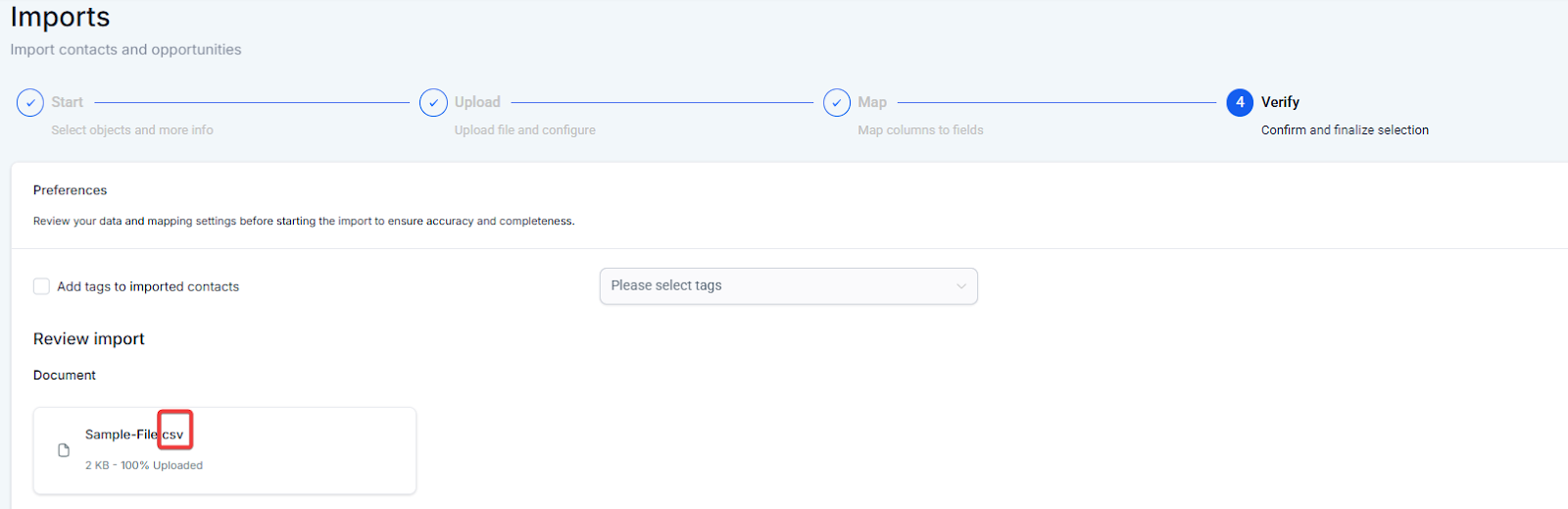
**To resolve this error:
Tip:**
**Ensure your file is in the correct format before uploading to avoid this error.
Answer:**
**To fix this error:
Tip:**
**Ensure all mandatory fields are populated before initiating the import to prevent errors.
Question: Why are some contacts skipped during the import process?
Answer: Contacts are usually skipped if they are missing a “Primary Key” like an Email Address or Phone Number. The system requires at least one unique identifier to create a contact record.
Fix: Check your file for empty rows or missing email/phone fields and ensure the column headers are correctly mapped to the system fields.