¶ Workflow Guide: Using a Query String in Trigger Links
Query strings are powerful tools for transferring data within URLs, offering a streamlined means to convey information across web applications and platforms. Leveraging query strings facilitates data transmission within a URL and enables seamless information exchange during redirects, such as in forms.
¶ Navigation
Employing query strings within trigger links streamlines the process of passing essential information to forms efficiently. To integrate query strings effectively, follow these straightforward steps:
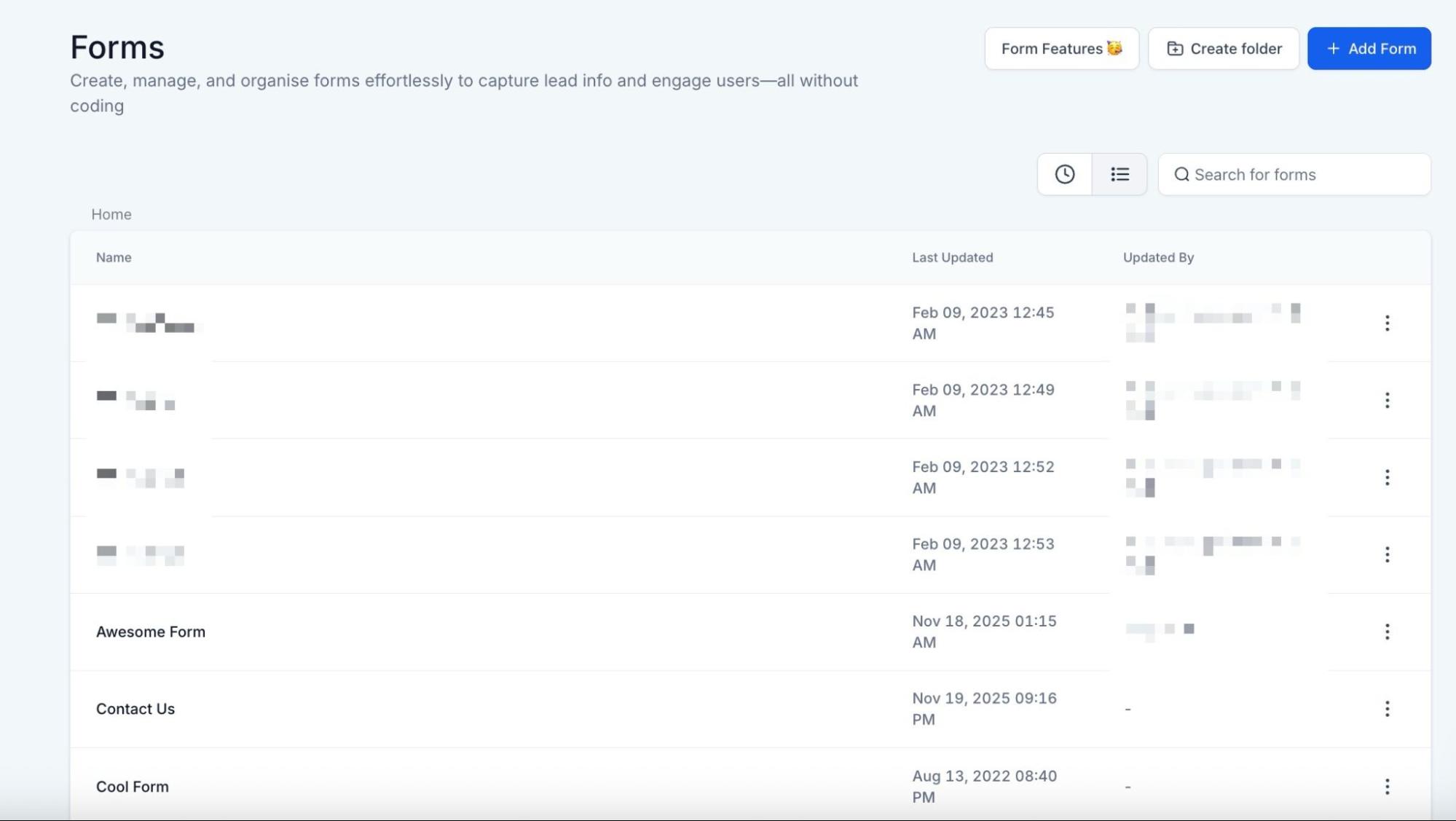
Navigate to the Appropriate Form: Access the desired form within the sites tab.
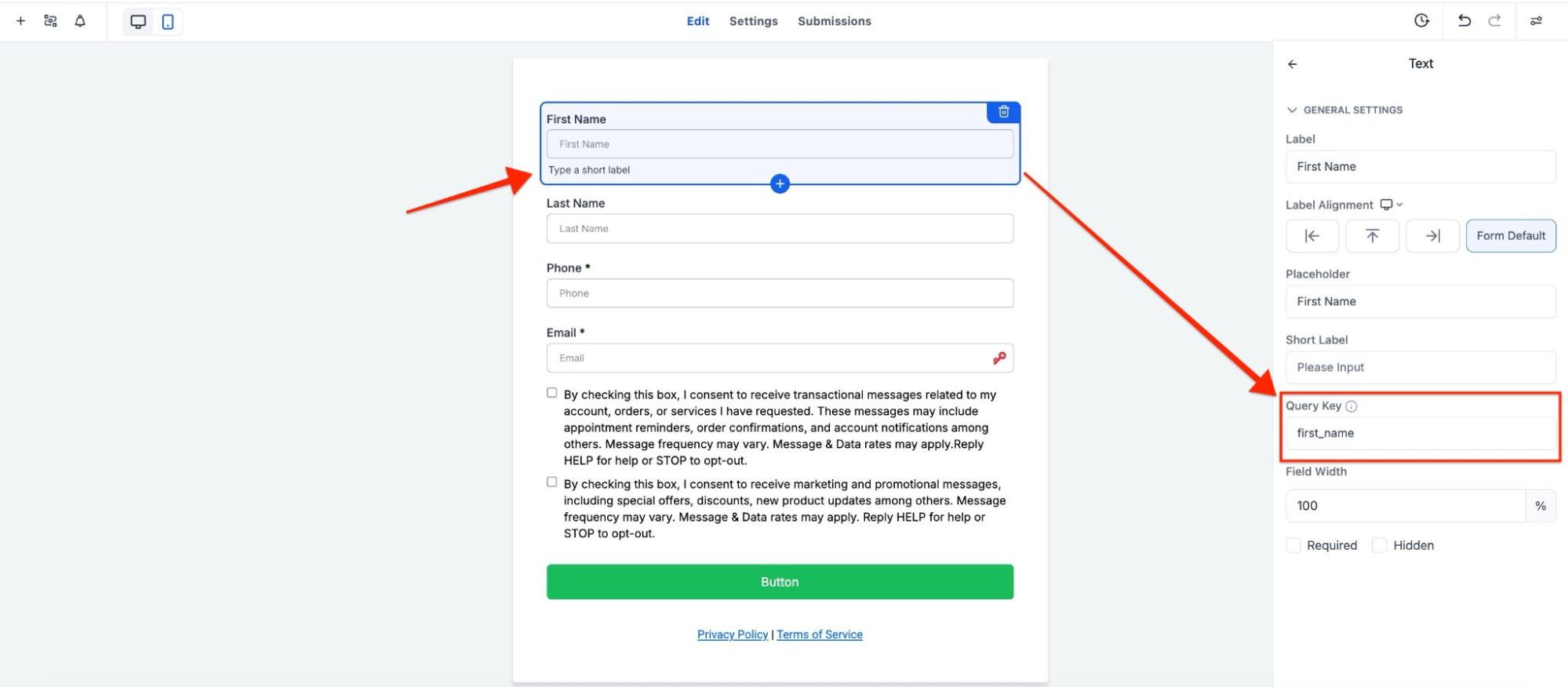
Select Fields for Data Transfer: Identify the fields whose information you intend to pass. Click on each field to access the Query String option within the right-side menu. Repeat this step for all pertinent fields. Eg, for the contact’s first name:
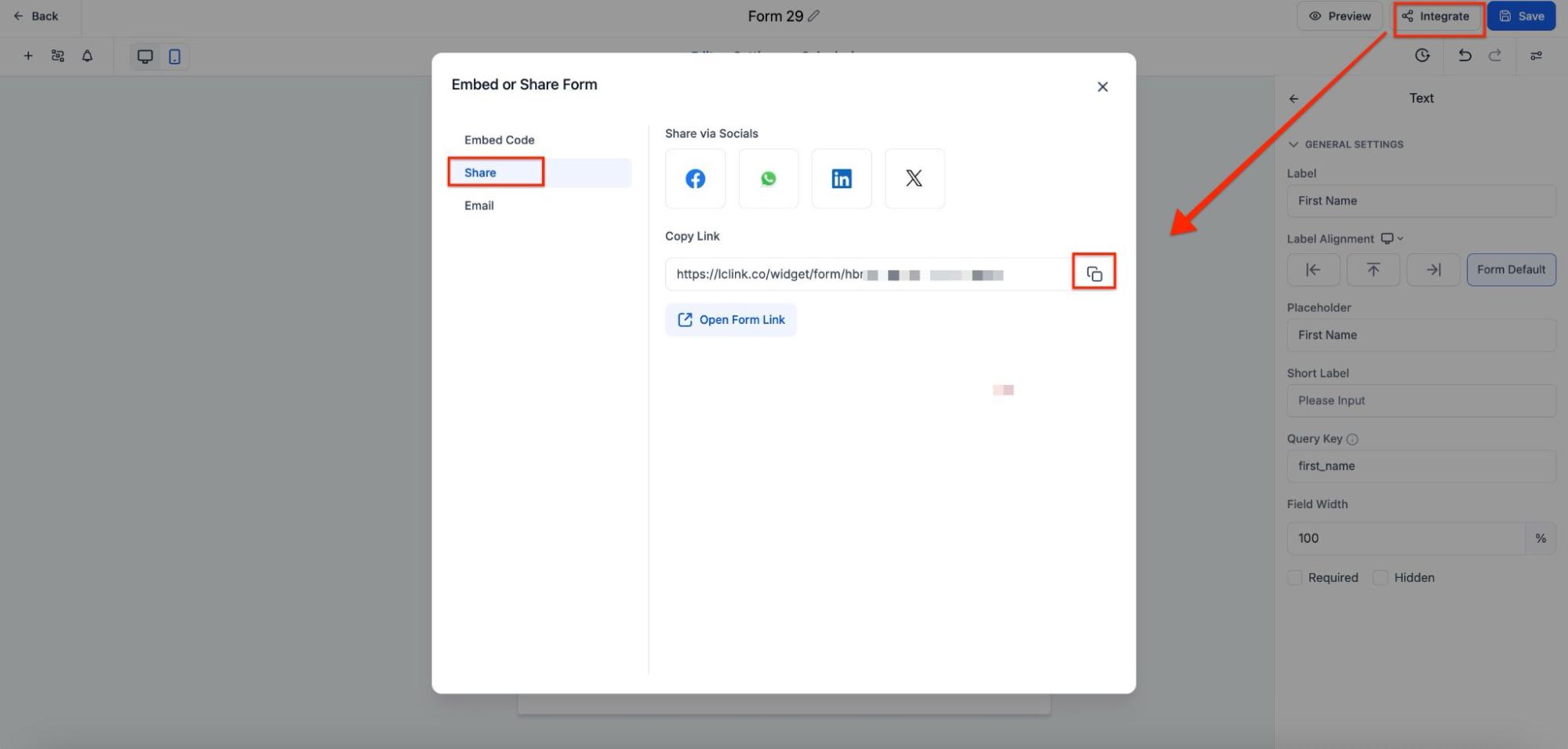
Retrieve Form URL: Proceed to click on the “Integrate” button located at the top of the form interface to acquire the form’s URL.
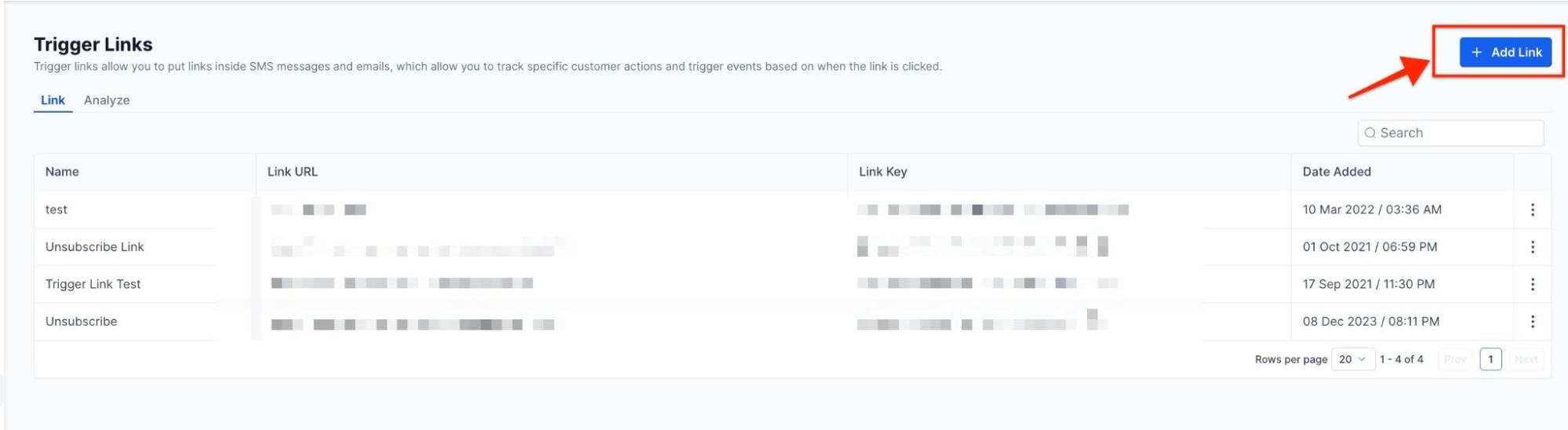
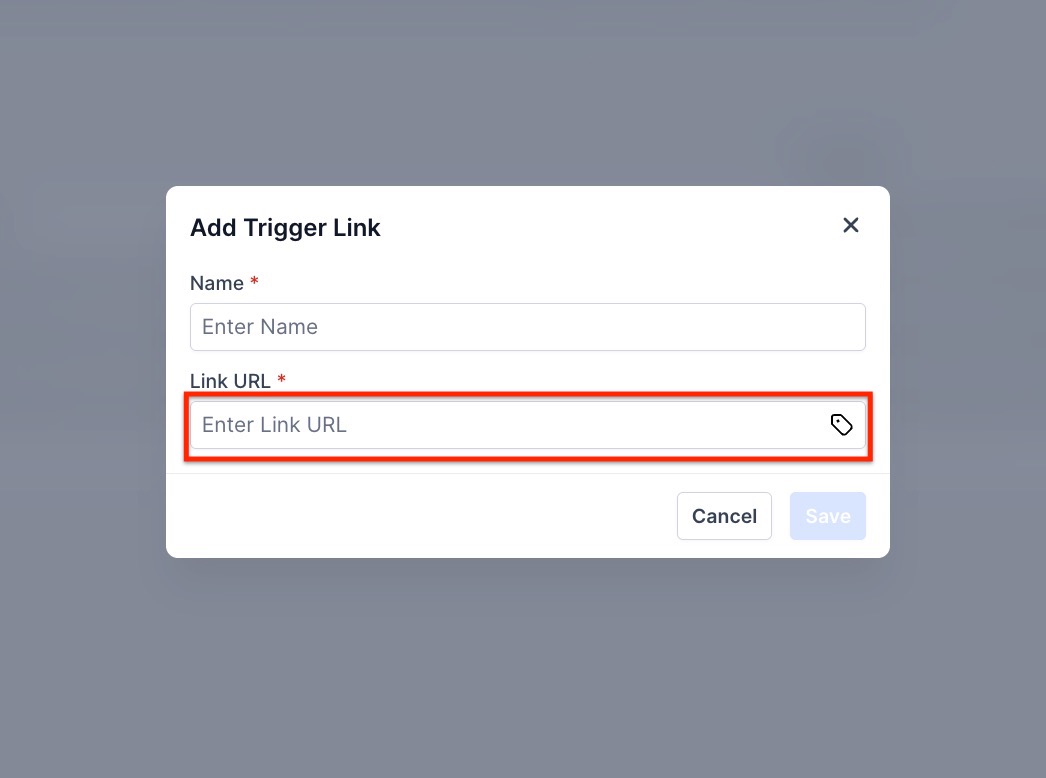
Incorporate Trigger Links: Head to the Marketing tab, then select Trigger Links to create a new one. Paste the previously obtained form URL into the designated area.
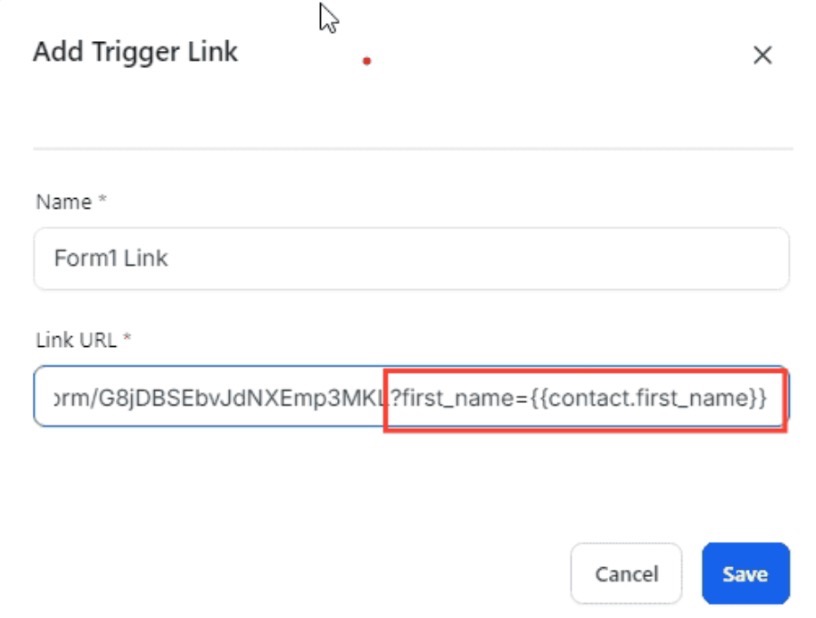
Configure Query String Parameters: Customize the trigger link by appending query string parameters for each field to the form’s link. For instance, to pass the contact’s first name, incorporate the query string retrieved from the form followed by the desired value to the end of the form’s link in the trigger link. Syntax: ?first_name={{contact.first_name}}. To include additional fields, use the ‘&’ symbol to separate each parameter, maintaining the same syntax.
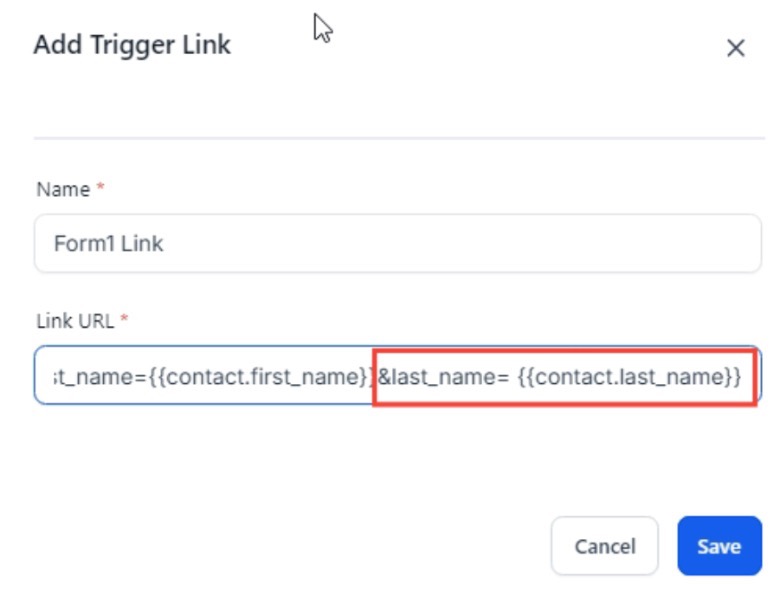
Complete Configuration: Finalize the trigger link setup by accurately including query string parameters for all desired fields. eg. If you want to pass the last name field as well, you will need to add & and follow the same syntax
Streamlining Data Transmission with a Simple Syntax
Adhering to a straightforward syntax ensures the seamless integration of query strings within URLs. Follow these guidelines to incorporate query strings effectively:
- Initiate with ‘?’: Commence the query string by adding a ‘?’ symbol at the end of the URL link.
- Specify Parameters: Paste the query string obtained from the form’s field, followed by the ‘=’ symbol and the custom value of the field.
- Multiple Parameters: For passing multiple fields, use the ‘&’ symbol instead of the ‘?’ symbol, to separate each parameter, maintaining the prescribed syntax.
By using query strings, you can make navigating the web a whole lot easier and faster, especially when it comes to filling out forms.
Note: Query String will pass the information of only existing contacts, if you’re sending the trigger link to a client whose contact is not created in your account, it will not pass any information. It fetches information from the existing contacts.
¶ FAQ’s
Question: What are query strings, and why are they important?
Answer: Query strings are tools used for transferring data within URLs, allowing seamless transmission of information across web applications and platforms. They are especially useful for passing data to forms during redirects, streamlining the process of information exchange, and enhancing user interactions on websites.
Question: How can I integrate query strings with forms?
Answer: To integrate query strings with forms:
- Step 1: Access the desired form within the Sites tab under Forms.
- Step 2: Select the fields whose data you want to pass and click on each field to access the Query String option in the right-side menu.
- Step 3: Retrieve the form’s URL by clicking on the “Integrate” button at the top of the form interface.
- Step 4: Create a new trigger link in the Marketing tab under Trigger Links and paste the form URL.
- Step 5: Append query string parameters for each field by using the syntax: ?field_name={{contact.field_name}}. For additional fields, use the ‘&’ symbol to separate parameters.
Question: What syntax should I use for query strings in URLs?
Answer: To effectively use query strings:
- Initiate with ‘?’: Start the query string by adding ‘?’ at the end of the URL link.
- Specify Parameters: Include the query string obtained from the form’s field, followed by ‘=’ and the value to be passed.
- Multiple Parameters: For multiple fields, use ‘&’ to separate each parameter, maintaining the syntax.
Question: Can I use query strings to pass multiple data fields in one URL?
Answer: Yes, you can pass multiple data fields using query strings by separating each parameter with the ‘&’ symbol. For example, to pass both the first and last names, your URL would look like this: ?first_name={{contact.first_name}}&last_name={{contact.last_name}}.
Question: Will query strings work for new contacts that are not in my account?
Answer: No, query strings only work for existing contacts. If you send the trigger link to a client whose contact is not created in your account, the query string will not pass any information. It fetches data solely from existing contacts in your system.
Question: How do I add a query string to a trigger link?
Answer: To add a query string to a trigger link:
- Step 1: Obtain the form’s URL from the form interface.
- Step 2: Create a new trigger link under the Marketing tab and paste the form URL.
- Step 3: Append the query string parameters (e.g., ?first_name={{contact.first_name}}) to the URL, ensuring you separate each parameter with the ‘&’ symbol if multiple fields are included.
Question: What are some common use cases for query strings?
Answer: Query strings are commonly used for:
- Passing contact information to forms, making form-filling faster and more personalized.
- Tracking source data across landing pages.
- Pre-filling fields in forms based on existing data, enhancing user experience, and reducing manual input errors.
Question: How do I know which fields I can pass with query strings?
Answer: When configuring query strings, you can pass any field that has been set up within the form. By accessing each field in the form’s settings, you will see the available query string options that you can incorporate into the URL.
Question: Why is it important to adhere to proper query string syntax?
Answer: Adhering to the correct syntax for query strings ensures that the data is passed accurately and that URLs function as intended. Incorrect syntax can result in errors or failure to transfer data, disrupting the intended workflow.
Question: What should I do if the query string isn’t passing data correctly?
Answer: If the query string isn’t passing data as expected:
- Double-check that the contact exists in your system.
- Verify that the query string syntax is correct, including the use of ‘?’ for the first parameter and ‘&’ for subsequent ones.
- Ensure that the form fields and query strings are properly configured and aligned with the intended data fields.
Question: Is there a limit to how long a URL can be with Query Strings?**
**Answer: While most modern browsers can handle very long URLs (up to 2,000+ characters), it is best practice to only pass necessary information. Passing dozens of fields can make the link look messy and increases the slight risk of the URL being “clipped” in some email mobile apps.
Question: How do I handle multiple fields when building my custom URL?
Answer: To include multiple parameters, you must use the ‘?’ symbol only for the first parameter. For every additional field you wish to pass (such as adding a last name after a first name), you should use the ‘&’ symbol to separate them.