¶ Watermark Posts in the Social Planner
Watermark Posts in the Social Planner
Watermarking your social media images protects your brand and ensures consistent recognition across various platforms. Adding a watermark can safeguard your content from being used without proper credit and enhance your brand visibility whenever your images are shared. This guide will show you how to easily add watermarks to your social media images using the social media planner.
¶ Step-by-Step Guide to Creating a Watermark
¶ How to Use
1. Access the Social Media Planner:
- Navigate to the marketing section on the left side of your dashboard.
- Click on the social media planner at the top.
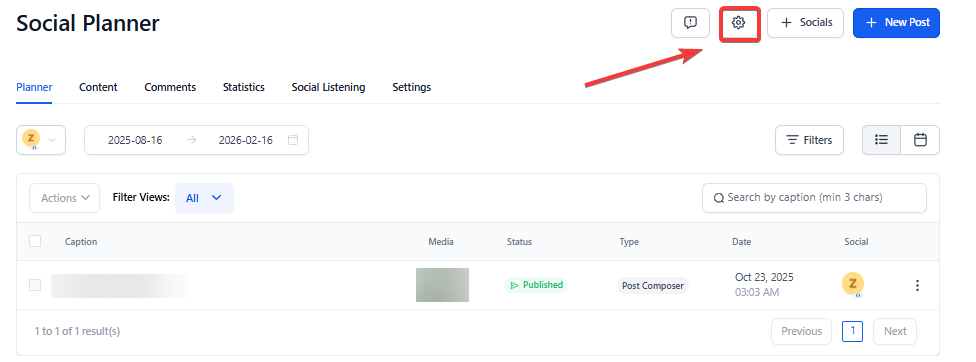
- Click on the gear icon for settings and then click on watermark.
2. Create a Watermark:
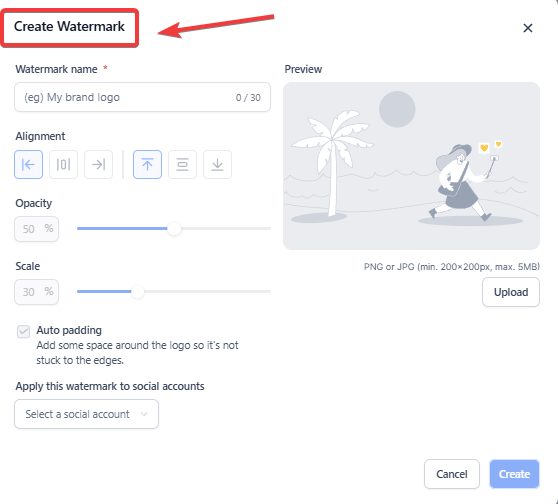
- Click “Add Watermark” and enter a name for your watermark (e.g., “Flower”).
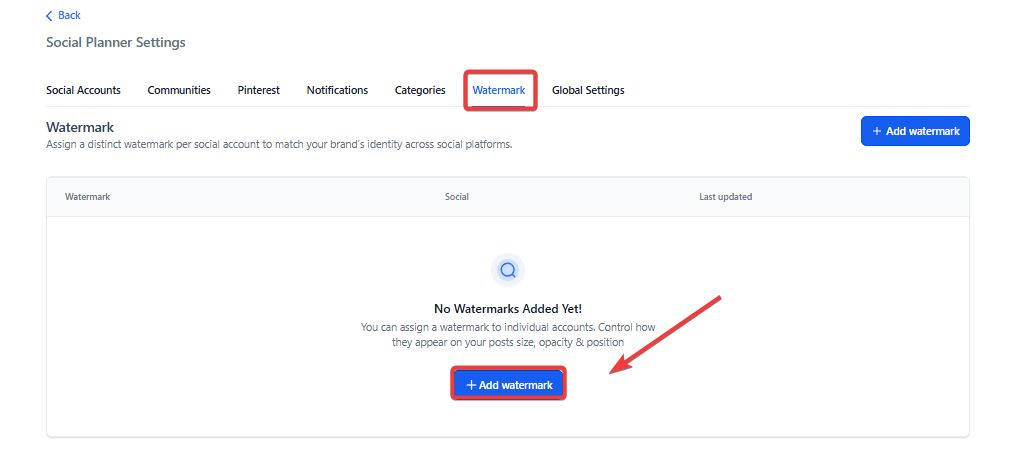
- Upload your watermark image (ensure it is 200x200 pixels for best results).
3. Adjust Watermark Settings:
- Choose the alignment for your watermark (e.g., top left corner).
- Set the opacity to control the transparency of the watermark.
- Adjust the scale to change the size of the watermark.
- Toggle auto padding on or off to control the spacing around the watermark.
4. Apply the Watermark to Your Posts:
- Go to your social account and create a new post.
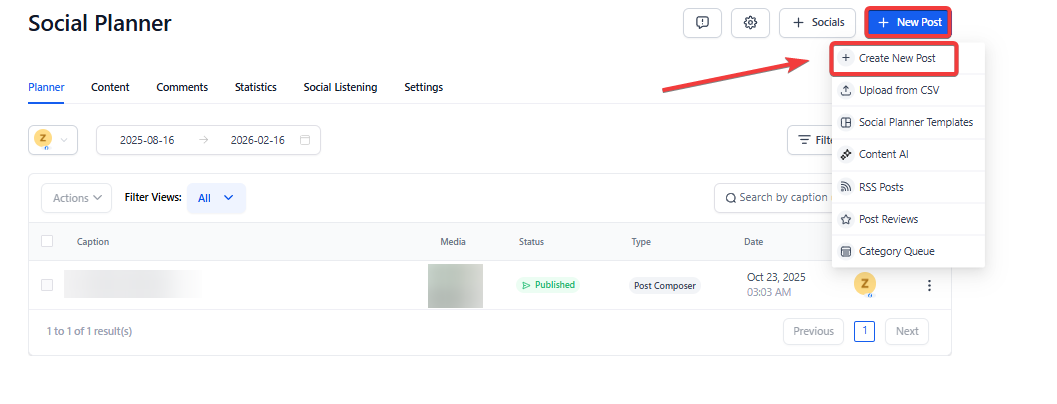
- In the advanced options, toggle the watermark feature on or off.

- Note that the watermark is turned on by default, and you have the option to turn it off. The watermark is applied to all social media accounts and works for images and videos. Currently, we only support one watermark.
¶ Why Watermarking is Essential for Brand Protection
Watermarking your images offers several key benefits:
- Brand Protection: It helps protect your content from unauthorized use by marking it with your logo or brand identifier.
- Brand Awareness: Watermarks increase brand visibility and awareness whenever your images are reposted or shared.
- Copyright Protection: A watermark signifies ownership, helping to safeguard your intellectual property.
- Consistent Brand Recognition: Regular use of watermarks can help establish a consistent brand presence across all social media channels.
¶ Exploring the Social Media Planner’s Watermarking Features
The social media planner includes various options for watermarking your images:
- Customization Options: Include your website URL, social media handle, campaign hashtags, or logo in the watermark.
- Alignment and Positioning: You can adjust the position of the watermark to fit your image perfectly, choosing from the top left, top right, center, and more.
- Opacity and Scale: Modify the opacity and size of the watermark to ensure it complements your image without overpowering it.
- Auto Padding: Control the space between the watermark and the edges of your image.
¶ FAQs
Question: What is the purpose of watermarking my social media images?
Answer: Watermarking your social media images helps protect your brand from unauthorized use, increases brand visibility, and ensures consistent recognition across various platforms. It also signifies ownership, safeguarding your intellectual property.
Question: How do I create a watermark in the social media planner?
Answer: To create a watermark, navigate to the marketing section of your dashboard, select the social media planner, click on the settings icon, and find the watermark section. Click “Add Watermark,” name your watermark, upload your image (preferably 200x200 pixels), and adjust settings such as alignment, opacity, scale, and auto padding.
Question: Can I adjust the position and appearance of my watermark?
Answer: Yes, the social media planner allows you to customize the alignment, opacity, and scale of your watermark. You can position it in the top left, top right, center, and other locations on the image. Additionally, you can adjust the opacity to control transparency and the scale to modify the size.
Question: Will the watermark be applied to all my social media posts automatically?
Answer: Yes, the watermark will be applied to all your social media posts by default. You can toggle the watermark feature on or off in the advanced options when creating a new post. Currently, only one watermark can be used across all social media accounts.
Question: What types of content can I watermark using the social media planner?
Answer: The social media planner supports watermarking for both images and videos. This allows you to consistently apply your brand mark across various types of content, ensuring that your branding remains visible and protected.
Question: Can I use different watermarks for different posts or accounts?
Answer: Currently, the social media planner supports only one watermark for all posts and accounts. The same watermark will be applied across all your social media channels, maintaining uniformity in your branding.
Question: What are the recommended dimensions for the watermark image?
Answer: For the best results, it is recommended to use a watermark image with dimensions of 200x200 pixels. This ensures that the watermark is clear and properly scaled when applied to your posts.
Question: What customization options are available for watermarks?
Answer: The social media planner allows you to include your logo, website URL, social media handle, or campaign hashtags in the watermark. You can also adjust its alignment, scale, opacity, and auto padding to fit your image perfectly without overpowering it.
Question: Can I turn off the watermark for specific posts?
Answer: Yes, you can turn off the watermark for specific posts by toggling the watermark feature off in the advanced options while creating a new post. This gives you flexibility in deciding which content to watermark.
Question: Why is watermarking essential for brand protection?
Answer: Watermarking is essential for brand protection as it prevents unauthorized use of your images, enhances brand visibility, and ensures that your content is always associated with your brand. It also serves as a visual cue for ownership, helping to protect your intellectual property across social media platforms.
Question: Can I replace my existing watermark with a new one?
Answer: Yes, you can update your watermark at any time by uploading a new image in the watermark settings. The new watermark will automatically apply to future posts.
Question: Does the watermark work on all social media platforms?
Answer: The watermark is applied to all connected social media accounts via the planner, ensuring consistent branding across platforms.
Question: What if I want some posts without a watermark?
Answer: You can toggle off the watermark in the advanced options when creating individual posts.
Question: Can I change the color of my watermark within the Social Media Planner?
Answer: No. The planner applies the image exactly as you uploaded it. If you need a white watermark for dark images and a dark watermark for light images, we recommend creating a neutral-colored logo or one with a slight “drop shadow” in a design tool before uploading it to LeadMagicX.